


Who can do this: Every role that can open the event's "Auctions" tab can open the room screen. The screen itself needs no sign-in, so it runs on any computer connected to the projector.
Quick steps: Events › Events › the event › "Auctions" tab › "Live" › "Room screen". Move the new tab to the projector and make it full screen.
Before you start
- Auctions must be turned on for the event. See Add auction items, sections and close times.
- Connect a computer to the projector or TV, with a web browser and an internet connection.
- Choose how the screen names givers, "Dana R." or "#12". See Set paddle raise levels and auction payment settings.
- For a goal bar on the screen, the event needs a "Fundraising Goal (Optional)" and "Show supporters a progress bar" turned on in its settings. See Edit, clone, archive or delete an event.
- A paddle raise is when the auctioneer calls out an amount and guests raise their bidder number to give it.
- The room screen shows the total raised, a QR code guests scan to bid from their phones, the paddle raise as it happens, and the givers thanked by name.
Open the room screen
Page: /forms/auction-display/<eventId>
- On the computer connected to the projector, sign in to Clerestory.
- In the left-hand menu, under "Fundraising", click "Events". Then click "Events" in the list that opens below it.
- In the list of events, click the event's name.
- Click the "Auctions" tab in the row of tabs near the top.
- Click "Live".
- In the "Auction night" box, click "Room screen". It has a small arrow-out-of-a-box icon. The room screen opens in a new browser tab.
- You'll see "Together tonight, we've raised" and a large total, with a QR code on the right. That means it worked.
- Drag the browser window onto the projector's screen.
- Make the browser full screen. On Windows, press F11. On a Mac, press Control, Command and F together.


The screen fits itself to any size of display. Nothing on it needs clicking during the night.
You can also open it from the auction night screen: click "Room screen" at the top right, next to the stations.
What the room screen shows
The screen changes by itself as the night goes on. It shows one of these at a time:
- The total. "Together tonight, we've raised" with the total in whole dollars. With a goal, a bar reads "Only $… to go — help us hit $…", then "We hit our goal" once you pass it. Below are cards for the paddle raise, the "Most wanted" item ("can you top it?") and "Silent auction closes" with a countdown for each section. Givers are thanked by name along the bottom. The paddle raise card shows a level, for example "$5,000 Sponsor a concert", with "Be the first paddle up" until someone gives at it. Once silent bidding has closed, the "Most wanted" and "Silent auction closes" cards no longer show.
- A big gift. A large new paddle raise gift fills the screen for a few seconds with "Thank you, …" and the amount.
- The paddle raise. While gifts are being recorded at one amount, the screen shows "Raise your paddle for" that amount, how many "paddles up so far", and who.
- Last call. In a section's last minutes, the screen shows "Last call", "… closes in" with a countdown, and "Still up for grabs": the items with the fewest bids.
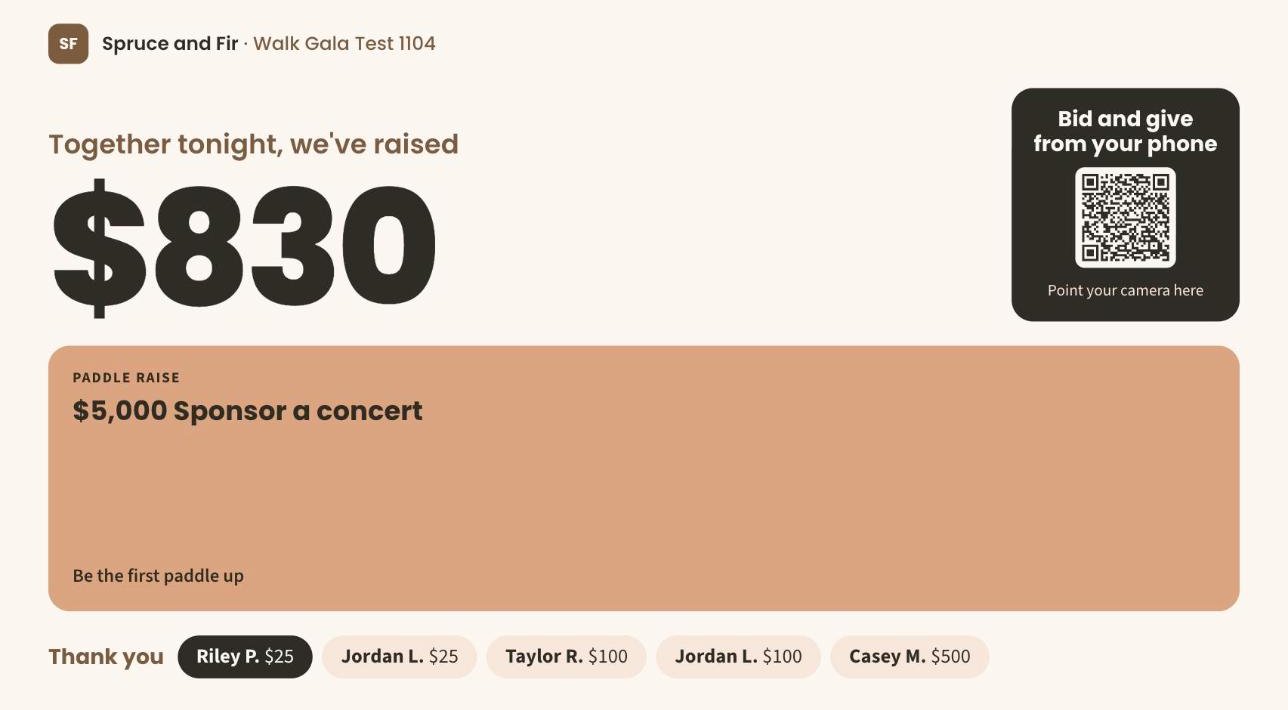
The QR code takes guests to a page where they get their bidding link by email. See What a guest does: get a bidding link, bid by phone, give and pay.
The words above the QR code follow your phone settings, for example "Bid and give from your phone" or "See your bids".
What the labels mean
- "Bidding is open": shown at the top right while silent items are taking bids.
- "Most wanted": the silent item with the most bidding.
- "Thank you": the latest paddle raise gifts and live item sales, with each giver named as you chose in "Room screen shows givers as".
- Amounts are whole dollars. The total raised rounds down.
Special cases
- "Loading the auction…": the screen is starting. Wait a few seconds.
- "We couldn't reach the auction. Check the connection.": the computer is offline. Check its internet connection, then click "Try again".
- "Reconnecting… the figures below may be out of date.": the connection dropped for a moment. The screen keeps trying by itself.
- "There is no auction running for this event.": the link is for an event with no auction. Check that auctions are turned on, and that you opened the right event.
- "This auction is not accepting bids yet.": your organization's payment account isn't ready to take payments. See Add a payment account, connect Stripe and set your payout schedule.
- No goal bar: the event has no fundraising goal, or "Show supporters a progress bar" is off.
If you make a mistake
- Closing the tab doesn't change anything. Open it again with "Room screen".
- The screen shows only what is recorded. If a total looks wrong, fix the gift or sale where it was recorded, for example on the Auctioneer screen. See Run the live auction and paddle raise.