


Who can do this: Owner, Administrator and Programs. Front desk, Finance, Fundraiser and Viewer can open the items list but can't add or change anything.
Quick steps: Events › Events › the event › "Auctions" tab › "Before" › "Items" › "Add item" › fill in the form › "Add item".
Before you start
- You need the Owner, Administrator or Programs role.
- The event must already exist. Set its start date and time too: the close-time warnings compare against it. See Create an event and tickets.
- For each item, have ready: its name, a short description, what it is worth, the opening bid and (for silent items) how much each bid goes up by.
- A photo of each item is optional. It can be a PNG, JPG, WEBP or GIF, up to 5MB.
- A silent item is one guests bid on from their phones until it closes. A live item is sold out loud by the auctioneer.
- A section is a group of silent items that close at the same time, for example "Wine" or "Travel".
Turn on auctions for the event
Page: /dashboard/campaigns/<campaignId>?tab=gala
- In the left-hand menu, under "Fundraising", click "Events". Then click "Events" in the list that opens below it.
- In the list of events, click the event's name.
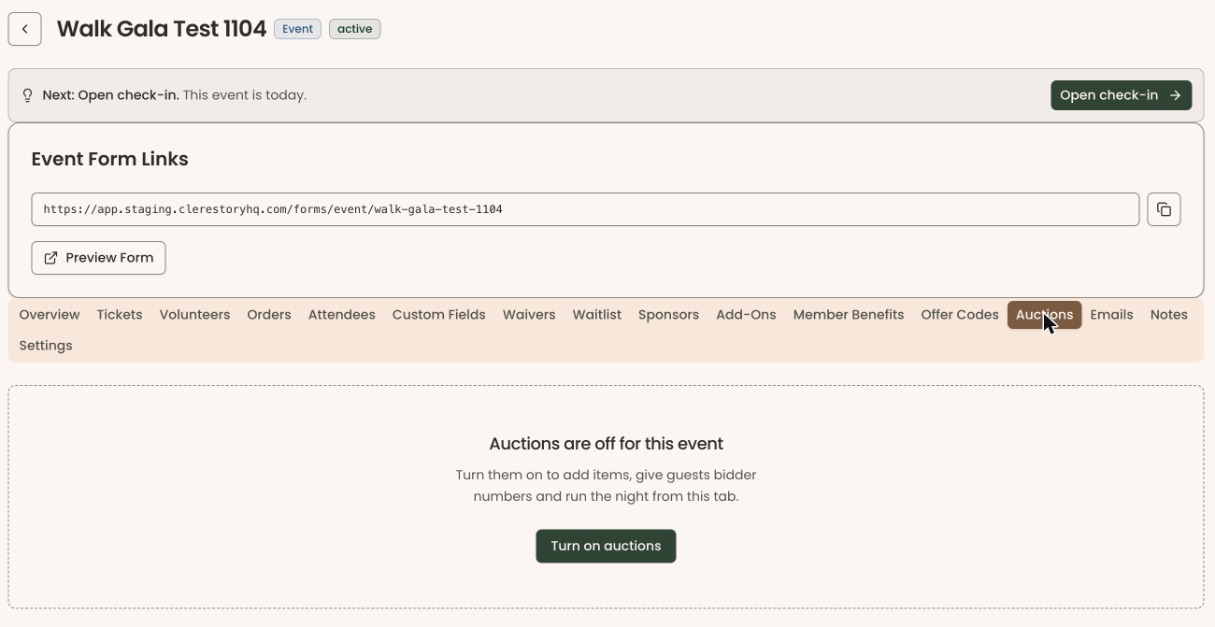
- Click the "Auctions" tab in the row of tabs near the top.
- If you see "Auctions are off for this event", click "Turn on auctions".
- A checklist called "Get ready for the night" appears, with "Before", "Live" and "After" buttons below it. That means it worked. On the day of the event, "Live" (marked "Now") is chosen to start with.
If you see "We couldn't turn on auctions. Try again.", click "Turn on auctions" again.
Set the standard closing time
The standard closing time is when silent items close unless you give them their own time. Set it first, so new items start on it.
Page: /dashboard/campaigns/<campaignId>?tab=gala&area=before&screen=items
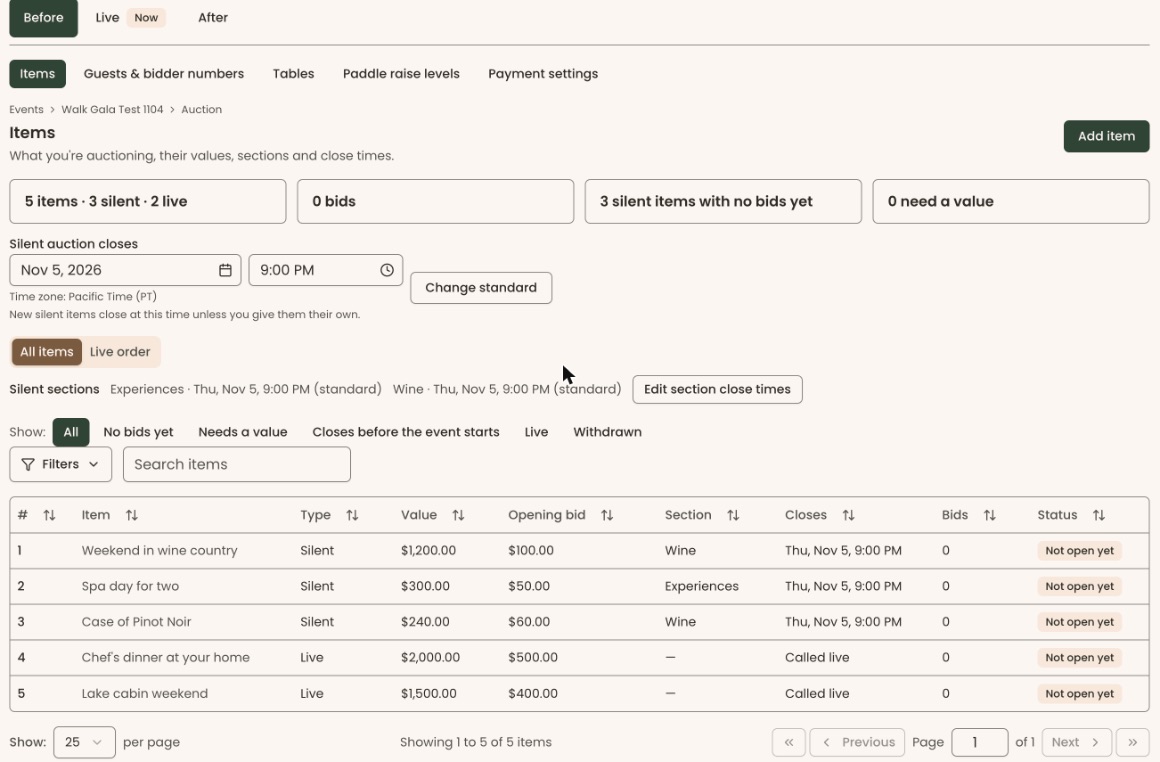
- On the "Auctions" tab, click "Before".
- In the row of buttons that appears, click "Items" (it may already be chosen).
- Find "Silent auction closes", below the four boxes of figures and above the list of items.
- In the date box ("e.g. Sep 24, 2026"), type the date, for example Apr 18, 2026.
- In the time box next to it ("e.g. 7pm"), type the time, for example 9pm.
- Click "Set standard" (it reads "Change standard" once one is set).
- You'll see "Standard close time saved." followed by how many items moved with it, for example "0 items moved with it.". That means it worked.
If the time is before the event starts, the line under it turns red and says "This is before the event starts." Guests could not bid at the event, so choose a later time.
If you see "The standard close time wasn't saved. It must be later than now. Try again.", choose a time later than now.
Add an item
Page: /dashboard/campaigns/<campaignId>?tab=gala&area=before&screen=items
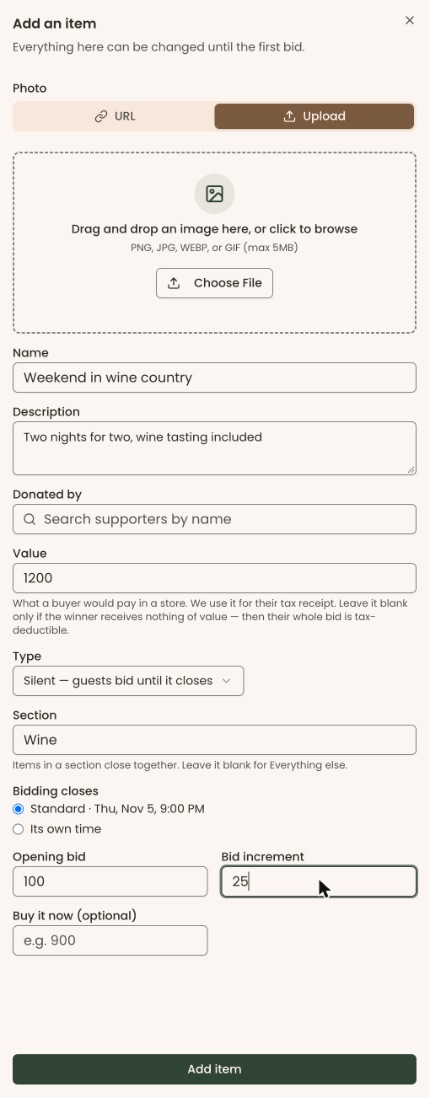
- On the "Items" screen, at the top right, click "Add item". A panel called "Add an item" opens on the right.
- Under "Photo", "Upload" is chosen. Click "Choose File" and pick the photo, or drag it onto the box. You can skip this.
- In "Name", type the item's name, for example "Weekend in wine country".
- In "Description", type a few words about it.
- In "Donated by", type the name of the supporter who gave it, and click their name in the list. You can skip this. A supporter is anyone in your records who has given, joined or registered.
- In "Value", type what it would cost in a store, for example 1200. This goes on the winner's tax receipt.
- Under "Type", click the box and choose "Silent — guests bid until it closes" or "Live — sold by the auctioneer". "Silent" is chosen to start with.
- For a silent item, in "Section", type a section name such as "Wine", or pick one from the list. Leave it blank to put it in "Everything else".
- For a silent item, under "Bidding closes", leave "Standard" selected. To give it a different time, choose "Its own time" and type the date and time.
- In "Opening bid", type the lowest first bid, for example 100.
- For a silent item, in "Bid increment", type how much each bid must go up by, for example 25.
- For a silent item, "Buy it now (optional)" is a price that wins the item at once. Leave it blank if you don't want one.
- For a live item, "How many are there?" is for items you can sell more than once. Leave it blank for no limit.
- At the bottom of the panel, click "Add item".
- The panel closes and the item appears in the list with a number in the "#" column. That means it worked.
If a box turns red, read the message under it:
- "Give the item a name."
- "Enter an amount like 250 or 250.00."
- "A silent item needs a bid increment above zero."
- "Choose when bidding closes."
Set close times for a whole section
Page: /dashboard/campaigns/<campaignId>?tab=gala&area=before&screen=items
- On the "Items" screen, find the line that starts "Silent sections", just above the "Show:" buttons. It shows each section and when it closes. It appears once you have a silent item.
- At the end of that line, click "Edit section close times". A box called "Close times" opens.
- Under each section's name, change the date and time in the two boxes.
- Click "Save".
- You'll see "Close times saved." followed by how many items were updated, for example "1 item updated.". That means it worked.
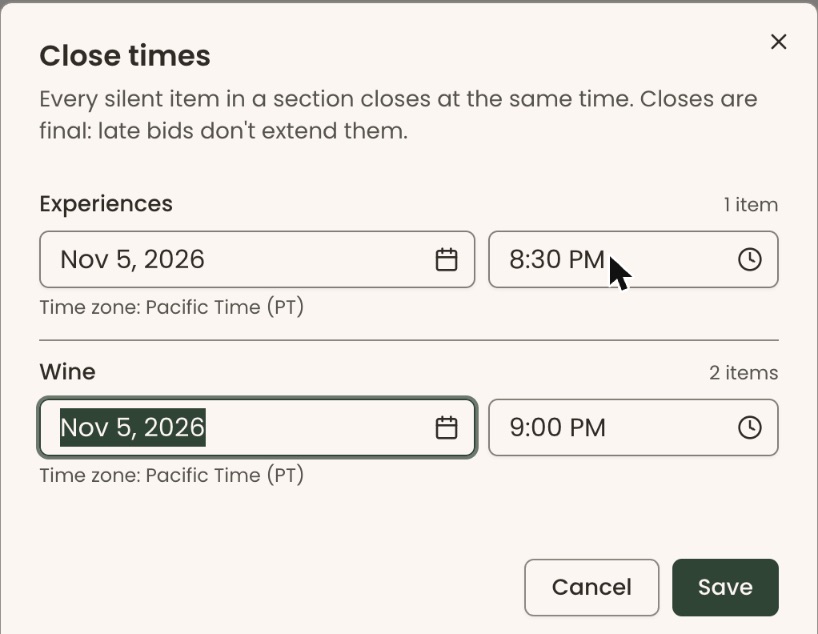
Closes are final: a late bid does not add time. If you see "That close time has already passed. Choose a time later than now.", choose a later time.
Change the order of live items
- On the "Items" screen, click "Live order", next to "All items", just under "Silent auction closes".
- Live items show in the order the auctioneer will call them.
- Click the up arrow at the right of an item to call it earlier, or the down arrow to call it later.

Change or remove an item
- Click anywhere on the item's row. A panel called "Item …:" and the item's name opens on the right.
- Change what you need and click "Save" at the bottom. The panel closes and the list shows the change.
- Once bidding has started on an item, its opening bid, increment and type are locked.
Important: "Delete" removes the item from your catalog and can't be undone. It is offered only while the item has no bids.
- To remove an item, click "Withdraw" (it stays in the list, grayed out) or "Delete" (in red, under "Withdraw"), then "Delete" again in the box that asks "Delete item …?".
Special cases
- "Not set" in red in the "Value" column means the item has no value. Leave the value blank only if the winner gets nothing of value; then their whole bid is tax-deductible.
- A red warning in the "Closes" column means the item closes before the event starts. Change its close time.
- Won items can't be edited. The panel says "Closed — won by #…".
- "Show:" buttons above the list filter it: "No bids yet", "Needs a value", "Closes before the event starts", "Live" and "Withdrawn".
- Opening items for bidding is not done here. See Start and close silent bidding.
If you make a mistake
Open the item and change it, until the first bid. A deleted item can't be brought back in the screens; add it again.