


Who can do this: Owner, Administrator and Programs. Finance, Fundraiser, Front desk and Viewer users can open an event and read its settings. They still see "Edit event" in the list's three dots (⋯) menu, but for them it only opens the event's page. They don't see "Edit" or "Clone" on the "Settings" tab, or "Clone event", "Archive" or "Delete event" in the menu.
Quick steps: Events › Events › the three dots (⋯) at the end of the event's row › "Edit event", "Clone event", "Archive" or "Delete event". To edit: the event › "Settings" tab › "Edit" › change fields › "Save Changes".
Before you start
- You need an Owner, Administrator or Programs login.
- To clone: decide the new event's name, start date and end date.
- To delete: the event must have no money collected and no tickets issued, including free (comp) tickets. Otherwise archive it instead.
- Archiving an event means taking it off sale and marking it "Inactive". Its orders, guests and payments are kept, and you can undo it.
Edit an event
Page: /dashboard/campaigns/<campaignId>?tab=settings
- In the left-hand menu, under "Fundraising", click "Events". Then click "Events" in the list that opens below it.
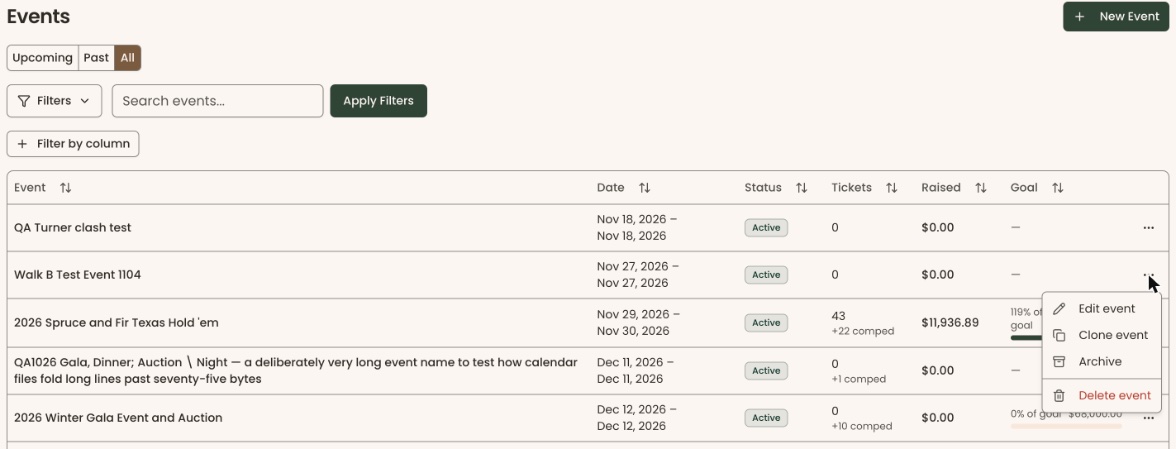
- Above the list, click "Upcoming", "Past" or "All" to find the event.
- Click the event's name.
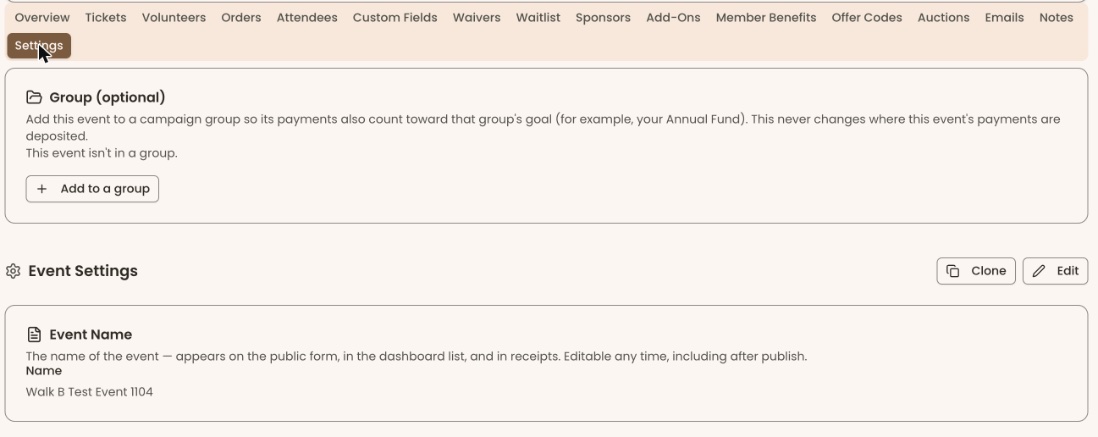
- Click the "Settings" tab in the row of tabs near the top. It is the last tab, and on a smaller screen it sits on a second row.
- Below the "Group (optional)" box, at the right end of the "Event Settings" heading, click "Edit".
- Change the fields you need, such as "Name", "Venue Name", "Start Date" or "Event Status".
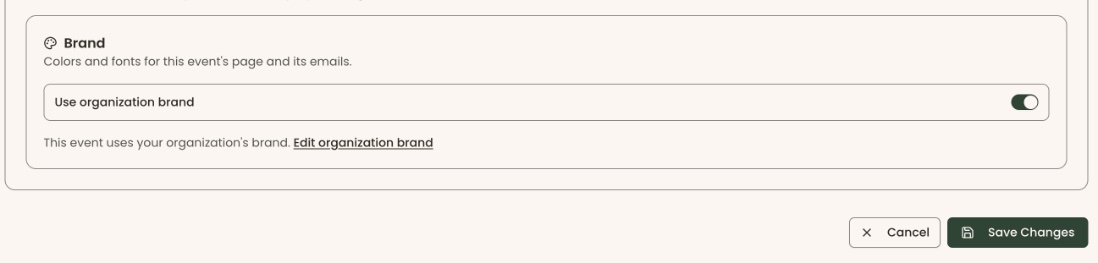
- At the bottom of the page, click "Save Changes".
- You'll see "Event settings saved successfully". That means it worked.
If it didn't work, you'll see "Failed to save event settings" or the reason. Fix the field it names and click "Save Changes" again.
To stop without saving, click "Cancel" next to "Save Changes".
Clone an event
Cloning makes a new event as a copy of this one. Use it for an event you run every year.
Page: /dashboard/events
- In the left-hand menu, under "Fundraising", click "Events". Then click "Events" in the list that opens below it.
- Above the list, click "All" so past events show too.
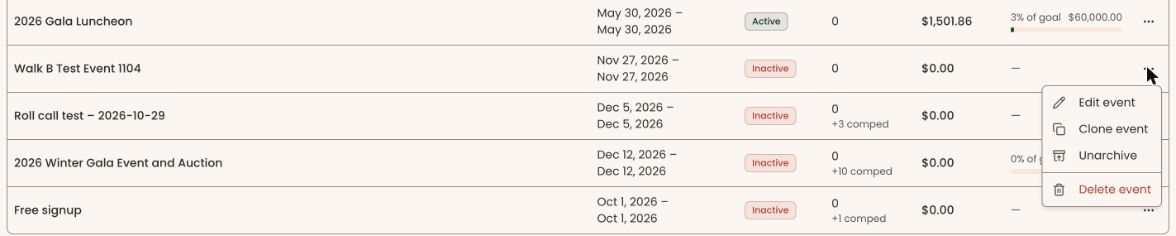
- At the far right of the event's row, click the three dots (⋯).
- Click "Clone event". A box called "Clone event" opens.
- Read the first lines. Tickets, add-ons, sponsorships, the event's look and its emails are copied. Attendees, payments and sponsors are not.
- In "Event name", change the name. It starts as the old name followed by " (Copy)".
- Under "Start date", click the small calendar icon at the right of the box and click the new event's first day. You can also type the date, such as "Nov 27, 2026".
- Under "End date", do the same for its last day. Both dates are needed before you can continue. If you see "The end date cannot be before the start date.", pick a later end date.
- Click "Clone event" at the bottom of the box.
- The new event's page opens. That means it worked.
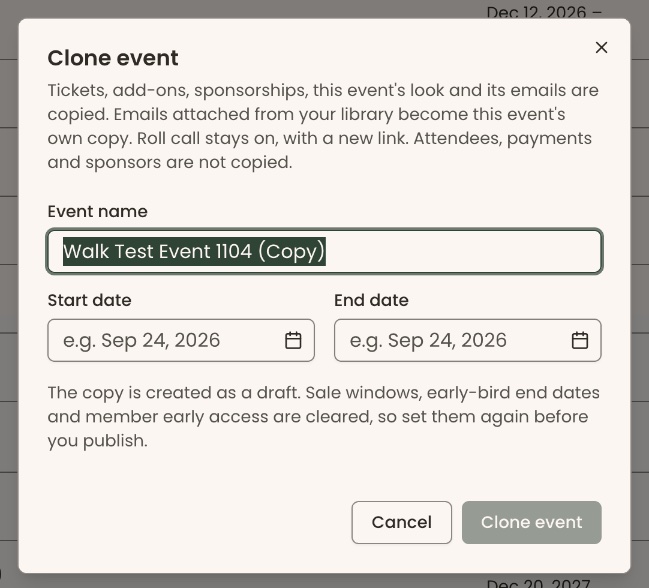
The copy is created as a draft, which means its public links don't work yet. Sale windows, early-bird end dates and member early access are cleared. Set them again on the copy, then publish it. See Create an event and add ticket types.
You can also clone from inside an event: "Settings" tab › "Clone", just left of "Edit" at the right end of the "Event Settings" heading.
If it didn't work, you'll see "Failed to clone this event. Please try again." inside the box. Click "Clone event" again.
Archive an event
Page: /dashboard/events
- In the left-hand menu, under "Fundraising", click "Events". Then click "Events" in the list that opens below it.
- At the far right of the event's row, click the three dots (⋯).
Important: archiving happens as soon as you click. There is no confirmation box. The event's page stays online, but no tickets, sponsorships or add-ons can be bought on it.
- Click "Archive". Nothing on the page changes yet.
- Reload the page (in your browser, click the circular arrow, or press F5). The event now shows "Inactive" (in red) in the "Status" column and has moved down, below the active events. That means it worked.
The "Status" column is hidden on narrow screens such as phones. Turn the phone sideways or use a computer to see it.
Unarchive an event
- In the list of events, click "All" above the list, so the archived event shows.
- At the far right of its row, click the three dots (⋯).
- Click "Unarchive". Nothing on the page changes yet.
- Reload the page. The event's "Status" shows "Active" again and it moves back up the list. That means it worked.
- If the event's space was booked for a rental while it was archived, a box lists the clash. Click "Save anyway" to unarchive regardless, or close the box to leave it archived.
Delete an event
You can delete only an event with no money collected and no tickets issued. If "Delete event" is missing from the menu, the event has sales or comp tickets. Archive it instead.
Page: /dashboard/events
- In the left-hand menu, under "Fundraising", click "Events". Then click "Events" in the list that opens below it.
- At the far right of the event's row, click the three dots (⋯).
Important: deleting removes the event for good. It can't be undone.
- At the bottom of the menu, click "Delete event" (in red).
- Your browser asks "Are you sure you want to delete this event? This action cannot be undone." Click "OK".
- The event disappears from the list. That means it worked.
If it didn't work, you'll see "Failed to delete event. Please try again." Click "OK" and try again. If it fails again, archive the event instead.
Special cases
- An event marked "External" sells its tickets on another website. Editing, cloning and archiving work the same way.
- Changing "Event Status" to "Draft" in "Settings" also makes the public links stop working. Archiving does not: the page still opens, with nothing to buy.
Buttons to avoid
- "Delete event" is right below "Archive" in the same menu. To take an event off sale, click "Archive", not "Delete event".
If you make a mistake
- Archived by mistake: follow "Unarchive an event" above.
- Cloned by mistake: the copy is a draft with no sales, so you can delete it from the events list.
- Deleted by mistake: this can't be undone in the screens. Create the event again, or clone it from a past one. See Create an event and add ticket types.