


Who can do this: Owner, Administrator, Programs and Front desk. Finance, Fundraiser and Viewer can't open the auction night screens.
Quick steps: Events › Events › the event › "Auctions" tab › "Live" › "Open auction night" › "Auctioneer" › "Live items": type the price and bidder number › "Sold to #… for $…" (or "No sale"). "Paddle raise": pick the level › type each number › "Add" › "Record … gifts".
Before you start
- You need the Owner, Administrator, Programs or Front desk role.
- Live items must be added with the type "Live", in the order they will be called. See Add auction items, sections and close times.
- Paddle raise levels are set up on the "Auctions" tab under "Before" › "Paddle raise levels". Without them, you type each amount. See Set paddle raise levels and auction payment settings.
- Guests need bidder numbers. See Give out bidder numbers, send phone bidding links and seat guests at tables.
- Keep paper and a pen nearby in case the connection drops.
- A paddle raise is when the auctioneer calls out an amount, for example $1,000, and guests raise their bidder number to give that amount. Each raised number is one gift.
- The person doing this sits beside the auctioneer and records each sale and each raised number as it is called. A tablet works best.
Open the Auctioneer screen
Page: /dashboard/gala/<eventId>/auctioneer
- In the left-hand menu, under "Fundraising", click "Events". Then click "Events" in the list that opens below it.
- In the list of events, click the event's name.
- Click the "Auctions" tab in the row of tabs near the top.
- Click "Live", then click "Open auction night". A full-screen page opens.
- In the row of stations near the top, click "Auctioneer".
- Near the top left, two buttons switch between "Live items" and "Paddle raise". At the top right you'll see "Raised tonight" and "Live items so far" (or "Paddle raise so far").
Record a live item sale
- Click "Live items".
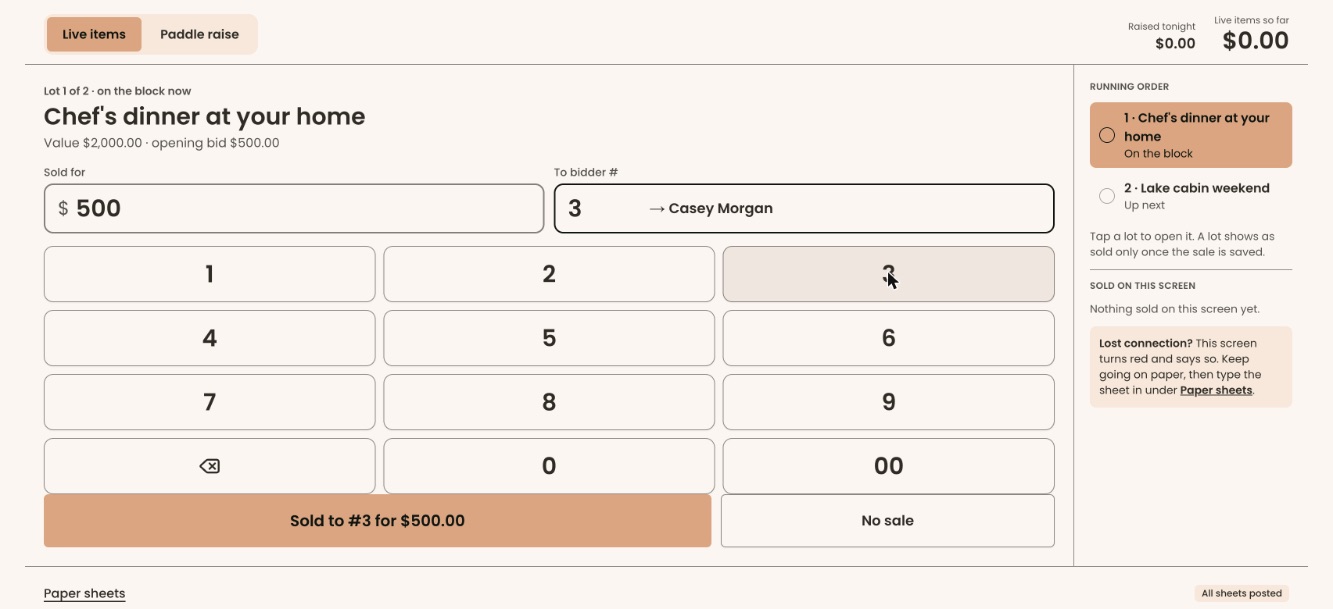
- The item up now is shown large, with "Lot … of … · on the block now" above its name. The "Running order" on the right lists every live item.
- When the auctioneer says "Sold", tap the "Sold for" box and type the price, for example 500. You can use the keypad on the screen.
- Tap the "To bidder #" box and type the winning number, for example 12. The winner's name appears next to it, after an arrow. Check it is the right person.
- If you see "No bidder #… at this event", the number is wrong. Delete it and type it again.
- Click the large button, which now reads "Sold to #12 for $500.00".
- You'll see a line such as "Sold to #12 Jordan Lee for $500.00" above the boxes. The sale appears under "Sold on this screen", and the item shows "Sold …" in the running order. That means it worked.
- Click "Next lot" (where "No sale" was) to move to the next item.
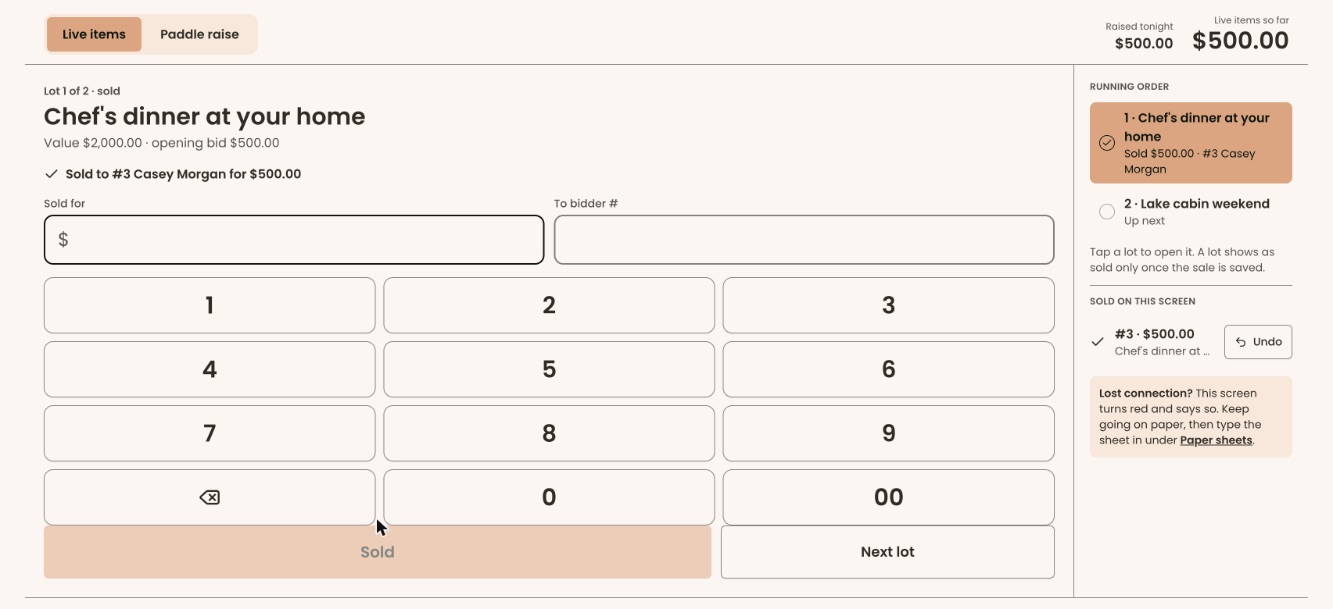
The winner pays at checkout. Nothing is charged when you record the sale. See Check guests out: take payment and hand over items.
For an item you can sell more than once, record each winner the same way before clicking "Next lot".
When a live item doesn't sell
- On the item, click "No sale".
- The item shows "No sale" in the running order. That means it worked.
- Click "Next lot" to move to the next item.
If you see "No sale was NOT recorded:", read the reason and try again.
Record the paddle raise
- Click "Paddle raise".
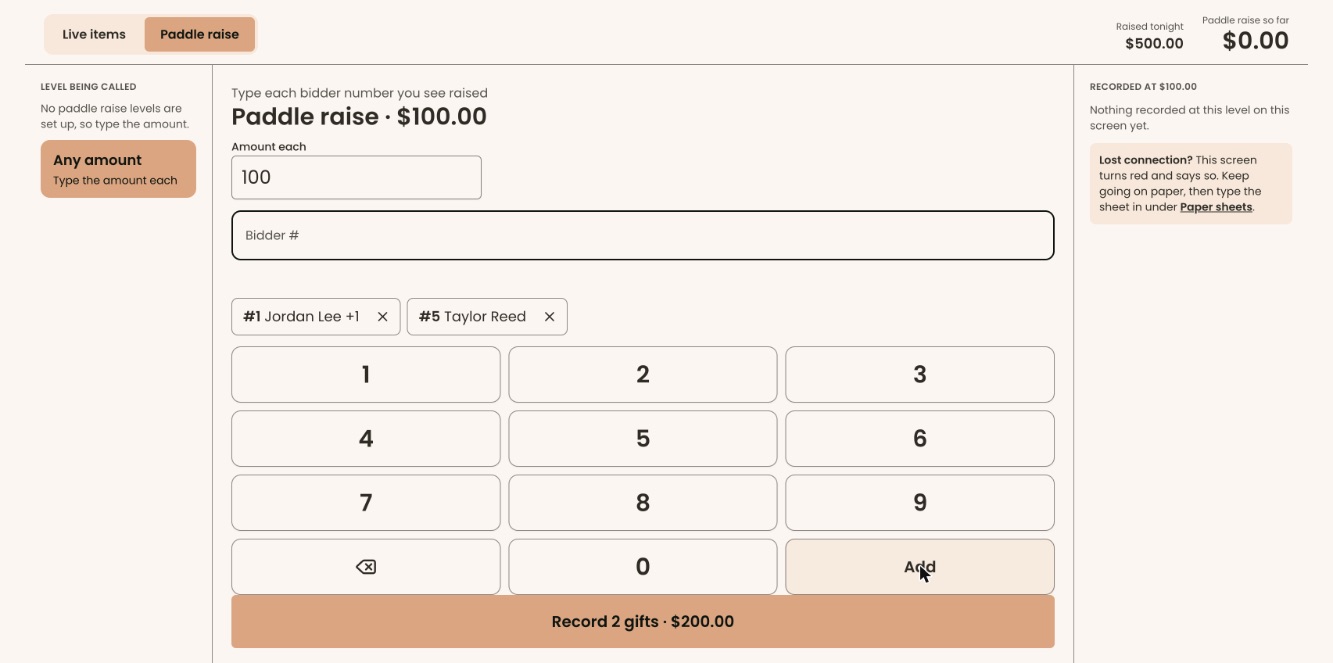
- Under "Level being called", on the left, click the amount the auctioneer is calling, for example $1,000. Each level shows how many gifts it has so far. If no levels are set up, you'll see "No paddle raise levels are set up, so type the amount." and "Any amount" is chosen: type the amount in "Amount each" first.
- In the "Bidder #" box, type the first number you see raised, for example 27. The guest's name appears next to it.
- Click "Add" on the keypad, or press Enter. The number becomes a chip below the box, with the name.
- Repeat for every number raised at this level.
- To remove a chip typed by mistake, click the × on the chip.
- Click the large button, which reads for example "Record 3 gifts · $3,000.00".
- The gifts appear on the right under "Recorded at $1,000.00", each with "Undo", followed by a total such as "2 gifts · $2,000.00 at this level". That means it worked.
- Click "Next level" at the bottom left to move to the next amount.
For a gift that isn't one of the levels, click "Any amount", type the amount in "Amount each", then add the numbers.
If you see "No bidder #… at this event" or "#… is already in this list", that number was not added. Check it and type it again.
If the connection drops
- The screen turns red and says "No connection". Nothing is shown as recorded until the server confirms it.
- Keep going on paper. When you're back online, type the sheet in under "Paper sheets", at the bottom of the screen. See Enter paper bid sheets and results.
- Pressing a button again after a dropped connection doesn't record the same sale twice.
What the labels mean
- "Raised tonight": everything recorded tonight.
- "Live items so far" / "Paddle raise so far": the total for the mode you're in.
- "On the block", "Up next", "Sold …", "No sale": each live item's state in the running order.
If you make a mistake
- Find the sale or gift in the list on the right ("Sold on this screen" or "Recorded at …").
- Click "Undo" next to it. It is removed from the list and the totals right away; there is no box asking you to confirm.
- Record it again correctly.
"Undo" only appears for entries made on this screen. If you see "Could not undo #…. It is still recorded.", read the reason and try again.