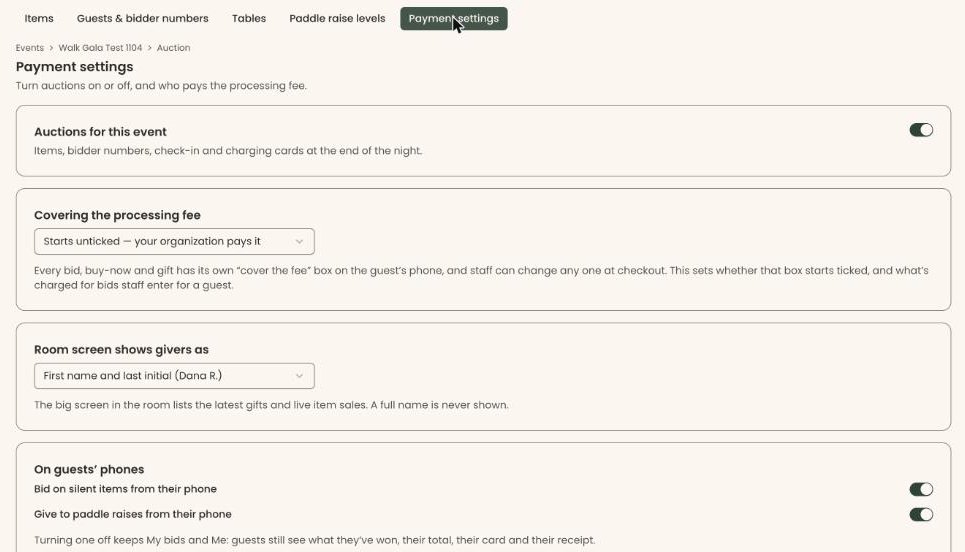
Who can do this: Owner, Administrator and Programs. Front desk, Finance, Fundraiser and Viewer can open both screens, but every box and button is grayed out.
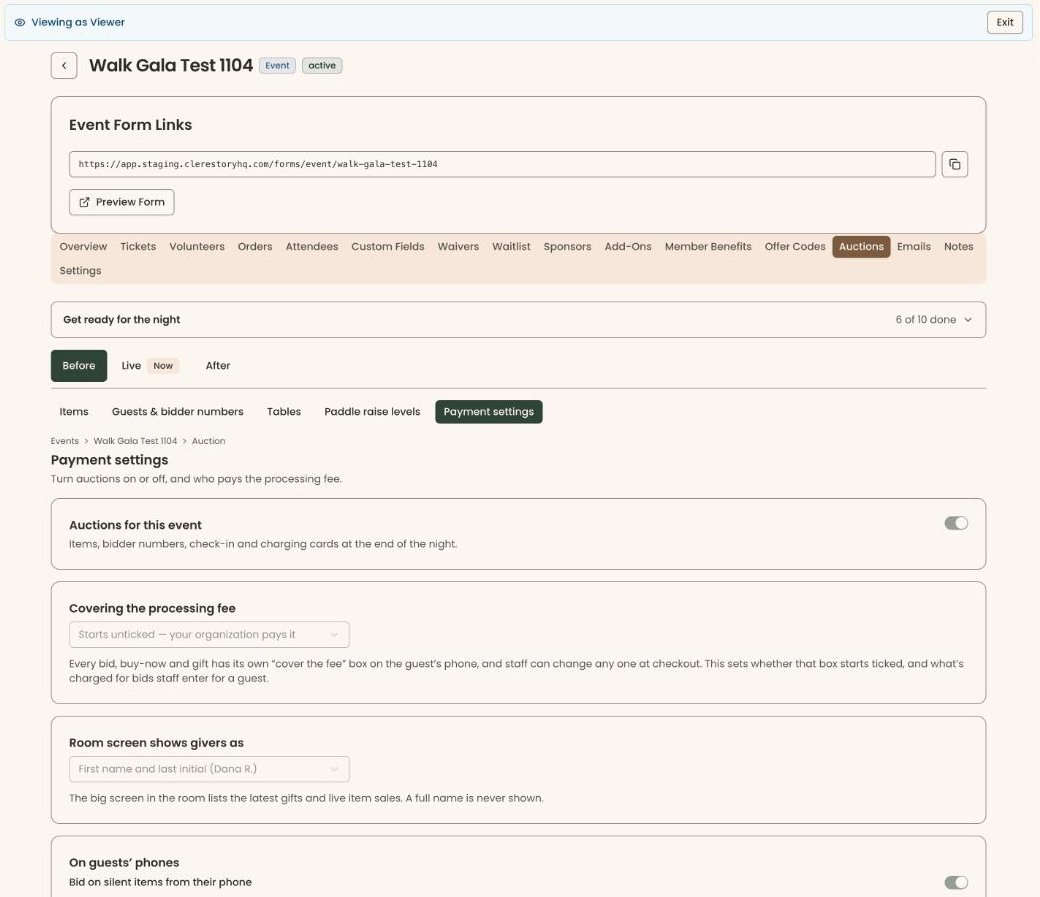
Quick steps: Events › Events › the event › "Auctions" tab › "Before" › "Paddle raise levels" › type "What it pays for" and "Amount" › "Add a level". Then "Payment settings" › "Covering the processing fee" › pick one.
Before you start
- You need the Owner, Administrator or Programs role.
- Auctions must be turned on for the event. See Add auction items, sections and close times.
- A paddle raise is when the auctioneer calls out an amount, for example $1,000, and guests raise their bidder number to give that amount.
- A level is one of those amounts. Each level becomes a button on the Auctioneer screen on the night (see Run the live auction and paddle raise). With no levels, staff type each amount by hand.
- Have ready: the amounts you want called, highest first, and a few words on what each one pays for, for example "Underwrite a season".
Open the auction's Before screens
Page: /dashboard/campaigns/<campaignId>?tab=gala&area=before&screen=levels
- In the left-hand menu, under "Fundraising", click "Events". Then click "Events" in the list that opens below it.
- In the list of events, click the event's name.
- Click the "Auctions" tab in the row of tabs near the top.
- Below the tabs, click "Before". (On the day of the event the tab opens on "Live", marked "Now".) A row of buttons appears under it: "Items", "Guests & bidder numbers", "Tables", "Paddle raise levels" and "Payment settings".
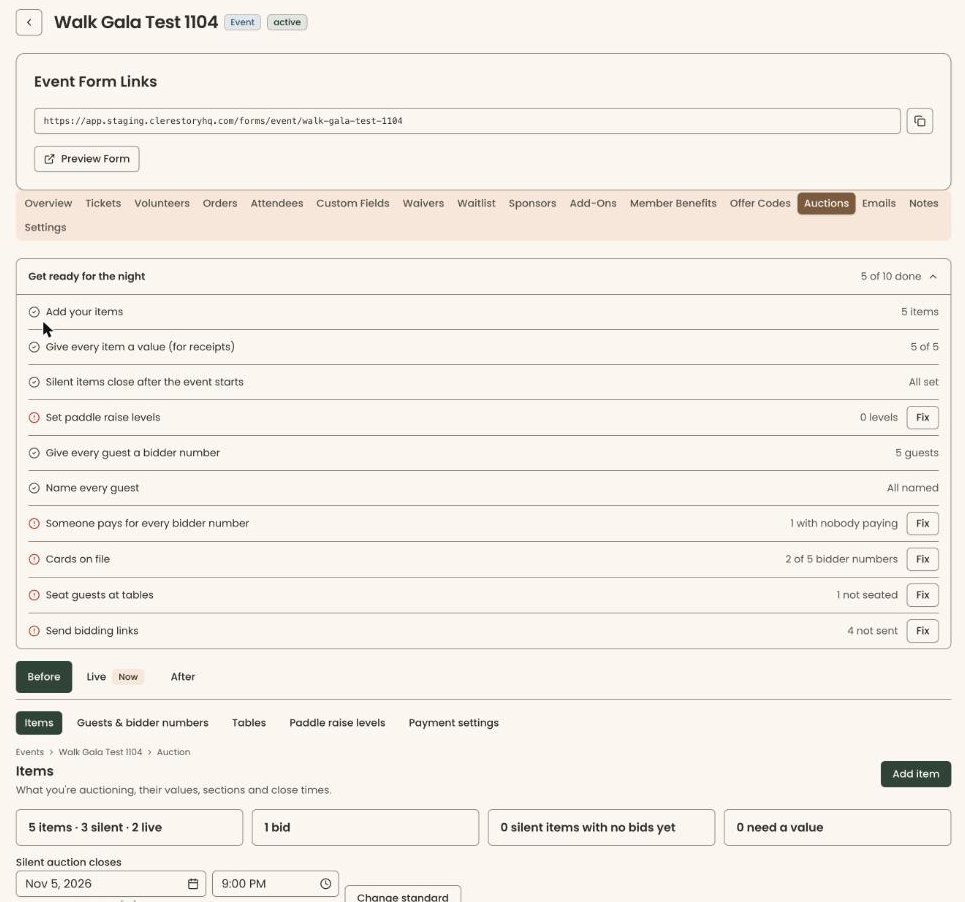
Add a paddle raise level
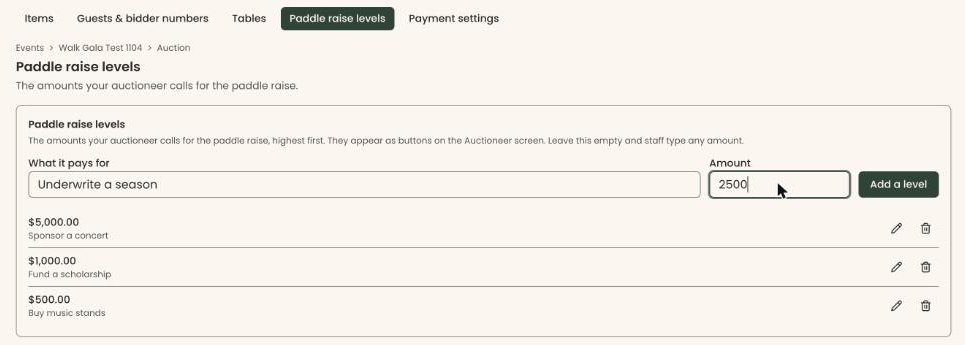
- In the row of buttons, click "Paddle raise levels". The screen is headed "Paddle raise levels".
- In "What it pays for", type a few words, for example "Underwrite a season".
- In "Amount", type the amount in dollars with no dollar sign, for example 1000 for $1,000.
- Click "Add a level", to the right of the boxes. You can also press Enter.
- The level appears in the list below, with its amount on top and what it pays for underneath. That means it worked.
- Repeat for each amount. The list always shows the highest amount first, so you don't need to add them in order.
If you see a red message instead:
- "Say what this level pays for." Type something in "What it pays for".
- "Enter an amount above zero, like 5000." Type a number in "Amount".
- "We couldn't save the paddle raise levels. Two levels may share a name." Give each level different words in "What it pays for", then try again.
While the list is empty, it says "No paddle raise levels yet. Staff will type each amount."
Change or remove a level
- On "Paddle raise levels", find the level in the list.
- To change it, click the pencil icon at the far right of its row. You can also click the level itself.
- Change "What it pays for" or the amount, then click "Save". To stop without changing anything, click "Cancel".
- The list shows the new words or amount. That means it worked.
Important: Clicking the trash can icon removes the level at once. Nothing asks you to confirm, and there is no undo. Gifts already recorded at that amount are not changed.
- To remove a level, click the trash can icon at the far right of its row.
Choose who pays the processing fee
The processing fee is what the card company charges on each card payment.
- In the row of buttons under "Before", click "Payment settings". The screen is headed "Payment settings".
- Find the box headed "Covering the processing fee".
- Click the list in that box and choose one:
- "Starts unticked — your organization pays it": guests' phones start with the "cover the fee" box unchecked.
- "Starts ticked — guests cover it": guests' phones start with that box checked.
- The change saves as soon as you choose. There is no Save button.

Every bid, buy-now and gift on a guest's phone has its own "cover the fee" box. Guests can still change it, and staff can change any one at checkout. This setting also decides what is charged for bids staff enter for a guest.
If you see "We couldn't change who pays the fee. Try again.", choose again.
Choose how the room screen names givers
The room screen is the big screen in the room. It lists the latest paddle raise gifts and live item sales. See Show the total and QR code on the big screen.
- On "Payment settings", find the box headed "Room screen shows givers as".
- Click the list and choose "First name and last initial (Dana R.)" or "Bidder number only (#12)". The first one is chosen to start with.
- The change saves as soon as you choose. A full name is never shown on the room screen.
If you see "We couldn't change how the room screen shows givers. Try again.", choose again.
Choose what guests can do from their phones
- On "Payment settings", find the box headed "On guests' phones".
- "Bid on silent items from their phone" lets guests bid from their phones. It starts on.
- "Give to paddle raises from their phone" lets guests give to the paddle raise from their phones. It starts on.
- Click a switch to turn it off or on. The change saves at once.
With either switch off, guests can still see what they've won, their total, their card and their receipt on their phone.
If you see "We couldn't change phone bidding. Try again." or "We couldn't change phone giving. Try again.", click the switch again.
Turn auctions off for an event
Important: Turning off "Auctions for this event" hides the whole auction for this event. The "Auctions" tab then shows only "Auctions are off for this event".
- On "Payment settings", find the box headed "Auctions for this event", at the top.
- Click the switch at its right to turn it off.
To turn auctions back on, open the "Auctions" tab and click "Turn on auctions". If you see "We couldn't change that. Try again.", click the switch again.
What the labels mean
- "Paddle raise levels": the amounts the auctioneer calls, highest first. They appear as buttons on the Auctioneer screen.
- "Covering the processing fee": whether each "cover the fee" box on guests' phones starts checked or unchecked.
- "Room screen shows givers as": how givers are named on the big screen.
If you make a mistake
- A level with the wrong words or amount: change it with the pencil icon.
- A level removed by mistake: add it again with "Add a level".
- A setting chosen by mistake: choose the right one. Each setting can be changed back at any time.