


Who can do this: Any guest who has a bidder number at your event and an email address on the guest list. Guests don't need an account. A bidder number is the number a guest bids with. It is given out before the event or at check-in.
Quick steps: scan the QR code on the room screen › type your email › "Email me my bidding link" › open the email › "Bid from your phone" › "Email me a code" › type the code › "Sign in" › "Items" › an item › "Bid $X". After bidding ends: "My night" › "Pay now with …" › "Pay $X".
Before you start
- The event must use auctions and be published. See Add auction items, sections and close times and Share the event link, QR code or website embed.
- The guest must have a bidder number, and their email must be on the guest list.
- The guest needs a phone with a web browser, and access to that email inbox.
- Your staff can send each guest their link before the event (see Bidder numbers, phone bidding links and table seating). Guests can also ask for it at the event, as below.
Get a bidding link at the event
Page: /forms/auction-link/<eventId>
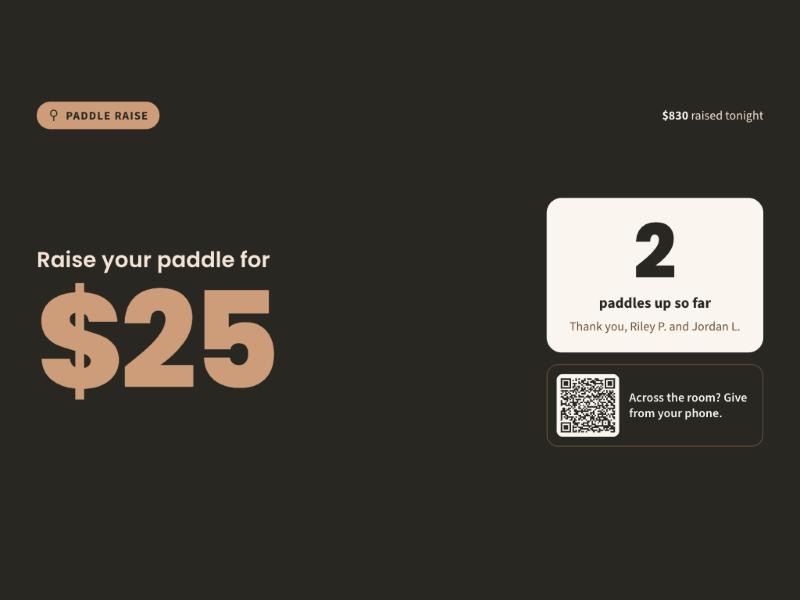
- Point the phone's camera at the QR code on the room screen. It sits under "Bid from your phone" (or "Bid and give from your phone"), next to "Point your camera here". During the paddle raise, a smaller QR code sits next to "Across the room? Give from your phone."
- Tap the link the camera shows. A page called "Bid from your phone" opens.
- The page says "Enter the email you registered with. We'll email you your own bidding link." In "Email", type the email address you registered with.
- Tap "Email me my bidding link".
- You'll see "If you're on the guest list, we've emailed your bidding link. Check your inbox." The same words show whether or not the email is on the list.
If you see "Lots of people are asking right now. Please try again in a minute.", wait a minute and tap the button again.
Sign in from the link
Page: /forms/auction/<token>
- Open the email called "Bid from your phone at …". Tap "Bid from your phone".
- The page shows your organization's name at the top and says "Hi" and your first name, then "We'll email a code to" and your email, partly hidden.
- Tap "Email me a code".
- Open the new email with the code. Type the code in the box under "Enter the code we sent to …".
- Tap "Sign in".
- You'll see the event's name at the top, with "YOUR #" and your bidder number on the right. That means you're signed in.
If the code doesn't arrive, tap "Send a new code".
If you see "This bidding link is no longer valid. Please ask the auction desk for a new one.", ask a staff member to send a new link.
If you see "You don't have a bidder number yet. Please check in at the front desk.", the guest needs a bidder number first.
Bid on an item
- At the bottom of the screen, tap "Items". Each item shows its current bid, or "Opening bid …".
- To find one, type its name or number in "Search items".
- Tap the item. Its page opens with the photo, the "top bid", and when bidding closes.
- Under "Your bid (at least $…)", the lowest bid allowed is filled in. To bid more, tap the plus (+) button, tap one of the amounts below it, or type an amount.
- To let Clerestory bid for you, tap "Set a max — we'll bid for you up to it". In "Set a max bid (optional)", type the most you'll pay. It bids only as much as needed, and no one else sees it.
- If you see "Cover the processing fee so 100% goes to the cause" (or "Add $… so 100% goes to the cause"), check it to add the fee.
Important: A bid is a promise to pay if you win. You pay after the event, by the card on file or at the checkout table. A bid can't be taken back on the phone.
- At the bottom of the screen, tap "Bid $…". If the amount is much higher than the minimum, you'll see "Tap Bid again to confirm". Tap it again.
- You'll see "Winning at $…". That means the bid went in, and the item shows "You're winning".
Other messages you may see:
- "Someone else's maximum is higher. The current bid is $…." Another guest set a higher max. Bid again if you want.
- "The minimum bid is now $…." Someone bid while you were typing. Bid at least that amount.
- "You've been outbid on …" at the top of the screen. Tap "Bid again" to go back to that item.
- "Bidding on this item has closed."
Buy it now
Some items show "Buy it now for $…".
Important: "Buy it now" buys the item for that price on the second tap. Bidding on it ends for everyone.
- On the item's page, tap "Buy it now for $…".
- You'll see "Tap again to buy … now for $…. Bidding on it ends." Tap the button again.
- You'll see "Sold at $…".
Give to the paddle raise
A paddle raise is a call for gifts at set amounts, with no item in return. The "Give" tab shows only if your event allows giving from the phone.
- At the bottom of the screen, tap "Give".
- Tap one of the amounts, or type an amount in "Other amount" and tap "Continue".
- You'll see "Give $…?". Check "Cover the processing fee so 100% goes to the cause" (or "Add $… so 100% goes to the cause") if you want to add the fee.
Important: Your gift is added to your total and charged with it after the event.
- Tap "Give $…".
- You'll see "Thank you! Your gift of $… is recorded. It's added to your total for tonight."
If you see "To give tonight, raise your bidder number when the auctioneer calls a level, or visit the auction desk.", giving isn't open on the phone for you right now.
See your night and pay
- At the bottom of the screen, tap "My night". You'll see "Your night", your total, and how many items you won and gifts you gave.
- Scroll down. "On your bidder number" lists each item and gift, and "Your bids" lists what you bid on. "Receipt" shows your receipt once you've paid. "Pickup" shows each item as "Not paid yet", "Ready at the front desk" or "Collected".
- Once every item has closed, a button "Pay now with Visa ··4242" appears (it names your card). Tap it.
- You'll see "Pay $… now with …?".
Important: Tapping "Pay $…" charges the card right away.
- Tap "Pay $…".
- You'll see "Paid — thank you! We charged $… to …. We'll email your receipt." That means it worked.
If the card is declined, you'll see "Your card was declined, so nothing was charged. Please pay at the checkout table."
Add or change a card
Only the person who pays for the bidder number can add a card.
- On "My night", under "Card", tap "Add a card" (or "Change card").
- Type the card details in the form that opens.
- Tap "Save card".
- You'll see "Card saved. It can take a moment to show here." Then the card shows under "Card".
When "Pay now" isn't there
"My night" says why instead. For example:
- "Bidding is still open. You can pay here once every item has closed."
- "There is no card on file for your bidder number. Please pay at the checkout table."
- "Your bidder number is set to pay by check or cash. Please pay at the checkout table."
- "Only the person who pays for this bidder number, or someone in their household, can pay for it here. Please pay at the checkout table."
- "Your bidder number has nothing left to pay."
Special cases
- A host is paying. The guest sees "Your host is covering your bids up to $…." They can bid up to that amount. If the host hasn't set a limit, they see "Your host hasn't set a spending limit for you yet. Ask them, or visit the auction desk." and can't bid.
- Bidding not open yet. "Bidding isn't open yet. Browse the items now." Guests can look but not bid.
- Phone bidding off. The item page says "Bid on the paper sheet at the item."
- Paying at the table. Guests can always pay at the checkout table instead. Staff then use the checkout desk. See Check guests out: take payment and hand over items.
If you make a mistake
A guest can't take back a bid, a gift or a "Buy it now" on the phone. Staff can fix it after the event: see After the auction: collect payments, send receipts and fix mistakes.