


Who can do this: Owner, Administrator, Programs and Front desk. Finance, Fundraiser and Viewer can't open the auction night screens.
Quick steps: Events › Events › the event › "Auctions" tab › "Live" › "Open auction night" › "Checkout" › choose the guest › "Charge … · $…" (or "Cash or check") › "Hand over every paid item" › "Next: receipt" › "Done — next guest".
Before you start
- You need the Owner, Administrator, Programs or Front desk role.
- Silent bidding should be closed, and live sales recorded. See Start and close silent bidding and Run the live auction and paddle raise.
- To charge a card on file, the guest's bidder number needs a saved card. See Check in gala guests, sell a walk-up seat and put a card on file.
- A line is one thing a guest is paying for, such as an item they won or a paddle raise gift.
Open the checkout desk
Page: /dashboard/gala/<eventId>/checkout
- In the left-hand menu, under "Fundraising", click "Events". Then click "Events" in the list that opens below it.
- In the list of events, click the event's name.
- Click the "Auctions" tab in the row of tabs near the top.
- Click "Live", then click "Open auction night". A full-screen page opens.
- In the row of stations near the top, click "Checkout".
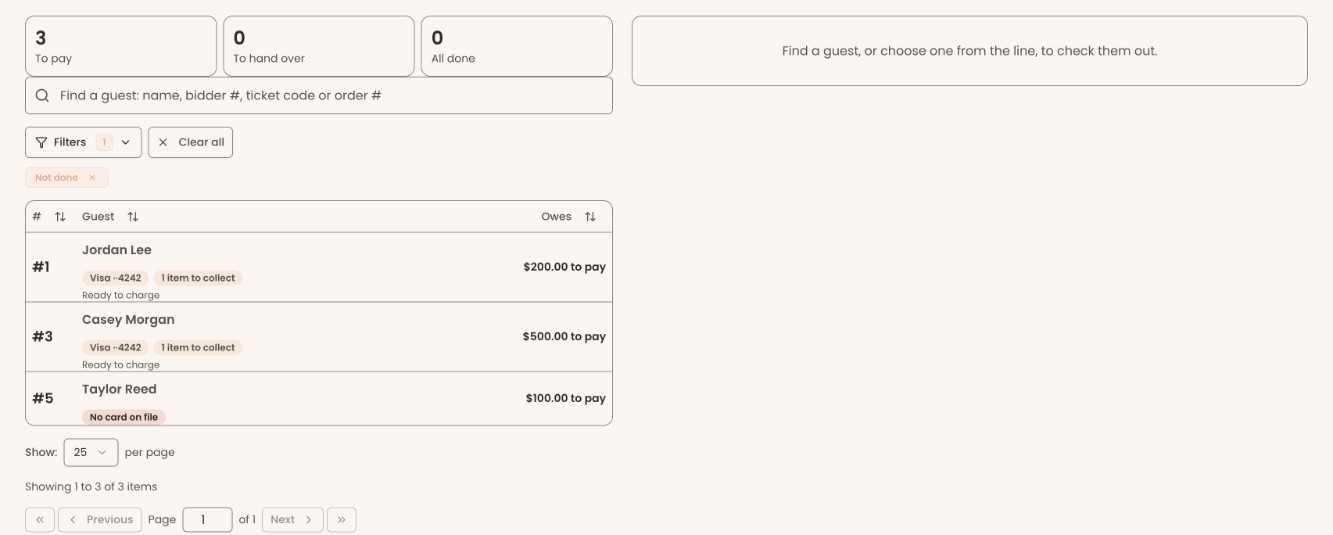
- On the left you'll see three counters, "To pay", "To hand over" and "All done", and the line of guests below them. Click a counter to show only those guests. Click it again to go back to everyone. The line starts filtered to "Not done"; click "Clear all" to see everyone.
Open a guest
- Click the search box ("Find a guest: name, bidder #, ticket code or order #") and type the guest's name or bidder number.
- Click the guest in the list that appears. Or click a guest's name in the line below.
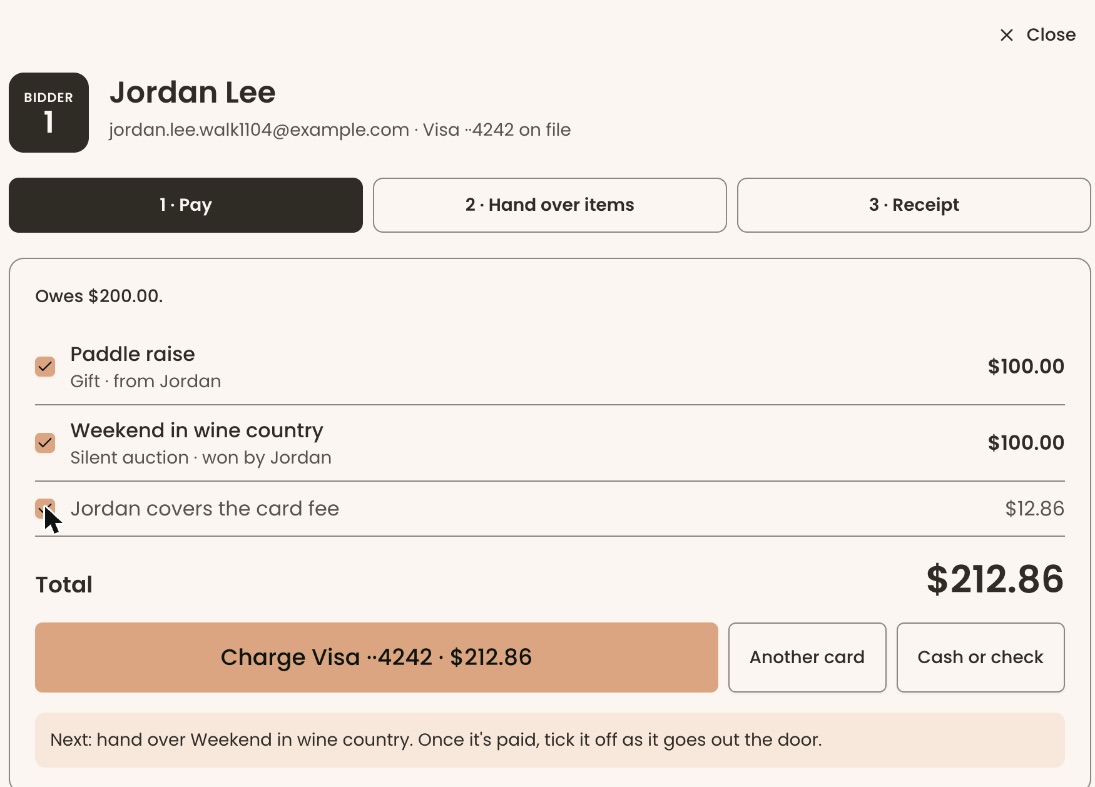
- The guest's panel opens on the right (on a tablet, it fills the screen). It shows their bidder number, name and "… on file" or "No card on file".
- Below that are three steps: "1 · Pay", "2 · Hand over items" and "3 · Receipt".
Take payment by the card on file
- On "1 · Pay", every line still owed is already checked. Uncheck any line they aren't paying for now.
- To have the guest cover the card processing fee, check "… covers the card fee". The fee is added to the total.
- Check the "Total".
Important: clicking the "Charge" button charges the guest's card right away and emails the payer a statement of what they paid. It can't be undone on this screen.
- Click the button that reads, for example, "Charge Visa ··4242 · $550.00".
- You'll see "Charged $550.00." and the first step reads "Paid" with a check mark. That means it worked.
- If there are items to hand over, the panel moves on to "2 · Hand over items". If not, it moves on to "3 · Receipt".
If you see "The card was declined.", the panel says how many lines were declined. Ask for another card (below), or click "Try again" once they've fixed the problem with their card. You'll see "Ready to charge again. Tick the lines and press Charge.".
Pay with a different card
- On "Pay", check the lines being paid.
- Click "Another card". (With no card on file, the main button reads "Take card payment · $…" instead.)
- In the box that opens, choose "Use the card reader" or "Type the card number".
Important: the next click charges this card right away and emails the payer a statement. The card on file stays on file.
- On the reader, have the guest tap, insert or swipe the card, then click "The card is in — charge it". If you typed it, click "Use this card".
- You'll see "Charged $…". That means it worked.
Take cash or a check
- On "Pay", check the lines being paid.
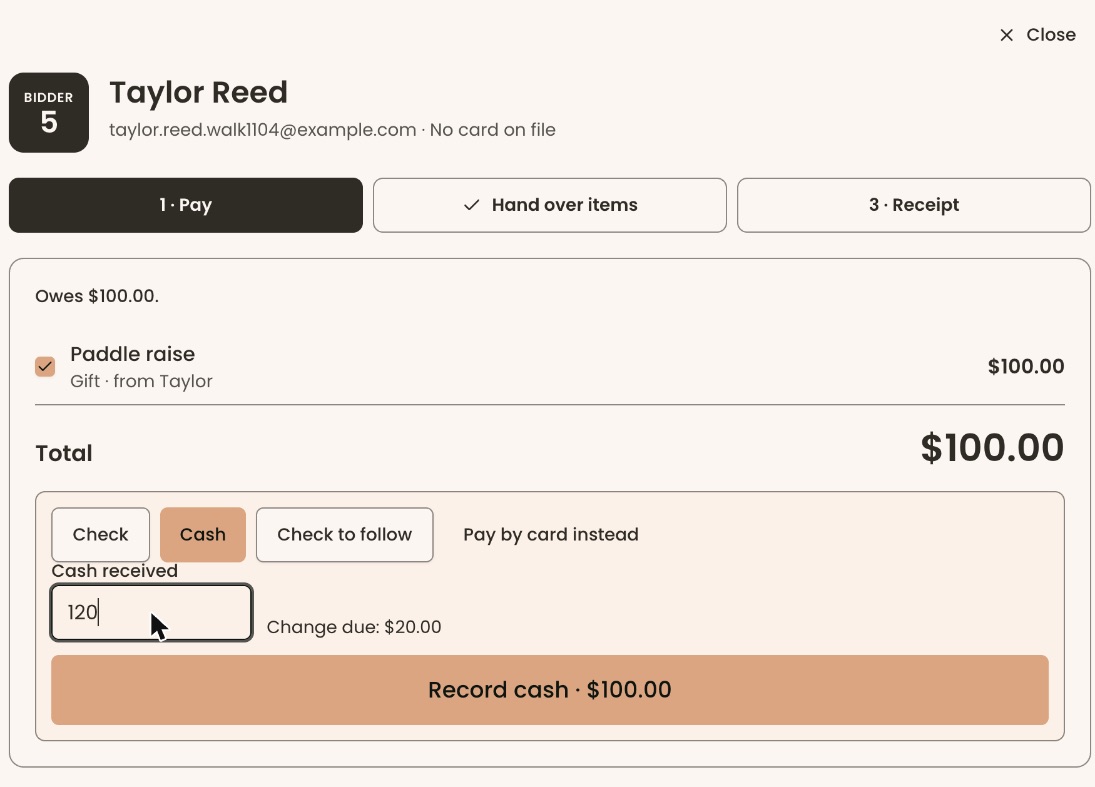
- Click "Cash or check". Choose "Check", "Cash" or "Check to follow".
- For a check, type the number in "Check number (optional)".
- For cash, "Cash received" starts with the total. Change it to what you were handed, for example 120. The screen shows "Change due: …" or how much is short.
Important: recording a check or cash marks those lines paid and emails the payer a statement. No card is charged.
- Click "Record check · $…" or "Record cash · $…".
- You'll see "Check … for $… recorded." or "Cash recorded." (with "Change due: …" if any). That means it worked.
"Check to follow" is for a guest who will mail a check. Click "Mark … as check to follow". You'll see "… marked as check to follow. They won't go on the card.". The lines stay owed and appear under "After" › "Collect payments" as "Check to follow". To change your mind, click "Undo check to follow".
To go back to the card, click "Pay by card instead".
Hand over items
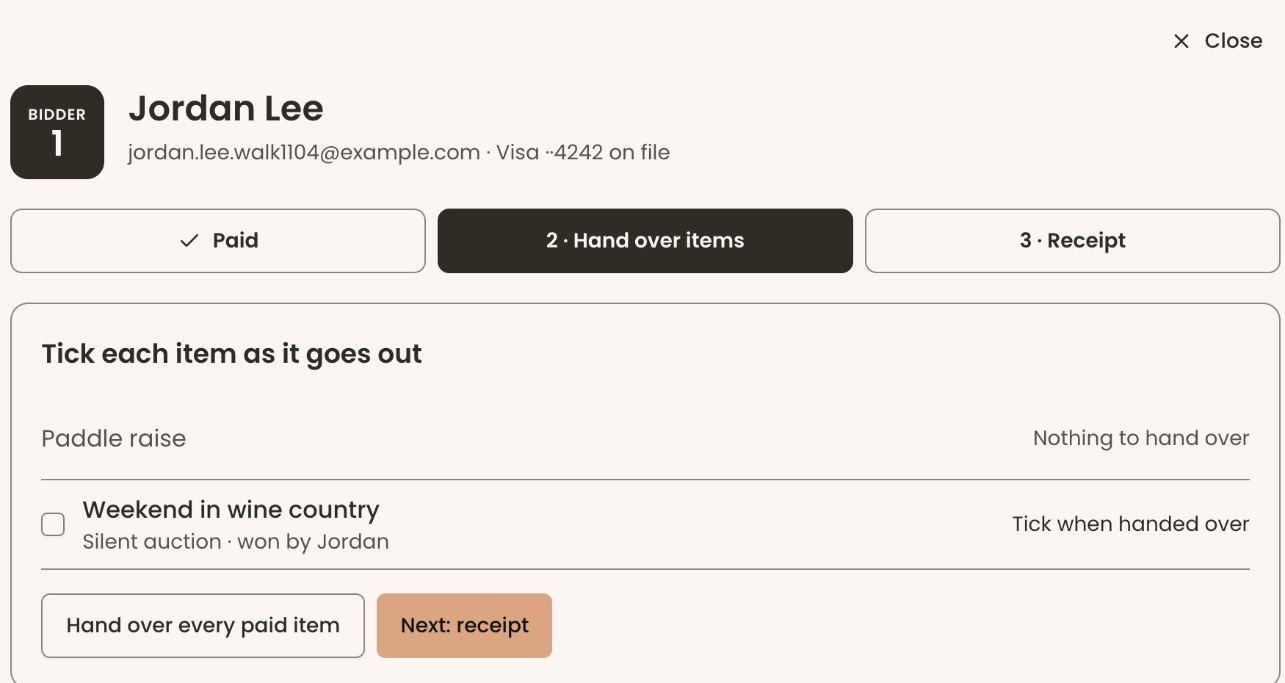
- Click "2 · Hand over items" (it opens by itself after payment). It reads "Tick each item as it goes out".
- Check the box next to each item as you hand it over. Or click "Hand over every paid item". A gift has nothing to hand over and shows "Nothing to hand over".
- Each item reads "Handed over", and the step shows a check mark. That means it worked.
An unpaid item can't be checked. It reads "Pay first, or release it".
Important: "Release" lets an unpaid item go out on your name. The guest still owes for it.
- To let an unpaid item go anyway, click "Release" next to it. Type why in "Reason (required)", for example "check promised Monday", and who took it in "Handed to (optional)". Click "Release".
Give a receipt and finish
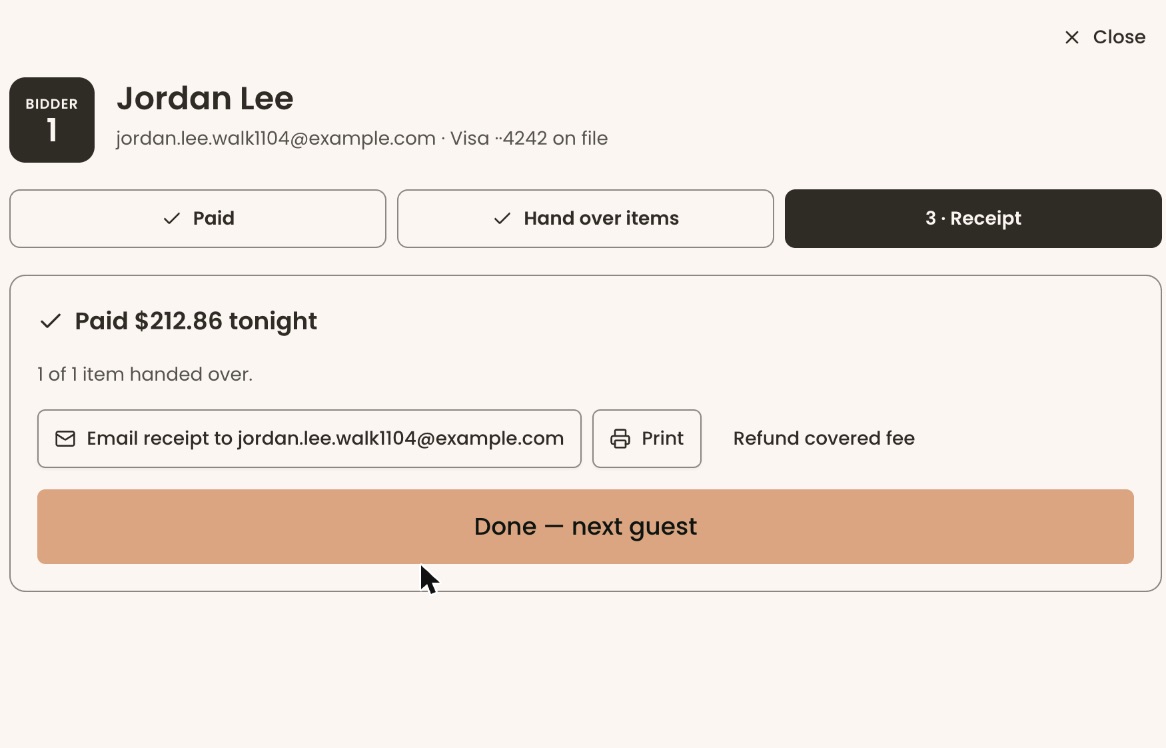
- Click "Next: receipt". It shows "Paid $… tonight" and how many items were handed over.
Important: "Email receipt to …" emails the payer their statement right away.
- Click "Email receipt to …" to send another copy. You'll see "Receipt emailed for #…". Or click "Print".
- Click "Done — next guest" to open the next guest in line. On a tablet, you can also use "Next in line" at the top, or "See the line" to go back to the list.
What the labels mean
- "To pay": guests who still owe money.
- "To hand over": guests with items not yet handed over.
- "All done": guests who have paid and have everything.
- "Owes …", "Paid · …", "Check to follow · not on card", "Declined": each line's state on "Pay".
Special cases
- Paying for part now: uncheck the lines they aren't paying for. Pay the rest another way afterwards.
- "Refund covered fee" on "Receipt" gives back the card fee the guest chose to cover. Only Owner and Administrator see it.
- A payer with no email address gets no statement email. Add their email at check-in, then use "Email receipt".
- A guest who leaves without paying: their lines stay owed. Collect them after the event under "After" › "Collect payments". See After the auction: collect payments, send receipts and fix mistakes.
Buttons to avoid
- "Close" (top right of the guest panel) closes the panel without doing anything.
- "Print" opens your browser's print window for this page; it doesn't email anything.
If you make a mistake
- A handed-over item can be unchecked to undo the hand-over.
- "Undo check to follow" puts those lines back as owed.
- A card charge, cash or check can't be undone on this screen. Fix it after the event under "After" › "Receipts & corrections". See After the auction: collect payments, send receipts and fix mistakes.