


Who can do this: Owner, Administrator and Programs. Finance, Fundraiser, Front desk and Viewer can open these screens, but every button is grayed out. "Write off" is for the Owner and Administrator only.
Quick steps: Events › Events › the event › "Auctions" tab › "After" › "Collect payments" › "Charge N saved cards" › "Charge the cards". Then "Receipts & corrections" › "Receipts to send" › "Send all N".
Before you start
- You need the Owner, Administrator or Programs role.
- Auctions must be turned on for the event, and the night's results entered. See Enter paper bid sheets and results. A bidder number is the number a guest bids with. Everything a guest won or gave is owed on their bidder number.
- To charge cards, your organization must be connected to Stripe. See Connect Stripe and payouts.
- For checks, have the check number ready.
Open Collect payments
Page: /dashboard/campaigns/<campaignId>?tab=gala&area=after&screen=collect
- In the left-hand menu, under "Fundraising", click "Events". Then click "Events" in the list that opens below it.
- In the list of events, click the event's name.
- Click the "Auctions" tab in the row of tabs near the top.
- Below the tabs, click "After". A row of buttons appears under it.
- "Collect payments" is chosen to start with; click it if not. You'll see the heading "Collect payments", four boxes of figures, and a list of every guest who owes.

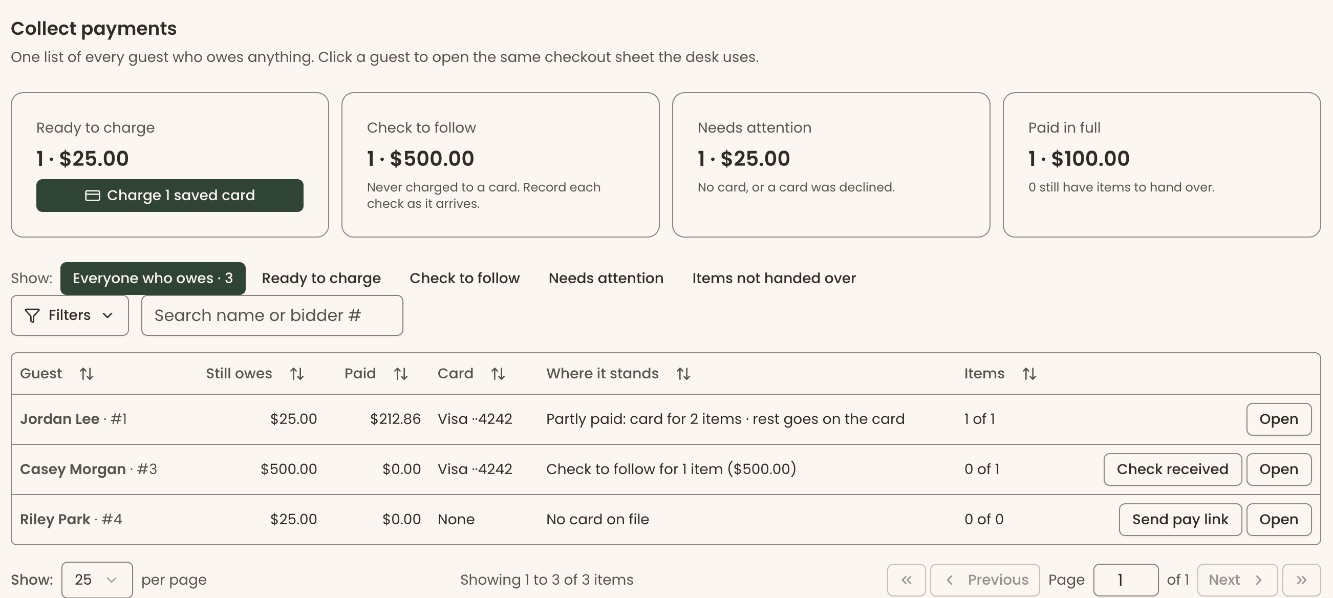
The four boxes are:
- "Ready to charge": guests with a saved card who still owe.
- "Check to follow": guests who said they'll pay by check. These are never charged to a card.
- "Needs attention": guests with no card, or whose card was declined.
- "Paid in full": guests who owe nothing. It also says how many still have items to hand over.
If you see "… items have no result yet." at the top, some items have no winner entered. Click "Enter results" beside it and finish those first.
Charge the saved cards
- On "Collect payments", look at the "Ready to charge" box, top left.
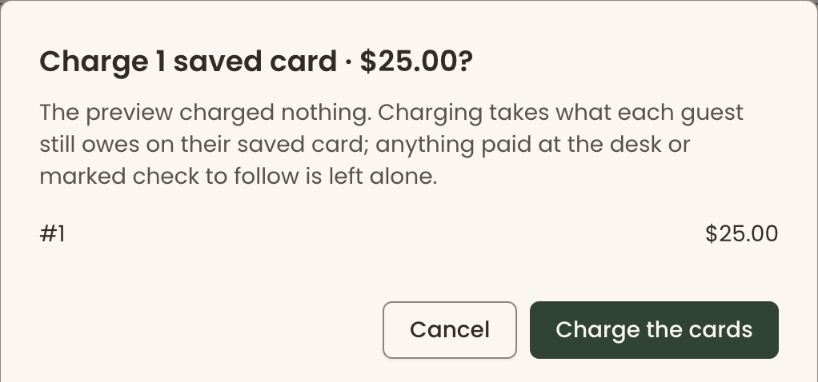
- In that box, click "Charge 5 saved cards". (The number is how many guests are ready.) This makes a preview. Nothing is charged yet.
- A box opens called "Charge 5 saved cards · $1,250.00?". It lists each bidder number and its amount.
- Check the list.
Important: Clicking "Charge the cards" charges every card in the list right away, and emails each guest a receipt. It can't be undone in this box.
- At the bottom right of the box, click "Charge the cards".
- You'll see a line such as "5 charged" under the boxes. That means it worked. If a card was declined, it says, for example, "4 charged · 1 need attention".
If the button is grayed out with a red box above it saying "Cards can't be charged yet", read the reasons in the red box and fix them first. Then come back.
If you see "Some cards did not finish. Press Charge again to finish them — nobody is charged twice.", click the "Charge … saved cards" button again.
To see past runs, click "Earlier charge runs" at the bottom of the screen. "Preview" rows charged nothing.
Try a declined card again
Use this after the guest has fixed the problem with their card (for example, called their bank).
- On "Collect payments", click "Needs attention" in the "Show:" row above the list.
- Find the guest. At the far right of their row, click "Try again".
- You'll see "… is ready to charge again.". The guest moves back into "Ready to charge".
- Charge them with the steps in "Charge the saved cards".
Send a pay link to a guest with no card
A pay link is the guest's own bidding page. On it, they can add a card and pay. See What a guest does: get a link, bid by phone, give, pay.
- On "Collect payments", click "Needs attention" in the "Show:" row above the list.
- Find the guest. To search, type their name or bidder number in "Search name or bidder #".
Important: Clicking "Send pay link" emails the guest right away. The email's subject is "Bid from your phone at …", with a "Bid from your phone" button.
- At the far right of their row, click "Send pay link".
- You'll see "Pay link sent to …".
After you run "Charge … saved cards", a guest with no card may show "Card declined" instead, with no "Send pay link" button. Click "Open" on their row and take payment in the panel instead ("Another card", "Check" or "Cash").
The email goes only if the guest has an email address in your records and hasn't asked not to be contacted. The screen shows "Pay link sent to …" either way. If they say nothing arrived, open the guest with "Open" and check the email shown under their name.
Record a check that arrives
- On "Collect payments", click "Check to follow" in the "Show:" row above the list.
- Find the guest. At the far right of their row, click "Check received".
- A panel opens on the right with the guest's name and bidder number. The lines they owe by check are already checked, and "Check" is chosen.
- In "Check number (optional)", type the check number, for example 1042.
Important: Clicking "Record check" records the payment and emails the guest a receipt.
- Click the button that reads "Record check #1042 · $250.00".
- You'll see "Check #1042 for $250.00 recorded.". That means it worked.
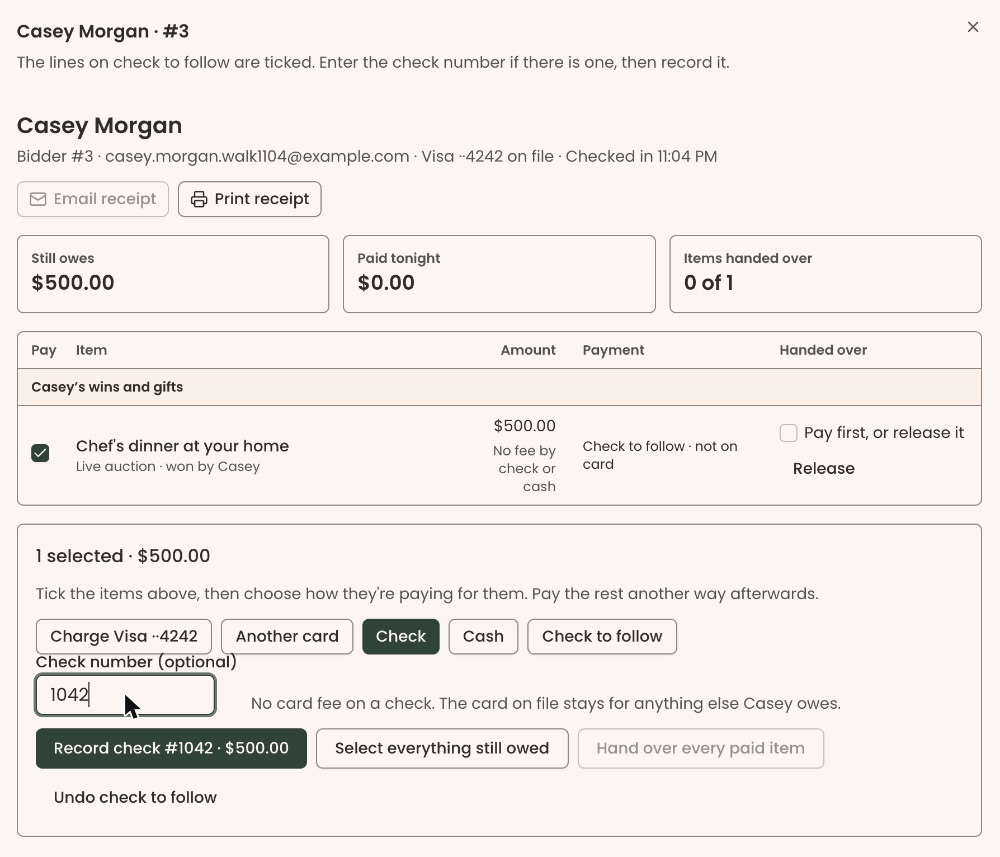
If you chose the wrong lines, click "Undo check to follow" in the same panel. Those items are owed again.
Open one guest
To see everything on a bidder number, click their row, or click "Open" at the far right. A panel opens on the right. It shows "Still owes", "Paid tonight" and "Items handed over", and has "Email receipt" and "Print receipt" near the top. To close it, click the cross (×) at its top right.
Send receipts
Clerestory emails a receipt when a card is charged or a check is recorded. This screen lists anyone still owed one, for example because their email was missing.
Page: /dashboard/campaigns/<campaignId>?tab=gala&area=after&screen=receipts
- On the "Auctions" tab, under "After", click "Receipts & corrections".
- Click the "Receipts to send" tab (it is chosen to start with). The number in parentheses is how many are owed a receipt.
- Read the "Why not yet" column. "Ready to send" means it can go now. Anything else says what to fix first.
Important: "Send all" emails a receipt to every guest marked "Ready to send". "Send receipt" emails one guest.
- To send one, click "Send receipt" at the far right of its row. You'll see "Receipt v1 is on its way to bidder #12.".
- To send them all, click "Send all 8" at the top right. A box opens listing each guest and the total paid. Click "Send all 8" in the box.
- You'll see "8 receipts are on their way.". That means it worked. Any that failed are listed under "not sent:" with the reason.
If you see "No receipts to send. Everyone who paid has an up-to-date receipt.", there is nothing to do. The "Receipts sent" tab lists every receipt already sent.
Fix a mistake: record a correction
Use this when a bid, a quantity or an item's fair market value was entered wrong. Fair market value is what the item is worth. The amount paid above it may be tax-deductible.
A correction is two steps: you record it, then you release it. Nothing is charged, refunded or emailed until you release it.
Record the correction
- On "Receipts & corrections", click the "Fix a recorded line" tab.
- In "Search what was recorded", type the item or bidder number.
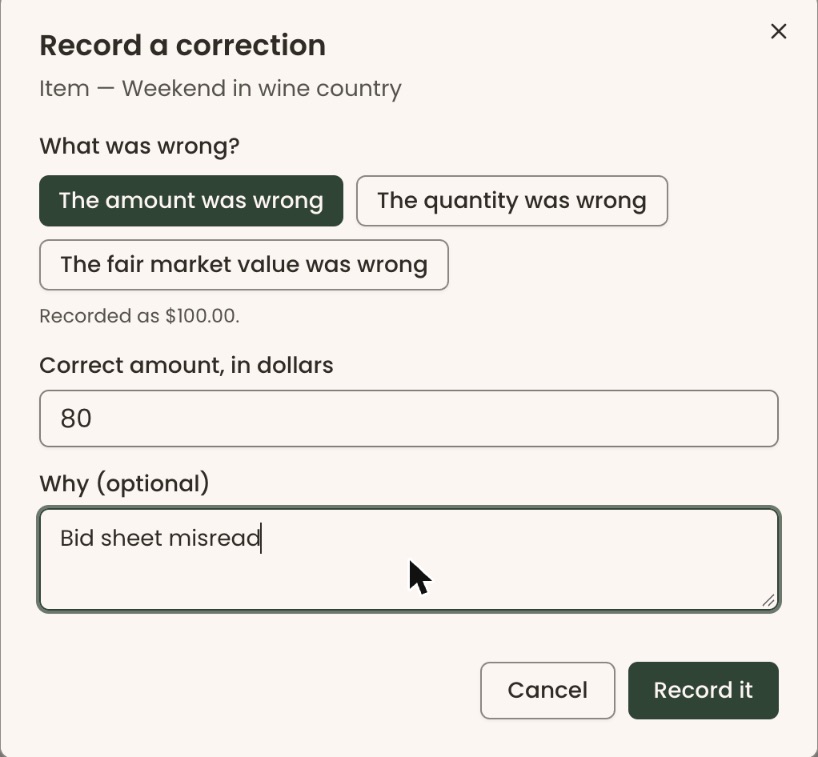
- At the far right of the line, click "Correct". A box opens called "Record a correction".
- Under "What was wrong?", click one: "The amount was wrong" (chosen to start with), "The quantity was wrong" or "The fair market value was wrong". The line under it says what was recorded, for example "Recorded as $100.00.".
- In the box below (for an amount, "Correct amount, in dollars"), type the right figure, for example 300.
- In "Why (optional)", type why, for example "Bid sheet misread".
- Click "Record it".
- You'll see "Correction recorded. Check it and release it below — nothing has been sent.".
If "Correct" is grayed out, the line can't be corrected right now: it was withdrawn, it is being charged, or a bank payment for it is still clearing. Try again once the charge has finished or the payment has cleared.
Release the correction
- Click the "Corrections waiting" tab.
- Find the correction. "What changed" shows the old and new figures. "Money" shows what will happen, for example "Refund $50.00" or "Collect $50.00".
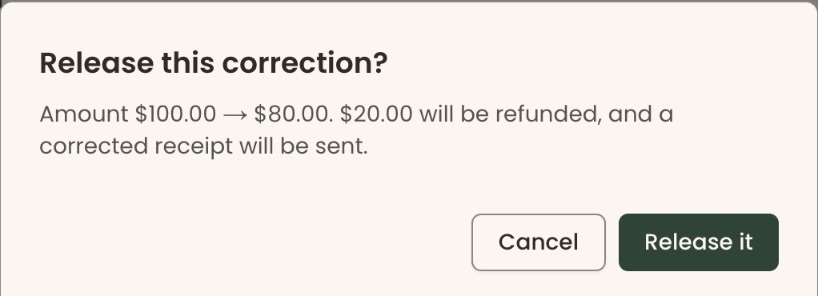
- At the far right of its row, click "Release". A box opens called "Release this correction?". It says exactly what will happen to the money.
Important: Clicking "Release it" can refund the guest's card or charge their card on file, as the box says. It also emails them a corrected receipt. It can't be undone.
- Click "Release it".
- You'll see a message starting "Correction released.", for example "Correction released. Receipt v2 is on its way.". The correction leaves "Corrections waiting". That means it worked.
- If the message starts "The money did not move:", the correction is released but the refund or charge failed. It stays in "Corrections waiting" to try again (see "Special cases").
If a box called "Hand the money back" opens next, the guest paid by cash or check, so nothing was sent back. Give them the money, then check "I handed $50.00 back to them.".
Important: "Record the refund" records the refund and emails the guest a corrected receipt.
Click "Record the refund".
If a box called "A refund was made in Stripe" opens, nothing was sent. Someone already refunded this payment in Stripe. If one of the refunds listed is this correction's, click "That was this refund" beside it.
Important: "Send the refund anyway" refunds this correction's amount to the guest's card right away, in addition to the refunds listed.
If none of the refunds listed is this correction's, click "Send the refund anyway".
To drop a correction before releasing it, click "Withdraw" on its row. You'll see "Correction withdrawn. Nothing was sent."
Special cases
Important: "Send the refund" refunds the guest's card and "Collect it" charges their card on file, as soon as you click. "Write it off" can't be undone in the screens.
- A correction says "not sent yet" or "not collected yet". It was released, but the money didn't move. The button reads "Send the refund" or "Collect it". Click it to try again. Nobody is charged or refunded twice.
- Write off a charge you won't collect. On a correction marked "Collect … — not collected yet", Owners and Administrators see "Write off". Type why in "Why is it being written off?", then click "Write it off". The guest isn't charged, and their receipt shows only what they paid.
- A bank payment is still clearing. You'll see "…was debited from the bank account on file and is still clearing. The receipt goes out when it clears."
Buttons to avoid
- "Charge 5 saved cards" only makes a preview. "Charge the cards" in the box that opens is the one that charges.
- "Cancel" in any of these boxes closes it without doing anything.
If you make a mistake
A charge can't be undone in the screens. To give money back, record a correction and release it, as above. A sent receipt can't be unsent. A correction sends a new, numbered receipt that replaces it.