


Who can do this: Anyone who can open the event can copy its link, the QR code and the embed code: Owner, Administrator, Finance, Fundraiser, Programs, Front desk and Viewer. Publishing the event first needs Owner, Administrator or Programs.
Quick steps: Events › Events › the event › "Event Form Links" › copy button. For the QR code or website: "Settings" tab › "Embed code" › "Copy" or "Download QR".
Before you start
- The event must be published, which means its status is "Published". Until then its link shows a "not found" page and the "Embed code" box is hidden. See "Publish the event" below.
- Check the page looks right before sharing it. See "Preview the page" below.
- To put the form on your website, you need access to edit your website, or someone who has it.
Publish the event
Skip this if the event is already published. You need an Owner, Administrator or Programs login.
Page: /dashboard/campaigns/<campaignId>?tab=settings
- In the left-hand menu, under "Fundraising", click "Events". Then click "Events" in the list that opens below it.
- In the list of events, click the event's name.
- Click the "Settings" tab in the row of tabs near the top. It is the last tab, and on a smaller screen it sits on a second row.
- Below the "Group (optional)" box, at the right end of the "Event Settings" heading, click "Edit".
- Scroll down to "Event Status", in the "Venue & Details" box. Click the box under it (it says "Draft") and choose "Published".
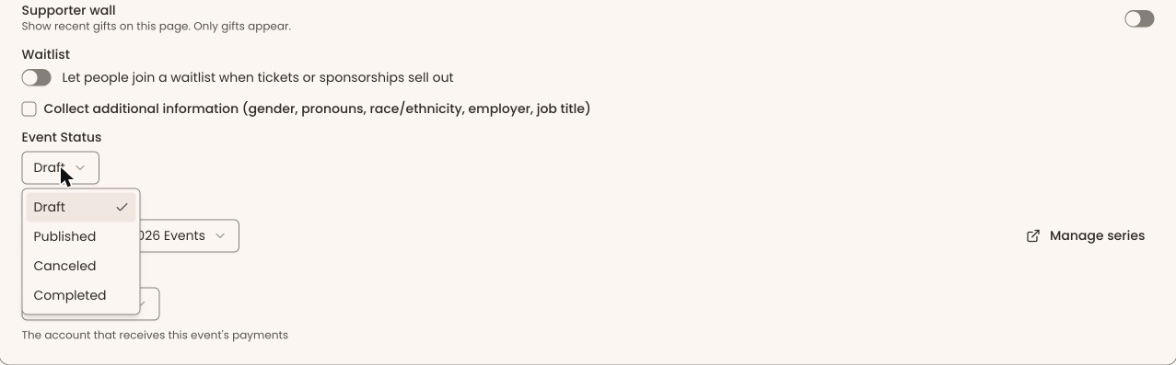
Important: once you save, anyone with the link can buy tickets.
- At the bottom of the page, click "Save Changes".
- You'll see "Event settings saved successfully". That means it worked.
Copy the event link
Page: /dashboard/campaigns/<campaignId>
- In the left-hand menu, under "Fundraising", click "Events". Then click "Events" in the list that opens below it.
- In the list of events, click the event's name.
- Near the top of the page, above the row of tabs, find the box called "Event Form Links". It shows the link in a gray field.
- To the right of the link, click the square copy button (two overlapping squares). It turns into a green check mark for a moment. That means the link is copied.
- Paste the link into your email, newsletter or social media post.

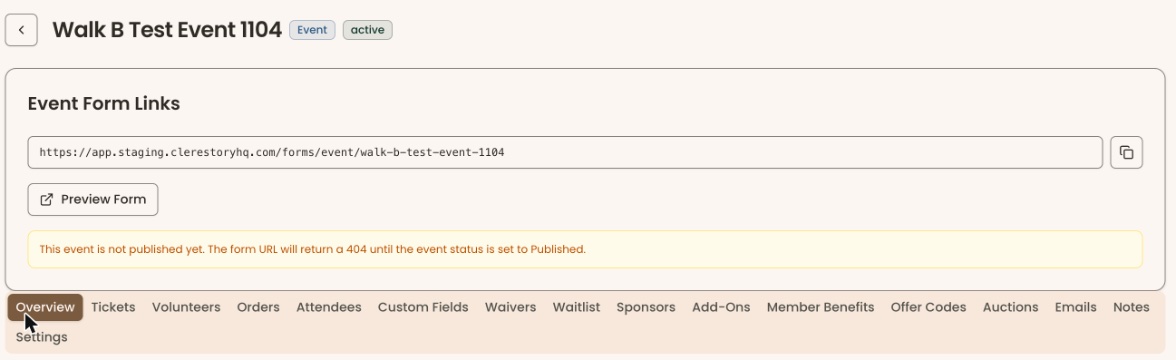

If a yellow note says "This event is not published yet. The form URL will return a 404 until the event status is set to Published.", the link won't work yet. Follow "Publish the event" above.
In the two weeks before a published event that still has seats, a highlighted line at the very top of the page may say "Next: Share event link." Its "Copy event link" button copies the same link. You'll see "Link copied".
Preview the page
- In the "Event Form Links" box, click "Preview Form".
- The public event page opens in a new browser tab. This is what buyers see.
- Close the tab when you're done. Nothing is bought unless you go through checkout.
Download the QR code
A QR code is a square pattern that people scan with their phone camera to open the ticket form.
Page: /dashboard/campaigns/<campaignId>?tab=settings
- Open the event, then click the "Settings" tab. It is the last tab.
- Scroll to the bottom of the page, to the box called "Embed code".
- Under "QR code", click "Download QR".
- A picture file named "clerestory-embed-qr-" followed by the event's web name is saved to your computer.
- Put the picture on a flyer, poster or slide. Scan it with your phone before printing to check it opens the form.
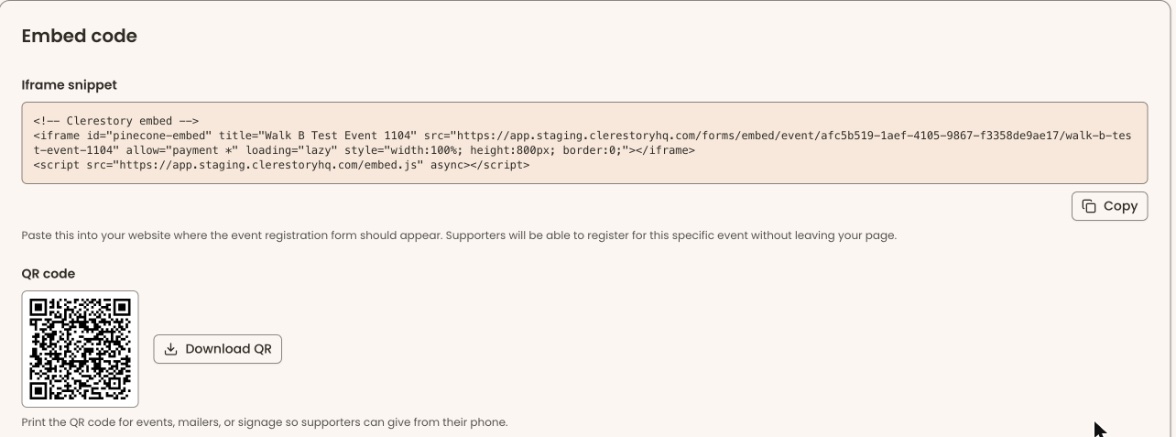
If there is no "Embed code" box, the event isn't published yet. Follow "Publish the event" above.
Put the ticket form on your website
The embed code is a short piece of text your website uses to show the ticket form inside one of your own pages. Buyers then register without leaving your website.
Page: /dashboard/campaigns/<campaignId>?tab=settings
- Open the event, then click the "Settings" tab. It is the last tab.
- Scroll to the bottom of the page, to the box called "Embed code".
- Under "Iframe snippet", click "Copy". The button changes to "Copied". That means it worked.
- In your website editor, add an "HTML", "code" or "embed" block where the form should go. The name depends on your website builder.
- Paste the code into that block and publish your website page.
- Open your website page and check the ticket form appears.
Send the copied code to your web person by email if you don't edit the website yourself. Paste the whole thing, from the first <!-- line to the end.
Special cases
- If the event is changed back to "Draft", the link, the QR code and the website form all stop working until it is published again.
- If the event is archived, the page still opens but nothing can be bought on it. See Edit, clone, archive or delete an event.
If you make a mistake
- Shared the link too early: set "Event Status" back to "Draft" in "Settings". The link stops working until you publish again.
- Shared the wrong event: the link can't be recalled. Send the right link to the same people.