


Who can do this: Anyone you give the table screen link to can sell at the table. They don't need a Clerestory login. Cash and check sales also need your organization's kiosk PIN, once per device. Anyone in your organization who can open Raffles can copy the links.
Quick steps: Fundraising › "Raffles" › the raffle › "Selling" › copy "Table screen" or "Online page". At the table: "+" on each option › "Email (optional)" › choose a "Payment method" › "Take payment" › finish the payment › read out the ticket numbers › "Next customer".
Before you start
- The raffle must be open for sales. See Create a raffle, add ticket options, and open or close sales.
- For cash or check at the table: a kiosk PIN must be set. See Set up the kiosk and its PIN.
- For the "Card reader" choice: a card reader must be registered. See Register a card reader and its location. Without one, the table can still take cards by typing them in.
- A table screen is the selling page for the raffle table. Its link works only for this raffle.
Get the selling links
Page: /dashboard/raffle/<raffleId>
- In the left-hand menu, under "Fundraising", click "Raffles".
- In the table, click the raffle's name. The raffle's page opens.
- Scroll down to the box headed "Selling".
- Under "Online page", click the copy button to the right of the link (two overlapping squares). It briefly turns into a check mark. Paste the link into an email or onto your website.
- Under "Table screen", click "Open" to open the table screen in a new browser tab. Or click its copy button and open the link on the table's tablet.
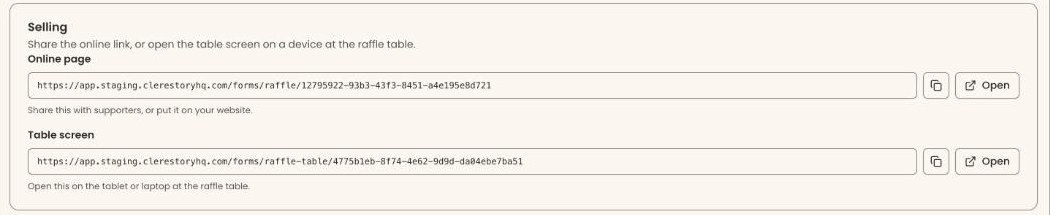
If you see an amber note such as "These links don't sell anything until you press Start selling.", the raffle isn't open yet.
Important: Anyone with the table screen link can sell tickets for this raffle. Give it only to your volunteers.
Sell at the table
Page: /forms/raffle-table/<salesKey>
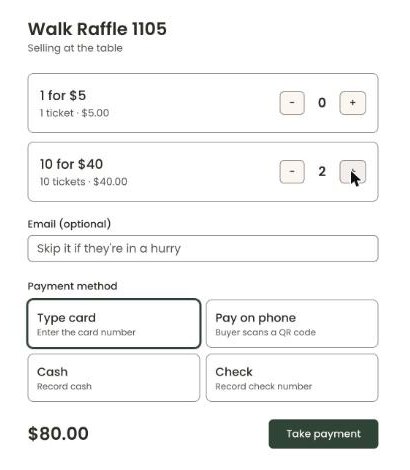
- Open the table screen link. The page shows the raffle's name and "Selling at the table".
- Each ticket option shows its name, its tickets and price, for example "10 tickets · $40.00". Click "+" next to each option the buyer wants. Click "−" to take one off.
- The total shows at the bottom left, next to "Take payment".
- If the buyer wants their ticket numbers by email, type it in "Email (optional)". You can leave it blank.
- Under "Payment method", click one: "Card reader", "Type card", "Pay on phone", "Cash" or "Check". "Card reader" shows only when a reader is set up, and is chosen first when it does. Otherwise "Type card" is chosen first.
- Click "Take payment". What happens next depends on the method. Follow the matching section below.
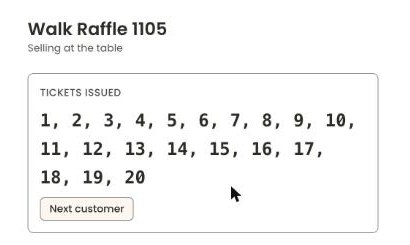
When the sale is done, the table screen shows "Tickets issued" with the ticket numbers in large type, in a box above the ticket options. Read them out or write them on the buyer's stubs. On a paper raffle it shows "Sale complete" and "Hand over the printed tickets." Click "Next customer" to clear it.
Card reader
Important: The buyer's card is charged as soon as they tap, insert or swipe it.
- After "Take payment", the screen waits for the reader. Ask the buyer to tap, insert or swipe their card on it.
- When the card is accepted, the screen shows "Tickets issued". That means it worked.
Type card
Important: Clicking "Charge $…" charges the card right away.
- After "Take payment", a page called "Type the card" opens, with "Card" selected at the top. Type the "Card number", "Expiration date", "Security code" and "ZIP code". Leave the optional "Save my information for faster checkout" boxes blank.
- Click "Charge" followed by the amount, for example "Charge $40.00".
- You'll see "Tickets issued". That means it worked.
If you see "Check the card details." or "That card was not charged.", fix the details or try another card. Click "Back" to choose another method.
Pay on phone
- After "Take payment", a page called "Pay on phone" shows the amount and a QR code (a square barcode).
- Ask the buyer to scan the code with their phone camera. Their phone opens the raffle's online page with this sale already filled in.
- The buyer types their email and pays on their phone. The table screen shows "Waiting for payment…" until they do.
- When they have paid, the table screen shows "Tickets issued" by itself. That means it worked.
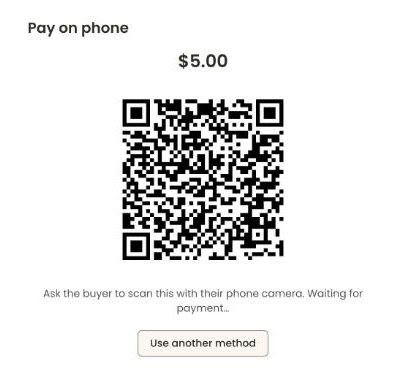
To stop and use another method, click "Use another method". The sale comes back with the same tickets chosen. If the buyer had already paid, the table shows their tickets instead. If you see "The QR code expired. Start the sale again.", click "Take payment" again.
Cash
- After "Take payment", the first time on this device, a screen called "Enter kiosk PIN" opens. Type the PIN on the keypad and click "Unlock". The device stays unlocked after that.
- A page called "Cash sale" opens with "Amount due" and the total.
- "Amount received (optional)" starts filled in with the amount due. Replace it with the cash the buyer handed you, for example 100. "Change due" shows the change to give back.
Important: "Record cash sale" records the money as paid. Click it only once you have the cash.
- Click "Record cash sale".
- You'll see "Tickets issued". That means it worked.
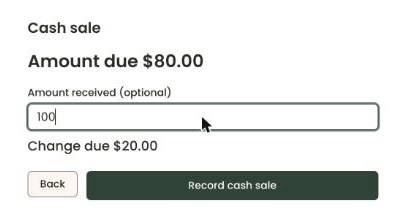
If you see "That is less than the amount due.", the amount received is too low. The button can't be clicked until it's enough, or the box is empty.
Check
- After "Take payment", unlock the device with the kiosk PIN if asked, as for cash.
- A page called "Check sale" opens. In "Check number", type the number on the check, for example 1042.
Important: "Record check sale" records the check as paid. Click it only once you have the check.
- Click "Record check sale". It can't be clicked until "Check number" is filled in.
- You'll see "Tickets issued". That means it worked.
If you see "The sale was not recorded. Keep the money and tap Record again — it will not be recorded twice.", click the record button again.
What a buyer sees online
Page: /forms/raffle/<embedToken>
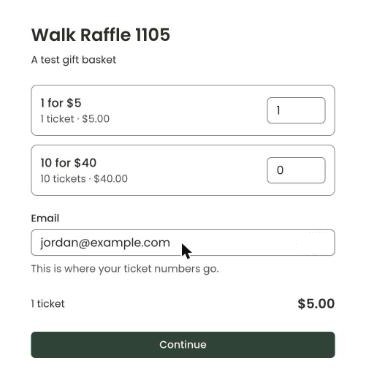
- The buyer opens the online page link. It shows the raffle's name and the prize.
- For each ticket option, they type how many they want in the box to its right.
- In "Email", they type their email address. They must fill it in. On a numbered raffle the line below says "This is where your ticket numbers go."
- The page shows how many tickets and the total. They click "Continue".
Important: "Pay" charges the buyer's card right away.
- They type their card details and ZIP code, or use a wallet button if their device offers one. A "Save my information for faster checkout" box starts checked; they can uncheck it. They click "Pay" followed by the amount, for example "Pay $40.00".
- They see "You're in the drawing" and their ticket numbers, with "We've emailed these to …" and "Keep them — they're how we'll identify you if you win." On a paper raffle they see "Thank you. Your tickets are counted."
If the raffle isn't open, the buyer sees "Tickets aren't on sale right now".
Special cases
- Ticket number emails. On a numbered raffle, a buyer who gave an email address is emailed their ticket numbers. A table sale with no email sends nothing. The stub in their hand is how they claim a prize.
- "Card payments not recorded yet". If a tablet lost its connection after a card was charged, the table screen shows this red box with the amount. Click "Record sale" next to it. Don't charge the card again.
- "The card was charged, but the sale was not recorded yet." Don't charge the card again. Click "Record sale" on that screen.
- "No kiosk PIN has been set". An Owner or Administrator needs to set the kiosk PIN before cash and check can be taken. Cards still work. See Set up the kiosk and its PIN.
- "This raffle isn't taking payments yet". Your payment account isn't ready. Finish its setup, then reload the page. See Add a payment account, connect Stripe and set your payout schedule.
- Refunds. A refunded sale's tickets come out of the drawing and are counted under "Withdrawn (refunded)" on the raffle's page. To refund a sale, see Refund a payment.
Buttons to avoid
- "Back" on the cash, check or card page goes back to the sale without recording it.
- "Use another method" on the QR page cancels that phone sale.
If you make a mistake
- Wrong number of tickets before you take payment: click "−" to take options off.
- A cash or check sale recorded by mistake can't be undone from the table screen.