


Who can do this: Owner and Administrator. Viewer users see these sections but can't change anything. Other roles don't see them.
Quick steps: Settings › "Organizations" › "Kiosk PIN" › type a PIN in "PIN" and "Confirm" › "Set PIN". Or click "Generate a random PIN".
Before you start
- You need the Owner or Administrator role.
- Decide on a PIN of 6 to 12 digits, or let Clerestory make one.
- A kiosk can't be opened at all until a PIN is set. Each tablet asks for the PIN once, then stays unlocked until you revoke it.
- The kiosk is the self-service screen, usually on a tablet, where visitors buy admission, give, shop, register for events and sign up for classes.
Set the kiosk PIN
Page: /dashboard/settings/organizations
- In the left-hand menu, under "Tools", click "Settings". Then click "Organizations" in the list that opens below it. You may need to scroll the left-hand menu to see the list.
- Scroll down to the box called "Kiosk PIN". It has a key icon next to its name.
- If no PIN is set, it says "No PIN is set yet, so Kiosk v2 devices cannot be opened."
- In "PIN", type 6 to 12 digits. The digits show as dots.
- In "Confirm", type the same digits again.
- Click "Set PIN". If a PIN is already set, the boxes are called "New PIN" and "Confirm", and the button says "Replace PIN".
- You'll see "Kiosk PIN saved". That means it worked.
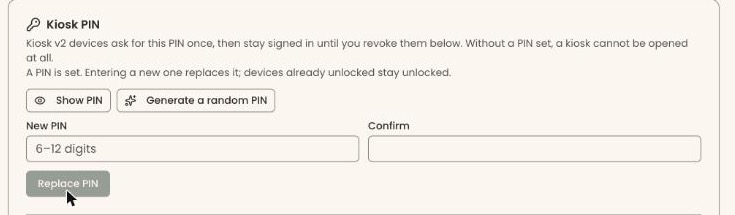
If you see "PIN must be 6–12 digits." or "PINs do not match.", fix the digits. The button can't be clicked until both are right.
Replacing the PIN doesn't lock tablets that are already unlocked. To lock one, see "Lock out a lost or old tablet" below.
Let Clerestory make a PIN
Important: "Generate a random PIN" replaces the current PIN right away, with no confirmation box. Tell your volunteers the new PIN before any new tablet needs it.
- In the "Kiosk PIN" box, click "Generate a random PIN".
- You'll see "A new kiosk PIN was generated", and the new PIN appears in large digits. That means it worked.
- Click "Copy" to copy it. The button briefly says "Copied". Click "Hide" when you're done.
See the current PIN
- In the "Kiosk PIN" box, click "Show PIN" (it has an eye icon).
- The PIN appears in large digits. Click "Copy" to copy it, or "Hide" to hide it again.
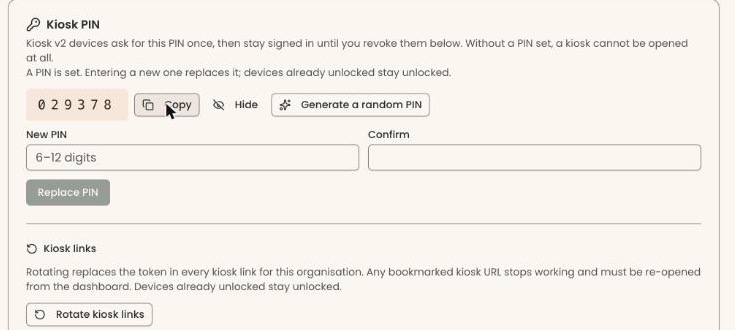
If you see "This PIN was set before it could be stored readably. Generate a new one to see it.", the old PIN can't be shown. Make a new one as above.
Unlock a tablet
- On the tablet, open your kiosk's web address. To find one, go to "Campaigns" in the left-hand menu. At the far right of a campaign's row, click the three dots (⋯), then click "Preview Kiosk Form".
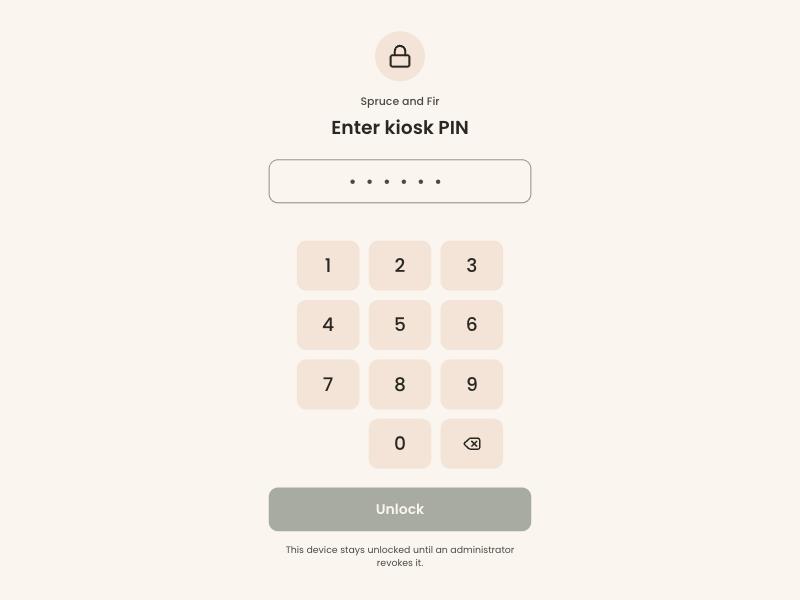
- The kiosk shows "Enter kiosk PIN" with a number pad.
- Type the PIN on the number pad, then tap "Unlock".
- The kiosk opens on "New sale". The tablet now appears under "Unlocked devices" in the "Kiosk PIN" box.
Lock out a lost or old tablet
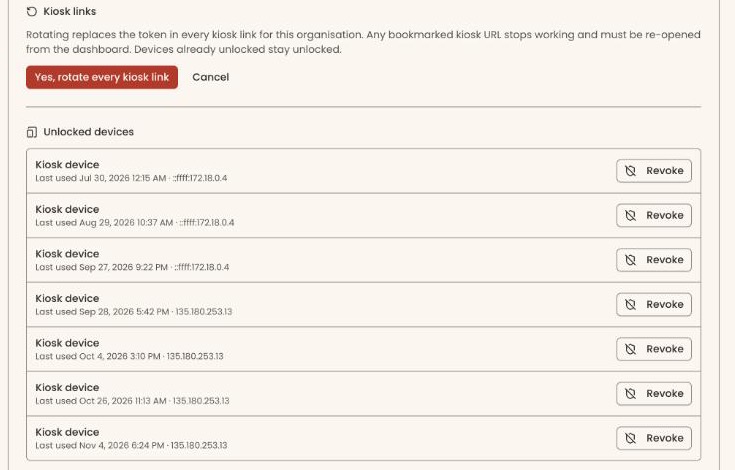
- In the "Kiosk PIN" box, find "Unlocked devices". Every tablet is called "Kiosk device". Tell them apart by "Last used", which shows the date, time and the tablet's internet address. The list is not in date order.
- On the tablet's row, at the right, click "Revoke". It takes effect at once, with no confirmation box.
- You'll see "Device revoked — it will ask for the PIN again". The tablet leaves the list. That means it worked.
Replace every kiosk link
Use this if a kiosk web address has been shared with someone who shouldn't have it.
- In the "Kiosk PIN" box, find "Kiosk links".
- Click "Rotate kiosk links". Two buttons appear.
Important: Rotating stops every saved or bookmarked kiosk address from working, on every tablet. You will need to open each kiosk again from the dashboard. It can't be undone.
- Click "Yes, rotate every kiosk link", or "Cancel" to stop.
- You'll see "Rotated … kiosk link(s). Re-open each kiosk from the dashboard." That means it worked. Tablets already unlocked stay unlocked.
Require the PIN on the admission point of sale
The admission point of sale is the screen staff use to sell admission at the front desk. See Sell admission at the desk, and see visitor numbers.
The switch can't be used until a PIN is set. It then says "Set a PIN above first".
- At the bottom of the "Kiosk PIN" box, find "Require this PIN on the admission point of sale".
Important: The switch changes the setting as soon as you click it. Turning it off lets anyone with the point of sale's web address record cash, check and comped admissions without the PIN.
- Click the switch at the right to turn it on or off. When it's on, cash, check and comped admissions ask for the PIN first. Card and reader payments are unchanged.
- You'll see "The admission point of sale now asks for the PIN before cash, check, and comped admissions." (on) or "The admission point of sale no longer asks for the PIN." (off). That means it worked.

Choose the kiosk's class form
This shows only when you have two or more class registration forms set up for the kiosk.
- Find the box called "Kiosk v2", above "Kiosk PIN".
- Under "Kiosk class catalog", click the box and choose the form the kiosk's "Classes" tile should open. "Auto (earliest created)" uses the oldest one.
- You'll see "Kiosk class catalog updated". That means it worked.
If the "Kiosk v2" box shows a yellow "Heads up" note, admission, donations and events go to different payment accounts. Sales that mix them are declined at the kiosk, so ring them up separately.
Buttons to avoid
- "Generate a random PIN" changes the PIN at once. Use "Show PIN" to see the current one.
- "Rotate kiosk links" breaks every saved kiosk address. "Revoke" locks out one tablet only.
If you make a mistake
- A new PIN can be replaced again at any time with "Replace PIN".
- A revoked tablet can be unlocked again with the PIN.
- Rotated kiosk links can't be put back. Open each kiosk again from the dashboard. For the admission screen, see Launch the admission screen on a tablet.