


Who can do this: Owner, Administrator and Finance. Fundraiser, Programs, Front desk and Viewer can open a payment but don't see the "Refund" button.
Quick steps: open the payment › "Refund" › "Refund amount" › choose how › "Issue refund" (card) or "Record refund" (money you gave back yourself).
Before you start
- You need the Owner, Administrator or Finance role.
- Know the donor's name and the amount to refund.
- If you gave the money back yourself, have the check number or other detail to hand.
- A refund gives money back for a payment. A payment is one amount paid, such as one month of a monthly gift.
Refund a card payment
Page: /dashboard/payments/<paymentId>
- At the top of any page, click the box that says "Search...".
- Type the donor's name.
- Under "Payments", click the payment. The payment's page opens. Quick search shows only a few payments per person. If you can't see the one you want, go to Fundraising › "Payments" instead, type the name in "Search by name or email...", click "Apply Filters", and click the payment's date.
- Check the amount and "Paid by" at the top of the page.
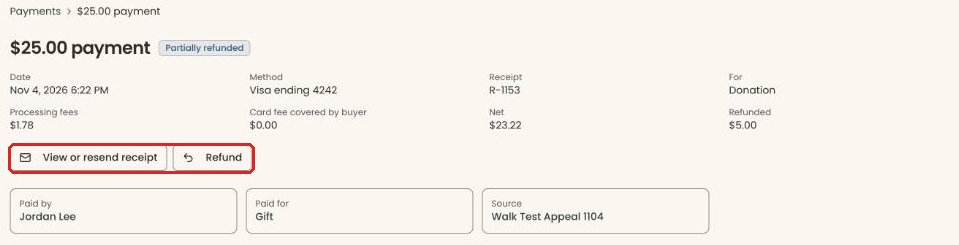
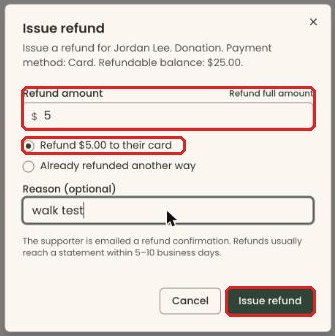
- Under the payment's figures, on the left, click "Refund". It's next to "View or resend receipt". A box opens called "Issue refund". Its first lines show the "Refundable balance".
- "Refund amount" is filled in with the full balance. To refund less, select it and type the amount, for example 25. "Refund full amount", above the box on the right, puts the full balance back.
- Leave the first choice selected. It reads "Refund $… to their card" and shows the amount you typed.
- In "Reason (optional)", type why, for example "supporter requested refund".
Important: Clicking "Issue refund" sends the money back to the donor's card and emails them a refund confirmation. It can't be undone.
- At the bottom right of the box, click "Issue refund".
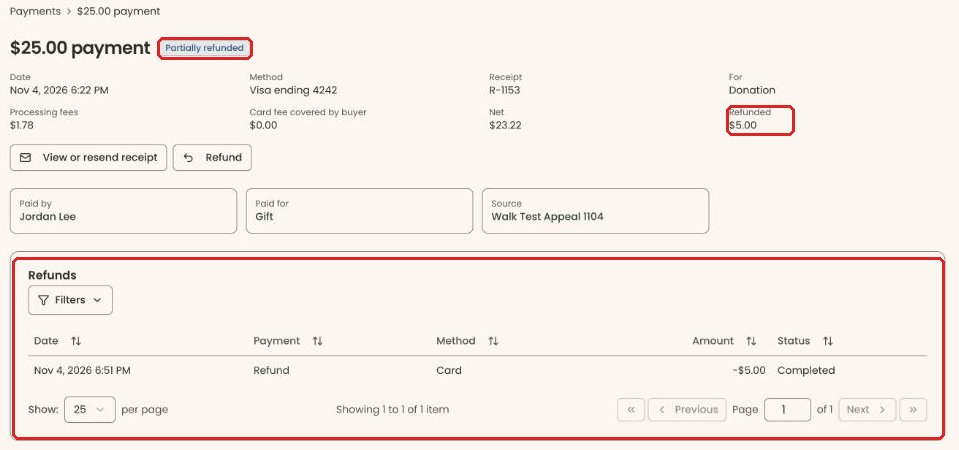
- The box closes. The payment now shows "Partially refunded" (or "Refunded"), a "Refunded" figure and a "Refunds" list. That means it worked. You may also see "$25.00 refunded to Jordan Lee." at the top of the screen. Refunds usually reach a statement within 5–10 business days.
If you see "The most you can refund is …", lower the amount.
Record a refund you made another way
Use this when the donor paid by card but you gave the money back another way, for example by check.
Page: /dashboard/payments/<paymentId>
- Open the payment and click "Refund", as in steps 1–5 above.
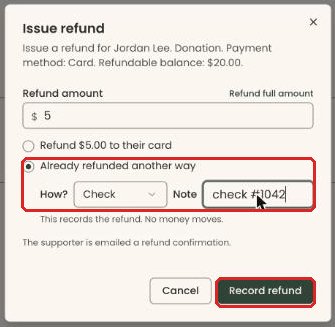
- In "Refund amount", type the amount you gave back.
- Click "Already refunded another way".
- "How?" appears and starts on "Check". Change it to "Cash" or "Other" if needed.
- In "Note", to the right of "How?", type anything useful, for example "check #1042". (The box says "This records the refund. No money moves.")
Important: Clicking "Record refund" emails the donor a refund confirmation. Nothing is sent to their card. It can't be undone.
- Click "Record refund".
- You'll see "$25.00 recorded as refunded for Jordan Lee." That means it worked.
Record cash or a check you handed back
Use this when the original payment was recorded by hand as cash, check or other.
Page: /dashboard/payments/<paymentId>
- Open the payment and click "Refund", as in steps 1–5 of "Refund a card payment".
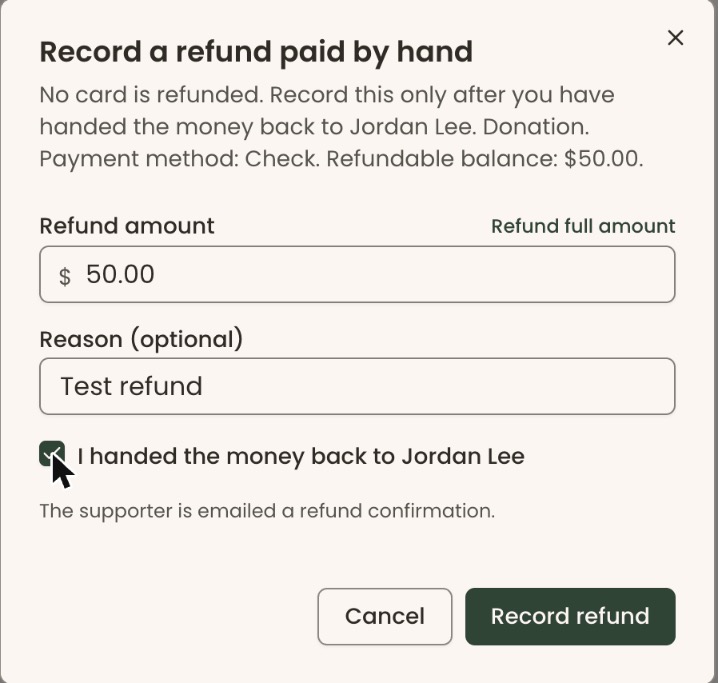
- A box opens called "Record a refund paid by hand". It says no card is refunded.
- In "Refund amount", type the amount you gave back, or click "Refund full amount".
- In "Reason (optional)", type why.
- Check "I handed the money back to [name]". You can't click "Record refund" until you do.
Important: Clicking "Record refund" emails the donor a refund confirmation. It can't be undone.
- Click "Record refund".
- You'll see "$25.00 refunded to Jordan Lee." That means it worked.
What happens to receipts and totals
- The donor is emailed a refund confirmation every time, whichever way you refund.
- The refund is its own payment, shown as a minus amount, with "Refund of" linking to the original.
- The original payment shows a "Refunded" line, a "Refunds" section, and the status "Refunded" or "Partially refunded".
- Giving totals go down. Totals and supporter levels count the refund against the gift.
- Fully refunded payments keep a "Refund" button you can't click, labeled "Fully refunded — nothing left to refund".
Special cases
- Partial refunds. Type less than the full amount. You can refund the rest later, up to the "Refundable balance".
- Event registrations. Only a full refund cancels the registration and releases the seats. If anyone on the payment is already checked in, no seats are released. To refund single add-ons, use "Refund add-ons only".
- Memberships. On a full refund you'll see "Also end this membership". It is off to start with. Check it to end the membership today and cancel any upcoming renewal charge. A partial refund leaves the membership as it is.
- No "Refund" button at all: the payment didn't go through, it is itself a refund, or it was recorded by hand as a bank transfer, stock or donor-advised fund gift. These can't be refunded in the screens.
- Recurring gifts. A refund doesn't stop future payments. Cancel the gift too: see Cancel a recurring gift or donation.
Buttons to avoid
- "View or resend receipt" next to "Refund" resends the original receipt. It doesn't refund anything.
- "Cancel" in the refund box closes it without refunding.
If you make a mistake
A refund can't be undone in the screens. A card refund has already sent the money back.