


Who can do this: Owner, Administrator and Programs. Finance, Fundraiser, Front desk and Viewer users can open Raffles and see each raffle, but don't see "New raffle", the ticket option form, "Start selling", "Close entries" or "Reopen".
Quick steps: Fundraising › "Raffles" › "New raffle" › "Name", "How tickets are issued", "Prize (optional)" › "Create raffle" › click the raffle › "Ticket options": "Option name", "Tickets", "Price" › "Add" › "Start selling". Later: "Close entries".
Before you start
- You need the Owner, Administrator or Programs role.
- Raffles must be turned on for your organization. See Turn features on or off.
- Your organization's payment account must be able to take payments before sales can start. See Add a payment account, connect Stripe and set your payout schedule.
- Decide how tickets are issued. You can't change this after you create the raffle:
- Numbered tickets: every sale gets ticket numbers, at the table and online, and you run the drawing in Clerestory.
- Paper tickets: you hand out printed tickets and draw from a drum. Clerestory only takes the money. There is no drawing button.
- Have ready: the raffle's name, the prize, and your prices, for example "1 for $5" and "10 for $40".
- A ticket option is one thing people can buy, such as "10 for $40", which gives ten tickets.
Create the raffle
Page: /dashboard/raffle
- In the left-hand menu, under "Fundraising", click "Raffles". The "Raffles" page opens.
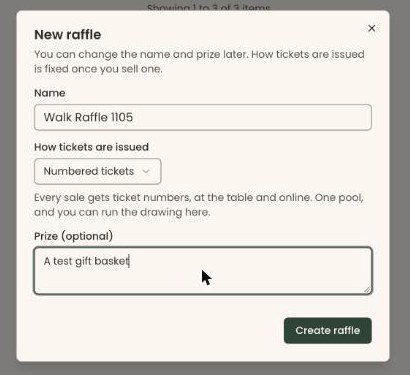
- At the top right of the page, click "New raffle". A box opens called "New raffle".
- In "Name", type the raffle's name, for example "Spring Gala Raffle".
- Under "How tickets are issued", the box shows "Numbered tickets". To use paper tickets instead, click it and choose "Paper tickets". The line under the box explains your choice.
- In "Prize (optional)", type what the winner gets, for example "A gift basket". Buyers see this on the online page.
Important: The name, prize and ticket type can't be changed in the screens after you click "Create raffle". The box's note says the name and prize can be changed later, but the raffle's page has no place to do it. Check them first.
- At the bottom right of the box, click "Create raffle". It stays grayed out until "Name" is filled in. To close the box without saving, click the × at its top right.
- The box closes and you'll see ""Spring Gala Raffle" created." The raffle appears in the table with the status "Draft". That means it worked.
- Click the raffle's name in the table. The raffle's own page opens.
If you see "Could not create the raffle.", try again.
A draft raffle is saved but sells nothing yet.
Add ticket options
Page: /dashboard/raffle/<raffleId>
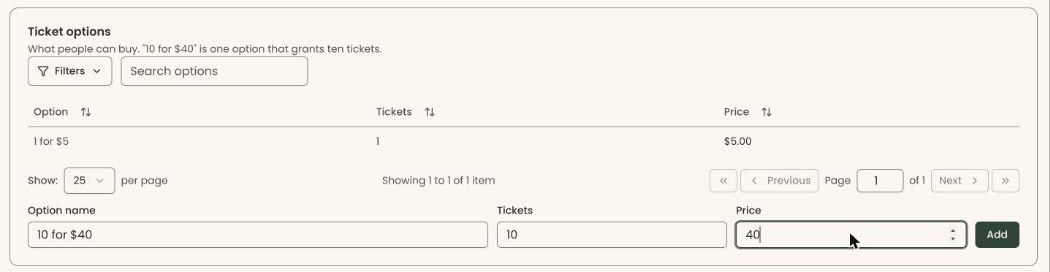
- On the raffle's page, scroll to the box headed "Ticket options". The "Option name", "Tickets" and "Price" boxes are at the bottom of it.
- In "Option name", type what buyers will see, for example "10 for $40".
- In "Tickets", type how many tickets this option gives, for example 10. It starts at 1.
- In "Price", type the price in dollars, for example 40.
Important: A ticket option can't be changed or removed in the screens once you add it. Check the name, tickets and price first.
- To the right of "Price", click "Add".
- The option appears in the table above, with its "Option", "Tickets" and "Price", and the boxes empty again. That means it worked.
- Repeat for each option, for example "1 for $5".
If you see "A ticket option has to be at least $0.50.", raise the price. If nothing happens when you click "Add", check that "Option name" and "Price" are both filled in.
Ticket options can be added at any time, even while sales are open. They can't be changed or removed in the screens, so check each one before you click "Add".
Start selling
Add your ticket options first. A raffle with no options has nothing to sell.
Page: /dashboard/raffle/<raffleId>
Important: Once you click "Start selling", anyone with the online page link can buy tickets, and the table screen starts taking payments.
- At the top right of the raffle's page, click "Start selling".
- The label next to the raffle's name changes from "draft" to "open", and "Close entries" replaces "Start selling". That means it worked.
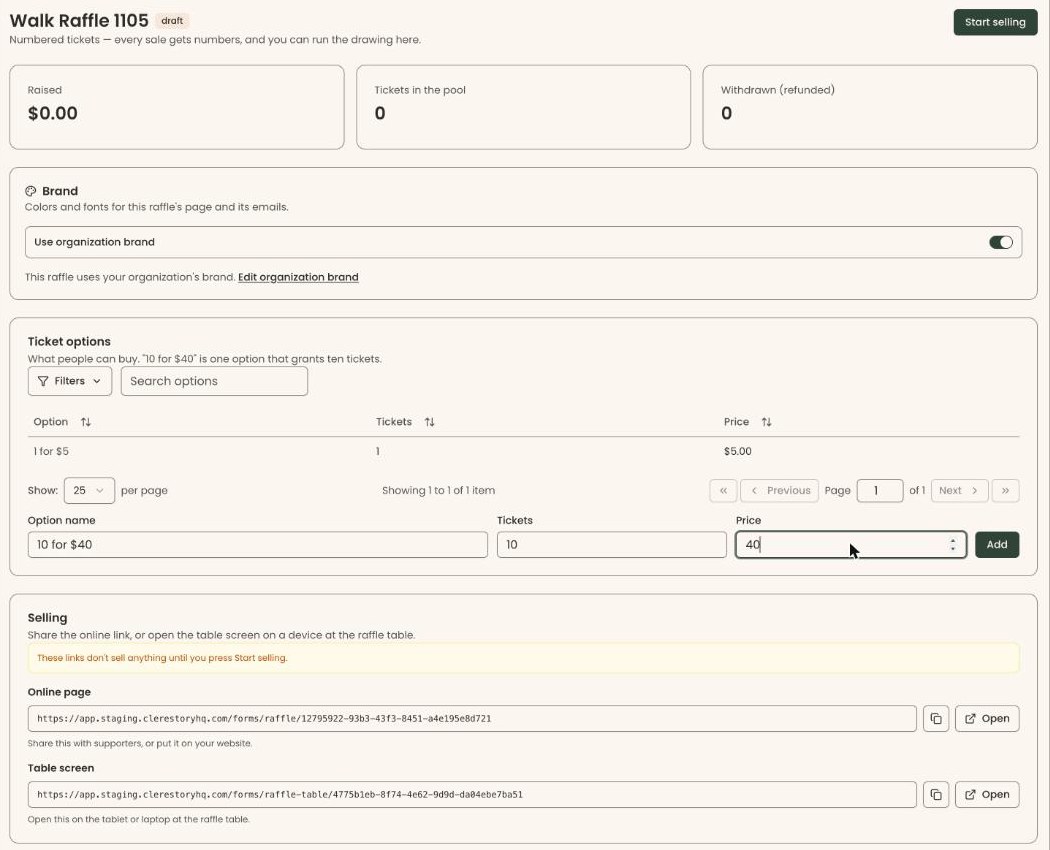

To share the links for selling, see Sell raffle tickets at the table and online.
If you see "Could not change the raffle status.", check that your payment account has finished its Stripe setup, then try again.
Close entries
Close entries when sales should stop, for example shortly before the drawing. A numbered raffle must be closed before you can draw a winner.
- At the top right of the raffle's page, click "Close entries".
- The label next to the name changes to "closed". "Reopen" appears, and on a numbered raffle so does "Draw a winner". That means it worked.

The online page now says "Tickets aren't on sale right now", and the table screen says "This link isn't selling". The "Selling" box on the raffle's page says "Entries are closed, so these links don't sell anything. Reopen to sell again."
Reopen sales
- At the top right of a closed raffle's page, click "Reopen".
- The label changes back to "open". That means it worked.
Don't reopen a raffle after you have drawn a winner. Tickets sold afterwards would not have been in that drawing.
What the labels mean
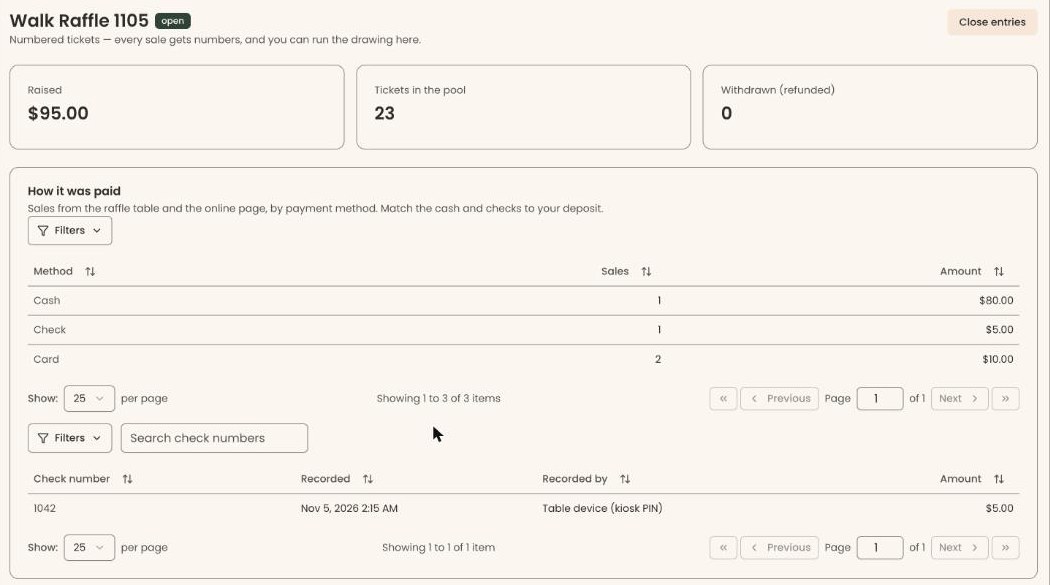
- "Raised": the money the raffle has taken from all sales.
- "Tickets in the pool" (numbered raffles): the tickets sold, not counting refunded ones. It doesn't go down when tickets are drawn. The "Pool" column under "Drawings" shows how many could win at each draw.
- "Purchases" (paper raffles): how many sales were made, because paper raffles have no ticket numbers.
- "Withdrawn (refunded)": tickets taken out of the drawing because their sale was refunded.
- "How it was paid": sales by payment method ("Card", "Paid on phone", "Cash", "Check"), with "Sales" and "Amount". Below it, a table lists each check by "Check number", with "Recorded", "Recorded by" and "Amount". Use these to match your deposit.
- Status in the Raffles table: "Draft", "Open", "Closed" or "Drawn".
Special cases
- The raffle's look. The raffle page has its own brand settings box, like your other forms.
- "Emails" box. At the bottom of the raffle's page, it shows the emails buyers get and everything sent.
- No drawing button on a paper raffle. Paper raffles are drawn from the drum.
If you make a mistake
- A wrong name, prize or ticket type can't be fixed in the screens. If no tickets have sold, create a new raffle with the right details and don't start selling the wrong one.
- A ticket option with the wrong price can't be removed in the screens. Don't start selling until the options are right.
- Sales started too early: click "Close entries".