


Who can do this: Owner, Administrator, Programs and Front desk. Finance, Fundraiser and Viewer can't open the auction night screens. On the event's "After" › "Enter results" screen they see the list, but every button is grayed out.
Quick steps: Paper gift sheets: auction night › "Auctioneer" › "Paper sheets" › "Sheet", "Total on the sheet" › "Start entering" › "Bidder #", "Amount" › "Add line" › "Post sheet". Winners: auction night › "Results" › "Winning #", "Winning bid" › "Record" (or "No sale").
Before you start
- You need the Owner, Administrator, Programs or Front desk role.
- Have the paper sheets in front of you, with each bidder number and amount readable.
- A bidder number is the number a guest bids with. Everything they win or give is owed on that number.
- A paddle raise gift is an amount a guest gives by raising their bidder number when the auctioneer calls it.
- Recording a result or a gift charges nobody and emails nobody. Guests pay at checkout. See Check guests out: take payment and hand over items.
Open auction night
Page: /dashboard/gala/<eventId>
- In the left-hand menu, under "Fundraising", click "Events". Then click "Events" in the list that opens below it.
- In the list of events, click the event's name.
- Click the "Auctions" tab in the row of tabs near the top.
- Click "Live".
- In the "Auction night" box, click "Open auction night". A full-screen page opens with a row of stations near the top.
Enter a paper sheet of paddle raise gifts
Use this when the Auctioneer screen stopped working and gifts were written on paper. Each line on the sheet is one gift: a bidder number and an amount.
At the moment, lines can't be added to a sheet. Clicking "Add line" (step 11) shows "That line was NOT saved: source must be one of the following values: …" and the line is not kept. Entering a paper sheet's gifts can't be done in the screens right now. A sheet you start stays "not posted", and cards can't be charged while any sheet is not posted. "Post with a variance" (below) posts a sheet anyway, recording the difference with your reason.
Page: /dashboard/gala/<eventId>/auctioneer
- In the row of stations, click "Auctioneer".
- Scroll to the bottom of the screen. Click "Paper sheets". The badge beside it says "All sheets posted" or how many are "not posted".
- Under "Start a sheet — enter its total first", in "Sheet", type a name for the sheet, for example "Table 4, sheet 1".
- In "Written by", type who wrote the sheet. You can leave it empty.
- In "Total on the sheet", type the total written on the paper, for example 3500. Add it up first if the sheet has no total.
- Click "Start entering".
- The sheet opens with its name and "Sheet says $3,500.00 · entered $0.00". On the right it says how far off you are, for example "Short by $3,500.00".
- In "Bidder #", type the first bidder number, for example 27. The guest's name appears under the box.
- If you see "No bidder #27 at this event.", the number is wrong. Check the paper and type it again.
- In "Amount", type that gift, for example 1000.
- Click "Add line". The line appears in the list below, for example "#27 Jordan Lee · $1,000.00".
- Repeat for every line on the sheet. The figure on the right updates after each line.
- When the entered total matches the sheet, it says "Balanced".


Important: "Post sheet" adds every line to the guests' totals, ready to charge. There is no button to un-post a sheet.
- Click "Post sheet".
- You'll see "Sheet "Table 4, sheet 1" balanced and posted.". The badge reads "All sheets posted" once every sheet is done. That means it worked.
Every sheet has to be entered and posted before cards can be charged.
If you see "Already recorded at 8:14 pm — skip?" under the boxes, that gift was already saved on the screen before it stopped working. Click "Skip" so it isn't counted twice.
To stop and carry on later, click "Finish later". The sheet is listed under the "Start a sheet" box with what is entered so far. Click "Resume" to carry on.
Fix a line on a paper sheet
- Open the sheet. If it isn't open, click "Resume" beside it.
- Find the wrong line in the list.
- Click "Remove" at the right of the line. The line disappears and the totals update.
- Add the right line with "Add line".
Post a sheet that doesn't balance
Use this only when you have checked every line and the paper can't be made to agree, for example a line can't be read. Never make up a line to make it balance.
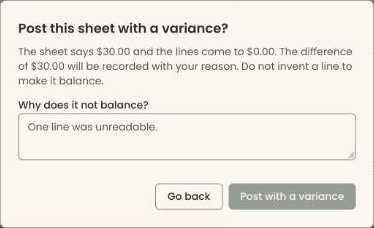
- On the open sheet, under the lines, click "Post with a variance". It appears only when the sheet doesn't balance. A box asks "Post this sheet with a variance?" and shows the difference.
- In "Why does it not balance?", type the reason, for example "One line was unreadable." The button stays grayed out until you type a few words.
Important: This posts the lines as entered and records the difference with your reason. It can't be undone in the screens.
- Click "Post with a variance". To go back, click "Go back".
- You'll see "Sheet "…" posted with a variance.". That means it worked.
Enter winners from paper bid sheets
Use this after an item closes, for each item whose winner was written on paper.
Page: /dashboard/gala/<eventId>/results
- In the row of stations, click "Results".
- At the top, a line shows your progress, for example "41 won online, 6 to enter, 4 to go".
- The list shows silent items to start with. Click "Live" or "All" above the list to see other items.
- Find the item. To search, type its name or number in "Search item name or #".
- In "Winning #", type the winner's bidder number, for example 27. The "Name" column shows who it is.
- If the "Name" column says "No such number", the number is wrong. Check the paper and type it again.
- In "Winning bid", type the amount, for example 180.
- Click "Record" at the right of the row. You can also press Enter in "Winning bid".
- You'll see "Item 12 recorded: #27 at $180.00.". The row's status changes to "Recorded" with the time, number, name and amount. That means it worked. The cursor moves to the next item.
- When every closed item has a result, you'll see "Every closed item has a result." Click "Open checkout desk" to take payment.
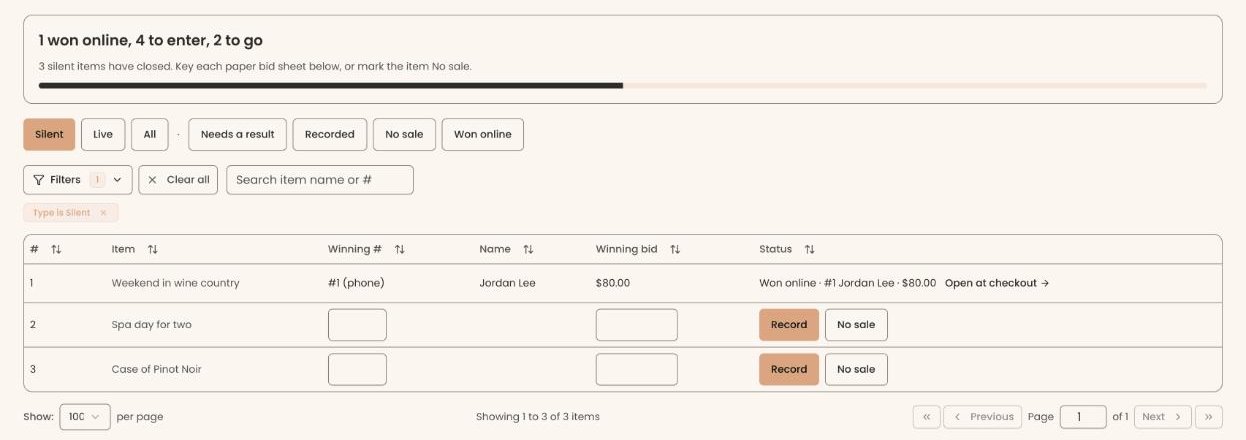

Items won from guests' phones show "Won online" and can't be changed here.
If you see "Item 12: that is not a bidder number." or "Item 12: the winning bid is not an amount.", fix the number or amount and click "Record" again.
Mark an item that nobody won
Important: There is no button on this screen to undo "No sale".
- On "Results", find the item. Leave "Winning #" and "Winning bid" empty.
- Click "No sale" at the right of the row. It only shows while both boxes are empty.
- You'll see "Item 12 marked No sale.". The row's status changes to "No sale". That means it worked.
Other ways to open the same screen
- On the event's "Auctions" tab, click "After", then "Enter results". The same list opens inside the event page.
Page: /dashboard/campaigns/<campaignId>?tab=gala&area=after&screen=enter-results
What the labels mean
- "… won online, … to enter, … to go": items won from phones; items to type in from paper; how many of those are still not done.
- "Needs a result", "Recorded", "No sale", "Won online": buttons that narrow the list to items in that state.
- "Still open — closes at …": a silent item still taking bids. Its result can be entered after it closes.
- "Sheet says … · entered …": the total written on the paper, and what you have typed so far.
- "Short by …" / "Over by …": how far the lines are from the paper's total.
If you make a mistake
- A result typed wrong: on "Results", click "Undo" in the item's row. You'll see "Item 12: the result was undone.". Enter it again.
- A line on an unposted sheet: click "Remove" on it.
- A posted sheet, or "No sale": this can't be undone in the screens. For an amount that is already recorded, see "Fix a mistake: record a correction" in After the auction: collect payments, send receipts and fix mistakes.