


Who can do this: Owner, Administrator, Finance, Programs and Front desk. Fundraiser and Viewer users can see bookings but don't see the "New booking" button.
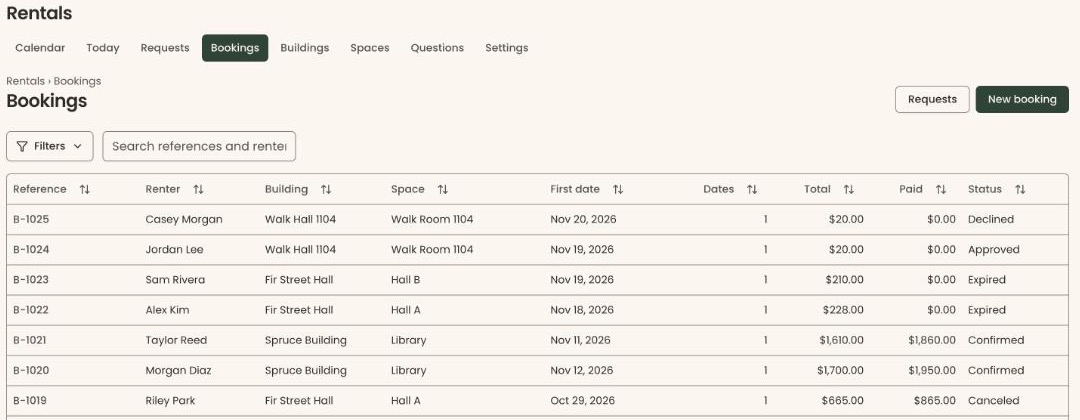
Quick steps: Rentals › "Bookings" › "New booking" › choose the space, date and times › fill in the renter's details › "Make booking" › on the booking's page, "Approve".
Before you start
- You need the Owner, Administrator, Finance, Programs or Front desk role.
- Rentals must be turned on, and the space must already exist. See Turn Rentals on and Add a building and a space.
- Have ready the renter's first name, last name, email address and phone number. The number of guests and the name of their event are optional.
- Know the date and the start and end times. The date must be in the future.
- A booking is one rental of a space, on one date or on the same day every week. Each booking gets a reference such as "B-1042".
- A renter is the person or group who rents one of your spaces.
Make the booking
Page: /dashboard/rentals/bookings/new
- In the left-hand menu, under "Programs & Sales", click "Rentals". The Rentals calendar opens.
- In the row of tabs under the "Rentals" heading, click "Bookings".
- At the top right of the page, click "New booking". A page called "New booking" opens.
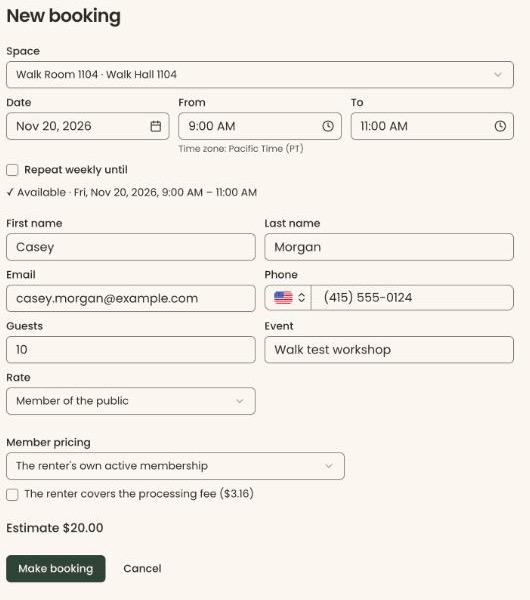
- Click the box under "Space" (it says "Choose a space"). Click the space. Each one shows the space's name and then its building. A space marked "(not published)" isn't on your public rental pages yet, but you can still book it.
- In "Date", type the date, for example Sep 24, 2026. Or click the small calendar button at the right of the box and pick the day.
- In "From", type the start time, for example 6pm.
- In "To", type the end time, for example 10pm.
- If the booking repeats on the same day every week, check "Repeat weekly until". A second date box appears to its right. Type or pick the last date.
- Wait a moment. Under the dates you'll see "✓ Available" followed by the dates. That means the space is free.
- In "First name" and "Last name", type the renter's name, for example Jordan Lee.
- In "Email", type their email address. Clerestory uses it to find them in your records. If nobody matches, it adds them as a new supporter (anyone in your records who has given, joined or registered).
- In "Phone", type their phone number. A booking can't be made without one: "Make booking" then shows "Please enter a valid phone number."
- In "Guests", type how many people are coming, if you know.
- In "Event", type the name of their event, for example Spring Gala, if you know.
- Under "Rate", leave "Member of the public", or click it and choose "Non-profit" if the renter is a non-profit.
- Under "Member pricing", leave "The renter's own active membership" to give a member their membership's price. Or choose "Standard rate", or a membership level.
- If you see "The renter covers the processing fee", check it only if the renter agreed to pay the card processing fee.
- Below that, check the "Estimate" amount.
- At the bottom of the page, click "Make booking". Making the booking sends the renter nothing yet.
- You'll see "Booking B-1042 made. Review and approve it.", and the booking's own page opens with the status "Requested". That means it worked.
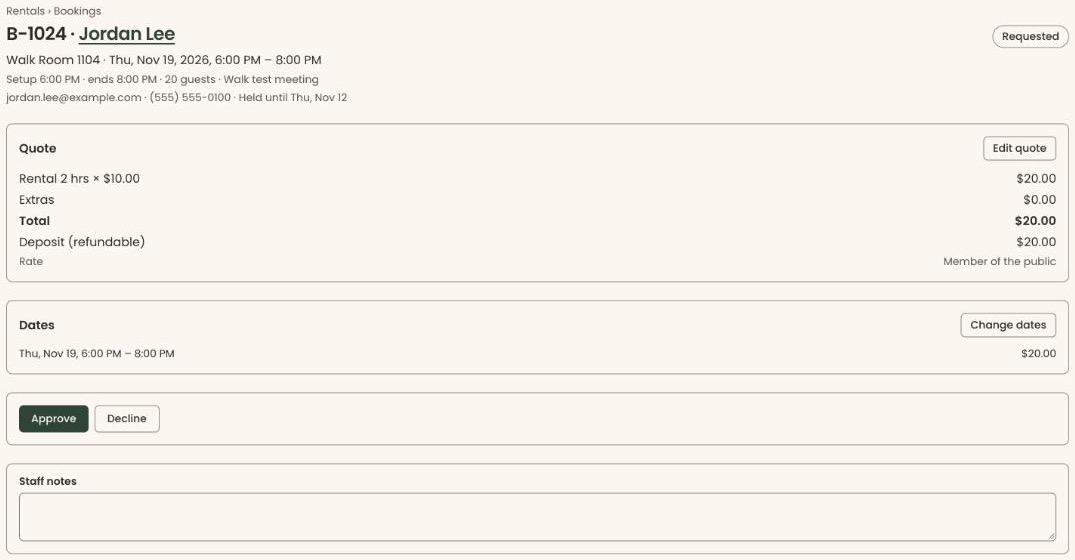
The space is now held for this renter. The booking's page shows "Held until" and a date. If you don't approve it by then, the hold ends and the booking reads "Expired".
Send the renter their link
Page: /dashboard/rentals/bookings/<bookingId>
On the booking's page you can first change the price or the dates. See Change a booking's quote, dates or notes, and send the signing link.
- Under "Quote", check the "Total" and the "Rate".
- Scroll down to the box with the "Approve" and "Decline" buttons.
Important: Clicking "Approve" emails the renter right away. The email has their booking link, where they sign any agreement and pay.
- Click "Approve".
- You'll see "Approved. The renter has been sent their booking link." The status changes to "Approved", and a "Booking link sent" box appears. That means it worked.
- To send the link yourself as well, click "Copy" next to the link in that box. You'll see "Link copied". Paste it into your own message.
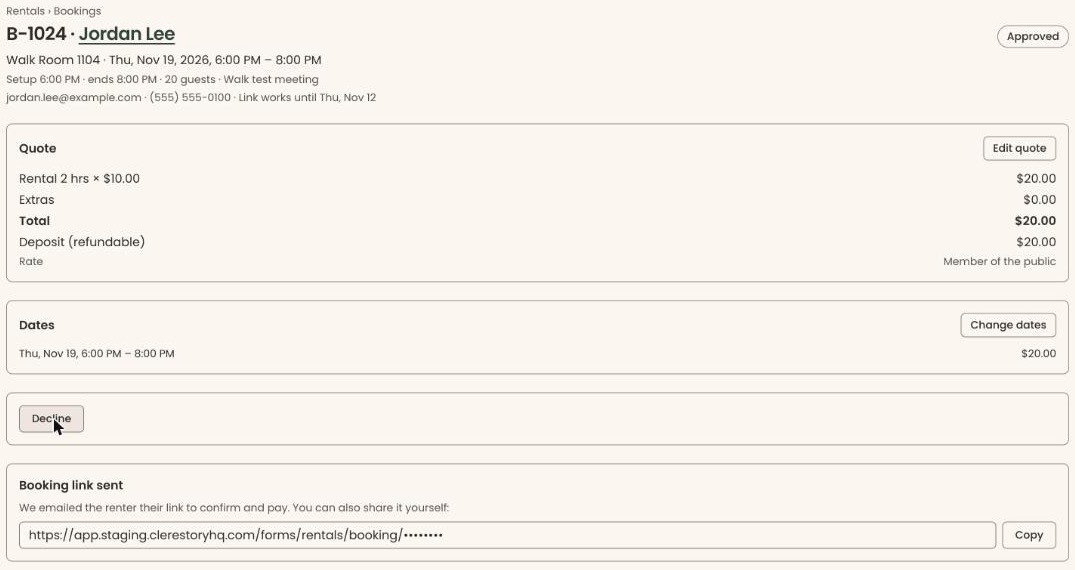
The page now shows "Link works until" and a date. To see what the renter does next, see What a renter does.
Book from the calendar instead
Page: /dashboard/rentals
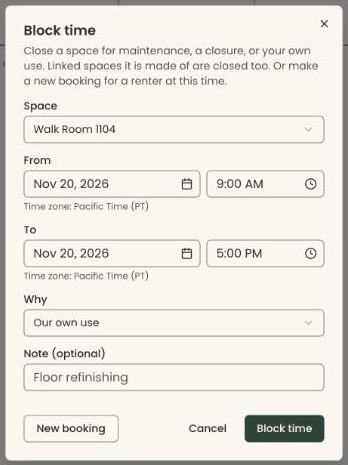
- On the Rentals "Calendar" tab, point at an empty part of the day in the space's row. "+ Block" appears. Click it. (On a phone, click "+ Block" next to the space's name.) A box called "Block time" opens.
- Change "From" and "To" to the booking's times if needed. At the bottom left of the box, click "New booking". The "New booking" page opens with the space, date and times from the box filled in.
- Carry on from step 10 of "Make the booking".
Special cases
- "This time is already in use": if one of your own events uses the space at that time, a box lists it when you click "Make booking". "Save anyway" books it, and it shows as a conflict on the rentals calendar. "Go back" changes nothing.
- The time is taken by another booking or blocked time: the dates show in a red box and "Make booking" can't be clicked. Choose another time. For a weekly booking, "Leave out the dates that are taken" drops those dates and keeps the rest.
- "Over the booking limit": the booking goes over a limit you set for bookings per day or week. The box lists which. Click "Book anyway" to make it, or "Go back".
- "This space holds at most …": the number of guests is more than the space holds. Lower the number.
- "Please choose a date in the future.": the date or start time has already passed.
- "Your role can see bookings but not make them.": your role can't make bookings. Ask an Owner or Administrator.
Buttons to avoid
- "Cancel" at the bottom of the "New booking" page goes back to Bookings without saving.
- "Decline" on the booking's page turns the booking down and tells the renter.
If you make a mistake
Before you approve, you can change the quote and dates on the booking's page, or decline it. After you approve, the renter already has the email. To call it off, cancel the booking or one of its dates. See Cancel a booking or one date.