


Who can do this: Owner, Administrator, Finance, Programs and Front desk. Fundraiser and Viewer users can open a booking but don't see "Edit quote", "Change dates", "Save notes" or "Email signing link".
Quick steps: Rentals › "Bookings" › the booking › "Edit quote" › change "Rate", "Member pricing", "Extras" or "Adjust ($)" › "Save quote". Or "Change dates" › "Date", "From", "To" › "Save dates". Or type in "Staff notes" › "Save notes".
Before you start
- You need the Owner, Administrator, Finance, Programs or Front desk role.
- The quote and dates can be changed only while the booking says "Requested" or "Approved". Once the renter confirms, they can't be changed in the screens.
- For a price change, know the new amount and the reason, for example "Returning renter discount".
- A quote is the booking's price: the rental, any extras, any adjustment, and the total.
- A booking link is the renter's own page where they sign the agreement, upload insurance and pay.
Find the booking
Page: /dashboard/rentals/bookings/<bookingId>
- In the left-hand menu, under "Programs & Sales", click "Rentals".
- In the row of tabs under the "Rentals" heading, click "Bookings".
- In the search box ("Search references and renters"), type the renter's name or the booking reference, for example B-1042.
- Click the booking's reference. The booking's page opens. Its status, for example "Requested", is at the top right.
Change the quote
Page: /dashboard/rentals/bookings/<bookingId>
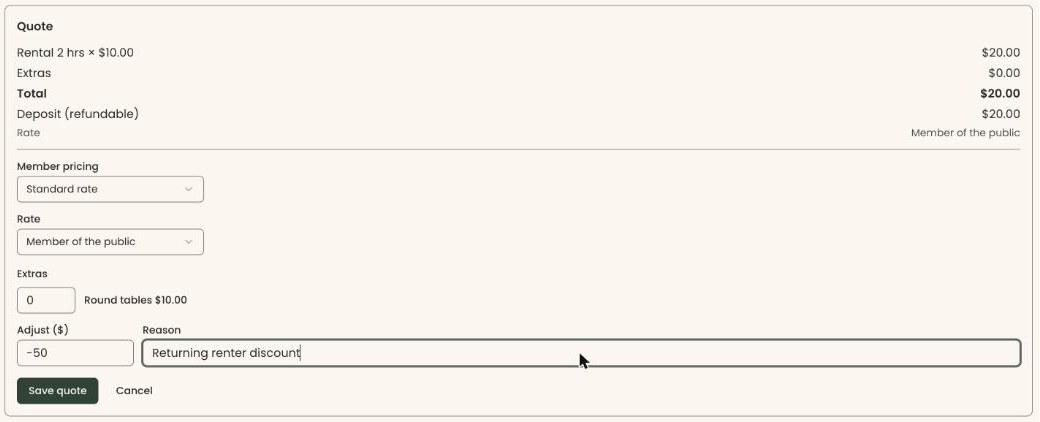
- In the box headed "Quote", at the top right, click "Edit quote". A form opens below the figures.
- Under "Member pricing", leave the choice, or pick a membership level or "Standard rate".
- Under "Rate", leave it, or choose "Member of the public" or "Non-profit".
- If the building has extras, under "Extras", type how many of each extra the renter wants, for example 10 round tables. Type 0 to take one off.
- In "Adjust ($)", type an amount to add or take off. Use a minus sign for a discount, for example -50.
- In "Reason", type why, for example "Returning renter discount". A reason is needed for any adjustment.
Important: "Save quote" changes the price the renter is asked to pay right away.
- Click "Save quote".
- You'll see "Quote saved". The form closes and the "Total" shows the new price. That means it worked.
Saving doesn't email the renter. If you already approved the booking, tell them the price has changed.
If you see "Please give a reason for the adjustment.", fill in "Reason". If you see "The adjustment cannot bring the total below zero.", make the discount smaller.
Change the dates
Page: /dashboard/rentals/bookings/<bookingId>
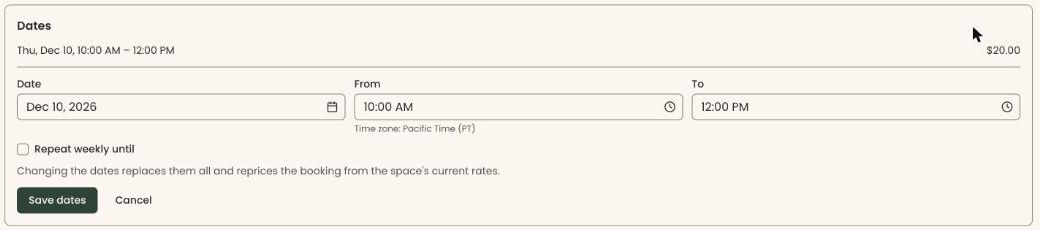
- In the box headed "Dates", at the top right, click "Change dates". A form opens below the dates.
- In "Date", type the new date, for example Sep 24, 2026. Or click the small calendar button and pick the day.
- In "From" and "To", type the new start and end times, for example 6pm and 10pm.
- For a weekly booking, check "Repeat weekly until" and type or pick the last date.
Important: "Save dates" replaces every date on the booking and reprices it from the space's current rates. A discount you added stays.
- Click "Save dates".
- You'll see "Dates saved", and the new dates are listed with their prices. That means it worked.
Saving doesn't email the renter. Tell them about the new dates.
If it didn't work:
- "This time is already in use" means one of your own events uses the space then. "Save anyway" keeps the new dates, and they show as a conflict on the rentals calendar. "Go back" changes nothing.
- "Over the booking limit" means the new dates go over a limit you set. Click "Book anyway" or "Go back".
- A message ending "Please choose another time." means another booking or blocked time is in the way. Choose another time.
- "Please choose a date in the future." means a new date or time has already passed.
Add staff notes
Staff notes are only for your team. The renter never sees them. You can add them at any time, whatever the booking's status.
- At the bottom of the booking's page, find the box headed "Staff notes".
- Click in the box and type your note, for example "Keys left with the caretaker".
- A "Save notes" button appears below the box. Click it.
- You'll see "Notes saved". That means it worked.

Copy the booking link
You can copy the link only on the booking's page right after you click "Approve". See Approve or decline a rental request.
- After you click "Approve", a box headed "Booking link sent" appears.
- Click "Copy" next to the link. You'll see "Link copied". Paste it into your own email or message.

There is no button to copy or resend the booking link once you leave that page.
Email the renter a link to sign the agreement
Use this when the renter hasn't signed the rental agreement yet. It shows on approved and confirmed bookings whose space has an agreement.
- On the booking's page, find the "Agreement" row. An unsigned agreement shows "Not signed" (or "Optional, not signed") and its name.
Important: "Email signing link" emails the renter a link to sign the agreement right away.
- Click "Email signing link".
- You'll see "Signing link sent to" followed by their email address. That means it worked.

If you see "Failed to send signing link", the email wasn't sent. The renter can still sign on their booking link, which was emailed when you approved the booking.
If you can't click it, the renter has no email address. Holding your pointer over it says "This renter has no email address".
Once they sign, the row shows "Signed", the date and how they signed, for example "on the booking link".
Special cases
- "Edit quote" and "Change dates" are missing. The booking is no longer "Requested" or "Approved", or its hold has run out ("Expired"). The date still shows at the top of the page. A weekly booking also lists each date in "Dates".
- Another building. A booking stays in its building. Make a new booking for a space in another building.
- A changed hold. If the new dates start sooner, the hold ends no later than the booking's start.
Buttons to avoid
- "Cancel" under the quote or dates form closes it without saving.
- "Decline", next to "Approve", turns the request down and emails the renter.
If you make a mistake
- A wrong quote or dates: change them again while the booking is still "Requested" or "Approved".
- A wrong note: edit the text and click "Save notes" again.
- A signing link can't be called back once sent.