


Who can do this: Owner and Administrator can switch Rentals on or off. Owner, Administrator and Programs can change the hold days and the start of the week. Only those three see the "Settings" tab inside Rentals. Programs sees the on/off switch grayed out.
Quick steps: Settings › "Features" › "Venue rentals" switch. Then Programs & Sales › "Rentals" › "Settings" tab › "Holds and booking links" › "Days" › "Save", and "Start of the week" › "Week starts on".
Before you start
- To switch Rentals on or off, you need the Owner or Administrator role.
- To change the other settings, you need the Owner, Administrator or Programs role.
- Rentals is the part of Clerestory for renting out your buildings and rooms: requests, approvals, deposits, agreements and payments. It starts switched off.
- A request is a renter asking for a space on a date. While you review it, its dates are held, so nobody else can book them.
- A booking link is the private link a renter gets after you approve their request. They use it to confirm and pay.
Turn Rentals on
Page: /dashboard/settings/features
- In the left-hand menu, under "Tools", click "Settings". A short list opens under it.
- Click "Features". You may need to scroll the left-hand menu to see it.
- In the "Features" list, find the row called "Venue rentals". It reads "Rent out your buildings and rooms: requests, approvals, deposits, agreements, and payments."
- Click the switch at the far right of that row. It saves right away. There is no Save button.
- You'll see "Venue rentals turned on.". That means it worked.
- "Rentals" now shows in the left-hand menu under "Programs & Sales". If you don't see it, reload the page.
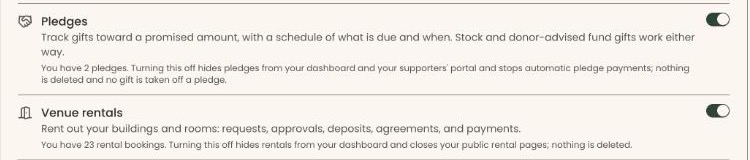
If you see "Couldn't save that change. Please try again.", the switch stays off. Click it again.
For more about this page, see Turn features on or off.
Open the rental settings
Page: /dashboard/rentals/settings
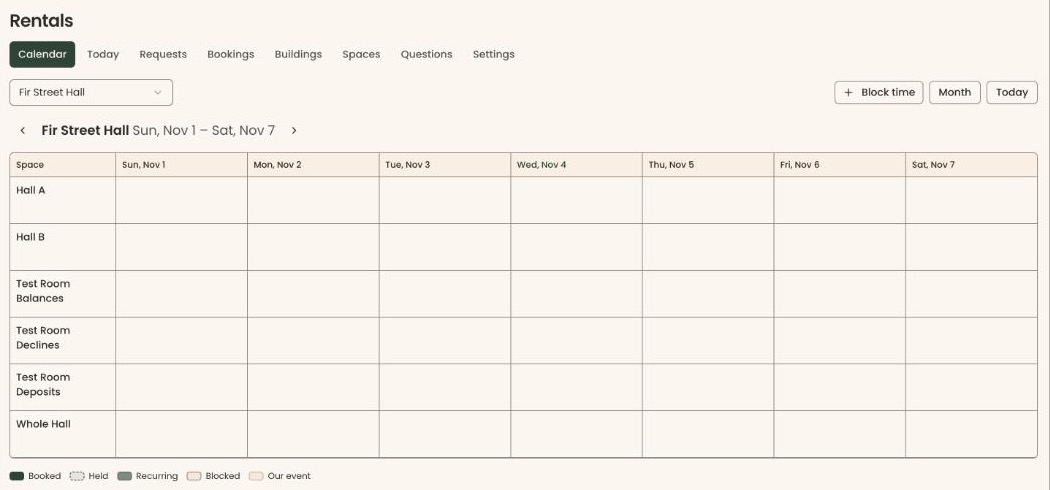
- In the left-hand menu, under "Programs & Sales", click "Rentals". The rentals calendar opens.
- Under the "Rentals" heading there is a row of tabs: "Calendar", "Today", "Requests" and so on. Click "Settings". It is the last tab.
- The page shows boxes headed "Rentals", "Holds and booking links", "Start of the week", "Your rental pages", "Embed code" and "Inquiry questions".
Set how long holds and booking links last
One number sets both: how long a request holds its dates while you review it, and how long an approved renter has to confirm and pay. Either way it ends when the booking starts. The default is 7 days.
Page: /dashboard/rentals/settings
- Open the rental settings, as above.
- Find the box headed "Holds and booking links".
- Click in the "Days" box. Delete the number there and type a new one, from 1 to 30. For example, 10.
- Click "Save", to the right of the box. It stays grayed out until you type a different number.
- You'll see "Saved". That means it worked.

If you see "Enter a whole number of days from 1 to 30.", the number is too big, too small or not a whole number. Fix it and click "Save" again.
The new number counts for requests and approvals made after you save. Holds already running keep the end date they had.
Choose the first day of the week
This day decides which bookings share a week when a building or space has a weekly booking limit. It is also the first day shown on the rentals calendar.
Page: /dashboard/rentals/settings
- Open the rental settings, as above.
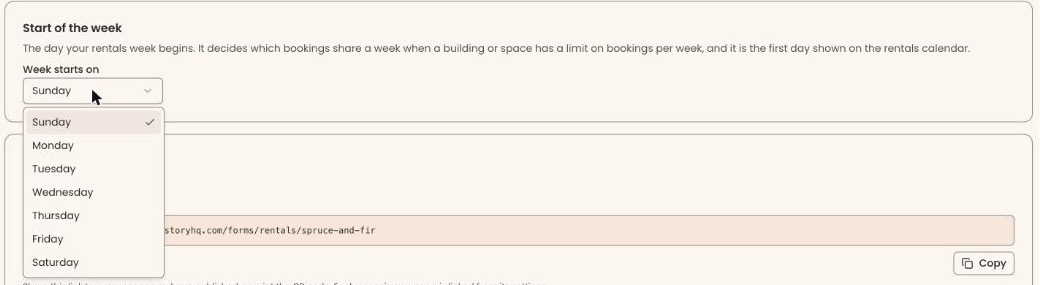
- Find the box headed "Start of the week".
- Click the box under "Week starts on". A list of days opens.
- Click the day you want, for example "Monday". It saves right away. There is no Save button.
- You'll see "Saved". That means it worked.
Turn Rentals off
You need the Owner or Administrator role.
Page: /dashboard/rentals/settings
- Open the rental settings, as above.
- In the box headed "Rentals", find the switch next to "Rentals is on".
Important: Turning Rentals off hides it from your dashboard and closes your public rental pages right away, so renters can't see your spaces or send requests. Nothing is deleted.
- Click the switch.
- You'll see "Rentals is off", and you are taken to your dashboard. "Rentals" is gone from the left-hand menu. That means it worked.
You can also turn it off with the "Venue rentals" switch in Settings › "Features". See Turn features on or off.
Special cases
- The switch is grayed out. You're signed in as Programs. The box says "Only an Owner or Administrator can change this." Ask an Owner or Administrator.
- "Only someone who can manage Rentals can change this." You can see the setting but not change it. Ask an Owner, Administrator or Programs user.
- No "Settings" tab. Only Owner, Administrator and Programs see it. Other roles can still use the calendar, requests and bookings tabs their role allows.
- "Rentals is switched off". Someone opened a rentals page from an old link while Rentals is off. Click "Go to Settings → Features" to turn it back on.
- The other boxes on this page. "Your rental pages" and "Embed code" are covered in Put rental pages on your website. "Edit inquiry questions", under "Inquiry questions", opens the questions renters answer. That has its own guide: Edit the renter questions and set booking limits.
If you make a mistake
- Changed the days or the week start by mistake: set it back the same way. Holds already running are not affected by the change.
- Turned Rentals off by mistake: turn it back on in Settings › "Features" › "Venue rentals". Everything comes back, because nothing was deleted.