


Who can do this: Anyone. Renters don't need a Clerestory login. They need their email address, because the booking link sends them a code.
Quick steps: your organization's rental page › the space › pick a date and times › "Continue" › your details › "Continue" › "Send request" (or "Book now"). Later: the email's "Confirm your booking" › "Email me a code" › enter the code › "Read and sign" › "Upload PDF" › "Confirm and pay".
Before you start
- You need the organization's rental page link. It usually sits on their website.
- Have your name, email address and phone number ready, and the date, start time and end time you want.
- If the space needs insurance, have the certificate as a PDF, JPEG or PNG file, up to 10 MB. You can also send it later.
- A booking link is the private web address emailed to you once your booking is approved. It is where you sign, upload and pay.
Send a request
Page: /forms/rentals/<orgSlug>
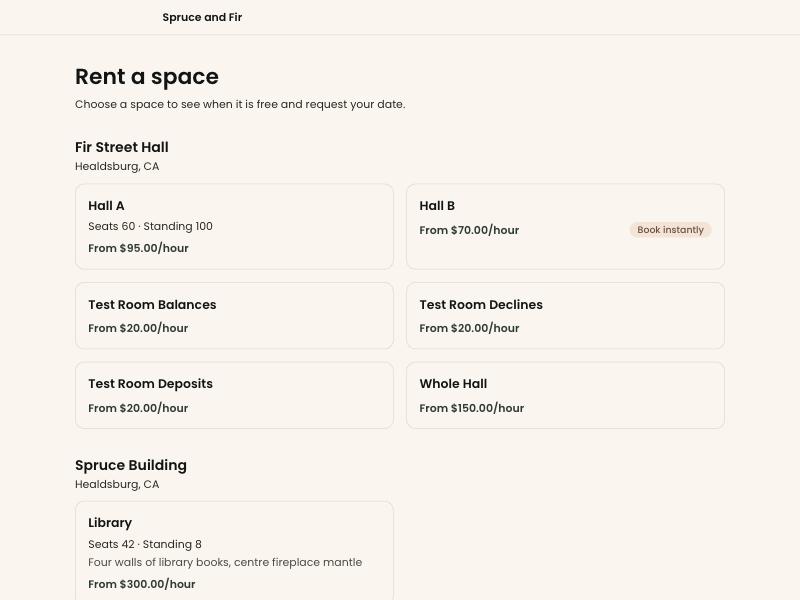
- Open the organization's rental page. It's headed "Rent a space" and lists each building and its spaces.
- Click the space you want. Each one shows its price, for example "From $50.00/hour". A space marked "Book instantly" skips the approval step.
- Under the photos, a month calendar shows when the space is free. Click a day to choose it, or use the arrows to change month.
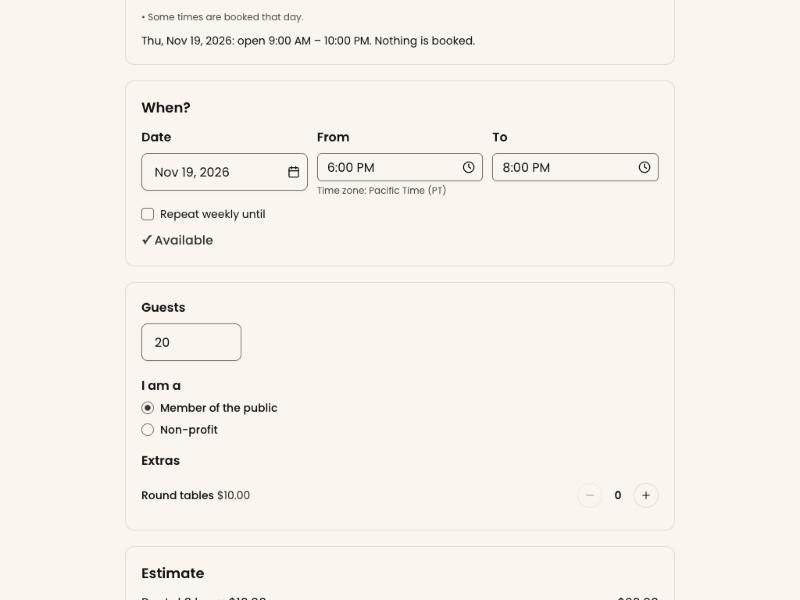
- Under "When?", check the "Date". Type the start time in "From", for example 6pm, and the end time in "To", for example 10pm.
- If you want the same time every week, check "Repeat weekly until" and choose the last date.
- Wait a moment. You'll see "✓ Available" when the time is free. If the time is taken, the reason shows in a red box. Choose another time.
- In "Guests", type how many people are coming.
- If you see "I am a", choose the option that fits you, for example "Non-profit".
- If you see "Extras", use the plus (+) button next to each item you want.
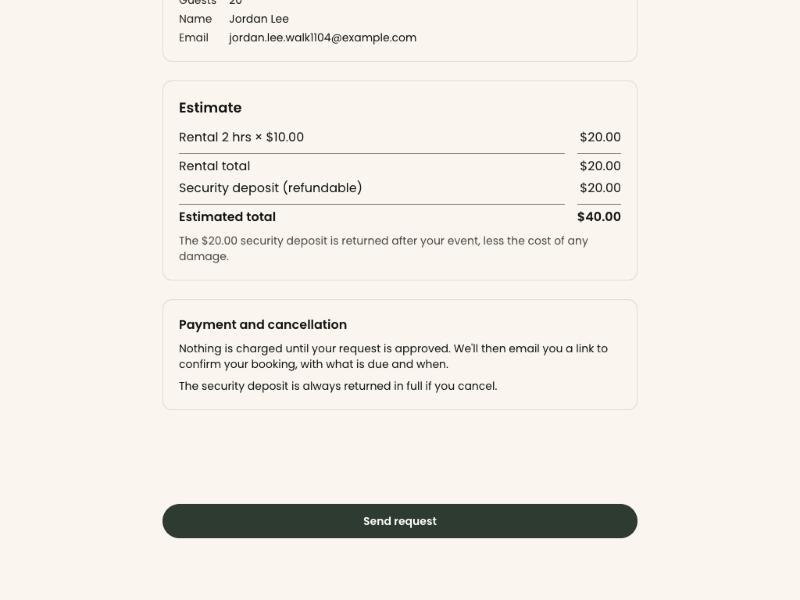
- Check the estimated total, then click "Continue" at the bottom.
- Under "Your details", fill in your email, first and last name, and phone. Boxes marked with an asterisk (*) are required. If you see "We found an account for …", click "Continue without logging in" to carry on, or "Continue with login" to get a code by email instead.
- Answer any questions the organization asks. In "Anything else we should know?", add any notes.
- Click "Continue".
- Under "Review and send" (or "Review and book"), check the space, the date and your details. Read "Payment and cancellation".
- Click "Send request". For a space that books instantly, the button says "Book now".
- If a "Verify you are human" check appears above the button with "Please complete the check above the button.", complete the check, then click "Send request" again.
- You'll see "Request received" and your booking reference, for example "Reference B-1042". That means it worked. The page says how long the date is held for you. You'll also get an email.
Nothing is charged when you send a request. The organization reviews it and emails you.
For a "Book now" space you'll see "Your dates are held" instead. Click "Confirm my booking" to open your booking link in a new tab, then carry on from "Open your booking link", step 3.
Open your booking link
Page: /forms/rentals/booking/<token>
- Open the email called "Your booking B-1042 is approved".
- Click "Confirm your booking". Your booking page opens, headed "Your booking B-1042".
- Under "Verify it's you", click "Email me a code".
- Open the email called "Your code for booking B-1042". Copy the 6-digit code. It works for 10 minutes.
- Back on the booking page, type the code in "Code" and click "Continue".
- Your booking details appear, with the price and the steps to finish.
If the code doesn't arrive, check your spam folder, then click "Send a new code".
Sign the rental agreement
This step shows only when the space has a rental agreement.
- Under "Rental agreement", click "Read and sign".
- Read the agreement. "Read the full agreement" opens the whole text.
- Check "I agree to the rental agreement".
- If you see "Type your full name", type it.
- Click "Sign the agreement".
- "Signed" with a check mark appears next to "Rental agreement". That means it worked.
Upload your insurance certificate
This step shows only when the space needs insurance.
- Under "Insurance certificate", click "Upload PDF".
- Choose the file on your computer or phone. It can be a PDF, JPEG or PNG, up to 10 MB.
- The file's name appears with "Waiting for review". That means it worked. The organization checks it and marks it "Accepted" or "Rejected".
- If it says "Rejected", read the reason next to it, then click "Upload another" and send a corrected file.
You can skip this now and upload the certificate later, from the same booking link.
Pay
- Under "Payment", check the amounts. "Due today" is what you pay now. "Later payments" lists anything due on later dates.
- If you see "I'd like to cover the processing fees", check it if you want 100% of your payment to go to the organization.
Important: The next step opens the payment form. Your card is charged when you click "Complete Payment". If you have later payments, the card or bank account is kept on file and charged on those dates.
- Click "Confirm and pay" followed by the amount, for example "Confirm and pay $250.00".
- Enter your card or bank account details, or choose Apple Pay or Google Pay if shown.
- Click "Complete Payment".
- You'll see "Your booking is confirmed." and "Your receipt has been emailed to you." That means it worked. If the agreement isn't signed yet, the page asks you to sign it above.
If nothing is due today, the button says "Save my payment method" instead. It saves your card for later payments without charging it.
Special cases
- Paying by bank account: the page says your bank payment is processing. It usually takes a few business days, and your dates stay held.
- "We couldn't send a code. Please try again.": wait a minute, then click "Email me a code" again. If it keeps happening, contact the organization.
- "This booking link is not valid or has expired.": use the link in your most recent email about this booking, or contact the organization.
- "This link has expired and the dates are no longer held.": the link wasn't used in time. Contact the organization if you still want to book.
- "This request was declined.": the organization turned the request down. The email they sent gives the reason.
- "We are still reviewing your request.": the request hasn't been approved yet. Wait for the approval email.
- "That file is too large. The limit is 10 MB.": make the file smaller, or save it as a PDF, and try again.
- "Requests cannot be sent right now. Please try again later.": requests are paused. Try again later or contact the organization.
If you make a mistake
You can't change a request or a booking from the rental pages or the booking link. Contact the organization; their staff can change the dates, price or details.