


Who can do this: Owner, Administrator, Finance, Programs and Front desk can cancel. Only Owner, Administrator and Finance can refund while canceling. Programs and Front desk cancel with no refund, and can't cancel a booking holding a paid security deposit. Fundraiser and Viewer users don't see the cancel buttons.
Quick steps: Rentals › "Bookings" › the booking › "Cancel booking" (under "Payments") or "Cancel this date" (under "Dates") › check the refund › "Reason" › "Cancel booking" or "Cancel this date".
Before you start
- You need the Owner, Administrator, Finance, Programs or Front desk role. To give money back, you need Owner, Administrator or Finance.
- Only an "Approved" or "Confirmed" booking can be canceled. A request still waiting is declined instead. See Approve or decline a rental request.
- A security deposit is money the renter pays up front and gets back after the event. On a canceled booking it is always returned in full.
- The refund is filled in from the space's cancellation terms: how much you give back, depending on how far ahead the renter cancels. You can change it.
- Have your reason ready, and any message you want the renter to read.
Find the booking
Page: /dashboard/rentals/bookings/<bookingId>
- In the left-hand menu, under "Programs & Sales", click "Rentals".
- In the row of tabs under the "Rentals" heading, click "Bookings".
- In the search box ("Search references and renters"), type the renter's name or the booking reference, for example B-1042.
- Click the booking's reference. The booking's page opens.
- Check the status at the top right. It must say "Approved" or "Confirmed".
Cancel the whole booking
Page: /dashboard/rentals/bookings/<bookingId>
- Scroll down to "Payments". Under its list, at the bottom right, click the red "Cancel booking" button. A box opens called "Cancel booking".
- The box says the refund is suggested by the space's cancellation terms. Each paid charge has its own line, for example "Rental (up to $400.00)", with the suggested amount in a box on the right.
- To refund a different amount, select the amount on that line and type a new one, for example 200. It can't be more than the "up to" amount.
- A paid deposit shows as "Security deposit (always returned in full)". You can't change it.
- Check "Total refund" at the bottom of the list.
- If part was paid by cash, check or bank transfer, a note says it can't go back to a card. Return that money yourself. Check the box under the note, for example "I will hand back $100.00 in person". You can't cancel until you do.
- In "Reason (required; private, not sent to the renter)", type why, for example "Renter's event postponed". Only your team sees this.
- In "Message to the renter (optional, included in their email)", type anything the renter should read. Leave it blank to send no message.

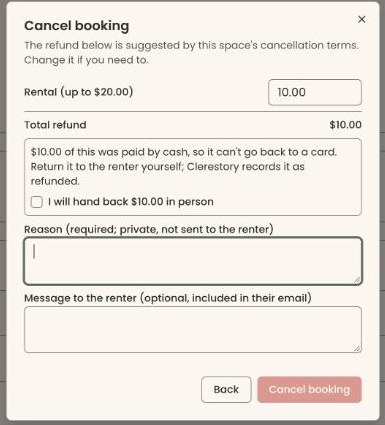
Important: Clicking "Cancel booking" in the box cancels the whole booking right away. It refunds the amounts shown to the renter's card or bank account, emails the renter a cancellation, and frees the dates. It can't be undone.
- At the bottom right of the box, click "Cancel booking". It stays grayed out until you type a reason.
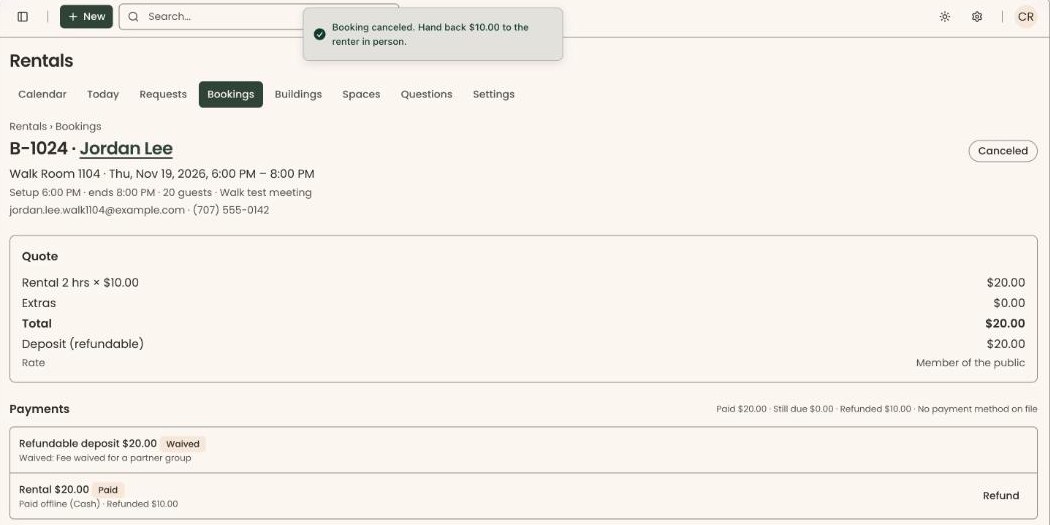
- You'll see "Booking canceled." The status changes to "Canceled". That means it worked. If you are handing money back, the message also says how much, for example "Hand back $100.00 to the renter in person."
If nothing was paid, the box says "Nothing has been paid, so there is nothing to refund." Anything still owed is waived.
Cancel one date of a weekly booking
"Cancel this date" shows only on a "Confirmed" booking with more than one date left.
Page: /dashboard/rentals/bookings/<bookingId>
- Find the "Dates" box, under the quote. Each date has its time and price.
- At the right of the date you want to cancel, click "Cancel this date". A box opens called "Cancel this date".
- Check the refund line for that date, and change the amount if needed, as in steps 3 to 6 above. The deposit isn't returned here. It stays until the booking is closed out after the last date.
- Type the "Reason" and, if you want, the "Message to the renter".
Important: Clicking "Cancel this date" in the box cancels that date right away, refunds the amount shown and emails the renter. It can't be undone.
- At the bottom right of the box, click "Cancel this date".
- You'll see "Date canceled." In "Dates", that date is crossed out and shows "Canceled". That means it worked.
To cancel the last date left, cancel the whole booking instead.
If your role can't refund
Programs and Front desk see a note in the box instead of refund lines. It says the booking is canceled with no refund.
- If the renter is owed money, ask an Owner, Administrator or Finance user to cancel it instead.
- If the booking holds a paid security deposit, you can't cancel it. You'll see "This booking holds a paid security deposit, which is returned in full when the booking is canceled. Someone who can issue refunds needs to cancel it."
What the renter gets
- A cancellation email, with the refund amount and your message, if you wrote one. Your private reason is never sent.
- The refund goes back to the card or bank account they paid with.
- Their booking link stops working when you cancel the whole booking. The cancellation email has a new link, which only shows the booking. There is nothing left to sign or pay.
Your organization can turn off the "Rental cancellations and deposits" email. Then the renter isn't emailed. See See which emails go out automatically, and turn one off.
Special cases
- "A bank payment for this booking is still processing." Wait until the payment shows as paid, then cancel.
- No "Cancel booking" button. The booking isn't "Approved" or "Confirmed", or your role can't cancel.
- No "Cancel this date" button. The booking is still "Approved", has only one date, or your role can't cancel. On an "Approved" booking you can change its dates instead.
- "A refund cannot be more than what is left on that charge." Lower that line's amount.
- "That did not work. Nothing was changed." Try again. If it repeats, reload the page.
Buttons to avoid
- "Back" in the box closes it without canceling.
- "Refund" on a single charge's row refunds that charge only. It doesn't cancel the booking. See Rental payments: charge, mark paid, waive, refund.
- "Decline" is for requests and approved bookings the renter hasn't confirmed. It sends the decline email, not the cancellation email.
If you make a mistake
Canceling can't be undone in the screens, and any card refund has already been sent. To rebook, make a new booking for the renter. See Make a booking for someone.