


Who can do this: Owner, Administrator, Finance, Programs and Front desk. Fundraiser and Viewer can open the "Requests" list and a request, but don't see "Approve" or "Decline".
Quick steps: Rentals › "Requests" › "Review" › check the details › "Approve". Or "Decline" › "Reason (sent to the renter)" › "Decline request".
Before you start
- You need the Owner, Administrator, Finance, Programs or Front desk role.
- Renters send requests from your public rental pages. See Put your rental pages on your website.
- A request is a renter asking for a space on one or more dates. It is only for spaces set to "Needs approval". Spaces set to "Instant booking" skip this step.
- While a request waits, its dates are held, so nobody else can book them. The hold lasts the number of days set in Rentals › "Settings" (7 unless you changed it). See Turn Rentals on and choose your rental settings.
- A booking link is the private link the renter uses after you approve, to confirm and pay.
Find the requests waiting for you
Page: /dashboard/rentals/requests
- In the left-hand menu, under "Programs & Sales", click "Rentals".
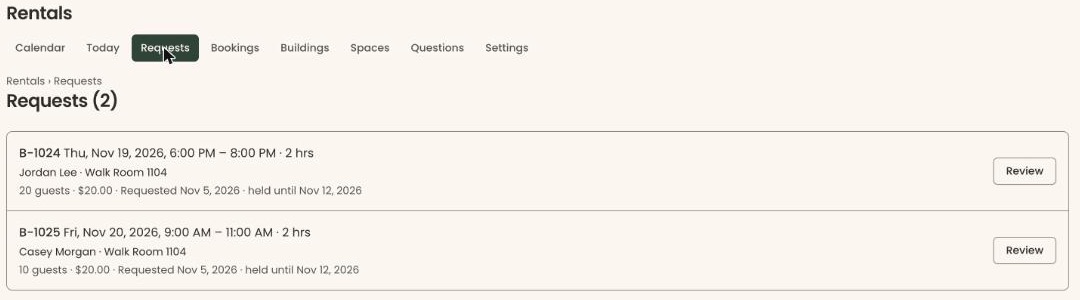
- In the row of tabs under the "Rentals" heading, click "Requests".
- The page is headed "Requests" with the number waiting, for example "Requests (3)". The oldest request is first.
- Each request shows its reference, dates and hours, the renter, the space, the number of guests, the estimated total, and "Requested" and "held until" with their dates.
- If there are none, you'll see "No requests waiting".
- Click "Review" at the right of a request. The request's page opens.
If there are more than 25, use "Next" and "Previous" at the bottom of the list.
Review a request
Page: /dashboard/rentals/bookings/<bookingId>
- At the top, read the reference and the renter's name, and the status on the right, "Requested".
- Under that: the space and dates, the setup start and end times, the number of guests and the event name.
- Then the renter's email and phone, and "Held until" with the date the hold ends.
- Check the "Quote" box: the rental, "Extras", "Total" and the deposit.
- Read "Answers" (the renter's answers to your questions) and "From the renter" (their message), if shown.
- Click the renter's name at the top to open their supporter record, if you want to see their history.
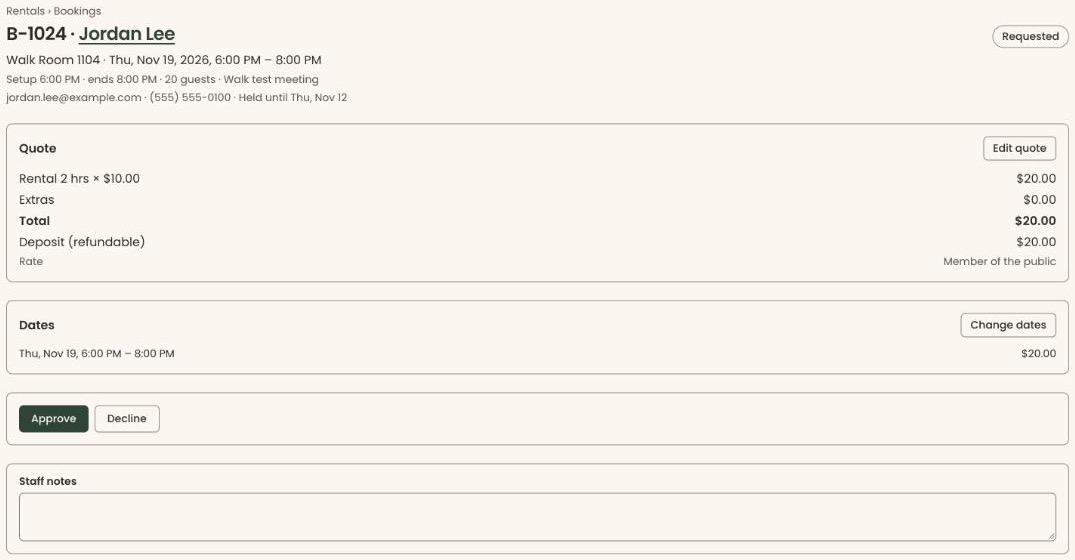
You can change the quote or the dates before you approve. That has its own guide: Change a booking's quote, dates or notes, and send the signing link.
Approve a request
Page: /dashboard/rentals/bookings/<bookingId>
- Open the request, as above.
Important: Clicking "Approve" emails the renter their booking link to confirm and pay. The email can't be taken back. Their dates stay held while the link works.
- Below the "Quote" box and the renter's answers, click "Approve".
- You'll see "Approved. The renter has been sent their booking link." The status changes to "Approved". That means it worked.
- A box appears called "Booking link sent". To send the link yourself as well, click "Copy" next to it. You'll see "Link copied". Paste it into an email or message to the renter. This box shows only right after you approve, so copy the link now if you want it.
- Near the top, "Link works until" shows the last day the renter can use the link.
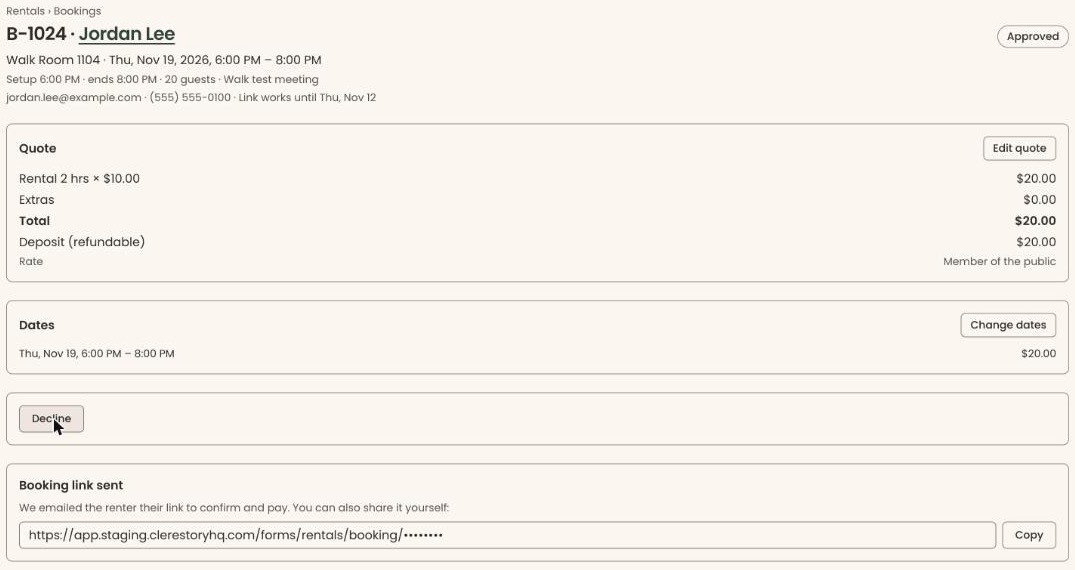
After approval the page also shows the payments, agreement and insurance for this booking.
Decline a request
Page: /dashboard/rentals/bookings/<bookingId>
- Open the request, as above.
- Below the "Quote" box and the renter's answers, click "Decline". A box appears called "Reason (sent to the renter)".
- Type the reason, for example "That date is already taken for a private event." The renter will read it.
Important: Clicking "Decline request" emails the renter that their request was declined, with your reason. It frees the dates right away and can't be undone.
- Click "Decline request". It stays grayed out until you type a reason.
- You'll see "Declined. The renter has been told." The status changes to "Declined" and the page shows "Declined:" followed by your reason. That means it worked.
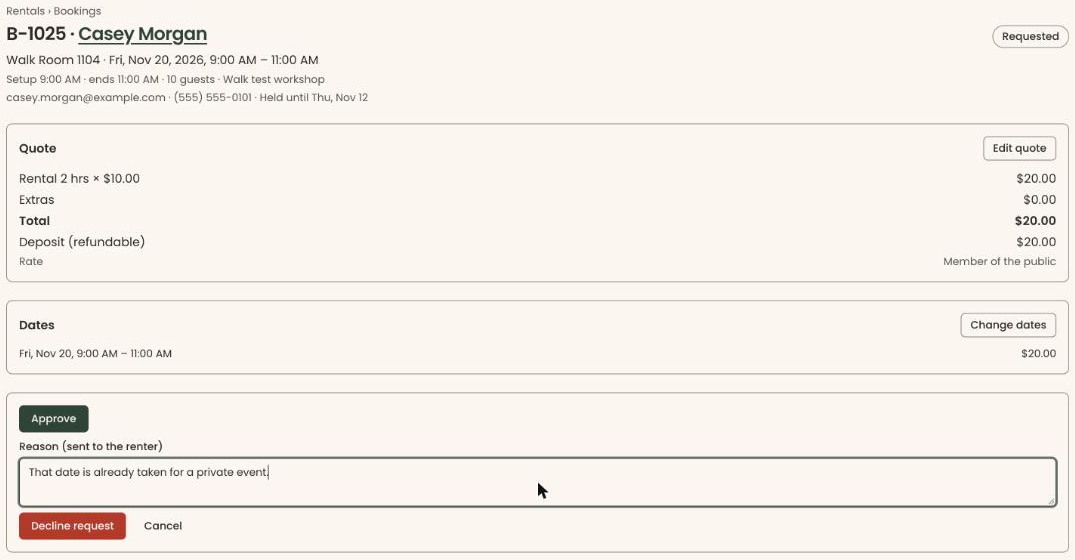
To change your mind before step 4, click "Cancel".
You can also decline a booking you have approved, as long as the renter hasn't confirmed it yet. Use the same steps.
Special cases
- "This request has expired. Its dates are no longer held." The hold ran out before anyone approved it. It no longer shows in "Requests". In "Bookings" it shows as "Expired".
- "This booking is … and cannot be …". Someone else already approved, declined or changed this booking. Reload the page to see where it stands.
- No "Approve" or "Decline" buttons. Your role can't approve, or the booking is no longer waiting.
- The renter didn't get the email. Your organization may have turned off the "Rental request updates" email. Copy the link from the "Booking link sent" box right after approving, and send it yourself. See See which emails go out automatically, and turn one off.
- Getting a task for each new request. In Settings › "Task Automation", the "Rental Request Received" rule creates a task to review each new request. It is off until you turn it on.
Buttons to avoid
- "Decline" doesn't send anything by itself. "Decline request", which appears after it, does.
- "Cancel" under the reason closes it without declining.
If you make a mistake
Approving and declining can't be undone in the screens.
- Approved by mistake: you can still decline it before the renter confirms. Follow "Decline a request".
- Declined by mistake: the dates are freed. Ask the renter to send a new request, or make the booking for them yourself. See Make a booking for someone.