


Who can do this: Owner, Administrator and Programs can copy the link and embed code for all your spaces, from Rentals › "Settings". Anyone who can open Rentals (every role) can copy one space's link and embed code from that space's page. Publishing a space needs Owner, Administrator or Programs.
Quick steps: Rentals › "Settings" tab › "Your rental pages" › "Copy" or "Download QR"; "Embed code" › "Copy". For one space: Rentals › "Spaces" › the space › "This space's page" or "Embed this space" › "Copy".
Before you start
- Rentals must be switched on. See Turn Rentals on and choose your rental settings.
- At least one space must be published, which means its status is "Published". Only published spaces appear. See Add a building and a space.
- To put the pages on your website, you need access to edit your website, or someone who has it.
- Your rental pages are the public pages where renters see your spaces, check free dates and send a request.
- Embed code is a short piece of text your website uses to show these pages inside one of your own pages.
Copy the link to all your spaces
This link opens a page headed "Rent a space" that lists every published space, grouped by building.
Page: /dashboard/rentals/settings
- In the left-hand menu, under "Programs & Sales", click "Rentals".
- In the row of tabs under the "Rentals" heading, click "Settings". It is the last tab.
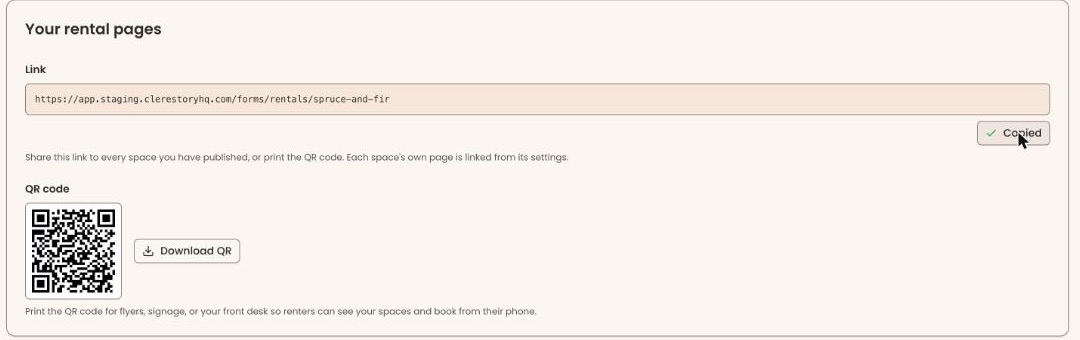
- Scroll down to the box headed "Your rental pages".
- Under "Link", the address is shown in a gray box. Below it, on the right, click "Copy".
- The button changes to "Copied" for a moment. That means the link is copied.
- Paste the link into your email, newsletter or social media post.
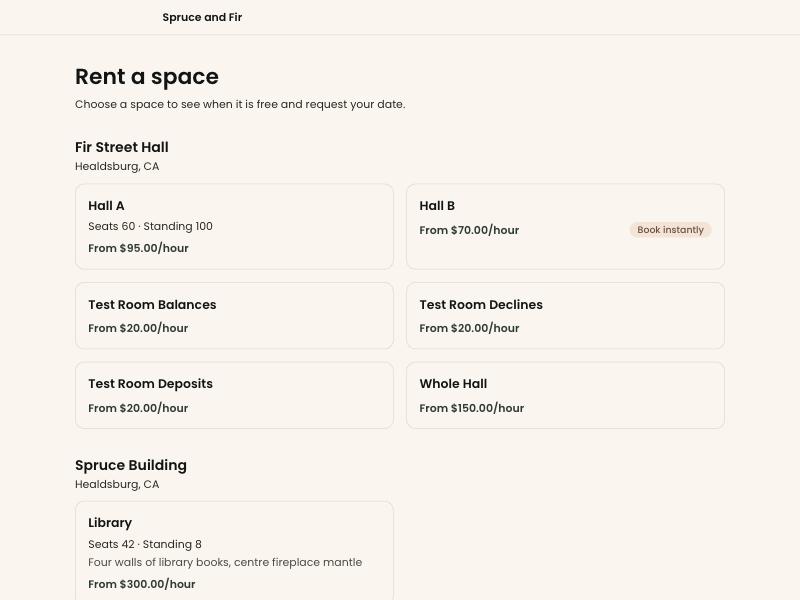
To check the page, paste the link into your browser's address bar and press Enter.
Download the QR code
A QR code is a square pattern people scan with their phone camera to open your rental pages.
Page: /dashboard/rentals/settings
- Open Rentals › "Settings", as above.
- In the box headed "Your rental pages", find "QR code" below the link.
- Click "Download QR", to the right of the code.
- A picture file whose name starts "clerestory-embed-qr-" is saved to your computer.
- Put the picture on a flyer, sign or slide. Scan it with your phone before printing, to check it opens your rental pages.
Put all your spaces on your website
Page: /dashboard/rentals/settings
- Open Rentals › "Settings", as above.
- Scroll to the box headed "Embed code", below "Your rental pages".
- Under "Iframe snippet", click "Copy". The button changes to "Copied". That means it worked.
- In your website editor, add an "HTML", "code" or "embed" block where your spaces should appear. The name depends on your website builder.
- Paste the code into that block and publish your website page.
- Open your website page and check your spaces appear.

If someone else edits your website, email them the copied code. Send the whole thing, from the first <!-- line to the end.
Link to or embed one space
Use this to send renters straight to one space's calendar and request form.
Page: /dashboard/rentals/spaces/<spaceId>
- In the left-hand menu, under "Programs & Sales", click "Rentals".
- In the row of tabs, click "Spaces". Then click the space's name in the list.
- Scroll to the bottom of the space's page.
- For a link: in the box headed "This space's page", click "Copy" under "Link". It changes to "Copied". "Download QR" in the same box saves this space's QR code.
- For your website: in the box headed "Embed this space", click "Copy" under "Iframe snippet". Paste it into your website as in steps 4 to 6 above.
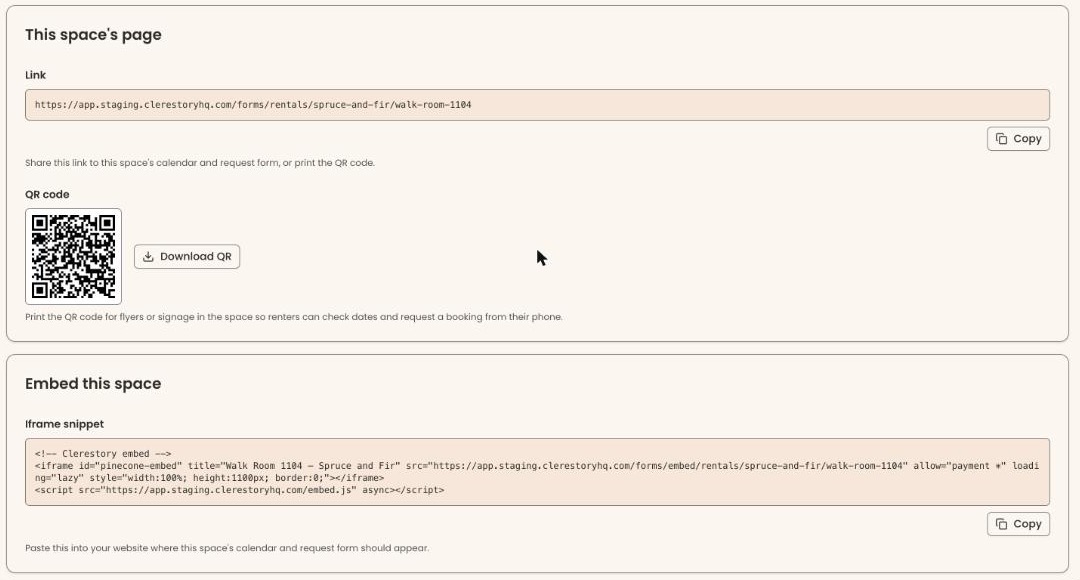

If the bottom of the page says "Publish this space to share its page or embed it on your website.", the space is still a draft. Publish it first. See "Publish the space" in Add a building and a space.
To see the space's public page, click "View public page" at the top right of the space's page. It opens in a new browser tab.
Special cases
- "There are no spaces to rent right now. Please check back soon." This shows on the rental pages when nothing is published. Publish a space.
- Changing a space's "Web address" changes that space's link. Copy and share the new one.
- Colors and fonts. The "Brand" box on the space's page sets the colors and fonts for that space's page and its emails. It starts on "Use organization brand".
- Turning Rentals off closes your public rental pages. The link, the QR code and your website embed stop working until Rentals is on again. See Turn Rentals on and choose your rental settings.
If you make a mistake
- Shared a space too early: set its "Status" back to "Draft" and click "Save space". It disappears from your rental pages.
- Shared the wrong link: a link can't be recalled. Send the right one to the same people.