


Who can do this: Owner, Administrator, Finance, Fundraiser, Programs and Front desk. A Viewer can see the Member List but doesn't see "Renew or change level".
Quick steps: Membership › "Member List" › find the member › ⋯ on their row › "Renew or change level" › "Renew" › "Paid by" › "Amount" › "Record renewal · $…"
Before you start
- You need one of the roles above.
- Have ready: the member's name, the amount paid, and the check number if they paid by check.
- A renewal adds a new paid period (usually a year) to a membership someone already has. It keeps their history on one membership instead of starting a second one.
- The expiry date is the day a membership stops being paid for. Clerestory also calls it "paid through".
Record a renewal
Page: /dashboard/membership/members
- In the left-hand menu, find the Fundraising group and click "Membership" to open it. (If "Member List" already shows under it, skip this step; clicking again closes it.)
- Click "Member List".
- Above the list, click in the box "Search by name or email...". Type the member's name, for example "Jordan Lee", and press Enter.
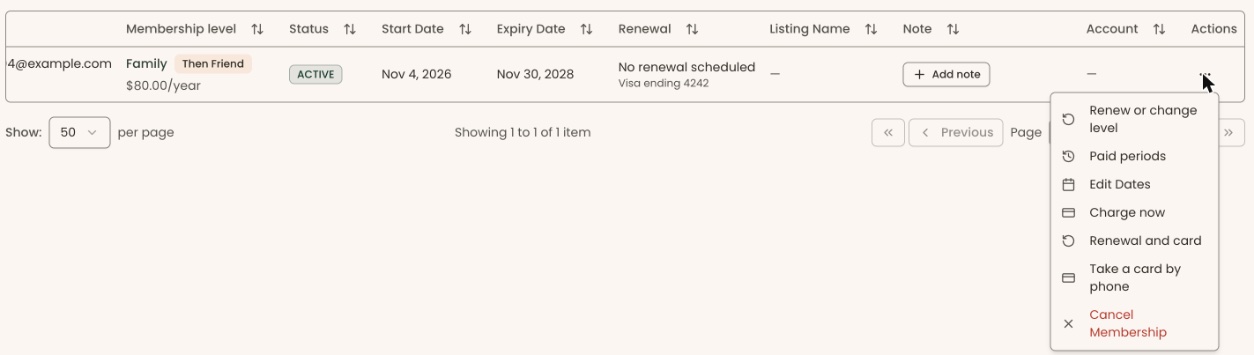
- Find the member's row. At the far right of the row, under "Actions", click the three dots (⋯). If you can't see "Actions", scroll the list sideways.
- Click "Renew or change level".
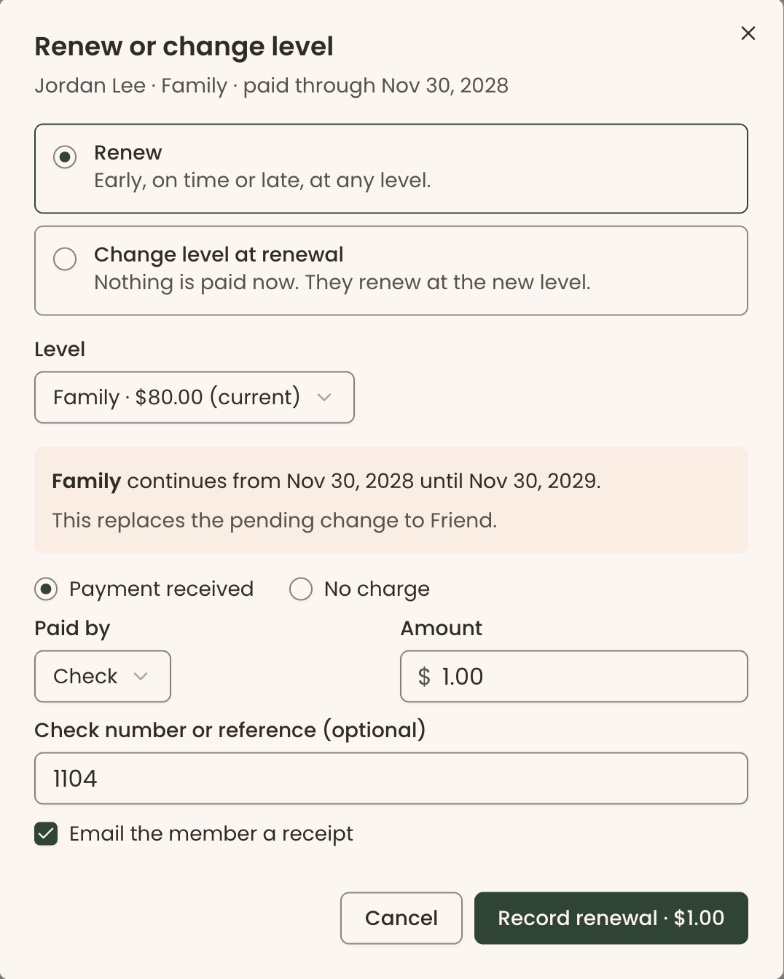
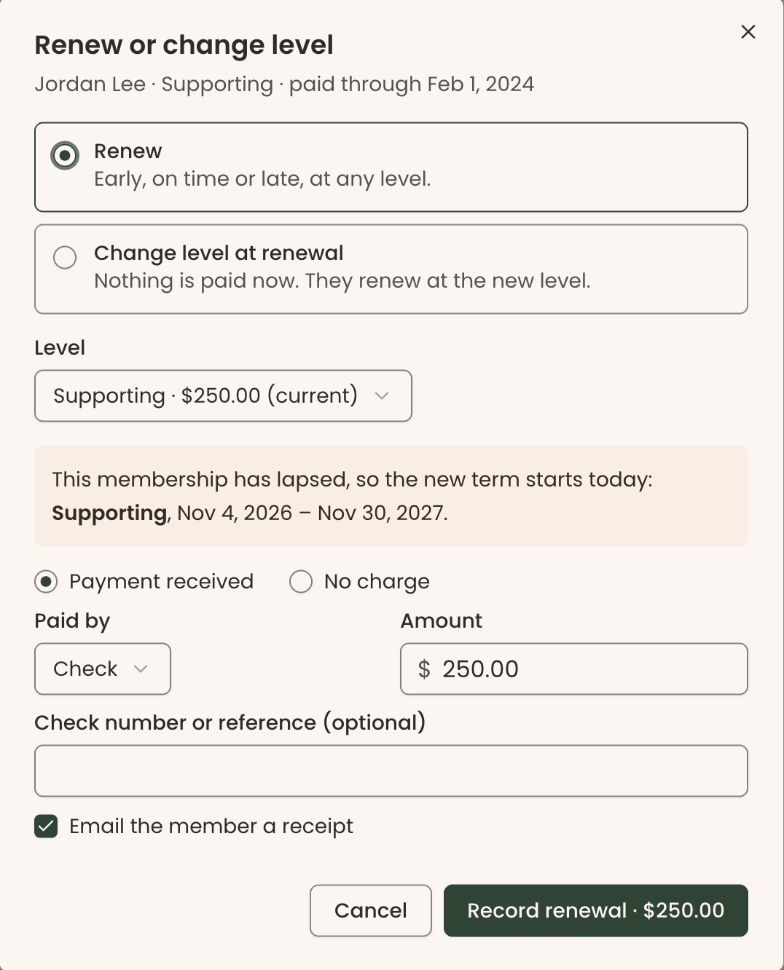
- A box opens called "Renew or change level". Under the title it shows the member's name, their level and "paid through" with their current expiry date.
- Leave "Renew" selected. Its note reads "Early, on time or late, at any level."
- "Level" already shows their current level, marked "(current)".
- Below "Level", a shaded box tells you the new dates. It reads "<level> continues from <old expiry date> until <new expiry date>." If a level change was already booked for their next renewal, it also says "This replaces the pending change to <level>."
- Leave "Payment received" selected.
- In "Paid by", choose how they paid: "Check", "Cash", "Bank transfer" or "Other". It starts on "Check".
- "Amount" is filled in with the level's price. Change it only if they paid a different amount for the membership.
- In "Check number or reference (optional)", type the check number if there is one.
- "Email the member a receipt" is checked. Leave it checked to email them a receipt, or uncheck it.
Important: if "Email the member a receipt" is checked, clicking the button in the next step emails the member right away. An email can't be unsent.
- At the bottom right of the box, click the button that reads "Record renewal ·" followed by the amount.
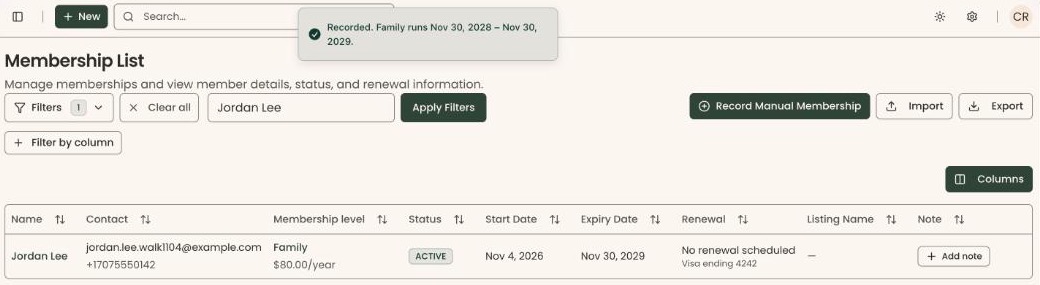
- You'll see a message that starts "Recorded." and gives the level and its new dates. That means it worked.
- If you see "Couldn't save this change", or another message in red, nothing was recorded. Close the box, open it again from step 4 and try once more.
Other ways to open the same box
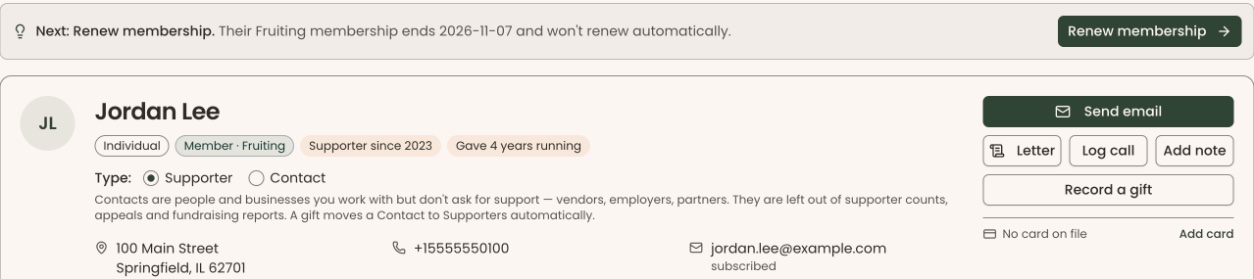
- From the person's page: if their membership ends within the next 30 days and won't renew automatically, or it ended within the last year, a highlighted line near the top of their supporter page reads "Next: Renew membership." Click the "Renew membership" button beside it. The same "Renew or change level" box opens. Carry on from step 6.
- From "Record Manual Membership": if you start recording a new membership for someone who already has one, a yellow notice appears. Click "Renew it instead". The same box opens. Carry on from step 6. See Record a new membership paid by check or cash.
Changes in the next release: an old expired or canceled row that sits beside the person's newer membership will show "Renew current membership" in its ⋯ menu. It opens this same box for their current membership.
How the new dates are worked out
The shaded box in step 9 always shows the dates before you save. It reads one of these:
- Renewing early or on time: "… continues from <old expiry date> until <new expiry date>." The new period is added on to the end of the current one, so they lose no paid time.
- Ran out recently: if the member is still inside your organization's grace period, the top of the box says "overdue, still inside the grace period". The new period still starts from the old expiry date.
- Ran out a while ago: "This membership has lapsed, so the new term starts today: …" The new period starts today.
How to check it worked
- On the Member List, that member's "Expiry Date" now shows the new date.
- At the far right of their row, click the three dots (⋯), then "Paid periods". The box lists every period they've paid for, newest first.
Special cases
- The check includes an extra donation: record only the membership price here. Then record the rest as a gift on their supporter page. See Record a gift paid by check or cash.
- Changing level at renewal: in step 8, pick the new level in "Level". Check the shaded box and the "Amount" before you save. See Change a member's level (upgrade or downgrade) for "Move up now" and "Change level at renewal".
- The member is on auto-renew: a yellow box says "Their card renews automatically on …". Check "Turn off auto-renew" so their card isn't charged as well. The record button stays grayed out until you check it.
- No payment, for example a free renewal for a volunteer: choose "No charge" instead of "Payment received". Then choose a reason in "Why it's free" and add a "Note (optional)". The button then reads "Record renewal · No charge".
- "Renew or change level" is grayed out: the member's last online payment is still going through. Try again the next day.
- No "Renew or change level" in the menu: your role can't record renewals, or the member is on a dues level. Dues members pay what they owe instead. See Dues: see who owes and record a dues payment.
Buttons to avoid
- "Record Manual Membership" at the top of the Member List starts a second, separate membership. Use "Renew or change level" on their existing row instead.
- "Card" in "Paid by" charges a card now. Choose it only if the member gave you their card details to charge.
If you make a mistake
- Wrong dates (Owner, Administrator, Finance or Fundraiser): at the far right of the row, click the three dots (⋯), then "Edit Dates". See See paid periods and fix start or expiry dates.
- Wrong amount, or recorded twice: this can't be undone in the screens. Contact Clerestory support with the member's name and the date you recorded it.