


Who can do this: Owner, Administrator, Finance, Fundraiser, Programs and Front desk. A Viewer can see the Member List but doesn't see "Record Manual Membership" or "Add a member".
Quick steps: Fundraising › Membership › "Member List" › "Record Manual Membership" (or "New" › "Add a member") › choose the person › "Membership Tier", "Payment Method" › "Record Membership"
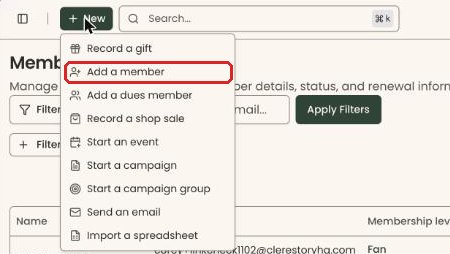
The same box opens from two places. On the Member List the button is called "Record Manual Membership". In the "New" menu at the top of every page it is called "Add a member". Both lead to the box titled "Record Manual Membership".
Before you start
- You need one of the roles above.
- The membership level must already exist. See Set up membership levels: add, edit, duplicate, stop offering and delete.
- Have to hand: the person's name and email, the level, the amount paid, the check number if they paid by check, and the start date if it isn't today.
- A membership level (shown here as "Membership Tier") is one kind of membership you sell, for example "Individual" or "Family".
- A manual membership is one paid outside Clerestory, by check, cash, bank transfer or another way. No card is charged.
Record a new membership
Page: /dashboard/membership/members
- In the left-hand menu, find the Fundraising group and click "Membership" to open it. (If "Member List" already shows under it, skip this step; clicking again closes it.)
- Click "Member List". The page that opens is called "Membership List".
- Above the list, at the top right, to the left of "Import" and "Export", click "Record Manual Membership". (On a phone the button says "Manual".)
Or: at the top of any page, click "New", then "Add a member". - A box opens called "Record Manual Membership". It asks "Who is this for?"
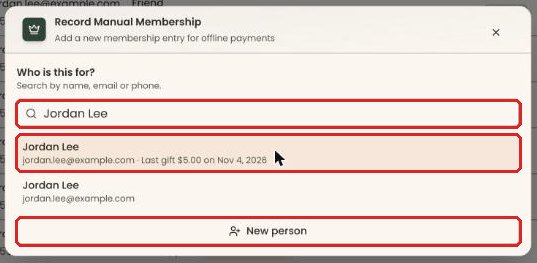
- Type the person's name, email or phone in "Search people…". Click them in the list.
If they aren't in Clerestory yet, click "New person". - The box now shows "For" and the person's name. If you picked the wrong person, click "Change".
- Under "Supporter Information", check "Email Address", "First Name", "Last Name" and "Phone Number". For a new person, type them in.
- Fill in the "Address" section if you have it.
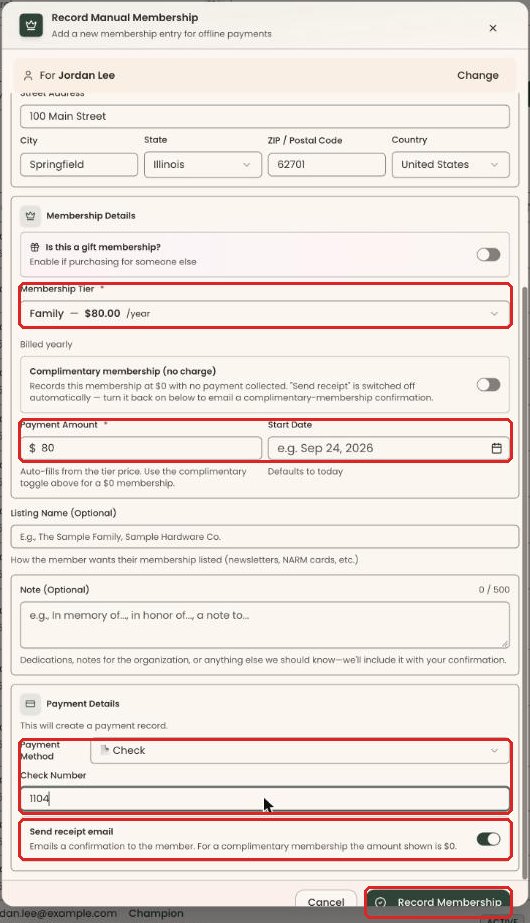
- Under "Membership Details", choose the level in "Membership Tier".
- "Payment Amount" fills in with the level's price. Change it only if they paid a different amount.
- Leave "Start Date" empty to start today (the box says "Defaults to today" under it). To start on another day, click the box and pick the date.
- Below the "Membership Details" box, to list the membership under a different name, for example "The Lee Family", type it in "Listing Name (Optional)". Leave it blank to use the person's name. You can also type in "Note (Optional)".
- Under "Payment Details", "Payment Method" shows "Cash" when the box opens. Click it to choose "Check", "Bank Transfer" or "Other" instead.
- For a check, a "Check Number" box appears. Type the check number in it. With "Cash" there is nothing more to fill in.
- "Send receipt email" is switched on when the box opens. Turn it off if the member shouldn't get an email.

Important: if "Send receipt email" is on, clicking "Record Membership" emails a confirmation to the member straight away. An email can't be unsent.
- At the bottom of the box, click "Record Membership".
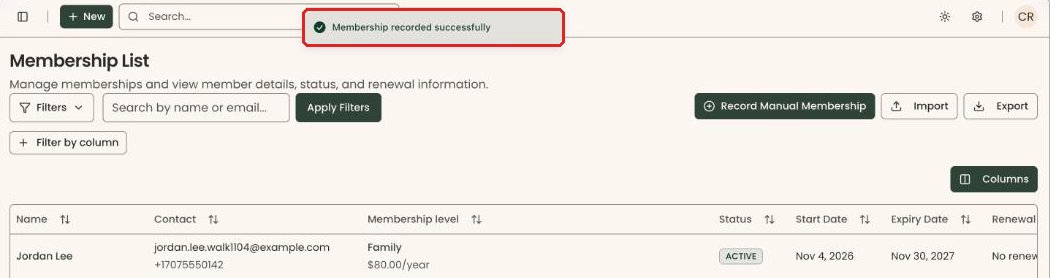
- You'll see "Membership recorded successfully" at the top of the screen. That means it worked. The person now appears at the top of the list.
- If you see "Please fill all required fields", look for the fields with a message under them, fill them in and click "Record Membership" again.
If the person already has a membership
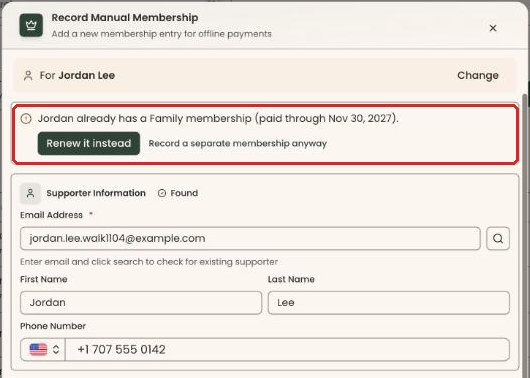
When you choose someone who already has a membership, a notice appears at the top of the box, using their first name, for example "Jordan already has a Family membership (paid through Nov 30, 2027)." or "(expired Oct 1, 2026)."
While this notice is showing, "Record Membership" is grayed out. Choose one:
- "Renew it instead" (the usual choice): this box closes and the "Renew or change level" box opens for their existing membership, so their history stays in one place. Follow the guide "Record a renewal paid by check or cash" from step 5, or see Change a member's level (upgrade or downgrade) for the same box.
- "Record a separate membership anyway": the notice goes away and you can carry on recording a second, separate membership. Use this only when the person really should hold two memberships.
Special cases
- Gift membership: under "Membership Details", turn on "Is this a gift membership?" and fill in the recipient's details. Clerestory checks the recipient too: you may see "Recipient already has an active Family membership", or "This will change Family to Individual. Existing membership will be canceled."
- No charge: turn on "Complimentary membership (no charge)". This records the membership at $0 with no payment collected, and the payment method can't be chosen.
- Paid by card over the phone: this box doesn't take card payments. See Cards and auto-renew: take a card by phone, set how next year is paid, charge now.
- Renewing someone you've found on their supporter page: when their page suggests "Renew membership", that button opens "Renew or change level" for their existing membership, not this box. Use it rather than recording a new membership.
If you make a mistake
- Wrong start or expiry date (Owner, Administrator, Finance or Fundraiser): see See paid periods and fix start or expiry dates.
- Wrong amount, wrong person, or recorded twice: this can't be undone in the screens. Contact Clerestory support with the member's name and the date you recorded it.