


Who can do this: Owner, Administrator, Finance and Fundraiser. Programs, Front desk and Viewer don't see the "Record Manual Donation" or "Record a gift" buttons.
Quick steps: Donations › "Record Manual Donation" › choose the person › amount and "Payment Method" › "Record Donation".
Before you start
- You need the Owner, Administrator, Finance or Fundraiser role.
- Have the donor's email address. The gift can't be saved without one.
- Have the amount, and the check number if there is one.
- A gift (or donation) is money given to your organization. A receipt is the email Clerestory sends the donor to confirm it.
Record a gift
Page: /dashboard/donations
- In the left-hand menu, find the group called "Fundraising".
- Click "Donations". The Donations page opens.
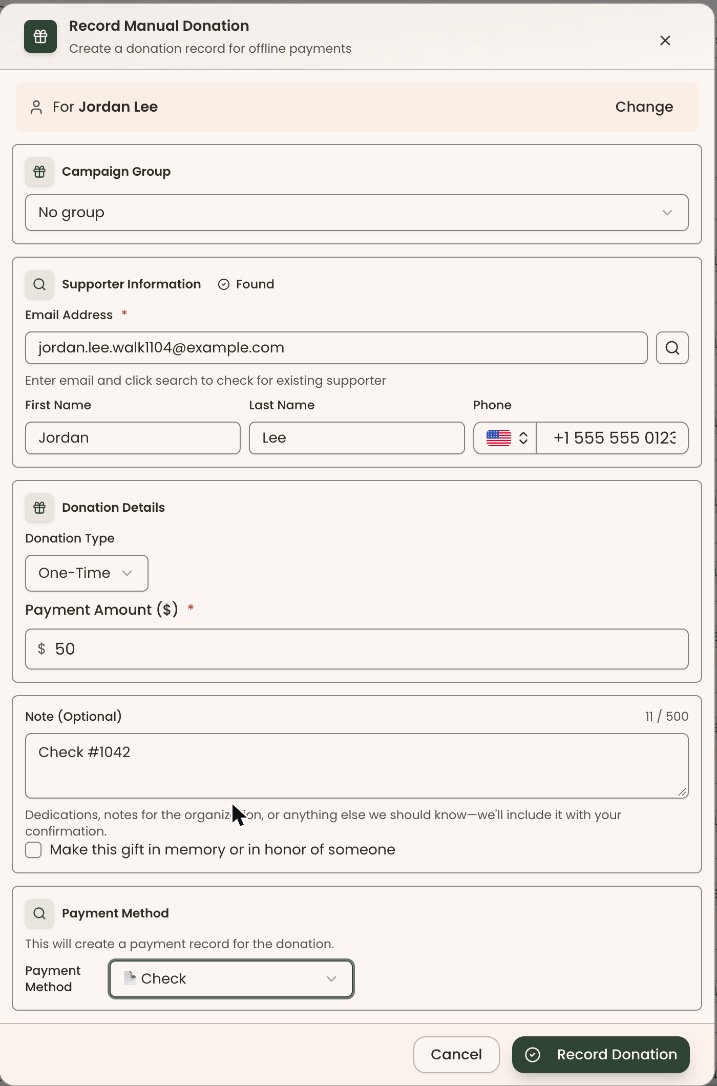
- At the top right of the list, click "Record Manual Donation". A box opens with the same name.
- The box asks "Who is this for?" Click in "Search people…" and type their name, email or phone, for example "Jordan Lee".
- Click the right person in the list. The box now shows "For Jordan Lee". If you picked the wrong person, click "Change".
- If the person isn't in Clerestory yet, click "New person" instead. Then type their "Email Address", "First Name", "Last Name" and "Phone".
- Check that "Email Address" is filled in. If it's empty, type it.
- If you see "Campaign Group", choose one, or leave "No group".
- In "Donation Type", leave "One-Time".
- In "Payment Amount ($)", type the amount, for example 50.
- If you see "Count this toward their pledge", check it to count this gift toward their open pledge.
- In "Note (Optional)", type anything to keep with the gift, for example "Check #1042".
- If the gift is in memory or in honor of someone, turn on "Make this gift in memory or in honor of someone" and fill in the details.
- Under "Payment Method", click the box and choose "📄 Check" or "💵 Cash". "💵 Cash" is chosen to start with.
Important: Clicking "Record Donation" emails the donor a receipt straight away. There is no way to skip it.
- At the bottom right of the box, click "Record Donation".
- You'll see "Donation recorded". That means it worked. The gift appears on the Donations list.
If you see "Enter the supporter's email address." or "Enter an amount greater than zero.", fill in that field and click "Record Donation" again.
Other ways to open the same box
- From the top of any page: click "New", then "Record a gift".
- From the person's record: open them from the Supporters list, then click "Record a gift". The box opens with their email already filled in.
All three open the same "Record Manual Donation" box. Carry on from step 7.
Special cases
- The gift is dated today. There is no date field. A check that arrived last week is recorded with today's date.
- No check number field. Put the check number in "Note (Optional)".
- The person has no email address. The box can't be saved without one.
- A gift that repeats. In "Donation Type", choose "Recurring", then a "Frequency": "Monthly", "Quarterly" or "Annual". If the person already has a recurring gift, "Link to Existing" lets you add this payment to it instead.
- Bank transfer, stock or donor-advised fund. Choose "🏦 Bank Transfer", "📈 Stock" or "🏛️ Donor-advised fund" in "Payment Method". Stock and donor-advised fund gifts ask for more details.
- On a phone, the "Record Manual Donation" button reads "Manual".
If you make a mistake
There is no edit or delete for the gift in this box. The only fix in the screens is a refund on that payment: see Refund a payment. That screen asks you to confirm you handed the money back, and it emails the donor a refund confirmation, so it doesn't fit a typing mistake well.