


Who can do this: Everyone on your team can see the Dues page. Owner, Administrator, Finance and Fundraiser can record a payment. Programs, Front desk and Viewer don't see "Record a payment".
Quick steps: Membership › "Dues" › pick the period › read the list. To record: "Record a payment" › "Who" › check the periods under "For" › "How it was paid" › "Record $…"
Before you start
- You need one of the roles above.
- Your organization needs at least one dues level. Until it has one, "Dues" doesn't show under Membership. See Set up membership levels: add, edit, duplicate, stop offering and delete.
- Have ready: the member's name, the amount received, the date it arrived, and the check number if they paid by check.
- Dues are what members of a dues level owe for each period, for example each year or each quarter. Dues members stay members until they are removed, and owe for every period.
- A period is one stretch of time that dues are owed for.
See who owes
Page: /dashboard/membership/dues
- In the left-hand menu, find the Fundraising group and click "Membership" to open it. (If "Dues" already shows under it, skip this step; clicking again closes it.)
- Under "Membership", click "Dues". (Your organization may also see a separate "Dues" item directly below "Membership" in the menu. That one opens the older dues screens, which this guide doesn't cover.)
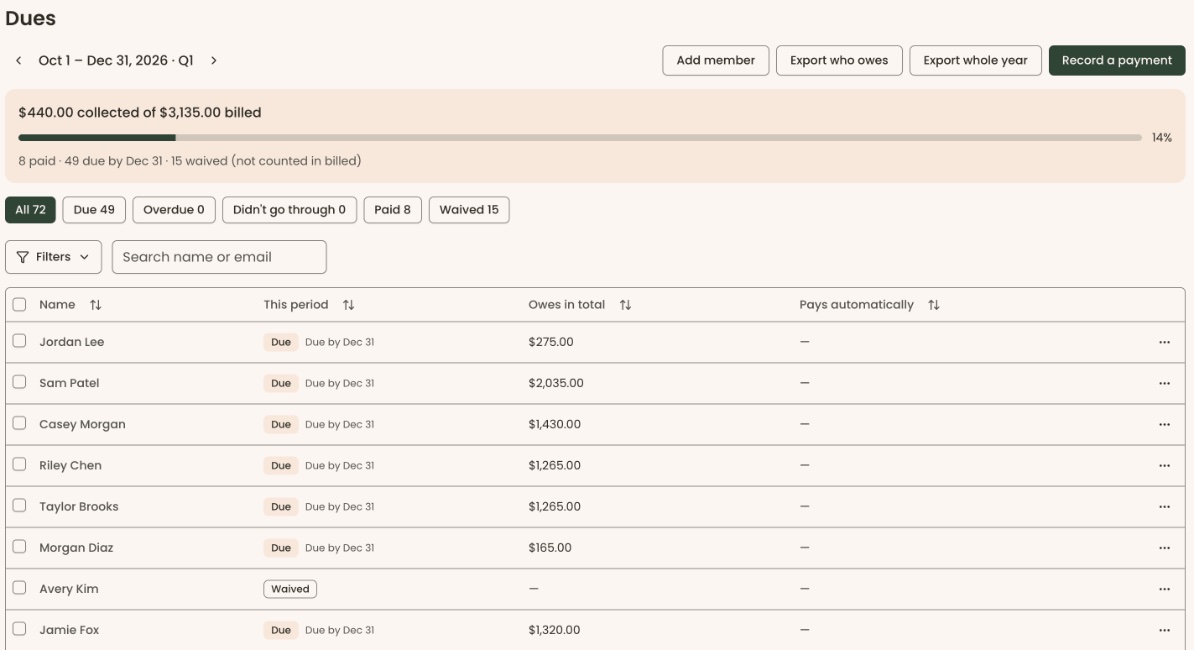
- At the top left, the current period is shown between two arrows. Click the left arrow for an earlier period, or the right arrow for a later one.
- If you have more than one dues level, choose the level in the box beside the arrows.
- Under the period, a summary shows how much is collected of how much is billed, with a bar and a percentage.
- Above the list are buttons that narrow it: "All", "Due", "Overdue", "Didn't go through", "Paid" and "Waived". Each shows how many members it holds. Click one to show only those members.
- To find one person, type their name or email in "Search name or email".
- Click a member's name to open their details on the right of the page.
What the labels mean
The "This period" column shows one of these:
- Due: they owe for this period and it isn't late yet. The line under it reads "Due by" and a date.
- Overdue: the period's payment is late.
- Didn't go through: an automatic payment was tried and failed.
- Processing: a bank payment is on its way. Wait for it to finish.
- Paid: they have paid in full. A part payment reads "Paid $60.00 of $100.00", for example.
- Waived: your organization has excused them for this period.
- Not due yet: the period hasn't started.
The other columns:
- Owes in total: everything they still owe, across all periods. A dash (—) means nothing.
- Pays automatically: "Yes" if they pay dues by card automatically. A dash (—) means they don't.
If nobody owes for the period, the list reads "No members owe dues for this period."
Record a dues payment
Page: /dashboard/membership/dues
- Open the Dues page (see "See who owes", steps 1 and 2).
- Choose one way to start:
- At the top right of the page, click "Record a payment". Then in "Who", click "Choose a member" and pick the member.
- Or, at the far right of the member's row, click the three dots (⋯), then "Record a payment". The member is already filled in.
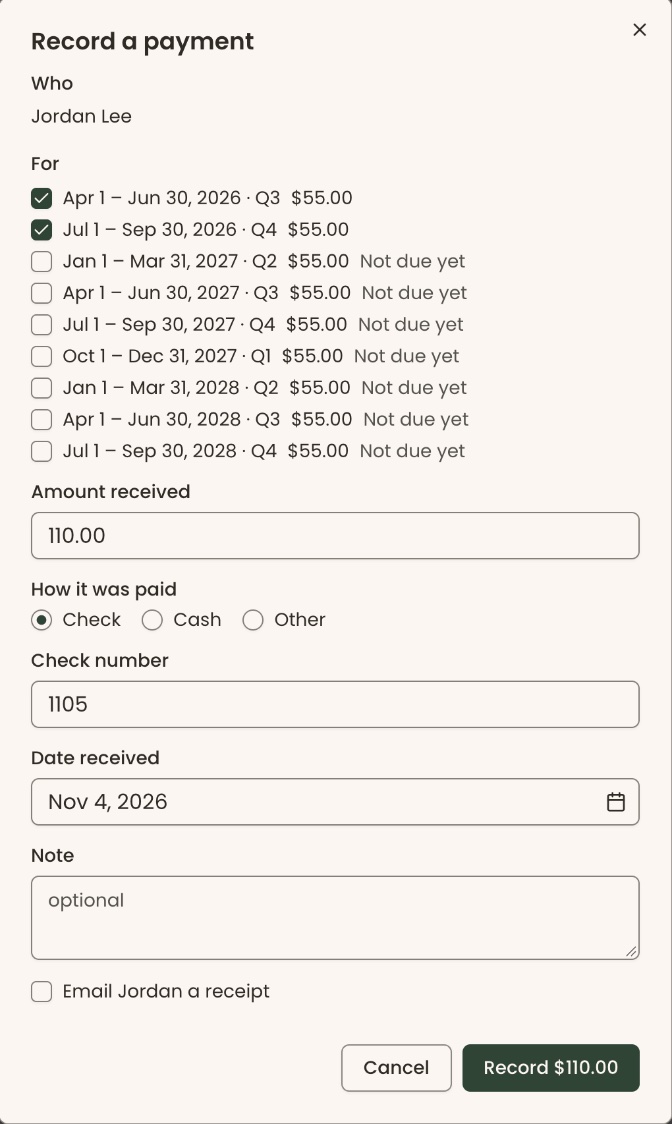
- A box opens called "Record a payment".
- Under "For", each period they can pay is listed with what is left to pay. Periods they owe now are already checked. Check or uncheck periods to match what they paid for.
- "Amount received" fills in with the total of the checked periods. Change it if they paid a different amount.
- If you see "Record at most" followed by an amount and "or tick another period.", the amount is more than the checked periods. Lower the amount, or check another period.
- Under "How it was paid", choose "Check", "Cash" or "Other". It starts on "Check".
- For a check, type the "Check number".
- In "Date received", choose the day the payment arrived. It can't be later than today.
- In "Note", add anything your team should know. It is optional.
- If the member has an email address, you'll see "Email <first name> a receipt", already checked. Uncheck it if they shouldn't get an email.
Important: if the receipt box is checked, clicking the button in the next step emails the member a receipt right away. An email can't be unsent.
- At the bottom right of the box, click the button that reads "Record" followed by the amount.
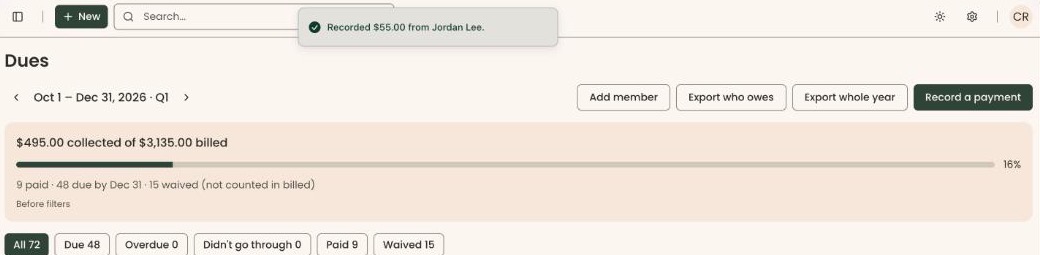
- You'll see "Recorded $… from <member's name>." That means it worked. The member's "This period" column updates.
- If a message in red appears in the box instead, nothing was recorded. Read the message, correct the box and try again.
You can also record a payment from the member's details: click their name, then "Record a payment".
Special cases
- "Record a payment" is grayed out on a row: that member owes nothing.
- A period shows "A bank payment is on its way": that period can't be paid by hand while the bank payment is going through.
- The member pays automatically: you can still record a payment by hand, for example if they also sent a check. Look at their "Pays automatically" column first, so they aren't charged as well. To remind members who owe, see Dues: send reminders, one or many.
- Dues members on the Member List: on Membership › "Member List", a dues member's ⋯ menu has "Open dues member" instead of "Renew or change level". It opens the same member details as this page.
If you make a mistake
- Recorded the wrong amount, or recorded it twice: this can't be undone in the screens. Contact Clerestory support with the member's name, the amount and the date you recorded it.