


Who can do this: Everyone can see "Paid periods". Owner, Administrator, Finance and Fundraiser can use "Edit Dates". Programs, Front desk and Viewer don't see "Edit Dates" in the row menu.
Quick steps: Membership › "Member List" › ⋯ on the member's row › "Paid periods" to look, or "Edit Dates" › change "Start Date" or "Expiry Date" › "Save Dates"
Before you start
- To fix dates you need Owner, Administrator, Finance or Fundraiser.
- Have to hand: the correct start and expiry dates.
- A paid period (also called a term) is one stretch of time a membership was paid for, for example Dec 1, 2026 to Dec 1, 2027.
- The expiry date is the last date the membership is good through. The Member List shows it as "Expiry Date".
See a member's paid periods
Page: /dashboard/membership/members
- In the left-hand menu, click "Membership". The group opens.
- Click "Member List". The page is headed "Membership List".
- Find the member. Type their name or email in "Search by name or email..." above the list, then click "Apply Filters".
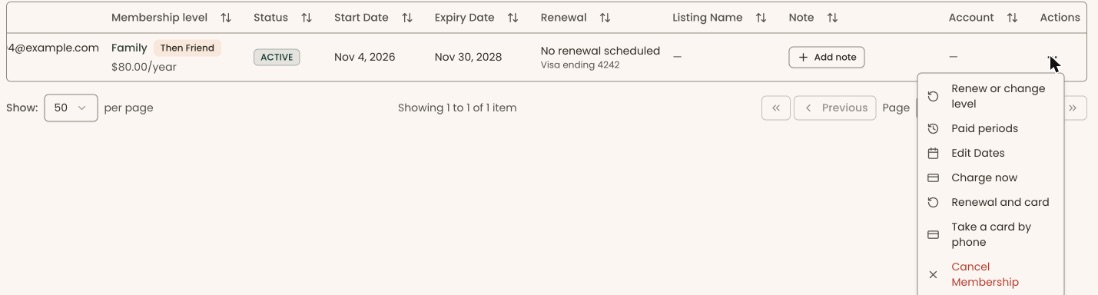
- On the member's row, at the far right under "Actions", click the three dots (⋯). If you can't see them, scroll the table sideways.
- Click "Paid periods".
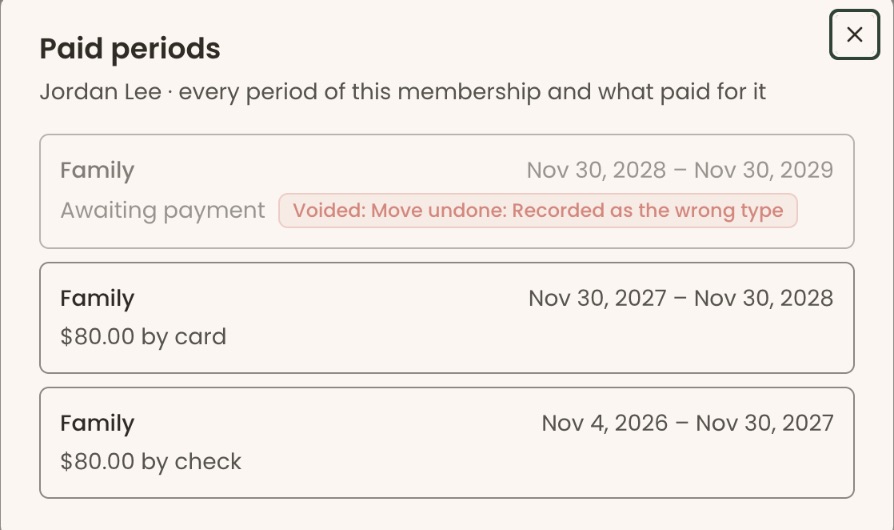
- A box opens called "Paid periods", with the member's name and "every period of this membership and what paid for it". It lists each period, newest first.
What the labels mean
Each period in "Paid periods" shows:
- The level name and the dates, for example "Family" and "Dec 1, 2026 – Dec 1, 2027". "Level removed" means that level has since been deleted.
- How it was paid, for example "$75.00 by check". "(settling)" means a payment is still going through.
- "Awaiting payment": the period exists but no payment is linked to it yet.
- "Recorded before paid periods": the period was carried over from records made before Clerestory tracked paid periods.
- A no-charge reason, for example "Board member" or "Complimentary", when nobody paid.
- "Upgrade": this period came from moving up a level.
- "Returned after lapsing": the member came back after their membership had run out.
- "Voided": this period was canceled. It is shown faded, with the reason, for example "Voided: Move undone: Recorded as the wrong type".
If the box says "No paid periods recorded yet. They appear the first time this membership is renewed or changed.", that is normal for an older membership.
Fix a start or expiry date
Page: /dashboard/membership/members
- Follow steps 1 to 4 of "See a member's paid periods".
- Click "Edit Dates".
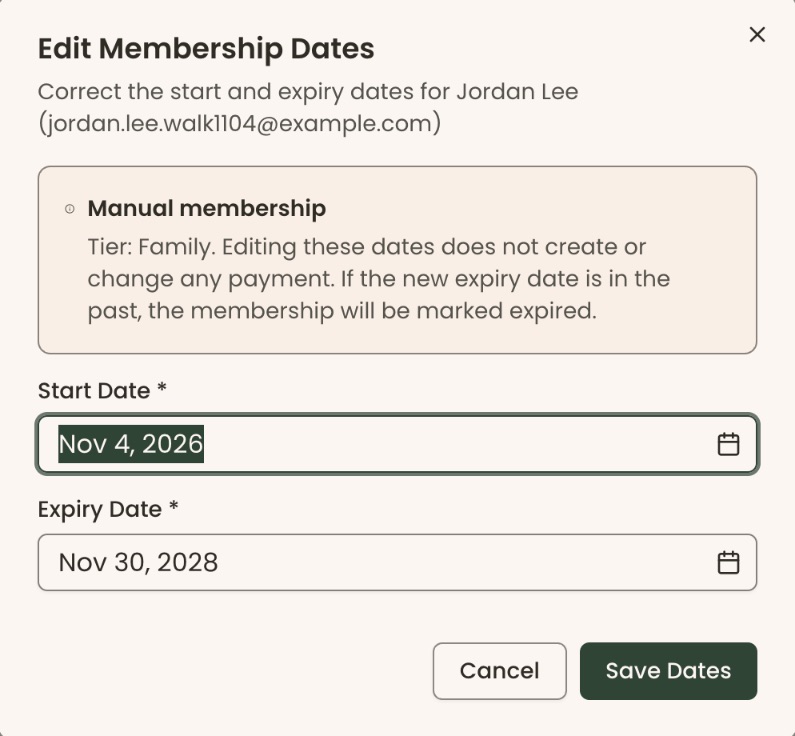
- A box opens called "Edit Membership Dates". It names the member and their email.
- Read the shaded note headed with the kind of membership (for example "Manual membership"). It says editing these dates "does not create or change any payment".
- Under "Start Date *", click the calendar icon at the right of the date and choose the correct start date.
- Under "Expiry Date *", click the calendar icon and choose the correct expiry date. It must be after the start date.
Important: if the new expiry date is in the past, the membership is marked expired as soon as you save.
- Click "Save Dates" at the bottom right.
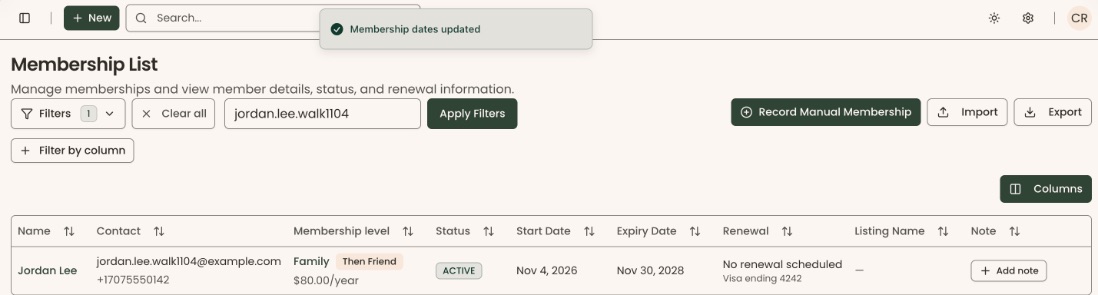
- You'll see "Membership dates updated". That means it worked. The new date shows in "Expiry Date" on the Member List.
The paid periods move with the new dates: the first period starts on the new start date and the last ends on the new expiry date.
Special cases
- No "Edit Dates" in the menu: the membership is canceled, or it is a dues level, or your role can't change memberships. A canceled membership's dates can't be edited, because saving would make it active again. To bring a canceled member back, use "Renew or change level". See Record a renewal paid by check or cash.
- "Edit Dates" is grayed out: the member's last online payment is still going through. Try again later.
- "Expiry date must be after the start date": the expiry you picked is on or before the start. Pick a later expiry date.
- The date is wrong because they renewed: don't edit dates to add a year. Record the renewal with "Renew or change level" so the payment is recorded too.
If you make a mistake
- Saved the wrong dates: open "Edit Dates" again, put the right dates in and click "Save Dates".
- Saved an expiry in the past by mistake: open "Edit Dates" again and set the correct future date. The membership becomes active again when the expiry is in the future.