


Who can do this: Owner, Administrator, Programs and Front desk. Finance, Fundraiser and Viewer can't open the auction night screens.
Quick steps: Events › Events › the event › "Auctions" tab › "Live" › "Open auction night" › "Check-in" › search the guest › "Check in" › "Add card here" › "Next guest".
Before you start
- You need the Owner, Administrator, Programs or Front desk role.
- Auctions must be on for the event, and guests should have bidder numbers. See Give out bidder numbers, send phone bidding links and seat guests at tables.
- To use a card reader, it must already be set up for your organization. See Register a card reader and its location.
- For the ticket scanner: a device with a camera, and permission to use it in the browser.
- A bidder number is the number a guest bids with. A party is everyone who shares one bidder number.
Open the check-in desk
Page: /dashboard/gala/<eventId>/check-in
- In the left-hand menu, under "Fundraising", click "Events". Then click "Events" in the list that opens below it.
- In the list of events, click the event's name.
- Click the "Auctions" tab in the row of tabs near the top.
- Click "Live", then click "Open auction night". A full-screen page opens.
- In the row of stations near the top, click "Check-in".
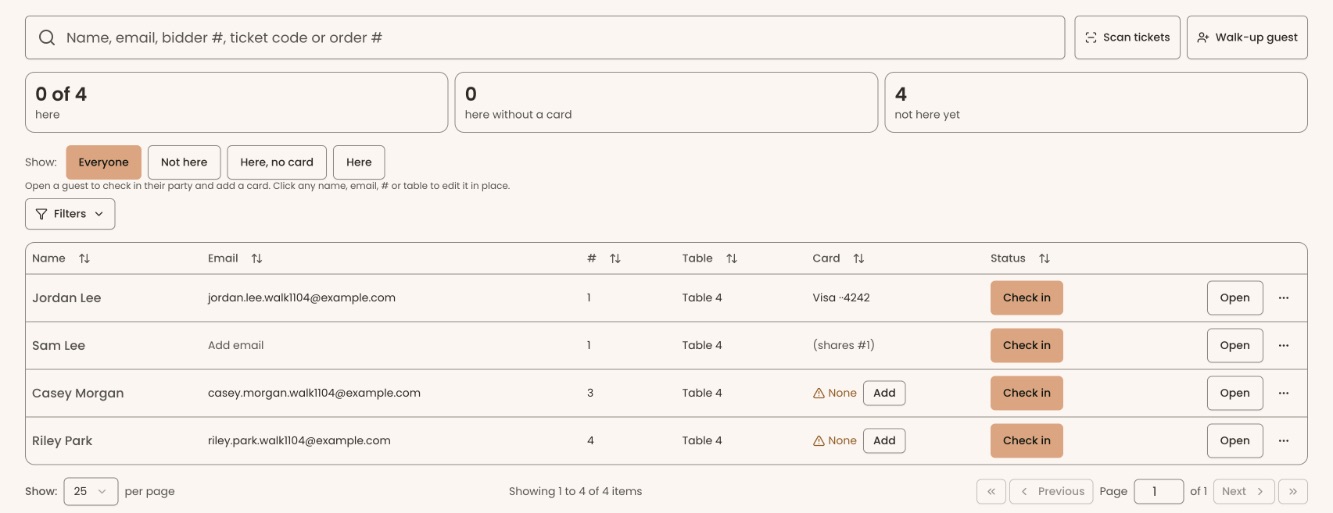
- You'll see a large search box, "Scan tickets" and "Walk-up guest" next to it, and three counts: how many are here, how many are here without a card, and how many are not here yet.
Check in a guest
- Click the search box ("Name, email, bidder #, ticket code or order #") and type the guest's name, for example Jordan.
- The list below narrows as you type.
- In the guest's row, under "Status", click "Check in".
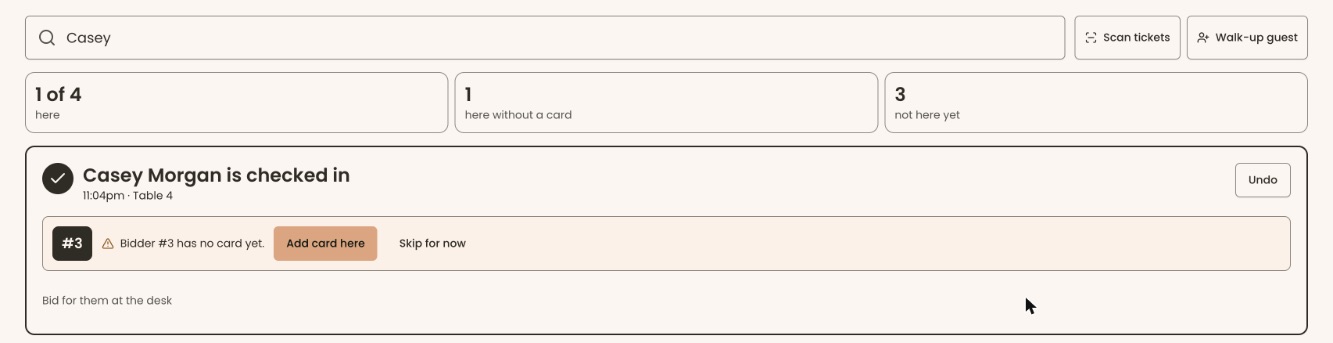
- A large card opens at the top: "Jordan Lee is checked in", with the time. That means it worked.
- The card also shows their bidder number. If it says "Bidder #… has no card yet.", see "Put a card on file" below.
- Click "Next guest". The card closes and the search box empties for the next person. If the guest has no card yet, "Next guest" isn't shown: click "Add card here", or "Skip for now" to move on without one.
To see a guest's card without checking them in, click "Open" at the right of their row. The card then shows "Check in …" and, for a party, "Check in all … on #…".
If you see "Nobody matches "…"", try their bidder number or ticket code, or add them as a walk-up guest.
Check in a whole party
- Search for any guest in the party.
- Click "Open" at the right of their row.
- On the card, click "Check in all … on #…". Everyone on that number who isn't here yet is checked in.
- Or, under "Still to arrive on #…:", click "Check in" followed by one person's name.
- When everyone has arrived, the card says "Everyone on #… is here.".
You can also click the three dots (⋯) at the far right of a row and choose "Check in whole party". It is offered only while that guest isn't checked in.
Scan tickets
- Next to the search box, click "Scan tickets". The scanner opens below and the button reads "Hide scanner". If your browser asks, allow the camera.
If you see "We couldn't open the camera. Allow camera access in your browser's settings, or search for guests by name below.", the device has no camera or the browser blocked it. Use the search box under "No ticket? Search guests" instead.
- Hold the guest's ticket code up to the camera.
- On the guest's card that appears, click "Check in" followed by their first name.
- Click "Scan next guest" for the next person.
- To close the scanner, click "Hide scanner".
Put a card on file
A card on file pays for what the bidder number wins tonight. Nothing is charged when you save it.
- On the guest's card, click "Add card here". Or click the three dots (⋯) at the far right of their row and choose "Add card" ("Replace card" if the number already has one). A box called "Add a card for #…" opens.
- If it asks "Who pays for #…?", click the person who pays. A person with no email shows "Add their email in the list first".
Important: of the three ways below, "Email a link to their phone" emails the payer their bidding link as soon as you click it, so they can add the card themselves.
- Choose one way:
- "Use the card reader": click the reader's name, then have the guest tap, insert or swipe the card. Click "Done".
- "Type the card number": type the card details in the form and click "Save card". You'll see "Card saved. It shows in the list in a moment, once the payment processor confirms it.".
- "Email a link to their phone": you'll see "Sent to …".
- The guest's row shows the card a few seconds later. That means it worked.
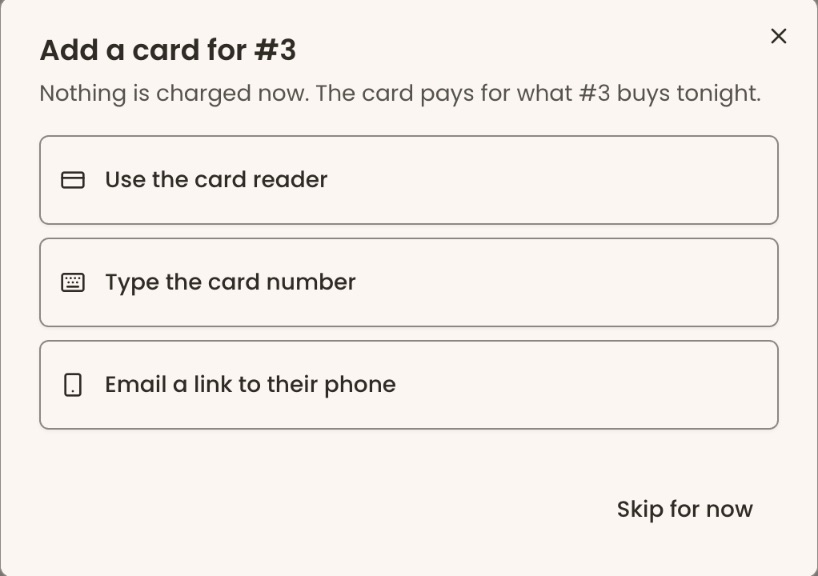
If you see "No card reader is set up for this organization's payment account. Type the card instead, or email them a link.", click "Back" and choose another way. To leave without a card, click "Skip for now".
Sell a seat to a walk-up guest
Use this when someone arrives without a ticket and pays at the door by cash, check, or as your guest.
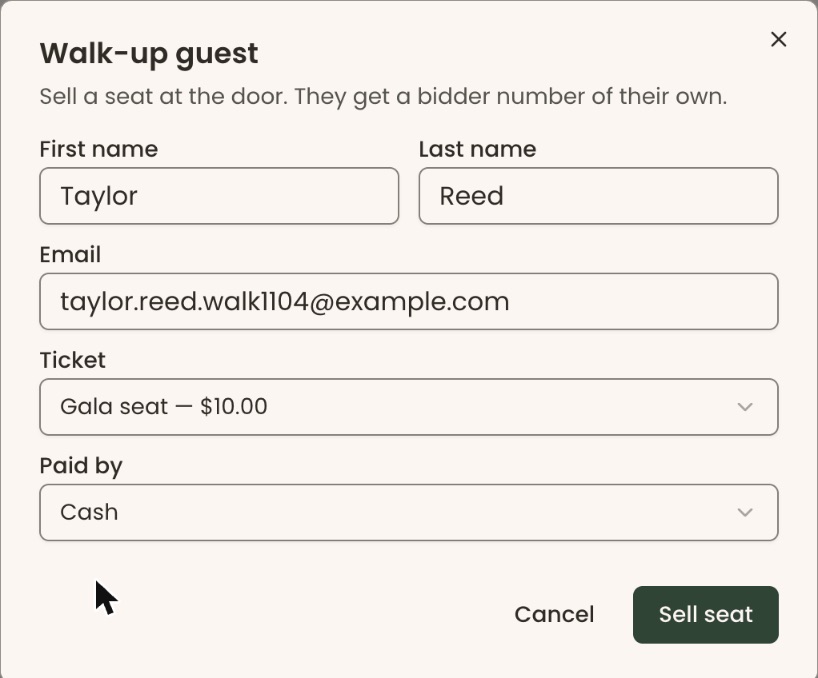
- Next to the search box, click "Walk-up guest". A box called "Walk-up guest" opens.
- Type their "First name", "Last name" and "Email". The email is required.
- Under "Ticket", choose the ticket they are buying. If the event has one ticket, it is already chosen.
- Under "Paid by", choose "Cash", "Check", "Complimentary" or "Other". "Cash" is chosen to start with.
- If the event asks questions, answer them in the box.
Important: "Sell seat" records the seat as sold and paid the way you chose. It can't be undone on this screen.
- Click "Sell seat".
- You'll see "Seat sold. Their bidder number is …". They are checked in at the same time. That means it worked.
- On their card, click "Add card here" to save a card for what they win.
If you see "This event has no tickets to sell.", add a ticket on the event's "Tickets" tab first. See Create an event and add ticket types.
Fix details at the desk
- Click a guest's name, email, bidder number or table in the list to change it in place.
- A guest with "No bidder number yet." on their card: click "Give a bidder number".
- To split a guest off onto their own number, click the three dots (⋯) and choose "Give own number". You'll see "… now has bidder number …".

If you make a mistake
- To undo a check-in, click "Undo" on the guest's card, or the three dots (⋯) › "Undo check-in" (offered once the guest is checked in). You'll see "… is no longer checked in.".
- A walk-up sale can't be undone here. Cancel or refund the order from the event's "Orders" tab: see Cancel or refund an order.