


Who can do this: "Cancel order": Owner, Administrator and Programs. Being asked what happens to the money, and refunding it: Owner and Administrator, because it also needs the refunds permission. Programs users can cancel but can't refund, so the money is kept (see "Special cases"). Finance users can't cancel an order, but can click "Refund" on an order that is already canceled and still holds money.
Quick steps: Events › Events › the event › "Orders" tab › "Cancel order" › "Refund it" or "Keep it" › "Continue to refund" › "Issue refund" or "Record refund"
Before you start
- To cancel and refund in one go, you need an Owner or Administrator login.
- Have to hand: the buyer's name, email or order number.
- Decide whether the money goes back to the buyer or is kept by your organization.
- Check whether anyone on the order is already checked in. Their seats can't be released.
- A placeholder order is one a staff member entered by hand to hold a spot until the buyer paid.
Cancel an order
Page: /dashboard/campaigns/<campaignId>?tab=attendees
- In the left-hand menu, under "Fundraising", click "Events". Then click "Events" in the list that opens below it.
- In the list of events, click the event's name.
- Click the "Orders" tab in the row of tabs near the top.
- In the search box at the top, type the buyer's name, email or order number.
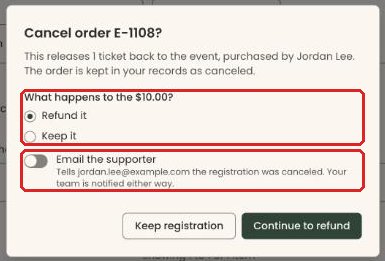
- At the top right of the order card, click "Cancel order" (in red). A box opens called "Cancel order …?".
- Read the first line. It says how many tickets go back to the event, and who bought them.
- If the order was paid, the box asks "What happens to the $…?". Choose "Refund it" (already selected) or "Keep it". For a free or comp order there is no money question.
- Below that, "Email the supporter" is switched off. Switch it on only if you want the buyer told the registration was canceled. Your team is notified either way.

Important: canceling can't be undone. The tickets go back on sale and the guests come off the check-in list.
- If you chose "Refund it", click "Continue to refund" and go to "Refund the money" below.
- Otherwise click "Cancel registration".
- You'll see "Registration canceled — 2 tickets released". After "Keep it" you'll see "Order canceled — 2 tickets released. $50.00 kept.". That means it worked. The order now shows "CANCELED".
If it didn't work, you'll see "Failed to cancel registration" or the reason. Close the box and try again.
Refund the money
After "Continue to refund", a refund box opens. Which one depends on how the order was paid.
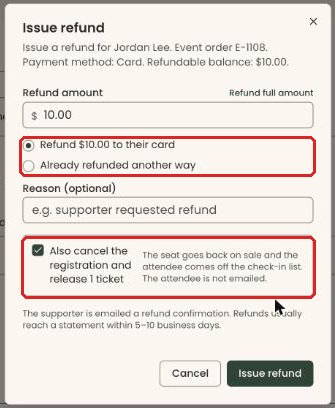
Paid by card online (box called "Issue refund"):
- "Refund amount" is filled in with the full amount left on the payment. Leave it to refund everything. ("Refund full amount", to the right, puts it back if you change it.)
- "Refund $… to their card" is already selected. Leave it to send the money back.
- Or choose "Already refunded another way" if you already gave it back outside Clerestory. Pick "How?" ("Check", "Cash" or "Other") and add a "Note" if you like.
- Optional: type a "Reason (optional)", for example "supporter requested refund".
- Leave "Also cancel the registration and release … ticket" checked.
Important: "Issue refund" sends the money back to the buyer's card straight away, and the buyer is emailed a refund confirmation. It can't be undone.
- Click "Issue refund". (For "Already refunded another way" the button is "Record refund": no money moves, but the buyer is still emailed a refund confirmation.)
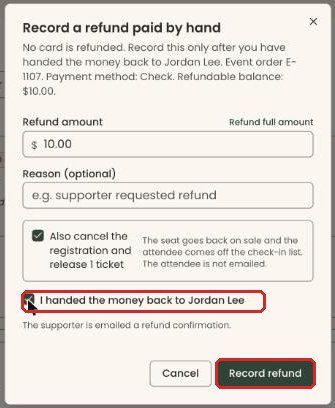
Paid by check, cash or other (box called "Record a refund paid by hand"):
- The box says "No card is refunded. Record this only after you have handed the money back to …".
- "Refund amount" is filled in with the full amount. Leave it to refund everything.
- Optional: type a "Reason (optional)".
- Leave "Also cancel the registration and release … ticket" checked.
- Check "I handed the money back to …". "Record refund" stays grayed out until you do.
Important: "Record refund" records the refund and emails the buyer a refund confirmation. It can't be undone.
- Click "Record refund".
You'll see "Registration canceled — 1 ticket released." (with the number of tickets) at the top of the screen. The order card turns pink and shows "CANCELED" and "Canceled · $10.00 refunded", and its payment details add a "Refunded" line. That means it worked. If the card hasn't changed, refresh the page.
If it didn't work:
- "The most you can refund is $…" means the amount is too high. Lower it.
- "The refund went through, but the order could not be canceled:" means the money was refunded but the order is still open. Click "Cancel order" on it again.
Refund a canceled order that still holds money
An order canceled with the money kept shows "Canceled · $… not refunded" in red, and a "Refund" button at the top right of its card.
- Click "Refund" on that order.
- Follow "Refund the money" above. The box notes the registration is already canceled, so its seats are already released.
Remove a placeholder or duplicate order
Use this when staff entered an order to hold a spot, and the buyer later paid online, so there are two orders for the same thing. For example, a sponsorship package with guest seats entered with "Record Sponsor" and a placeholder check.
- On the "Orders" tab, type the buyer's name in the search box.
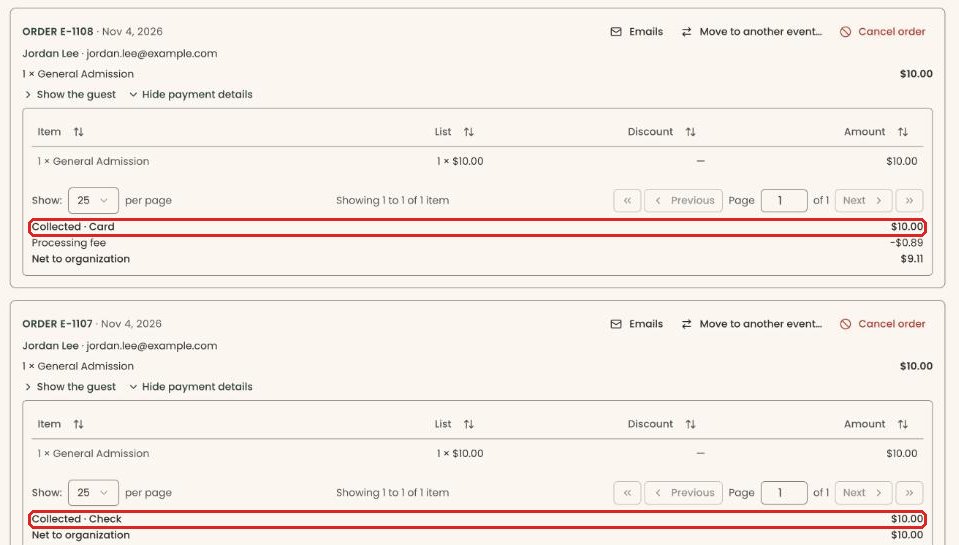
- Under each of their orders, click "Show payment details".
- The real, paid order shows "Collected · Card". Leave that order alone.
- The placeholder is the one entered by staff. It shows "Collected · Check" (or Cash, Other or Comp), usually with an earlier date.
- At the top right of the placeholder's card, click "Cancel order".
- Leave "Email the supporter" switched off, so the buyer isn't told an order was canceled.
- If the placeholder recorded an amount, leave "Refund it" selected and click "Continue to refund".
- In "Record a refund paid by hand", leave "Refund amount" at the full amount.
- Leave "Also cancel the registration and release … tickets" checked.
- Check "I handed the money back to …". No money moves: this records that the placeholder amount was never really collected, so your totals don't count it twice.
Important: "Record refund" emails the buyer a refund confirmation for the placeholder amount, even with "Email the supporter" off ("The supporter is emailed a refund confirmation."). Tell the buyer beforehand if that would confuse them. This can't be undone.
- Click "Record refund".
- You'll see "… refunded to …" and "Registration canceled — … tickets released." That means it worked.
If the placeholder was a comp ($0), there is no money question. In step 7 click "Cancel registration" instead, and you're done.
What this frees up: the placeholder's tickets go back on sale. For a sponsorship, the package's place is freed (its "Sold" count on the "Sponsors" tab goes down by one), and its included guest seats are released. The paid online order keeps its own sponsorship.
Special cases
- No refunds permission (Programs): there is no money question. The box says "No money is refunded. This payment can't be refunded here; use the payments page." "Cancel registration" cancels the order and keeps the money, like "Keep it". An Owner, Administrator or Finance user can then click "Refund" on the canceled order.
- One payment that also paid for another order (for example a kiosk sale across events): the box says "This payment also paid for another order". Refunding it in full cancels that order too.
- Someone on the order is already checked in: the seats can't be released, because that would delete their attendance record. The refund still goes through.
- Partial refunds: refunding less than the full amount leaves the seats in place.
- There is no way to cancel one seat. "Cancel order" always cancels the whole order.
- To refund from the Payments page instead, see Refund a payment.
Buttons to avoid
- "Keep registration" closes the box without canceling.
- "Move to another event…" moves the payment, not the guests. It doesn't cancel anything.
If you make a mistake
This can't be undone in the screens. A canceled order can't be reopened, and a refund to a card can't be taken back. To put someone back on the event, register them again: see Register someone by hand.