


Who can do this: Owner, Administrator and Programs. Front desk can open the same screen and see the countdown, but doesn't see the start, close or "Add time" buttons. Finance, Fundraiser and Viewer can't open the auction night screens.
Quick steps: Events › Events › the event › "Auctions" tab › "Live" › "Open auction night" › "Start silent bidding now". Later: "+5 min" / "+10 min" / "+15 min", or "Close silent bidding now" › "Close now".
Before you start
- You need the Owner, Administrator or Programs role.
- Your silent items must be added, each with a close time and a bid increment. See Add auction items, sections and close times.
- Guests need bidder numbers and their phone bidding links. See Give out bidder numbers, send phone bidding links and seat guests at tables.
- Silent bidding is when guests bid on silent items from their phones. Items stay closed to bids until you start it.
Open the auction night screen
Page: /dashboard/gala/<eventId>
- In the left-hand menu, under "Fundraising", click "Events". Then click "Events" in the list that opens below it.
- In the list of events, click the event's name.
- Click the "Auctions" tab in the row of tabs near the top.
- Click "Live".
- In the "Auction night" box, click "Open auction night". A full-screen page opens with the event's name at the top left and a row of stations: "Home", "Check-in", "Bid desk", "Auctioneer", "Results" and "Checkout".
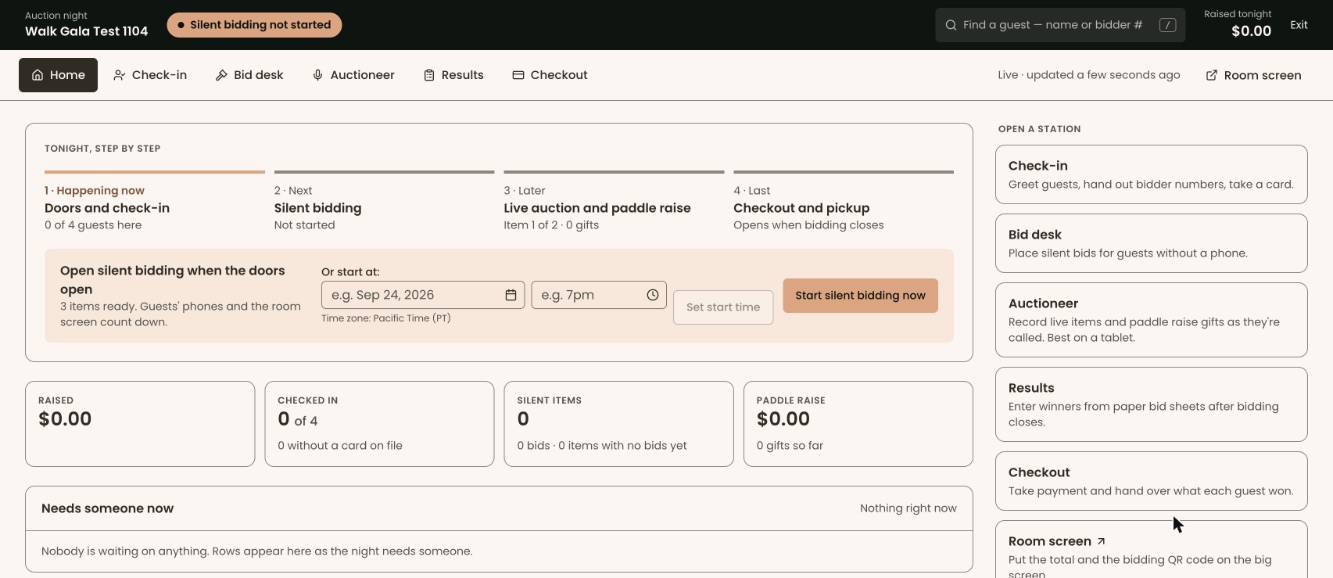
- You are on "Home". In the box headed "Tonight, step by step", a shaded strip shows what to do next.

To leave the auction night screen, click "Exit" at the top right.
Start silent bidding now
Page: /dashboard/gala/<eventId>
- On "Home", the strip reads "Open silent bidding when the doors open". Under it you'll see how many items are ready, for example "3 items ready."
- If any item is not ready, it is listed in the strip with the reason, for example "needs a close time". Fix it on the Items screen first, or start without it.
Important: "Start silent bidding now" opens every ready item for bids at once. It can't be undone in the screens.
- At the right of the strip, click "Start silent bidding now".
- You'll see "Silent bidding is open. … items are open for bids." The strip changes to "Silent bidding closes at …", and the bar at the top reads "Silent bidding open · closes …". That means it worked.
Guests can now bid from their phones, and the room screen shows a countdown.
If you see "… could not open:" followed by reasons, those items stay closed. Fix them, then click "Open … more ready items now" in the strip.
If the strip reads "No silent items are ready yet", click "See items" to fix your items.
Schedule silent bidding to start by itself
Page: /dashboard/gala/<eventId>
- On "Home", in the strip, find "Or start at:", between the strip's text and "Start silent bidding now".
- In the date box, type the date, for example Apr 18, 2026.
- In the time box next to it, type the time, for example 6pm.
- Click "Set start time".
- You'll see "Start time saved. Ready items open at that time." The strip reads "Silent bidding starts at …". That means it worked.
To cancel it, click "Cancel start time". You'll see "The scheduled start is canceled.".
Give bidders more time
- On "Home", while bidding is open, find "Add time" in the strip.
- Click "+5 min", "+10 min" or "+15 min".
- You'll see "Silent bidding now closes at …", naming the latest close time. That means it worked.
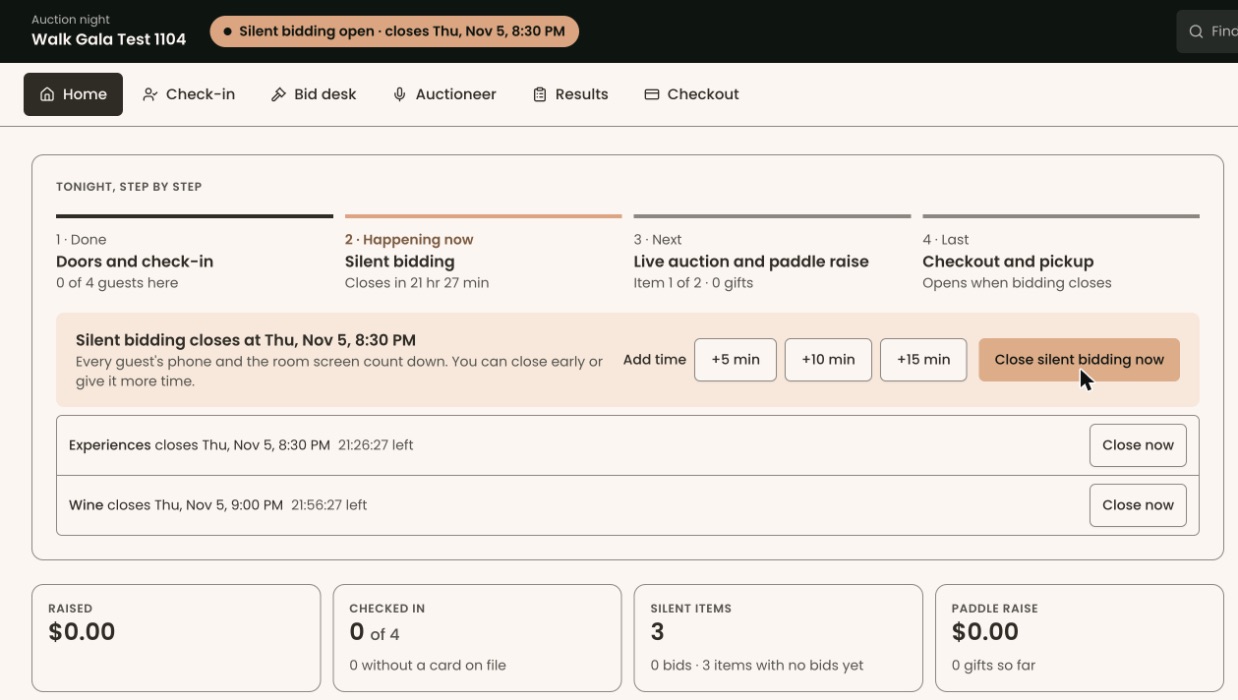
The time is added to every open section, even when sections close at different times. Guests' phones and the room screen count down to it.
Close silent bidding early
Items close by themselves at their close time. Use this only to close sooner.
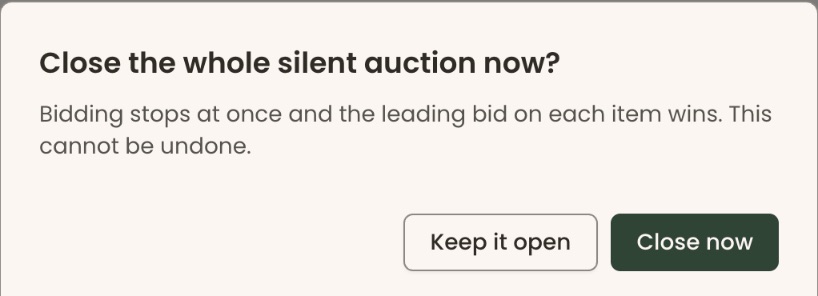
- On "Home", while bidding is open, click "Close silent bidding now" in the strip. A box asks "Close the whole silent auction now?".
- To close only one section, use the list of sections under the strip instead. Click "Close now" next to the section. The box asks "Close … now?". This list appears only when more than one section is open.
Important: "Close now" stops bidding at once and the leading bid on each item wins. This can't be undone.
- Click "Close now". To go back without closing, click "Keep it open".
- You'll see "Closed … items, … winners recorded.", for example "Closed 2 items, 1 winner recorded." That means it worked.
After bidding closes
- The strip reads "Bidding is over", and the bar at the top reads "Bidding closed · checkout open".
- Click "Enter results" to type in winners from paper bid sheets.
- Click "Open checkout" to take payment. See Check guests out.
What the labels mean
- "Raised tonight" (top bar) and "Raised" (box under the strip): money recorded tonight across the auction.
- "Checked in": guests checked in out of guests expected, and how many are here without a card on file.
- "Silent items": how many silent items are open, with their bids.
- "Paddle raise": paddle raise gifts so far.
- "Tonight, step by step": the four parts of the night. Under "Silent bidding" you'll see "Not started", the time left, or "Closed".
- "Needs someone now": guests or items that need a person, for example a guest with no card on file ("Send pay link") or an item with no winner ("Enter result").
Special cases
- Items added after bidding started don't open by themselves. Click "Open … more ready items now".
- To give only one section more time, change its time on the Items screen with "Edit section close times". "Add time" moves every open section. See Add auction items, sections and close times.
- "That didn't work. Try again." means the change didn't save. Try once more.
If you make a mistake
- A scheduled start can be canceled with "Cancel start time".
- Starting bidding can't be undone in the screens.
- A close can't be undone. If you closed too early, there is no button to reopen the items.