


Who can do this: Owner, Administrator, Finance and Fundraiser. Programs, Front desk and Viewer don't see "Renewal and card", "Take a card by phone" or "Charge now".
Quick steps: Fundraising › Membership › "Member List" › ⋯ on the member's row › "Renewal and card" (choose, "Save change") or "Take a card by phone" (read script, enter card, check the box, "Save card") or "Charge now" ("Charge $[amount] now")
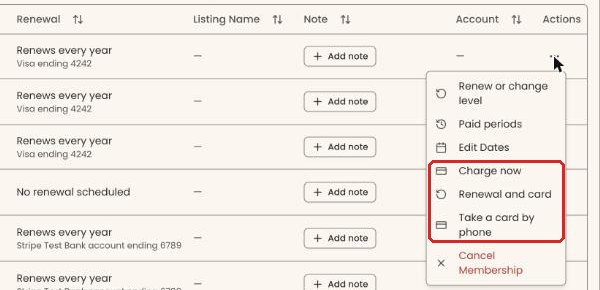
These options appear only on an active membership. Each one is in the three dots (⋯) menu in the "Actions" column at the far right of the member's row on the Member List. The list is wider than the screen, so scroll it to the right to reach that column.
Before you start
- You need one of the roles above.
- Your organization must have a payment account connected to Stripe. See Add a payment account, connect Stripe and set your payout schedule.
- To take a card by phone: have the member on the line, with their card ready.
- Auto-renew means Clerestory charges the member's saved card when their membership is due, so they don't have to renew by hand.
- A term is the period a membership is paid for, for example Dec 1, 2026 to Dec 1, 2027.
What the labels mean
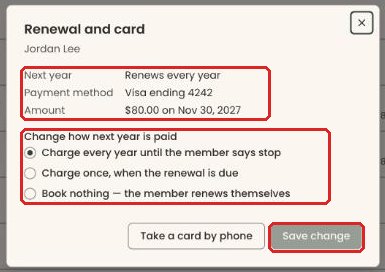
In the "Renewal and card" box:
- "Next year": how next year is paid right now.
- "Renews every year": the card on file is charged each year until the member says stop.
- "One charge booked" (the list adds "Due" and a date): the card will be charged once, for the next renewal only.
- "No renewal scheduled": nothing is booked. The member renews themselves.
- "Payment method": the card on file, shown as its brand and last four digits, or "No card on file".
- "Amount": what the next charge will be and on which day. "+ processing fees" is shown when the member covers the card fees.
- "Paying this year in monthly installments" means the member is paying the current year month by month.
See or change how next year is paid
Page: /dashboard/membership/members
- In the left-hand menu, find the Fundraising group and click "Membership" to open it. (If "Member List" already shows under it, skip this step; clicking again closes it.)
- Click "Member List".
- Find the member. Above the list, type their name in the "Search by name or email..." box, then click "Apply Filters".
- Scroll the list to the right. In the "Actions" column at the far right of that member's row, click the three dots (⋯).
- Click "Renewal and card".
- A box opens called "Renewal and card", with the member's name under the title.
- Under "Change how next year is paid", choose one:
- "Charge every year until the member says stop"
- "Charge once, when the renewal is due"
- "Book nothing — the member renews themselves"
- At the bottom of the box, click "Save change". It stays grayed out until you choose something different.
- The box closes. In the member's row, the "Renewal" column now shows the new setting, for example "Renews every year" or "One charge booked". That means it worked.
- If Clerestory refuses the change, the box shows the reason at the top, under the member's name. If the member has no card on file, take a card first (below).
Take a card by phone
Page: /dashboard/membership/members
- On the Member List, scroll right and click the three dots (⋯) at the far right of the member's row.
- Click "Take a card by phone". (Or, in the "Renewal and card" box, click "Take a card by phone" at the bottom.)
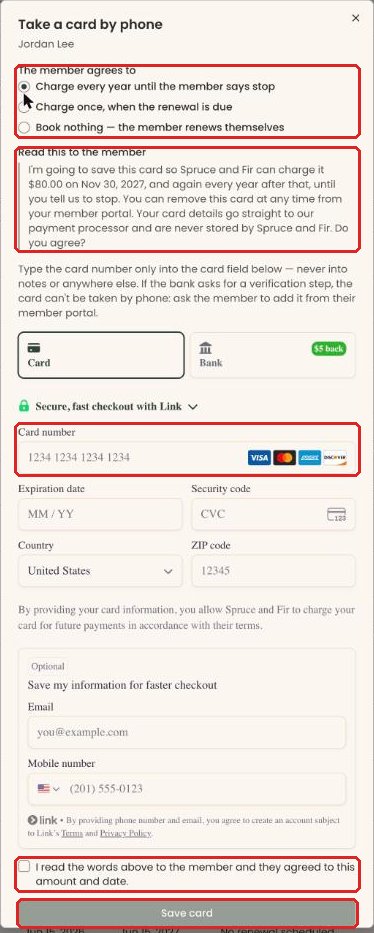
- A box opens called "Take a card by phone".
- Under "The member agrees to", choose how next year should be paid. The three choices are the same as above.
- Read the words under "Read this to the member" out loud. When a charge is booked, they include the amount and the date.
- Make sure "Card" is selected. Type the details the member gives you into "Card number", "Expiration date", "Security code" and "ZIP code".
- Leave the "Optional" box "Save my information for faster checkout" empty. It is not needed.
- Once the member agrees, check "I read the words above to the member and they agreed to this amount and date." (With nothing booked it reads "I read the words above to the member and they agreed.")
- Click "Save card".
- The box closes. In the member's row, the "Renewal" column now shows the card, for example "Visa ending 4242". That means it worked.
Saving the card charges nothing today. If you booked a charge, the card is charged on the renewal date.
Charge a stored card now
Page: /dashboard/membership/members
- On the Member List, scroll right and click the three dots (⋯) at the far right of the member's row.
- Click "Charge now". It is only in the menu when the membership has a card on file.
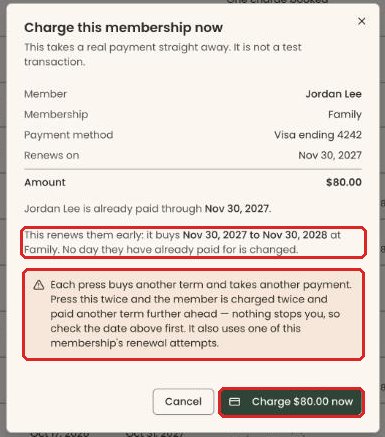
- A box opens called "Charge this membership now". It says "This takes a real payment straight away. It is not a test transaction." It shows "Member", "Membership", "Payment method", "Renews on" and "Amount".
- Read the sentence below them. It says exactly which dates this charge pays for, for example "This renews them early: it buys" and the new term's dates.
Important: clicking "Charge $[amount] now" charges the member's card straight away. Every click is a new charge: click twice and the member is charged twice. Nothing stops a second click, so click once.
- Click "Charge $[amount] now" once.
- The box closes. In the member's row, the "Expiry Date" has moved on by one term. That means it worked, and the member is now paid for another term.
Special cases
- Also has a recurring gift: when you take a card by phone for a member who also gives monthly, the box asks "Use the new card for": "Both the membership and the recurring gift", "The membership renewal" or "The recurring gift". If you include the gift, you read a second script, "And this, for the recurring gift".
- The bank wants to verify the card: you'll see "The member's bank wants to verify this card, which can't be done over the phone. Ask the member to add the card themselves from their member portal." Send them the portal link (see Renew your membership or change your level online and Manage your membership card and automatic renewal).
- "Clerestory can't work out next year's amount for this membership, so a charge can't be booked by phone." You can still save the card, with nothing booked.
- "The card has been accepted. Save again to finish." Click "Save card" once more.
- No "Charge now" on the row: the membership has no card on file, is canceled or expired, is a dues membership, or is still billed by an older Stripe subscription.
- Charge now results that mean nothing was charged: "The card was declined. Nothing was charged.", "The card was not charged — the bank wants the cardholder." (the member must approve each payment, so ask for a different card), "Nothing was charged — there was nothing due.", and "Nothing was charged — the attempt is on hold."
- Bank account instead of a card: "The bank payment of $[amount] is processing." The new term is added once it clears, in a few business days.
- Paid by check or cash instead: use "Renew or change level" and check "Turn off auto-renew" there, so the card isn't charged as well.
Buttons to avoid
- "Charge now" charges real money, not a test. Use it only when you mean to take a payment today.
- "Cancel Membership" sits in the same menu. It ends the membership; it doesn't turn off auto-renew. To stop the card being charged, use "Renewal and card" and choose "Book nothing — the member renews themselves".
If you make a mistake
- Wrong renewal setting: open "Renewal and card" again, choose the right one and click "Save change".
- Wrong card saved: take a card by phone again with the right card.
- Charged by mistake, or charged twice: this can't be undone from the Member List. A user with refund access (Owner, Administrator or Finance) can refund the payment. See Refund a payment. The extra term stays on the membership; to fix the dates, see See paid periods and fix start or expiry dates.