


Who can do this: The member, in the organization's supporter portal, signed in with their own email address. Organization staff can't make these changes for a member from this screen.
Quick steps: Portal › sign in with your email code › "Manage renewal" › choose how next year is paid › "Save". Card: "Add a card" or "Replace card" › "Save card", or "Remove card".
Before you start
- You need access to the email inbox your membership is under. The portal signs you in with a code sent there.
- Have your card to hand if you are adding or replacing one.
- The portal is the organization's members' page. The link is in your renewal reminder email ("login to your account"), or on the organization's website.
- Staff helping a member over the phone: see Cards and auto-renew: take a card by phone, set how next year is paid, charge now.
Sign in to the portal
Page: /portal/<orgSlug>
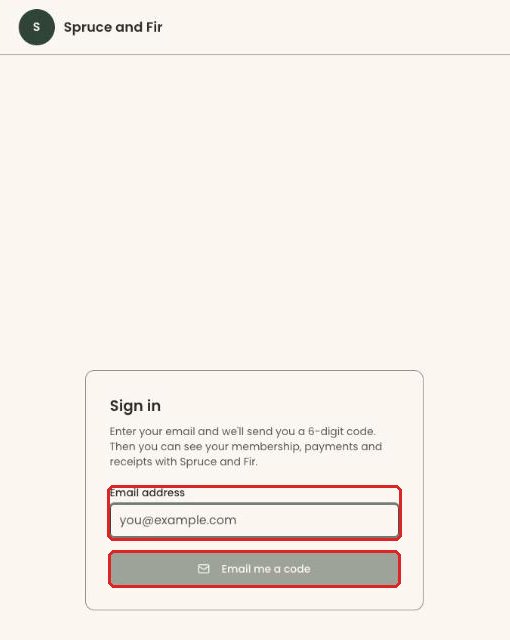
- Open the portal link. A link from an email opens with your email address already filled in.
- In "Email address", check or type your email address.
- Click "Email me a code".
- You'll see "Check your email" and "We sent a 6-digit code to" your address. Open the email from the organization and find the 6-digit code.
- Type the code in "Verification code", then click "Verify".
- You'll see "Email verified successfully", and the portal opens on "Home".
If it didn't work:
- "Invalid verification code. Please check and try again." means a typo. Type the code again.
- "Invalid or expired code. Please request a new one." means click "Resend" and use the new code.
Open your renewal settings
- On "Home", find your membership card.
- Below the card, click "Manage renewal".
- A screen opens called "Next year and your card". The first sentence says exactly what will happen: whether automatic renewal is on, which card will be charged, and when.
- To go back, click "Home" at the top left of this screen.
If you see "We couldn't load your renewal details.", click "Try again".
Add or replace your card
- Under "Card on file", at the right, click "Add a card" (or "Replace card" if one is already saved).
- A box opens called "Your card for automatic renewal" (or "Your card on file"). It says saving the card doesn't charge it.
- Enter the card details.
- At the bottom of the box, click "Save card".
- You'll see "Your card is on file with our payment processor." followed by what happens next. That means it worked. "Card on file" now shows the new card.
If it didn't work, you'll see "We couldn't add that card. Please try again." or a message about the card details. Check them and try again.
Turn automatic renewal on
- On "Next year and your card", choose "Charge my card every year until I tell you to stop". Or choose "Charge my card when it's due" for one renewal only.
Important: after you save, your card will be charged the amount shown on your renewal date, without asking again.
- Click "Save".
- If no card is saved yet, the card box opens first. Enter the card and click "Save card".
- The sentence at the top changes to say when and how much will be charged. That means it worked.
Turn automatic renewal off ("Don't charge my card")
- On "Next year and your card", choose "Don't charge my card — I'll renew myself".
- Click "Save".
- A box asks "Turn off automatic renewal?" (or "Cancel the scheduled charge?" if one charge was booked).
- Read it. It says your membership is still good through your renewal date, and your card stays on file until you remove it.
- Click "Turn it off" (or "Cancel the charge"). To change your mind, click "Keep it" instead.
- You'll see "The scheduled charge is canceled." with the date your membership runs through. That means it worked. Nothing is refunded and your current membership isn't shortened.
Remove your card
- On "Next year and your card", click "Remove card".
- A box asks "Remove your card?" and says what removing it stops.
Important: removing the card means nothing will be charged for your renewal. It also deletes the card from the payment processor, unless another payment you make to the organization still uses it.
- Click "Remove card". (Click "Keep my card" to leave it.)
- You'll see "Your card has been removed…". That means it worked.
Where the email links land
- "login to your account" in a renewal reminder opens the portal's sign-in with your email filled in. After signing in, click "Manage renewal".
- "Cancel this scheduled charge" appears in a reminder when one renewal charge is booked. After you sign in, it goes straight to the "Cancel the scheduled charge?" box for that membership.
- That link never cancels anything by itself. You still have to click "Cancel the charge". If nothing is booked any more, it shows "Nothing to cancel" instead.
Special cases
- No "Manage renewal" button: a membership covered by someone in your household is managed by that person.
- Some older memberships are still billed by the payment processor directly. For those, the screen explains why, and you use "Manage payments" on "Home" instead.
- Paying this year in monthly installments: turning off next year's renewal doesn't stop this year's installments. Contact the organization before removing the card, because those payments need it.
- "Renew now" pays your renewal yourself. If you changed your choice, click "Save" first. To renew online, see Renew your membership or change your level online.
- "Show payment history" lists the payments for this membership.
If you make a mistake
- Turned automatic renewal off by mistake: choose "Charge my card every year until I tell you to stop" again, and click "Save".
- Removed your card by mistake: click "Add a card" and save it again.