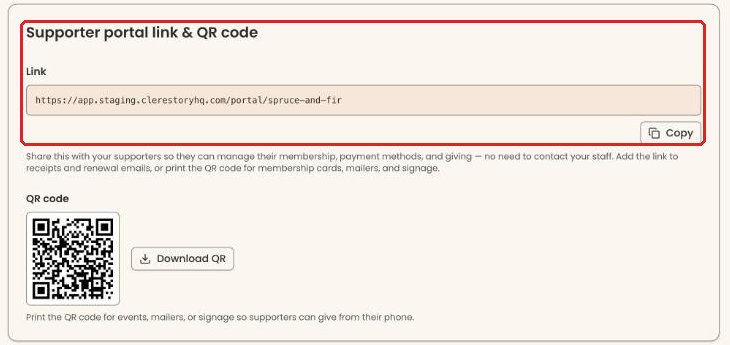
Who can do this: any member with an email address on file with the organization. You don't need a password.
Quick steps: open the portal link › "Email me a code" › type the code › "Verify" › "Renew" (or "Manage renewal" › "Renew now", or "Change level") › choose a level › "Confirm my renewal" › "Pay $[amount] now"
Before you start
- You need the supporter portal link from your organization, and access to the email address they have for you.
- If you plan to pay now, have your card ready.
- The supporter portal is your organization's web page where you can see your own membership, payments and receipts.
- Your membership card is the box on your portal page that shows your membership level and its dates, with the "Renew", "Change level" or "Manage renewal" buttons under it. It is on screen, not a plastic card.
- A level is the kind of membership you hold, for example "Individual" or "Family". A term is the period you've paid for.
Sign in to the supporter portal
Page: /portal/<orgSlug>
- Open the supporter portal link your organization gave you. It ends in "/portal/" followed by the organization's short name.
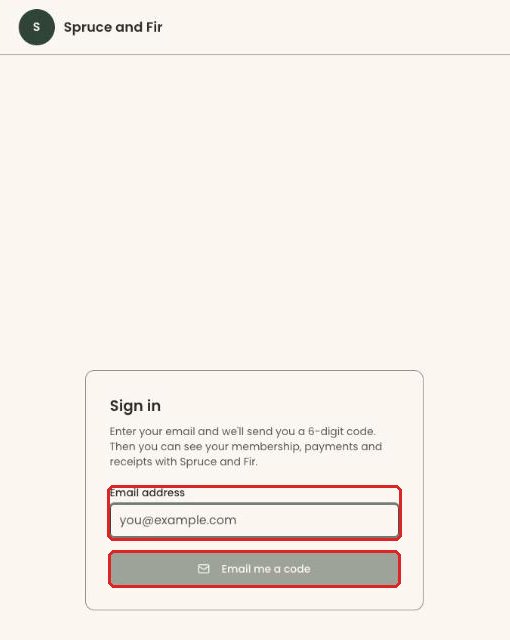
- Under "Sign in", type your email in "Email address". Use the email the organization has for you.
- Click "Email me a code".
- You'll see "Check your email" and "We sent a 6-digit code to" your address. Open the email and find the 6-digit code.
- Type the code in "Verification code".
- Click "Verify".
- You'll see "Email verified successfully" and your membership. That means you're signed in.
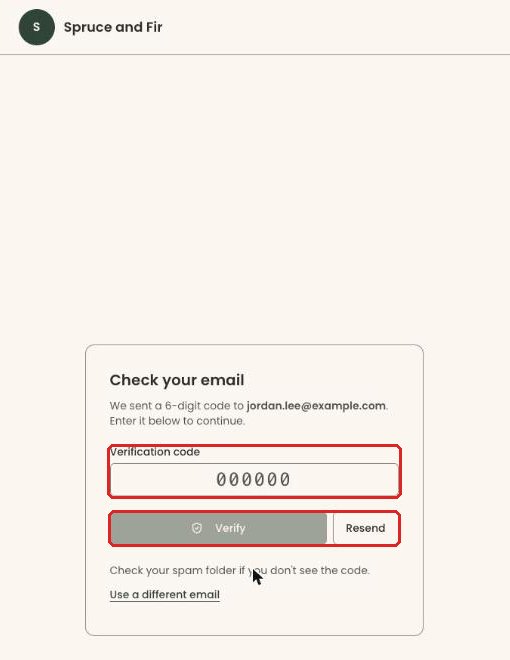
Didn't get the code? Check your spam folder, then click "Resend", to the right of "Verify". To start again with another address, click "Use a different email".
Renew when your membership has ended or is about to end
- On your membership card, click "Renew".
- A box opens called "Your [Level] membership", showing "Paid through" or "Ended" and the date.
- Choose your level. Your current level is marked "(your level)". You can stay where you are, move up or move down.
- Click "Confirm my renewal".
- Under "When do you want to pay?", choose "Pay now" or, if offered, "Pay when it's due".
- Under "Renew automatically each year after that?", choose "Yes" to have your card charged each year until you stop, or "No, I'll renew myself".
- If you have a card saved, the box says which card it will use. To use another, click "Use a different card".
Important: clicking "Pay $[amount] now" charges your card straight away. Check the level and amount first.
- If you chose to pay now with your saved card, click "Pay $[amount] now". With a new card, click "Continue to pay $[amount]", type your card details, then click "Pay $[amount] now".
- You'll see "Thank you. Your [Level] membership is paid through [date]. We've emailed your receipt." That means it worked.
- If you see "Your card was declined." or "Your payment didn't go through.", check the card details or try another card.
Renew early
If your membership is still current, the "Renew" button isn't on your card. Renew from your renewal settings instead:
- On your membership card, click "Manage renewal".
- Near the bottom of that screen, next to "Save", click "Renew now".
- Follow steps 3 to 10 in "Renew when your membership has ended or is about to end".
Renewing early adds the new year on after your current one, so you don't lose any time you've already paid for.
If you changed a choice on this screen, click "Save" first. Until you do, "Renew now" stays grayed out and the screen says "Save your choice first. Renewing starts from the choice you've saved."
Pay when it's due instead of now
If you choose "Pay when it's due" in step 5, you then choose what happens on that day:
- "Charge my card once": your card is charged on the due date. "Nothing more is taken after that unless you ask us to."
- "Charge my card then and every year until I stop".
- "Book my renewal and remind me to pay": "Nothing is charged, and no card goes on file."
Click "Save my renewal". "Saving your renewal doesn't charge anything." You'll see "Your renewal is saved."
Change your level
- On your membership card, click "Change level".
- Under the button, the card tells you when a change starts, for example "A move up starts today. A move down starts with your next term."
- In the box, choose the level you want.
- Read the summary. It says when the new level starts and what you'll pay today.
Important: if there is anything to pay today, the payment button charges your card straight away.
- Click "Confirm my new level", then pay if there is anything to pay.
- You'll see a confirmation. If you paid, it reads "Thank you. Your [Level] membership is paid through [date]. We've emailed your receipt." If you pay monthly, it starts "Done. You're now [Level]."
To renew or switch at your next renewal instead, click "Do something else with my membership" in the box.
Special cases
- No "Renew" or "Change level" button: the card explains why. For example: "You're included on this membership through another member.", "Renewals are handled by" another member, or "This membership was a gift." Ask the person who holds the membership, or contact the organization.
- Your membership ended a short time ago: the card may say "Renew by [date] to keep your renewal date."
- "Your card was charged. Your membership will update in a moment — refresh the page if it hasn't." Wait a moment and refresh the page.
- "We couldn't apply your payment to your membership, so we've refunded it in full." Nothing has changed. Contact the organization.
- Bank payment: "Your bank payment has started." Bank payments take a few business days to clear, and the receipt is emailed when it does.
- Your email isn't recognized: use the email address the organization has on file for you, or ask them to update it.
- Your card on file or automatic renewal: see Manage your membership card and automatic renewal.
For staff: where to send members
Send members your organization's supporter portal link. It is your Clerestory web address followed by "/portal/" and your organization's short name.
To find and copy it: in the left-hand menu, find the Tools group and click "Settings", then "Organizations" (scroll the left-hand menu down if you can't see it). Scroll down the page to the box "Supporter portal link & QR code". Click "Copy" under the link. That box also has a QR code you can print on membership cards, mailers and signs. Owner, Administrator and Viewer can see this box; ask one of them for the link if you can't.