


Who can do this: "Charge now" and "Mark paid": Owner, Administrator, Finance, Programs and Front desk. "Waive": Owner, Administrator and Programs. "Refund": Owner, Administrator and Finance. Each person sees only the buttons their role can use. Fundraiser and Viewer users can see the list but no buttons.
Quick steps: Rentals › "Bookings" › the booking › "Payments" › on a charge's row, "Charge now", "Mark paid", "Waive" or "Refund" › confirm in the box that opens.
Before you start
- You need one of the roles above for the button you want.
- The booking must be approved. The "Payments" list appears only from then on. See Approve or decline a rental request.
- A charge is one amount the renter owes, such as the "Rental" fee or a "Refundable deposit". A weekly booking has a charge for each date.
- The payment method on file is the card or bank account the renter saved when they paid on their booking link.
- For "Mark paid", know how the renter paid: cash, check, bank transfer or other.
Find the booking's payments
Page: /dashboard/rentals/bookings/<bookingId>
- In the left-hand menu, under "Programs & Sales", click "Rentals".
- In the row of tabs under the "Rentals" heading, click "Bookings".
- In the search box ("Search references and renters"), type the renter's name or the booking reference, for example B-1042.
- Click the booking's reference. The booking's page opens.
- Scroll down to "Payments". On the right of the heading you'll see "Paid", "Still due" and either "Payment method on file" or "No payment method on file".
- Each row shows the charge, its amount and a label: "Scheduled", "Paid", "Failed", "Waived" or "Processing". The buttons are at the right of the row.

Charge the payment method on file
"Charge now" appears only on a charge still owed, and only when the renter has a payment method on file.
Important: "Charge now" takes the money from the renter's saved card or bank account right away. There is no confirmation box. If the booking is already confirmed, the renter is emailed a receipt.
- On the charge's row, click "Charge now".
- You'll see "Charged to the payment method on file." The row now shows "Paid". That means it worked.
Other messages:
- "The bank payment has started. It usually takes a few business days to clear." The row shows "Processing" until the money arrives. The dates stay held.
- "The payment method on file was declined." The row shows "Failed", and the renter is emailed that the payment failed. Ask them for another way to pay.
- "Stripe has not answered yet. Check again shortly." Reload the page after a minute before trying again.
Record a payment made another way
Use this when the renter paid you by cash, check, bank transfer or another way outside Clerestory.
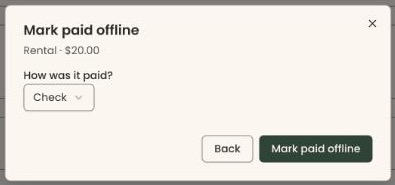
- On the charge's row, click "Mark paid". A box called "Mark paid offline" opens. It shows the charge and its amount.
- Under "How was it paid?", leave "Check", or click it and choose "Cash", "Bank transfer" or "Other".
Important: If this completes what the renter needs to do to confirm (for example, they have already signed the agreement), "Mark paid offline" confirms the booking and emails them their booking confirmation right away.
- At the bottom right of the box, click "Mark paid offline". No money moves.
- You'll see "Recorded as paid." The row shows "Paid" and, under it, "Paid offline (Check)". That means it worked.
If the renter was covering the processing fee, choosing "Cash" or "Check" takes that fee off the charge, because no card was used.
If you see "A card payment was started for this charge…", the renter is paying on their booking link right now. Wait, then reload the page.
Waive a charge
Waiving means the renter no longer owes that charge. No money moves.
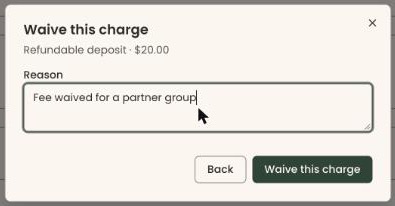
- On the charge's row, click "Waive". A box called "Waive this charge" opens.
- In "Reason", type why, for example "Fee waived for a partner group". You can't continue without a reason.
Important: A waived charge can't be put back in the screens. Like "Mark paid", waiving can confirm the booking and email the renter their booking confirmation right away.
- Click "Waive this charge".
- You'll see "Charge waived." The row shows "Waived" and your reason. That means it worked.
Refund a charge
- Find the paid charge. If several charges were paid together, they show as one "Card payment" (or "Bank payment") row. Click "Show dates" or "Show charges" at the right of that row to list them.
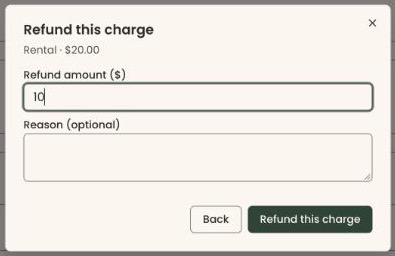
- On the charge's row, click "Refund". A box called "Refund this charge" opens.
- "Refund amount ($)" is filled in with what can still be refunded. To refund less, select it and type the amount, for example 50.
- In "Reason (optional)", type why, if you want.
Important: "Refund this charge" sends the money back to the renter's card or bank account and emails them a refund confirmation. It can't be undone.
- Click "Refund this charge".
- You'll see "Refund issued." The row shows "Refunded" and the amount. That means it worked.
Special cases
- No "Charge now" button: the renter has no payment method on file, or the charge isn't owed. Use "Mark paid", or ask the renter to pay on their booking link.
- "Processing": a bank payment is clearing. "Charge now", "Mark paid" and "Waive" don't show until it clears or bounces.
- A charge paid by cash or check: "Refund" on that row shows "Payment has no Stripe charge to refund", and nothing is recorded. The box stays open; click "Back" to close it. Hand the money back yourself. If you are canceling the booking, the cancel box records it. See Cancel a booking or one date.
- Deposits: to return or keep a refundable deposit after the event, use the booking's close-out instead. See Close out a booking and return or keep the deposit.
- "That did not work. Nothing was changed.": try again. If it repeats, reload the page.
Buttons to avoid
- "Cancel booking" at the bottom right of "Payments" cancels the whole booking. It doesn't refund a single charge.
- "Back" in any box closes it without changing anything.
If you make a mistake
A charge, refund or waiver can't be undone in the screens. If you marked a charge paid by mistake, it can't be set back to owed in the screens.