


Who can do this: Owner, Administrator, Programs and Front desk. Finance, Fundraiser and Viewer can't open the auction night screens.
Quick steps: Events › Events › the event › "Auctions" tab › "Live" › "Open auction night" › "Bid desk" › find the guest › "Choose" › on the item, "Bid $… for …" (or "Other amount", "Set a max").
Before you start
- You need the Owner, Administrator, Programs or Front desk role.
- Silent bidding must be open. See Start and close silent bidding.
- Guests need bidder numbers. See Give out bidder numbers, send phone bidding links and seat guests at tables.
- A bidder number is the number a guest bids with. Everything they win is owed on that number, and paid at checkout.
- Ask the guest for their name or bidder number, the item and the amount they want to bid.
Open the Bid desk
Page: /dashboard/gala/<eventId>/bid-desk
- In the left-hand menu, under "Fundraising", click "Events". Then click "Events" in the list that opens below it.
- In the list of events, click the event's name.
- Click the "Auctions" tab in the row of tabs near the top.
- Click "Live".
- In the "Auction night" box, click "Open auction night". A full-screen page opens.
- In the row of stations near the top, click "Bid desk".
- The left side is headed "Who is bidding?". The right side is headed "Pick an item".
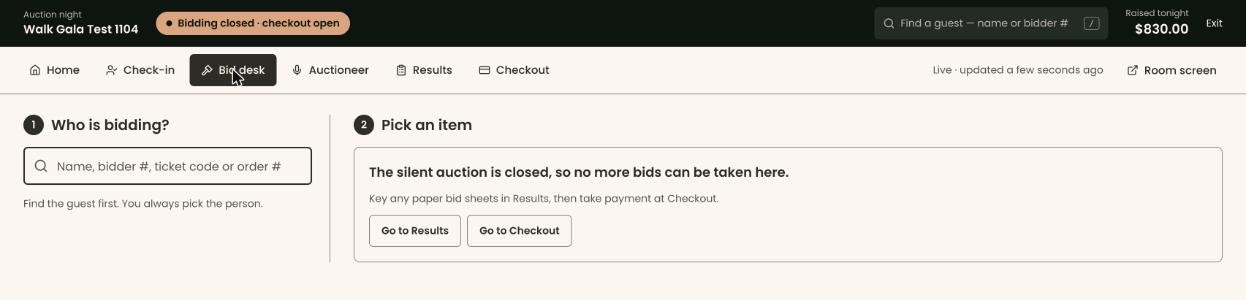
If the right side says "The silent auction hasn't opened yet.", bidding hasn't started. You can still find guests and fix their bidder numbers. If it says "The silent auction is closed, so no more bids can be taken here.", bidding is over.
Find the guest
- Under "Who is bidding?", click in the large search box ("Name, bidder #, ticket code or order #").
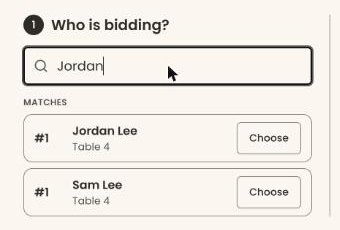
- Type the guest's name or bidder number, for example "Jordan Lee" or 12.
- Under "Matches", find the right person. Each match shows their bidder number on the left.
- Click "Choose" at the right of their row.
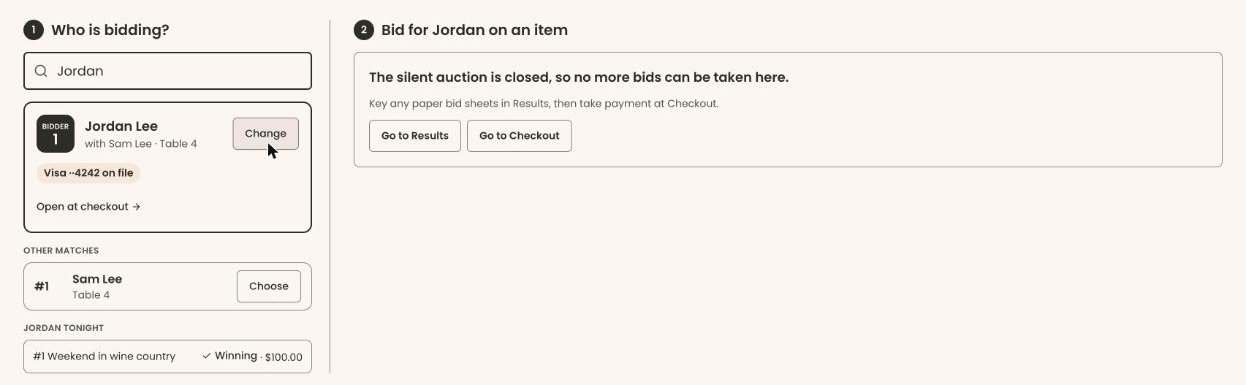
- A card shows the guest's bidder number, name, who shares their number (for example "with Sam Lee"), table, and whether they have a card on file ("… on file" or "No card on file"). That means it worked. Other people who matched your search stay listed below it, under "Other matches".
Below the card, "… tonight" lists the items they have bid on, each marked "Winning", "Outbid" or "Their table is winning".
To pick a different guest, click "Change" on the card.
If you see "No guest matches …", try their bidder number or ticket code.
Bid for the guest
- On the right, the heading now reads "Bid for … on an item". Items taking bids are shown as cards.
- To find an item, type its name or number in "Search item name or #". Or use the buttons above the cards: "All taking bids", "Closing soon", "No bids yet", "… is winning" or "… was outbid".
- On the item's card, check the current bid, for example "$150.00 now · Alex Kim #27". With no bids yet, it says "Opens at …".
Important: A bid can't be taken back in the screens. Read the amount and the guest's name on the button to the guest before you click.
- To bid the lowest amount allowed, click the large button, for example "Bid $160.00 for Jordan".
- The strip at the top of the items turns dark with a check mark, for example "✓ Jordan is winning Weekend Getaway at $160.00". That means it worked.
To bid a higher amount:
- On the item's card, click "Other amount". A "Their bid" box opens with the lowest allowed amount in it.
- Type the guest's amount, for example 200. The note under it says "At least …".
- Click the button next to the box, for example "Bid $200.00 for Jordan".
- You'll see the "✓ … is winning …" strip. That means it worked.
If the strip has a red border instead, the bid was not taken. It says why, for example that the minimum bid has gone up. Check the new amount with the guest and bid again.
If the guest is already leading, the button reads "… is already winning" and is grayed out.
Set a maximum bid for the guest
A maximum bid lets Clerestory bid for the guest automatically. It bids only as much as it takes to stay ahead, up to the maximum.
- On the item's card, click "Set a max". A "Max" box opens.
- Type the most the guest will pay, for example 400.
Important: "Save max for …" places a bid for the guest right away, and more bids up to the maximum later. It can't be undone in the screens.
- Click "Save max for Jordan".
- You'll see the "✓ … is winning …" strip. That means it worked. The list view's "Max" column shows the amount.
Buy an item outright
Some items have a buy-now price. While the bidding is still below it, the card shows "Buy now $…".
Important: "Buy now" sells the item to the guest at once, at that price. Bidding on it stops. It can't be undone in the screens.
- Check with the guest that they want to buy it at the price shown.
- On the item's card, click "Buy now $…".
- You'll see "✓ … bought … for …". That means it worked.
Fix a guest who can't bid yet
A guest with no bidder number. The card says "… doesn't have a bidder number yet."
- Click "Give … their own number".
- You'll see "… now has bidder number …". That means it worked.
In the search results, a guest with no number shows "No #" and a "Give a number" button. Clicking it does the same.
A guest on someone else's number. Some guests share a number with the person paying, for example a host and their guests. The card may say "#… doesn't cover … yet, so their bid can't be taken."
- To keep them on the shared number, click "Let … bid on #…". A box asks "Let … bid on #…?".
Important: Whatever this guest wins is paid by whoever pays for that number, with no limit.
- Click "Let them bid". To go back, click "Cancel".
- You'll see "… can bid on #… now.". That means it worked.
To have the guest pay for their own items instead, click "Give … their own number".
What the labels mean
- "Winning N" / "Outbid on N" on the guest's card: how many open items the guest leads or has lost the lead on.
- "Their table is winning": someone else on the same bidder number leads that item.
- "Cards" / "List" at the top right: show the items as cards or as a table. The table has "Their bid" and "Max" columns.
- "Closes …": when the item's section stops taking bids.
Special cases
- "No items are taking bids." Items take bids once silent bidding has started, until their section closes.
- "That bid was not recorded. Check the connection and try again." The connection dropped. Check the "… tonight" list before you bid again.
- Paying. Nothing is charged at the Bid desk. The guest pays at checkout. See Check guests out: take payment and hand over items.
If you make a mistake
- A bid, a maximum or a buy-now can't be undone in the screens.
- If you bid for the wrong guest or the wrong amount, tell the auction lead right away. After bidding closes, a recorded amount can be corrected under "After" › "Receipts & corrections". See After the auction: collect payments, send receipts and fix mistakes.