


Who can do this: Owner, Administrator and Programs can add, edit and remove shifts. Front desk can also check volunteers in and change their hours. Finance, Fundraiser and Viewer users can see the shifts and who signed up, but no buttons.
Quick steps: Events › Events › the event › "Volunteers" tab › "Add a shift" › "Role", "Starts", "Ends", "Volunteers needed" › "Add shift". On the day: "Check in" next to each volunteer.
Before you start
- To add or change shifts, you need an Owner, Administrator or Programs login. To check volunteers in, Front desk is enough.
- The event must already exist. See Create an event and tickets.
- Have ready: each shift's role name, start and end date and time, and how many volunteers it needs.
- A volunteer shift is a job at your event, such as "Greeter", with a start time, an end time and how many people you need. Volunteers sign up for it on the event's page, for free.
Add a shift
Page: /dashboard/campaigns/<campaignId>?tab=volunteers
- In the left-hand menu, under "Fundraising", click "Events". Then click "Events" in the list that opens below it.
- In the list of events, click the event's name.
- Click the "Volunteers" tab in the row of tabs near the top. It is the third tab, after "Tickets".
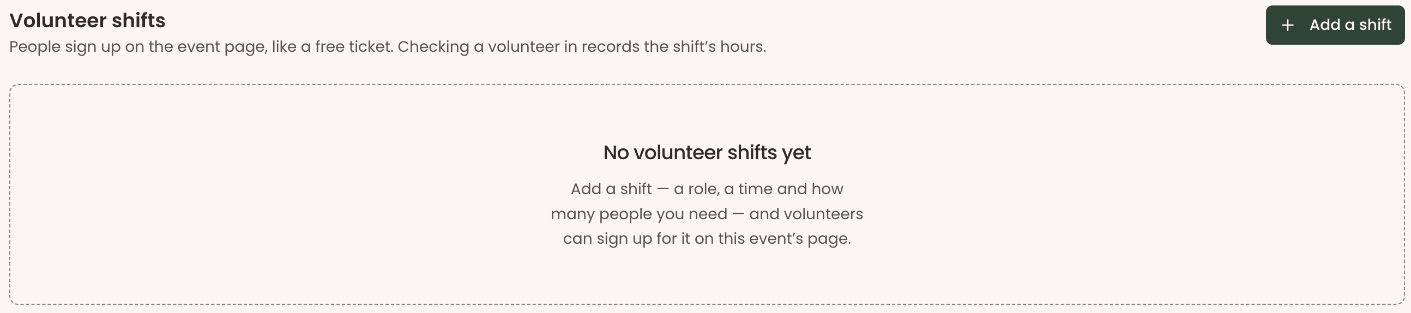
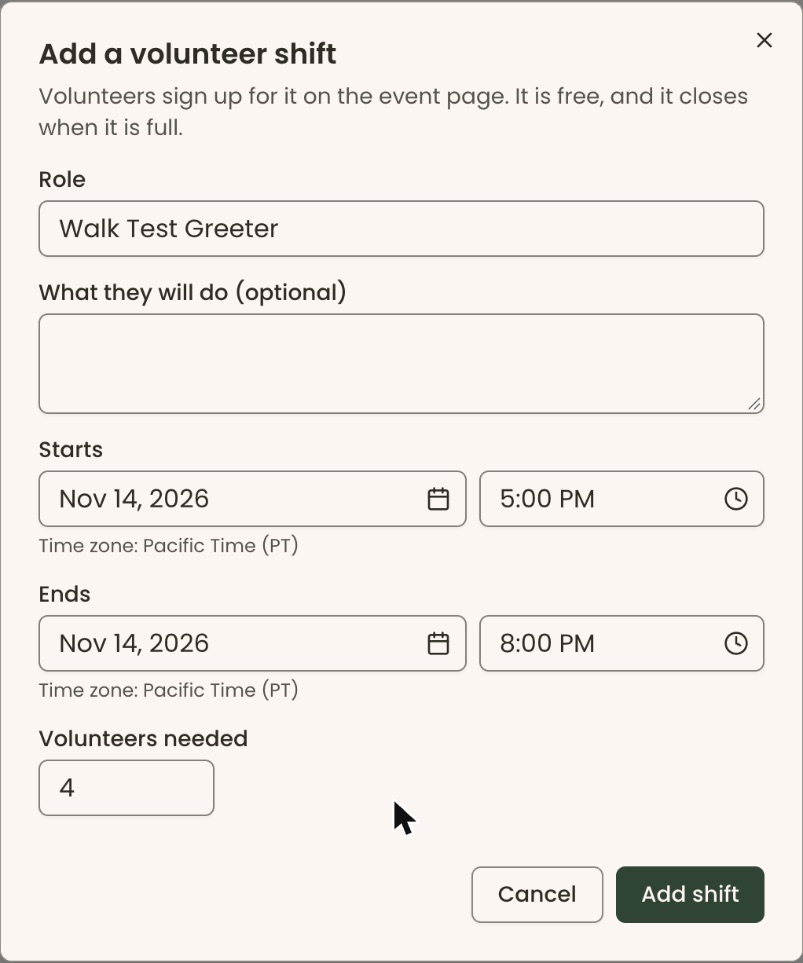
- At the top right, next to "Volunteer shifts", click "Add a shift". A box opens called "Add a volunteer shift".
- In "Role", type the job name, for example "Greeter".
- Optional: in "What they will do (optional)", describe the job, for example "Welcome guests at the front door".
- Under "Starts", type the date in the date box, for example "Nov 14, 2026". In the time box next to it, type the time, for example "5:00 PM", or click it and choose the time from the list that opens.
- Under "Ends", do the same for when the shift finishes, for example "Nov 14, 2026" and "8:00 PM".
- In "Volunteers needed", type how many people you need, for example 4.
- At the bottom right of the box, click "Add shift".
- You'll see "Shift added." The shift appears on the tab with "0 of 4 signed up". That means it worked.
If it didn't work, the box shows the reason in red at the top. The red message stays until you click "Add shift" again, even after you fix the box:
- "Give the shift a role." Type a role name.
- "Choose when the shift starts and ends." Fill in both dates and times.
- "The shift must end after it starts." Check the "Ends" time.
- "Enter how many volunteers the shift needs." Type a whole number of 1 or more.
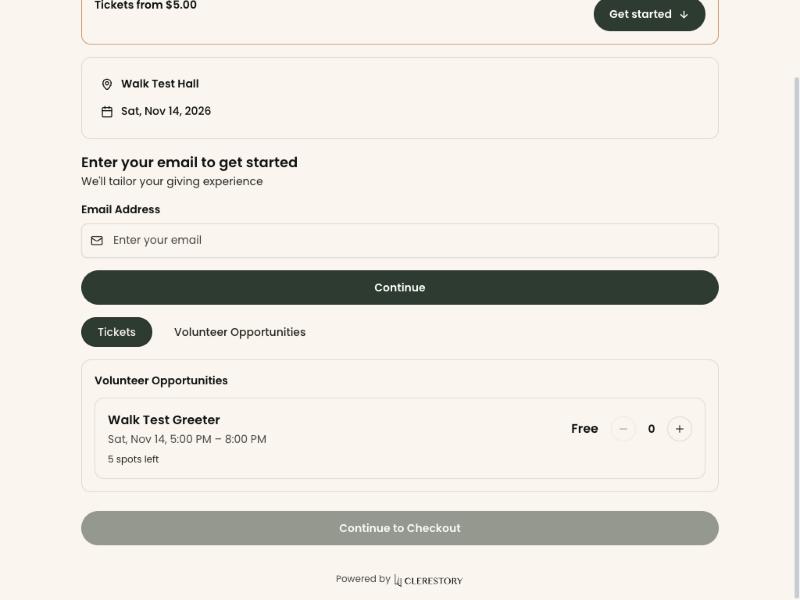
Volunteers now see the shift on the event's page when they click "Volunteer Opportunities", beside "Tickets" above the ticket list. It is marked "Free" and shows how many spots are left. The shift closes when it is full. Shifts don't appear on the "Tickets" tab.
Edit a shift
- On the "Volunteers" tab, find the shift.
- At the top right of the shift's box, click "Edit". A box opens called "Edit shift".
- Change what you need.
- Click "Save shift".
- You'll see "Shift saved." That means it worked.
Remove a shift
You can only remove a shift nobody has signed up for. Once someone signs up, the "Remove" button goes away.
- On the "Volunteers" tab, find the shift.
- At the top right of the shift's box, click "Remove". A box asks "Remove Greeter?".
Important: The shift comes off the event's page right away.
- Click "Remove shift".
- You'll see "Greeter removed." That means it worked.
To keep the shift, click "Keep it" instead.
Check a volunteer in
Checking a volunteer in records that they came, and gives them the shift's length as their hours.
- On the "Volunteers" tab, find the shift. Each person who signed up is listed under it, with a "Status" and "Hours".
- To find someone, type their name in "Search volunteers" above that shift's list.
Important: A check-in can't be undone in the screens.
- In the "Status" column of their row, click "Check in".
- You'll see "Jordan Lee checked in." Their status now reads "Checked in". That means it worked.

You can also check volunteers in with the event's check-in scanner or the "Orders" tab, like any other guest. See Check guests in.
If you see "Check-in did not go through.", try again.
Change a volunteer's hours
Use this if a volunteer stayed longer or left early. You can only change hours after they are checked in. Before that, "Hours" reads "Recorded at check-in".
- On the "Volunteers" tab, find the volunteer's row.
- In the "Hours" column, select the number in the small box and type the right hours, for example 2.5 for two and a half hours.
- Click "Save", to the right of the box.
- You'll see "Hours saved for Jordan Lee." and "Adjusted by staff" next to the box. That means it worked.
If you see "Enter hours from 0 to 24.", type a number between 0 and 24.
What the labels mean
- "2 of 4 signed up": how many people have signed up, out of how many you need.
- "2 came · 6 hours": how many have been checked in, and their hours added together.
- "Nobody has signed up yet.": no one has signed up for that shift.
Special cases
- No shifts yet. The tab shows "No volunteer shifts yet".
- Where hours go. A volunteer's hours are added to their supporter record. To see a person's volunteering, see Volunteers.
If you make a mistake
- A wrong shift detail can be fixed with "Edit".
- Wrong hours can be fixed by typing the right number and clicking "Save" again.
- A check-in can't be undone in the screens.