


Who can do this: Adding, changing and removing hours, marking "Didn't come", and putting people on or taking them off a shift: Owner, Administrator, Programs and Front desk. Adding, changing and archiving standing shifts: Owner, Administrator and Programs. Finance, Fundraiser and Viewer users can open the Volunteers page and look, but don't see "Add hours" or "Add standing shift".
Quick steps: People › Volunteers › "Add hours" (or "Add standing shift") › fill in the box › "Add hours" (or "Add shift"). To mark an absence: click the person › "Didn't come" on that date.
Before you start
- You need one of the roles above.
- Your organization must have switched "Volunteers" on, on the Features settings page (/dashboard/settings/features). If it is off, "Volunteers" is missing from the left-hand menu. Event volunteer shifts work either way.
- The volunteer must already be a supporter in Clerestory. A supporter is anyone in your records who has given, joined, registered or volunteered. To add one, see "Add a supporter or a contact, and move people between Supporters and Contacts".
- Have to hand: the date and how many hours they gave.
Words used here:
- A standing shift is a shift that repeats on the same day every week, or every other week, for example "Front desk, Saturdays noon to 4".
- An event shift is a volunteer shift at one event. It's set up on the event's own "Volunteers" tab.
Log hours someone volunteered
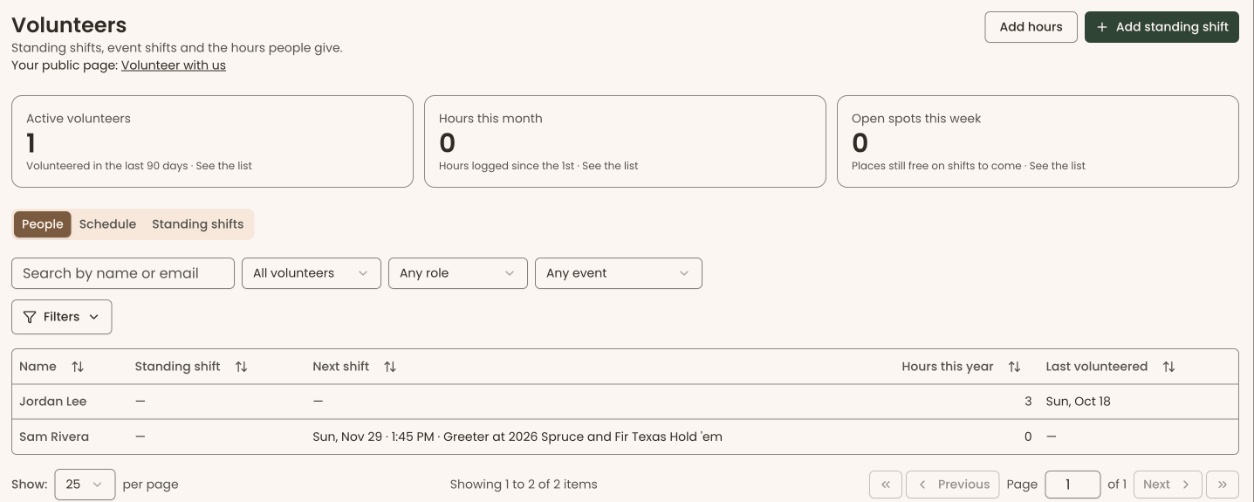
Page: /dashboard/volunteers
- In the left-hand menu, under the heading People, click "Volunteers".
- At the top right of the page, click "Add hours". A box opens called "Add hours".
- Under "Person", click in the box marked "Search supporters" and type the person's name.
- Click the right person in the list. If you picked the wrong one, click "Change" and search again.
- Under "Date", type or pick the day they volunteered. It starts at today. Future dates aren't allowed.
- Under "Hours", type how long they volunteered, for example 3 or 2.5.
- Under "Note (optional)", type anything you want to keep, for example what they helped with.
- At the bottom of the box, click "Add hours".
- You'll see "Hours added for Jordan Lee." That means it worked.
If something is missing, the box shows a message instead:
- "Pick the person who volunteered." Do step 4.
- "Hours can be added for today or earlier." Pick a date that isn't in the future.
- "Enter between 0.1 and 24 hours." Fix the number in "Hours".
The red message stays until you click "Add hours" again, even after you fix the box.
Shortcut: on the "People" tab, click the person's row, then click "Add hours" in the panel that opens. The box opens with that person already chosen.
Hours that are logged for you
You don't need to add these by hand:
- Standing shifts: each time a standing shift ends, Clerestory logs its hours for everyone on it. If someone didn't come, mark it (next section).
- Event shifts: when a volunteer is checked in for an event shift, the shift's hours are logged.
In a person's "Hours" list, each entry says where it came from: "Standing shift", "Event check-in" or "Added by staff".
Mark that someone didn't come to a standing shift
Page: /dashboard/volunteers
- In the left-hand menu, under People, click "Volunteers".
- Near the top of the page, make sure the "People" tab is selected.
- In the box marked "Search by name or email", type the person's name.
- Click their row in the list. A panel opens with their name at the top.
- Scroll down to the "Hours" section and find the date of the shift they missed.
- On that entry, click "Didn't come".
- You'll see "Marked "Didn't come"." That means it worked. The entry now shows "Didn't come" and doesn't count toward their hours.
Changed your mind? On the same entry, click "They came". You'll see "Marked as came."
You can only mark this after the shift has ended, because the entry appears then. "Didn't come" is only on hours from a standing shift. For hours added by hand, use "Remove" (below).
Change or remove hours
Open the person's panel as in steps 1 to 4 above, then scroll to "Hours".
To change the number of hours:
- On the entry, click "Edit hours". A small number box appears.
- Type the new number and click "Save".
- You'll see "Hours saved." The entry now says "adjusted".
To remove hours added by hand:
- On an entry marked "Added by staff", click "Remove". A box asks "Remove these hours?"
Important: the next step can't be undone. The hours stop counting.
- Click "Remove". You'll see "Hours removed." If that was the person's only entry, they drop off the "People" list and the panel heading changes to "Unnamed"; close the panel.
Add a standing shift
Page: /dashboard/volunteers
- In the left-hand menu, under People, click "Volunteers".
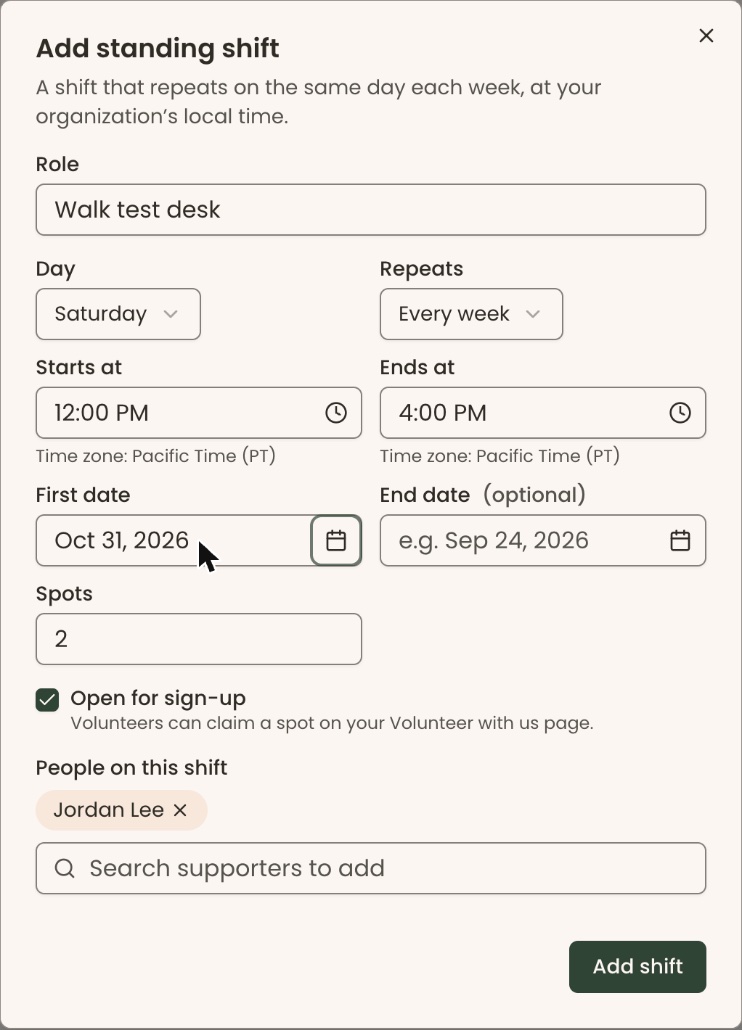
- At the top right of the page, click "Add standing shift". A box opens called "Add standing shift".
- Under "Role", type what the shift is, for example "Front desk".
- Under "Day", pick the day of the week. It starts on "Saturday".
- Under "Repeats", choose "Every week" or "Every other week". It starts on "Every week".
- Set "Starts at" and "Ends at". They start at 12:00 PM and 4:00 PM. Times are in your organization's time zone.
- Under "First date", type or pick the first day the shift happens. It starts at today.
- Leave "End date (optional)" empty, unless the shift stops on a known day.
- Under "Spots", type how many people the shift needs, at least 1. It starts at 1.
- Check "Open for sign-up" if volunteers may claim a spot themselves on your "Volunteer with us" page.
- Under "People on this shift", click in "Search supporters to add" and type a name. Click the person to add them; their name appears above the box. Repeat for each person. To remove one, click the × beside their name.
- At the bottom of the box, click "Add shift".
- You'll see "Standing shift added." That means it worked. It appears on the "Standing shifts" tab, for example "1 of 2 filled".
If something is wrong, the box shows a message instead:
- "Give the shift a role." Fill in "Role".
- "The shift must end after it starts, on the same day." Fix "Starts at" and "Ends at".
- "Pick the date the shift starts." Fill in "First date".
- "This shift has 2 spots; you picked 3 people." Raise "Spots" or remove a person.
Change a standing shift, or who is on it
Page: /dashboard/volunteers
- In the left-hand menu, under People, click "Volunteers".
- Near the top of the page, click the "Standing shifts" tab.
- Click the shift's name. A box opens called "Standing shift".
- Change any details, then at the bottom click "Save". You'll see "Shift saved."
To add a person:
- Under "People on this shift", click in "Search supporters to add" and type their name.
- Click the person. You'll see "Jordan Lee is on this shift." This saves at once; you don't need "Save". People who signed up on your public page show "· signed up online" after their name.
To take a person off:
- Next to their name, click "Take off". A box says "Their hours so far stay. Shifts from today on are no longer logged for them."
- Click "Take off". You'll see "Jordan Lee is off this shift."
Front desk users can add and take off people. The shift's other details are grayed out for them.
Archive a standing shift
Archiving ends a shift for good.
- Open the shift as in "Change a standing shift", steps 1 to 3.
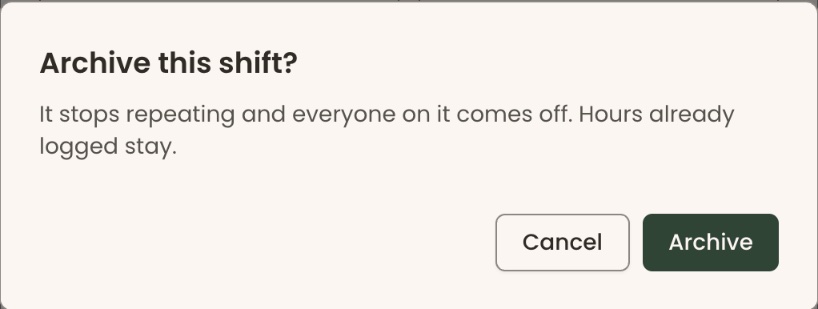
- At the bottom of the box, click "Archive shift". A box asks "Archive this shift?"
Important: the next step can't be undone in the screens. The shift stops repeating and everyone comes off it. Hours already logged stay.
- Click "Archive". You'll see "Shift archived." The shift now shows "Archived".
Share the public sign-up page
Page: /dashboard/volunteers
- In the left-hand menu, under People, click "Volunteers".
- Under the page title, next to "Your public page:", click "Volunteer with us". The page opens in a new browser tab.
- Copy the address from the top of that browser tab. Share it on your website or in an email.
What a volunteer sees and does on that page:
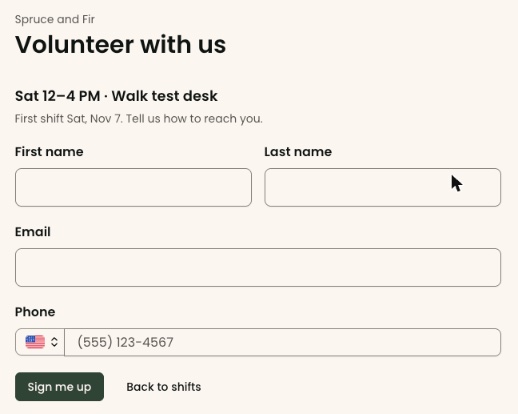
- "Regular shifts" lists each standing shift you checked "Open for sign-up" that has a free spot, with its next date.
- "At upcoming events" lists event shifts. "Sign up on the event page" takes them to that event's page to sign up.
- For a regular shift, they click "Sign up", fill in "First name", "Last name", "Email" and "Phone", and click "Sign me up". "Back to shifts" returns to the list.
- They see "You're signed up!", the shift and its first date, and "We sent a confirmation to your email."

If they had already signed up, they see "You're already signed up". If nothing is open, the page says "There are no open volunteer shifts right now. Please check back soon."
What the labels mean
- Active volunteers: people with hours in the last 90 days. "Didn't come" never counts.
- Hours this month: hours logged with a date since the 1st of this month.
- Open spots this week: places still free on shifts from now to Saturday.
Special cases
- Turning Volunteers off hides the Volunteers page, closes your "Volunteer with us" page and stops logging standing-shift hours. Nothing is deleted.
- Someone moves to a different shift: take them off the old one and add them to the new one. Their past hours stay.
If you make a mistake
- Wrong number of hours: "Edit hours".
- Hours added by hand for the wrong person or date: "Remove", then add them again.
- Hours from a standing shift or an event check-in have no "Remove". Use "Didn't come" for a standing shift, or "Edit hours" for an event check-in.
- An archived shift can't be brought back in the screens. Add a new standing shift instead.