


Who can do this: Every role can open Tributes and see the gifts. Owner, Administrator, Finance and Fundraiser can rename a tribute page and link it to a record, and see the dollar totals. Owner, Administrator, Finance, Fundraiser, Programs and Front desk can print a tribute letter.
Quick steps: Supporters › "Tributes" › click the honoree › "About this page" › "Link to someone in your records" › "Search" › "Link" · letter: "Open the letter" › the "Draft letter" row › "Review and print letter" › "Finalize and print"
Before you start
- You need one of the roles above for the task you want to do.
- Tribute pages are made for you. One appears when someone gives in memory or in honor of a person: on your donation form, at the kiosk, or when you record a gift.
- To link a page to a record, the honoree must already have a record. To add one, see Add a supporter or a contact.
- A tribute gift is a gift made "in memory of" or "in honor of" someone. That person is the honoree. A supporter is anyone in your records who has given, joined, bought or registered.
See the gifts made in someone's name
Page: /dashboard/supporters/tributes
- In the left-hand menu, under People, click "Supporters". A short list opens under it.
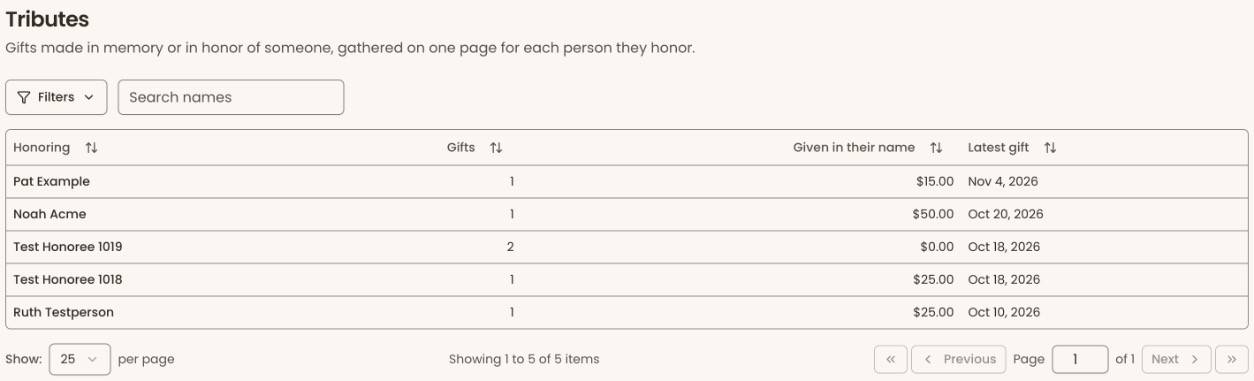
- Click "Tributes". The page "Tributes" opens. Each row is one honoree.
- The columns are "Honoring", "Gifts", "Given in their name" and "Latest gift". If you don't see "Given in their name", your role can't see giving totals.
- To find someone, type their name in "Search names".
- Click the honoree's name. Their tribute page opens.
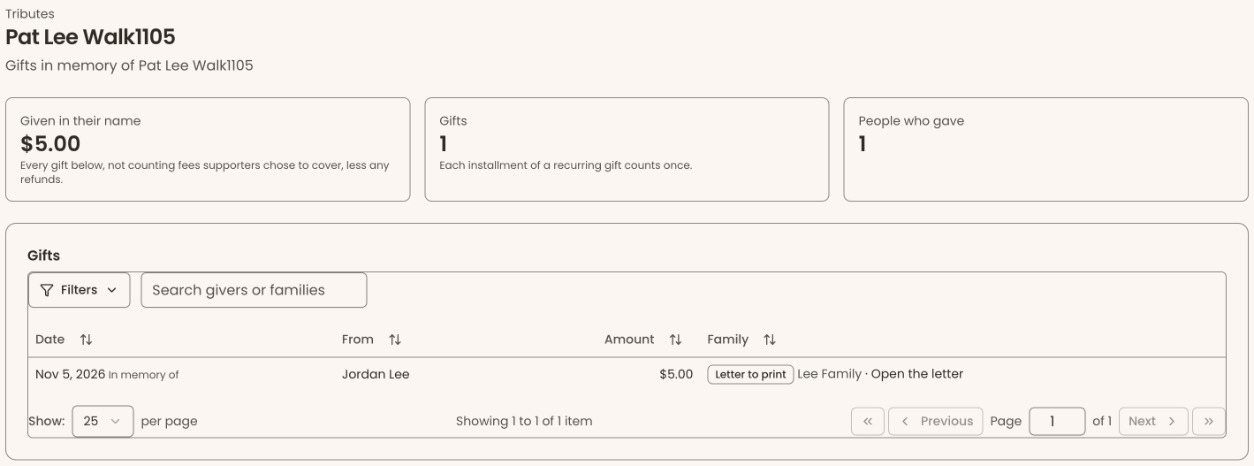
- At the top you'll see "Given in their name", "Gifts" and "People who gave". "Given in their name" doesn't count fees the givers chose to cover, and takes off any refunds.
- Under "Gifts", each row shows the "Date" (with "In memory of" or "In honor of"), "From", "Amount" and "Family".
- Click a date to open that payment. Click a name under "From" to open the giver's record.
If the list says "No tribute gifts yet", nobody has made a tribute gift so far.
What the "Family" column means
When a giver names a family member to tell, Clerestory tells them once.
| "Family" shows | What it means |
|---|---|
| "Emailed" | The family was emailed about the gift. |
| "Letter to print" | The giver gave a postal address, not an email. A letter is waiting for you to print. |
| "Not told yet" | Nobody has been told yet. This also shows if your organization has turned off "Tribute notices to the family". |
| "Nobody to tell" | The giver didn't name anyone to tell, or gave no usable email or address. |
| "Told on the first gift" | A later payment of a recurring gift. The family was told on the first one. |
To turn the family email on or off, see See which emails go out automatically, and turn one off. The switch is "Tribute notices to the family".
Link a tribute page to someone in your records
Linking connects the honoree to their own record, for example a supporter who has died and is marked deceased.
Page: /dashboard/supporters/tributes/<honoreeId>
- Open the honoree's tribute page, as above.
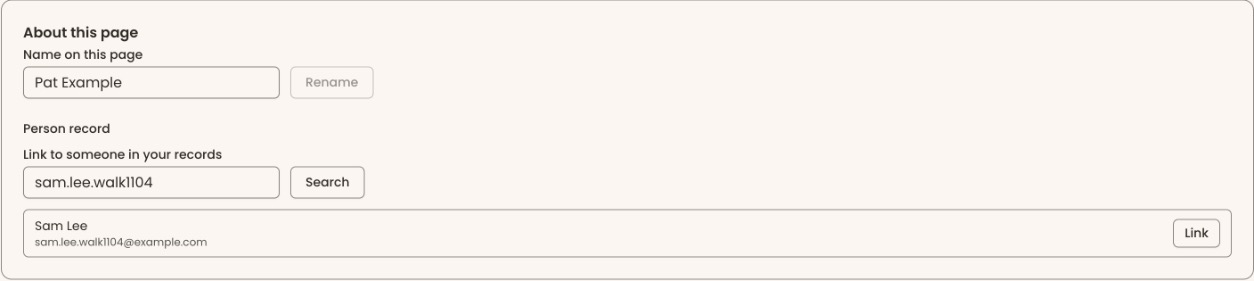
- Below "Gifts", find the card "About this page".
- Under "Person record", find "Link to someone in your records".
- Type the person's name or email in the box that says "Name or email".
- Click "Search".
- A list of matching people appears. Under each name is a detail to tell people apart.
- At the far right of the right person's row, click "Link".
- You'll see "Saved.". That means it worked. Their name now shows under the page heading and in "Person record".
- If you see "Nobody matched.", check the spelling, or search by email instead.
- If you see "That person already has a tribute page.", that person is already linked to another tribute page.
To undo a link, click "Unlink" next to the linked name in "Person record". You'll see "Saved.".
Rename a tribute page
Use this when a giver spelled the honoree's name differently, for example "Pat Lee" instead of "Patricia Lee".
- On the tribute page, in "About this page", find "Name on this page".
- Change the name.
- Click "Rename".
- You'll see "Saved.". That means it worked.
- If you see "Another tribute page already has that name.", a second page with that name exists.
Print a tribute letter
When "Family" says "Letter to print", a draft letter to the family is waiting on the giver's record.
- On the tribute page, find the gift's row. In the "Family" column, click "Open the letter". The giver's record opens.
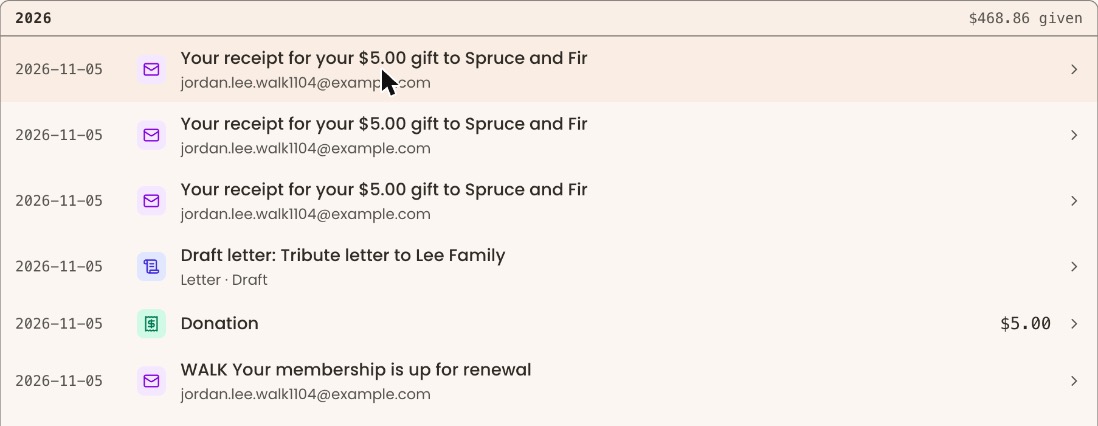
- In the list of activity on the giver's record, find the row "Draft letter: Tribute letter to" followed by the family's name. Click it. A panel opens on the right.
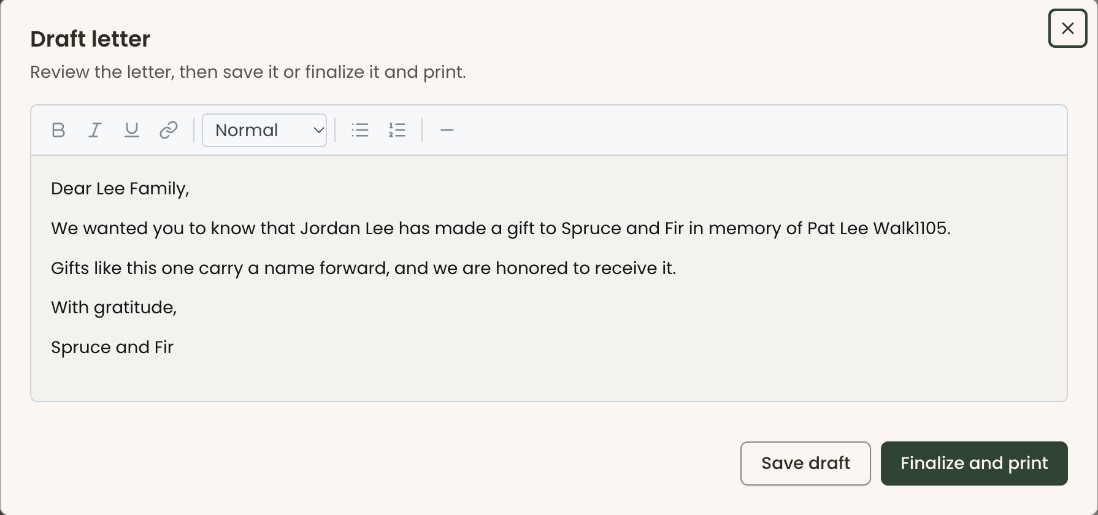
- In the panel, click "Review and print letter". A box opens called "Draft letter".
- Read the letter. Click into the text to change any words.
- To keep your changes without printing, click "Save draft". You'll see "Draft saved.". The box and the panel close; click the row again to come back to it.
Important: Clicking "Finalize and print" makes the letter final. It can't be edited or turned back into a draft afterwards.
- To print, click "Finalize and print".
- A file named "letter.pdf" downloads. You'll see "Letter finalized and downloaded.". That means it worked.
- Open the file and print it. The family's name and address are shown in the panel's "To" line if you need them for the envelope.
After you finalize it, the row on the giver's record reads "Letter" instead of "Draft letter". From then on the panel offers "Download PDF" to print it again.
Special cases
- No "About this page" card. Your role can't rename or link tribute pages.
- Tribute gifts are recorded with the gift. To add one, record the gift and use "Make this gift in memory or in honor of someone". See Record a gift paid by check or cash.
- "Gifts" count. Each payment of a recurring gift counts once.
Buttons to avoid
- "Unlink" removes the link to the person's record. It doesn't delete the tribute page or its gifts.
If you make a mistake
- Linked the wrong person: click "Unlink", then link the right one.
- Renamed by mistake: type the old name back and click "Rename".
- Finalized a letter too soon: it can't go back to a draft. Use "Download PDF" to print it again.