


Who can do this: Adding: Owner, Administrator, Finance, Fundraiser, Programs and Front desk. Moving between Supporters and Contacts: Owner, Administrator and Fundraiser. A Viewer sees neither button.
Quick steps: People › Supporters › "All Supporters" › "Add Supporter" › email, name, address › "Create Supporter". For a contact: People › Contacts › "Add contact" › "Create Contact". To move: tick rows › "Move to Contacts" or "Move to Supporters".
Before you start
- To add: one of the roles above. To move: Owner, Administrator or Fundraiser.
- Have the person's email address to hand. You can't save a new record without one.
- Have their name, phone and mailing address if you know them. All three are optional.
Supporters and Contacts: the difference
- A supporter is anyone you ask for support: donors, members, ticket buyers.
- A contact is a vendor, employer, business or other person your organization works with but doesn't fundraise from. Contacts stay out of supporter counts, appeals and fundraising reports.
- It's the same kind of record either way, with the same profile page. Only the list it sits on changes.
- When a contact who has never given makes a gift, they move to Supporters by themselves.
- If you move someone who has already given to Contacts, they stay a contact even when they give again.
Add a supporter
Page: /dashboard/supporters
- In the left-hand menu, find the group called "People".
- Click "Supporters". A short list of pages opens under it.
- Click "All Supporters".
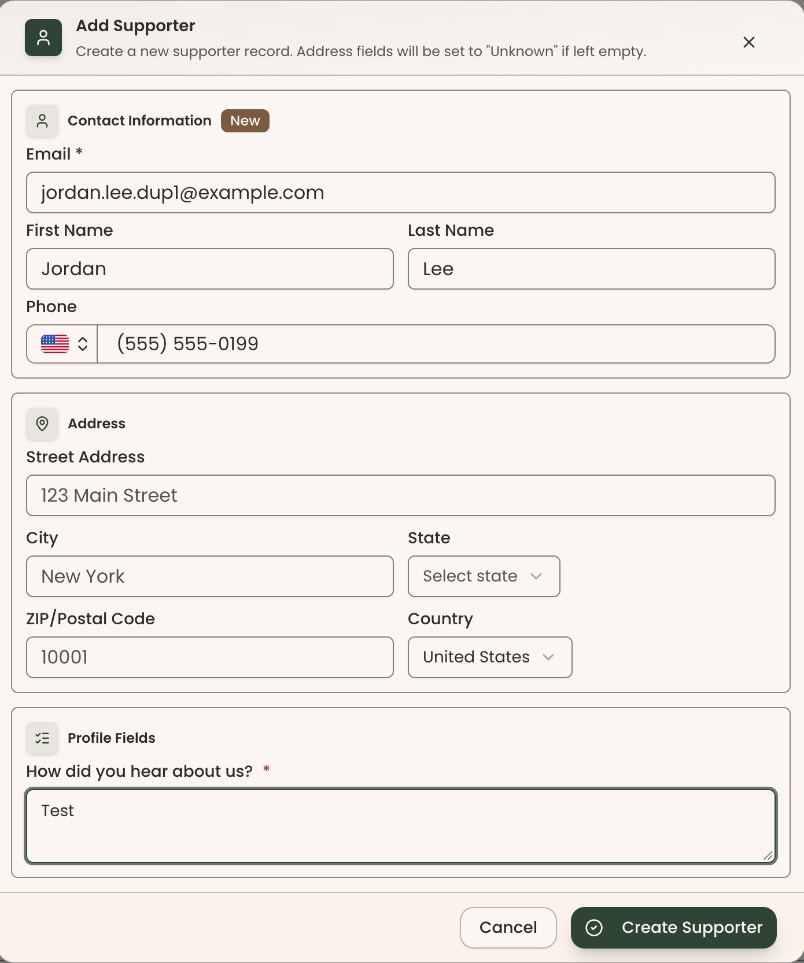
- At the top right of the list, click "Add Supporter". A box opens called "Add Supporter".
- Click in "Email *" and type their email address, for example jordan.lee@example.com.
- Wait a moment. Next to "Contact Information" a tag appears: "New" means nobody has that email yet. "Found" means someone already does; see "Special cases" below.
- If you see "New", type their "First Name", "Last Name" and "Phone".
- Under "Address", fill in what you know. Anything you leave empty is saved as "Unknown".
- If you see a "Profile Fields" section, fill it in. A field marked with a red * must be filled in.
- At the bottom right of the box, click "Create Supporter".
- You'll see "Supporter created". That means it worked. The new person appears on the list.
If you see "Invalid email address", check the email for a typing mistake.
Add a contact
Page: /dashboard/contacts
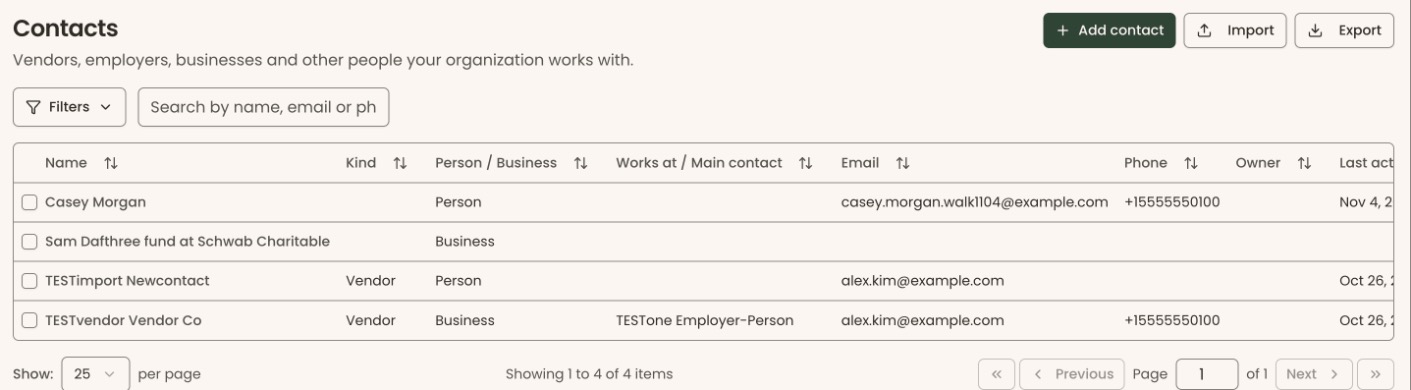
- In the left-hand menu, under "People", click "Contacts".
- At the top right of the page, click "Add contact". A box opens called "Add Contact".
- Fill it in exactly as in steps 5–9 of "Add a supporter".
- At the bottom right of the box, click "Create Contact".
- You'll see "Contact created". That means it worked.
Move supporters to Contacts
Page: /dashboard/supporters
- On the Supporters list, check the small box at the left end of each row you want to move.
- Above the list you'll see how many are selected, for example "2 selected".
- Next to it, click "Move to Contacts".
- You'll see "Moved 2 records to Contacts". That means it worked. They leave the Supporters list.

If you see "Could not move them to Contacts", wait a moment and try again.
Move contacts to Supporters
Page: /dashboard/contacts
- On the Contacts list, check the small box at the left end of each row you want to move.
- Above the list, click "Move to Supporters".
- You'll see "Moved 1 record to Supporters". That means it worked.

If you see "Could not move them to Supporters", wait a moment and try again.
Special cases
- "Found" appears. Someone already has that email. The box fills in their details, and the button changes to "Close". Clicking it shows "Supporter already exists" (or "Contact already exists") and adds nothing. Anything you typed over their details isn't saved. To change their details, open their record instead.
- Adding a contact whose email is already a supporter. You'll see "Supporter already exists" and the record stays on the Supporters list. To move it, use "Move supporters to Contacts" above.
- No email address. The box can't be saved without one. There is no way in this box to add a person with no email.
- On a phone, the "Add Supporter" button reads "Manual".
If you make a mistake
- Moved someone to the wrong list: check them on the list they're now on and move them back.
- Created a duplicate by mistake: merge the two records. See Merge duplicate records.