


Who can do this: Letters: Owner, Administrator and Programs. Results downloads ("Export CSV", "Export PDF"): Owner and Administrator. Front desk, Finance, Fundraiser and Viewer can open both screens and read them, but every button is grayed out. Programs doesn't see the download buttons.
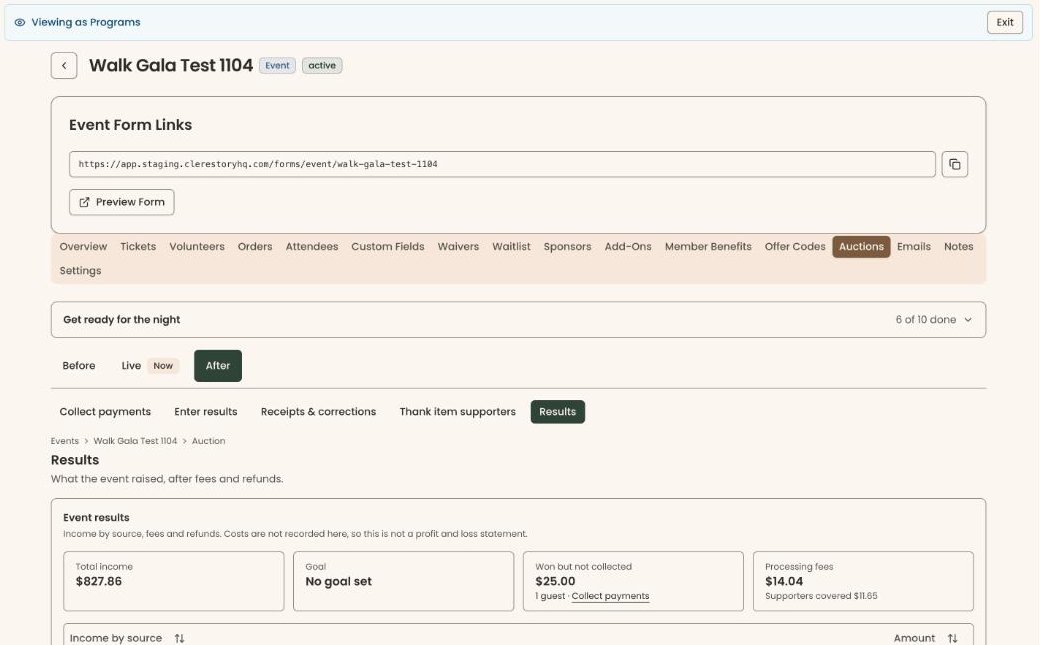
Quick steps: Events › Events › the event › "Auctions" tab › "After" › "Thank item supporters" › "Preview" › "Send this letter" (or "Send all ready"). Results: "After" › "Results" › "Export CSV".
Before you start
- For letters, you need the Owner, Administrator or Programs role. For downloads, the Owner or Administrator role.
- Each donated item must name who gave it in "Donated by". See Add auction items, sections and close times.
- A supporter is anyone in your records who has given, joined or registered. Here, it means the person who donated an item.
- The supporter needs an email address in your records to be sent a letter.
Open the After screens
Page: /dashboard/campaigns/<campaignId>?tab=gala&area=after&screen=donors
- In the left-hand menu, under "Fundraising", click "Events". Then click "Events" in the list that opens below it.
- In the list of events, click the event's name.
- Click the "Auctions" tab in the row of tabs near the top.
- Below the tabs, click "After". A row of buttons appears under it.
- Click "Thank item supporters". The screen is headed "Thank item supporters".
Preview and send one letter
The letter thanks the supporter, lists every item they gave to this event, and never states a value.
- In the list, find the supporter. To search, type their name or an item in "Search supporter or item".
- In the "Nothing given in return" column, check "Nothing was given to this supporter in return". It starts checked. Leave it checked only if they got nothing back for the item.
- Click "Preview" in the same row. A box opens called "Acknowledgment letter", showing who it goes to and the letter.
- Read the letter. Check the items listed are right.
Important: "Send this letter" emails the letter to the supporter right away. Its subject is "Thank you for your gift of … to …".
- At the bottom right of the box, click "Send this letter".
- You'll see "1 letter sent.". The supporter's "Letter" column changes to "Sent". That means it worked.

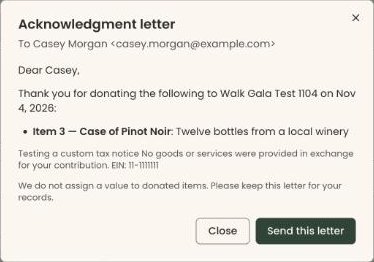
To close the box without sending, click "Close".
"Send this letter" is grayed out when the supporter has no email address, or when "Nothing was given to this supporter in return" is unchecked.
Send every ready letter at once
- On "Thank item supporters", click "Ready" in the "Show:" row to see who will get a letter. The row also has "Everyone", "Sent", "Changed since sent" and "Can't send", each with a count, for example "Ready (1)".
- Uncheck "Nothing was given to this supporter in return" for anyone who got something back. They are left out.
Important: "Send all ready" emails a letter to every supporter counted in the button right away.
- At the top right, click "Send all ready (5)". The number is how many letters will go.
- You'll see "5 letters sent.". That means it worked. A letter that couldn't go shows its own red message.
With nobody ready, the button reads "Send all ready (0)" and is grayed out.
See and download the results
Page: /dashboard/campaigns/<campaignId>?tab=gala&area=after&screen=results
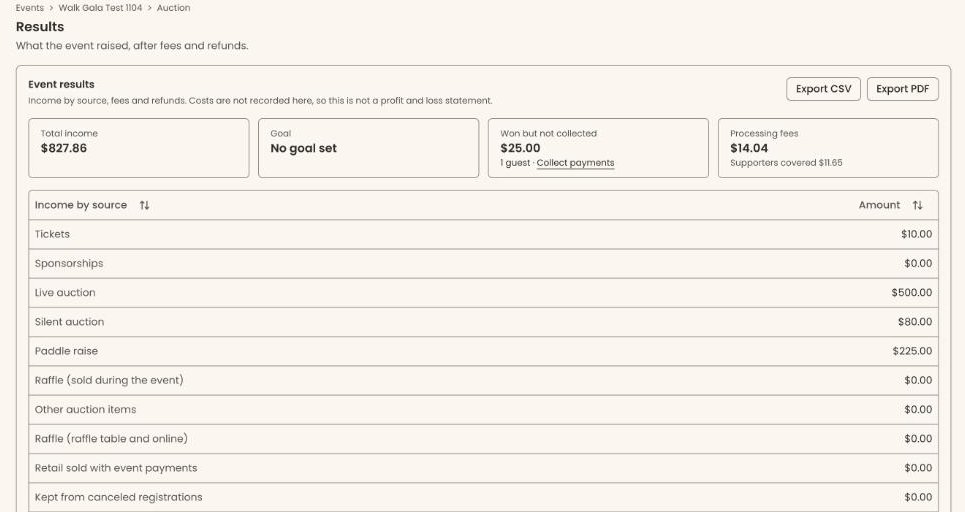
- On the "Auctions" tab, under "After", click "Results". The screen shows "Event results".
- Four boxes at the top show "Total income", "Goal", "Won but not collected" and "Processing fees".
- Below them are three tables: "Income by source", "Payments" (with "Received", "Refunds", "Net" and "Processing fees"), and each item with its "Value", "Raised" and "% of value".
- To download, click "Export CSV" or "Export PDF" at the top right of "Event results".
- Your browser downloads a file named "event-results.csv" or "event-results.pdf". That means it worked.
A CSV file is a plain spreadsheet file. It opens in Excel, Numbers or Google Sheets.
If you see "Could not export the event results. Please try again.", click the button again.
What the labels mean
- "Total income": money from every source, before processing fees and after refunds.
- "Goal": the event's fundraising goal and how far it has to go, or "No goal set".
- "Won but not collected": what guests won or pledged but haven't paid yet. It isn't counted as income. Click "Collect payments" to collect it. See After the auction: collect payments, send receipts and fix mistakes.
- "Processing fees": what card processing cost. "Supporters covered" is the part guests chose to pay.
- "Recorded offline (check and cash)" and "Processed through Clerestory": the two kinds of payment in the "Payments" table.
- "% of value": what an item raised compared with what it is worth. "No value set" means the item has no value.
- Results are not a profit and loss statement: costs aren't recorded in Clerestory.
- "Letter" column: "Not yet acknowledged", "Sent", "Changed since sent" (an item was changed after the letter went), or "Send not confirmed".
Special cases
- "No email address: cannot send." Add an email to the supporter's record, then come back. See Edit a supporter's contact details and preferences, or mark them deceased.
- "Do not contact" beside a name: the letter still goes. It is a record of their donation for tax purposes, like a receipt.
- "Changed since sent": an item was re-described, moved or withdrawn after the letter went. Sending again sends a corrected letter, titled "Corrected letter (version …)".
- "Withdrawn, not on the letter: …": an item was withdrawn, so it isn't listed.
- "No item has a supporter yet": no item names a supporter in "Donated by". Set it on the Items screen.
If you make a mistake
- A letter that has been sent can't be called back. If an item was wrong, fix the item, then send the corrected letter.
- A download changes nothing in your records.