


Who can do this: Templates: Owner, Administrator and Fundraiser. Finance, Programs and Viewer can see the list but not the buttons. A donation form's emails: Owner and Administrator. Front desk doesn't see Communications.
Quick steps: Communications › "Templates" › "Start from an example" › "Use this" › edit › "Save". On a row: "Duplicate" or "Archive". For a donation form: Campaigns › the campaign › "Emails" › "Add email".
Before you start
- You need one of the roles above.
- A template is an email or letter you write once and reuse. Clerestory fills in each person's own details, such as their first name, when it sends.
- Your library is your organization's own templates, listed on the "Templates" tab.
- To write a template from scratch, see Email setup, and emailing expiring or expired members.
Open your templates
Page: /dashboard/communications
- In the left-hand menu, under "Operations", click "Communications".
- The page is headed "Communications" and opens on the "Templates" tab.
- The "Templates" box lists your templates with "Name", "Sent as", "Type", "Belongs to" and "Event, campaign or item".
- Next to "Belongs to", at the top, the drop-down starts on "Your library". Choose "Everything" to see every email, including the ones that belong to an event or a campaign.
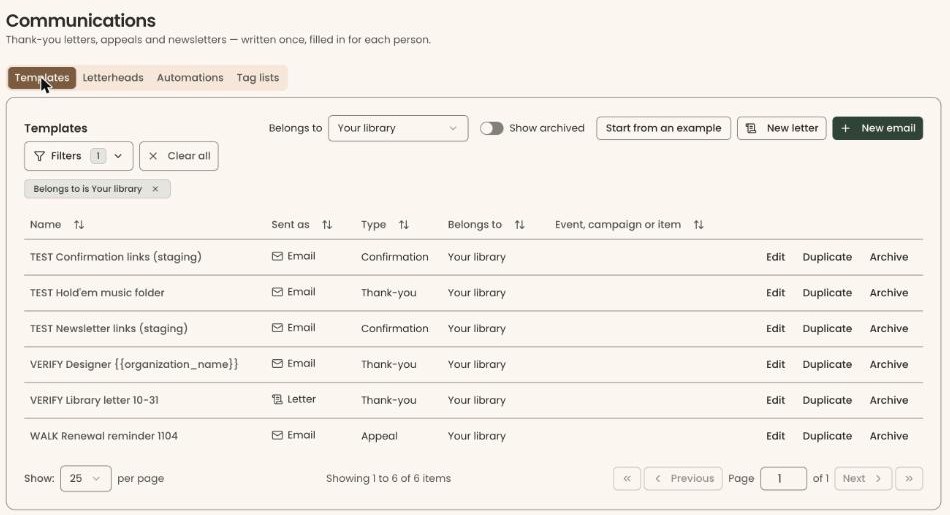
Start from an example
- At the top right of the "Templates" box, click "Start from an example". A box opens called "Start from an example".
- The examples are in two groups: "For museums and non-profits" and "For chambers and member organizations". Each shows its name and whether it is an "Email" or a "Letter".
- At the right of the one you want, click "Use this".
- The box closes and the copy opens for editing, called "Edit email template" (or "Edit letter template"). The copy is already in your library.
- Change the wording to suit your organization.
- At the bottom right, click "Save".
- You'll see "Template saved." The box closes and the copy is in your list. That means it worked.
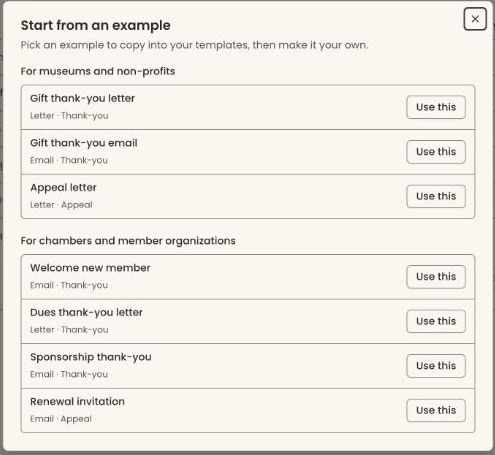
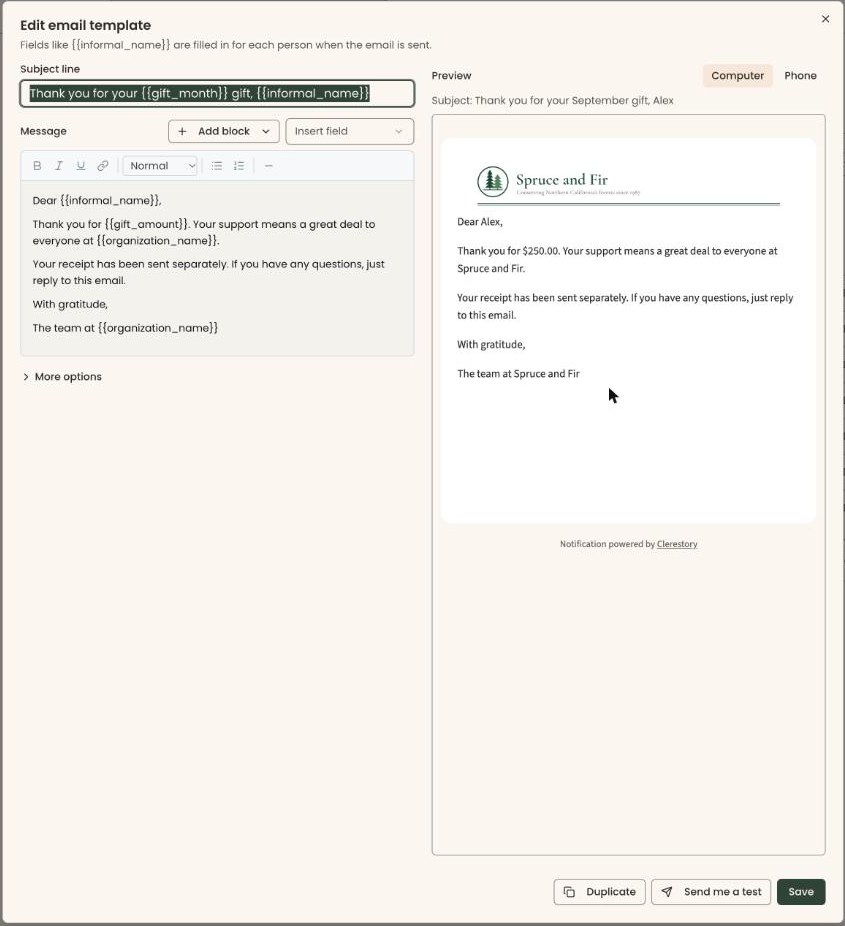
Changing your copy never changes the example.
Duplicate a template
Use this to make a new template from one you already have, for example a spring version of a fall appeal.
- In the list, find the template. At the right of its row, click "Duplicate".
- A copy called "… (copy)" is made right away, and opens for editing.
- In "Name", give it its own name. For an email, "Name" is under "More options".
- Make your changes and click "Save".
- You'll see "Template saved." That means it worked.
The copy stays in your list even if you close the box without saving. Archive it if you don't want it.
You can also duplicate from inside a template: open it with "Edit" and click "Duplicate" at the bottom. That saves the one you're in first, then opens the copy. You'll see "Copied as "… (copy)".".
Archive a template
Archiving hides a template you no longer use. It is no longer offered when you choose a template to send.
Important: In this version, an archived template can't be brought back in the screens. You can still see it with "Show archived", and open it with "Edit".
- In the list, find the template. At the right of its row, click "Archive". Nothing asks you to confirm.
- You'll see ""…" archived." and it leaves the list. That means it worked.
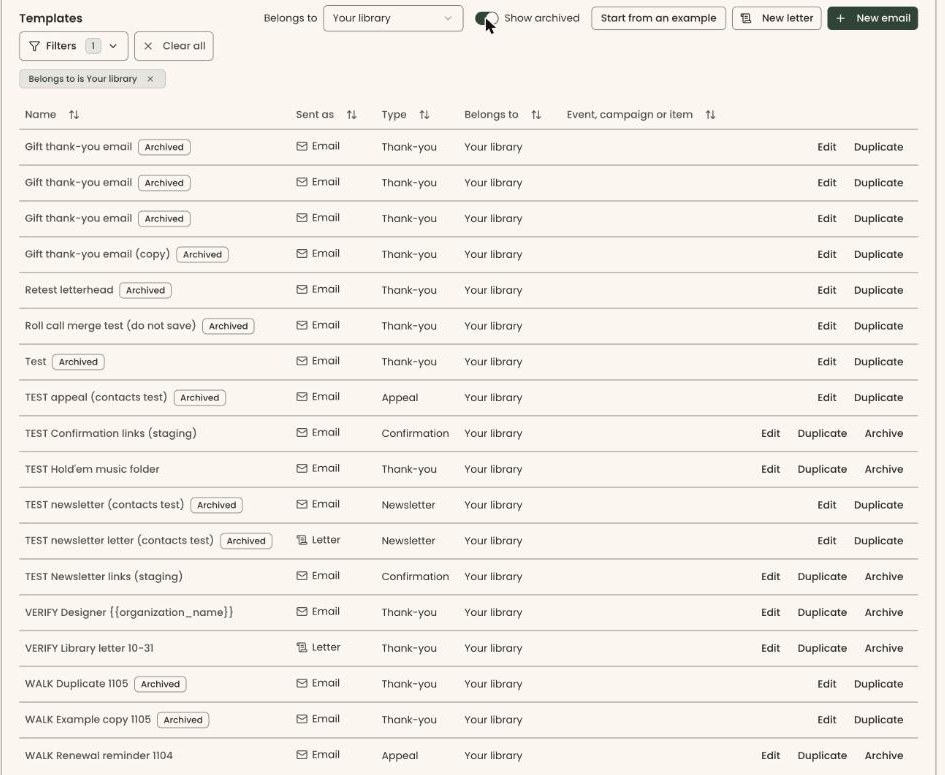
If you see "This template is used by an automatic email or letter. Turn that off first.", an automation still sends it. Turn that automation off on the "Automations" tab first. See "If you make a mistake" in Email setup, and emailing expiring or expired members.
To see archived templates, switch on "Show archived" at the top of the box. They show an "Archived" label.
Changes in the next release: the ""…" archived." message gets an "Undo" button that restores the template (""…" restored.").
Add your own emails to a donation form
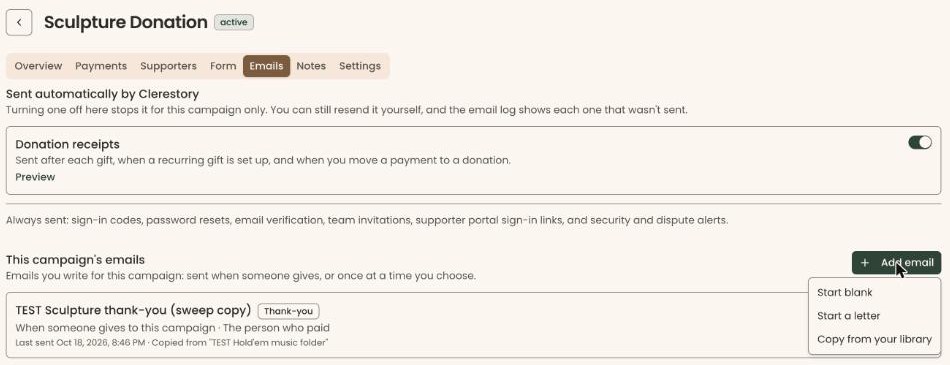
A donation form's campaign has its own "Emails" tab. Emails you add there go only to people who give through that campaign. To make a donation form, see Build a donation form (a "campaign"), preview it, and see what a donor sees.
Page: /dashboard/campaigns/<campaignId>?tab=emails
- In the left-hand menu, find the Fundraising group and click "Campaigns".
- In the list, click the campaign's row. Its page opens.
- In the row of tabs near the top, click "Emails".
- Under "This campaign's emails", at the right, click "Add email".
- In the menu, choose "Start blank", "Start a letter", or "Copy from your library" to start from one of your templates.
- Write the email, then click "Next: when and who".
- Under "When does it go out?", choose "When someone gives to this campaign" or "Send once — now, or on a date and time".
- For a send-once email, "Who gets it?" offers "Everyone who gave to this campaign".
Important: The next click turns the email on. A "When someone gives" email goes to every new donor from now on. "Send now" emails everyone counted and can't be called back.
- Click "Save", "Schedule" or "Send now" at the bottom right, and check the message that confirms it.
These steps work the same way as an event's "Emails" tab. For every click, see An event's emails: add your own, and check the automatic ones.
On this tab you can also turn off "Donation receipts" for this campaign only, under "Sent automatically by Clerestory".
Special cases
- An email with "Open its Emails" instead of "Edit". It belongs to an event, a campaign or another item. Click "Open its Emails" to change it there.
- No "Start from an example", "Duplicate" or "Archive". Your role can't change templates.
- No "Emails" tab on a campaign. Only Owners and Administrators see it.
- "There are no examples to show right now." Try again later, or start from a blank template.
- "We couldn't load your templates." Click "Try again".
Buttons to avoid
- "Duplicate" on a row makes the copy right away. Don't click it to look at a template; click "Edit".
- "Archive" works on one click, with no confirmation.
If you make a mistake
- An unwanted copy: archive it.
- An unwanted example copy: archive it.
- Archived by mistake: in this version it can't be restored in the screens. Switch on "Show archived" and click "Duplicate" on its row. The copy is a normal template you can use. Rename it, then click "Save".