


Who can do this: Everyone who can open Rentals (every role) can see "Today" and the calendar. Owner, Administrator, Finance, Programs and Front desk can block or hold time. Fundraiser and Viewer don't see "Block time" or "+ Block".
Quick steps: Rentals › "Today" for the day's schedule. Rentals › "Calendar" › choose the building › "Block time" › "Space", "From", "To", "Why" › "Block time". To hold: "Why" › "Hold" › "Hold name" › "Hold time". To undo: click the block on the calendar › "Remove block" or "Release hold".
Before you start
- To see the schedule and calendar, any role works. To block or hold time, you need the Owner, Administrator, Finance, Programs or Front desk role.
- You need at least one building with spaces. See Add a building and a space.
- Blocked time closes a space so nobody can book it, for example for maintenance or your own event.
- A hold pencils a space in for someone, like a wedding that isn't confirmed yet. Nobody else can book it until the hold is released.
- Setup and cleanup are the extra time held before and after a booking for setting up and clearing away.
See today's schedule
Page: /dashboard/rentals/today
- In the left-hand menu, under "Programs & Sales", click "Rentals".
- In the row of tabs under the "Rentals" heading, click "Today".
- The date is shown at the top. There is a box for each building.
- Each booking shows "Setup" and the time setup starts, then its time, the booking reference, the space, the renter's name, the event name and the number of guests.
- Under that are the renter's phone number and email, and "Cleanup until" with the time. Click the phone number or email to call or write to them.
- Click the booking reference to open the booking.
- "Our events" lists your own events in the building that day. "Blocked" lists blocked time, with the space, the time and the reason.
- A building with nothing on says "Nothing booked."
- To see another day, click the left arrow ("Previous day") or right arrow ("Next day") on either side of the date. To come back, click "Today", which appears next to them.
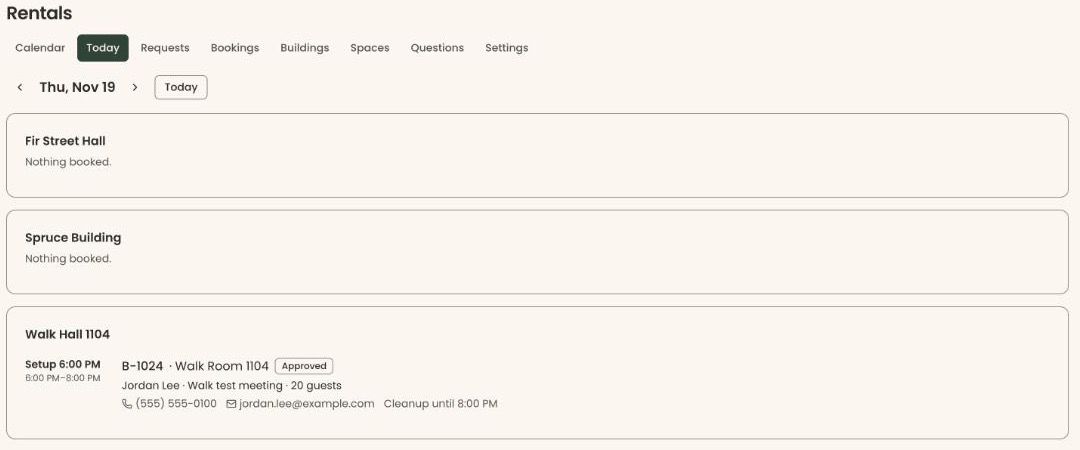
A booking that isn't confirmed yet shows its status in a small outlined label next to the space name.
Read the calendar
Page: /dashboard/rentals
- In the left-hand menu, under "Programs & Sales", click "Rentals". The calendar opens. ("Calendar" is the first tab.)
- At the top left, click the building box and choose the building you want.
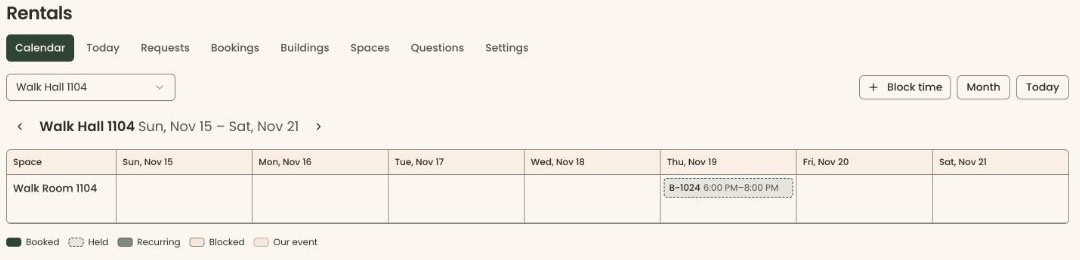
- The calendar shows one week. Each row is a space; each column is a day. The building's name and the dates are above it.
- To move a week, click the left arrow ("Previous week") or right arrow ("Next week") next to the building's name. To come back, click "Today" at the top right.
- To see one space for a whole month, click "Month" at the top right. Choose the space in the box that appears at the top left. Click "Week" to go back.
- Under the calendar, a key names each color: "Booked", "Held", "Recurring", "Blocked" and "Our event".
- Click a booking to open it. Click one of your events to open the event.
On a phone, the calendar shows one day at a time as a list, and there is no "Month" button. A space with nothing on says "Free all day".
A booking marked "Conflict" in red shares its time with something else. Open it and check the dates.
Block time
Page: /dashboard/rentals
- Open the calendar and choose the building, as above.
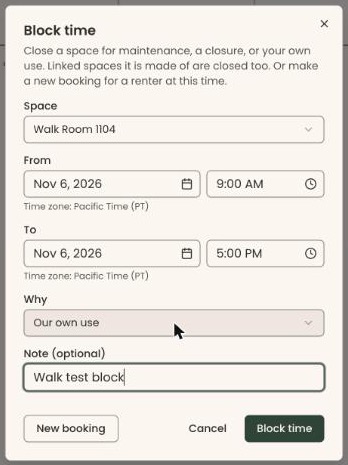
- At the top right, click "Block time". A box opens called "Block time".
- Or, on a computer, point at an empty part of a day in a space's row. "+ Block" appears. Click it to start the box on that space and day. On a phone, click "+ Block" next to the space's name.
- Under "Space", make sure the right space is shown. To change it, click the box and choose another.
- Under "From", choose the date in the left box and type the start time in the right box. A morning start is filled in for you; change it if needed.
- Under "To", do the same for the end. An afternoon end is filled in for you.
- Click the box under "Why" and choose "Closed", "Our own use" or "Maintenance". It starts on "Our own use".
- In "Note (optional)", type a short note, for example "Floor refinishing". The note shows on the calendar.
- At the bottom right of the box, click "Block time".
- The box closes. You'll see "Time blocked", and the block shows on the calendar. That means it worked.
If the box shows a message such as "Hall A is already booked or closed on Sat, Nov 14, 2026 between 5:00 PM and 6:00 PM. Please choose another time.", something already uses that time. Change the times or the space.
If you see "The end time must be after the start time.", fix the "To" time.
Spaces that a combined space is made of are closed too.
Hold time for someone
Page: /dashboard/rentals
- Open the calendar, choose the building, and click "Block time" (or "+ Block"), as in "Block time" above.
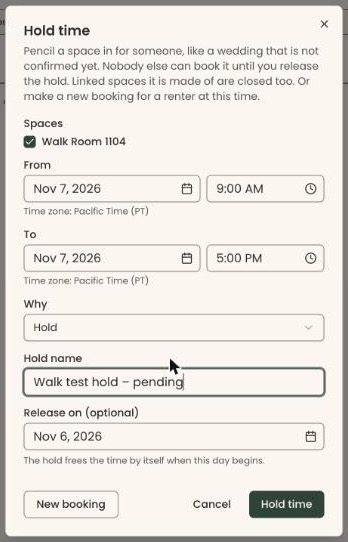
- Click the box under "Why" and choose "Hold". The box's title changes to "Hold time".
- Under "Spaces", check each space to hold. You can check more than one.
- Set "From" and "To", as above.
- In "Hold name", type who it's for, for example "Smith wedding – pending". A hold must have a name.
- To let the hold end by itself, choose a date in "Release on (optional)". The hold frees the time when that day begins. Leave it empty to keep the hold until you release it.
- Click "Hold time", at the bottom right.
- The box closes. You'll see "Time held", and the hold shows on the calendar. That means it worked.
If you leave "Hold name" empty, your browser shows "Please fill out this field." under it. Type a "Hold name". If you see "The release date must be in the future.", choose a later date.
Change, remove or release a block or hold
Page: /dashboard/rentals
- On the calendar, find the block or hold. It shows its note, hold name or reason, and its time.
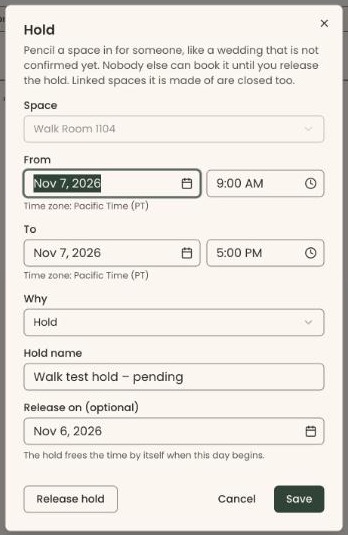
- Click it. A box opens called "Blocked time" (for a block) or "Hold" (for a hold).
- To change it, edit "From", "To", "Why" or the note, then click "Save". You'll see "Block updated" or "Hold updated". The space can't be changed.
Important: "Remove block" and "Release hold" free the time right away, so renters and staff can book it.
- To take away a block, click "Remove block" at the bottom left. You'll see "Block removed".
- To end a hold now, click "Release hold" at the bottom left. You'll see "Hold released".
Special cases
- "New booking" at the bottom left of a new "Block time" box opens the booking form for that space and time instead. See Make a booking for someone.
- "Clear the release date before changing a hold to blocked time." Empty "Release on (optional)" first, then change "Why".
- Fundraiser and Viewer see the calendar and "Today" but can't block time. Clicking a block does nothing for them.
- The first day of the week on the calendar is set in Rentals › "Settings". See Turn Rentals on and choose your rental settings.
If you make a mistake
- A block or hold in the wrong place: open it and click "Remove block" or "Release hold", then make a new one. A block can't be moved to another space.
- Removed or released one by mistake: make it again with "Block time", if the time is still free.