


Who can do this: Owner, Administrator and Programs. Finance, Fundraiser, Front desk and Viewer users can see the list of codes, but don't see "New code", "Edit" or "Archive".
Quick steps: Events › Events › the event › "Offer Codes" tab › "New code" › fill in the form › "Create code". Or Events › "Offer Codes" › "New code" for any event.
Before you start
- You need an Owner, Administrator or Programs login.
- The event and its ticket types must already exist. See Create an event and add ticket types.
- For a presale code, the event needs a "Tickets On Sale Date" in the future. Otherwise there is nothing to unlock early.
- Decide: the code word, which tickets it covers, the discount, how many orders may use it, and the dates it works.
- An offer code is a word buyers type on the event page. A presale code lets them buy before tickets go on sale to everyone. A discount code lowers the price. One code can do both.
Create a code for one event
Page: /dashboard/campaigns/<campaignId>?tab=offer-codes
- In the left-hand menu, under "Fundraising", click "Events". Then click "Events" in the list that opens below it.
- In the list of events, click the event's name.
- Click the "Offer Codes" tab in the row of tabs near the top.
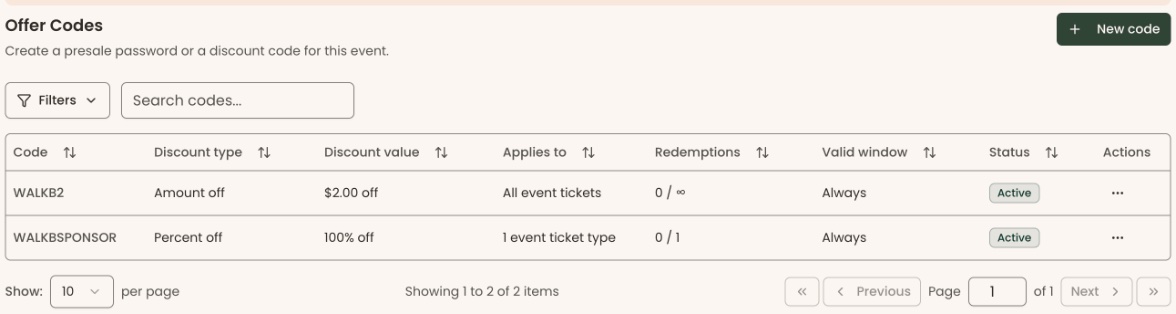
- At the right of the "Offer Codes" heading, click "New code". A box called "New offer code" opens.
- In "Code", type the word buyers will enter, for example "SPRING2026".
- Under "Event", the event's name is already shown. Choose "All tickets for this event, including any you add later", or "Specific tickets" and check the ticket types.
- For a presale code, check "Unlocks tickets before general sale".
- Under "Discount type", choose "Fixed price", "Amount off" or "Percent off". For a presale code with no discount, choose "No discount (early access only)".
- If you chose a discount, type the number in the box below it ("Amount" or "Percentage off"). For "Percent off", type a number up to 100.
- In "Max redemptions (orders)", type how many orders may use the code. Leave it blank for no limit.
- Pick "Valid from" and "Valid until" if the code should only work between two dates. Leave them blank to have no date limits.
- Leave "Campaign Group (optional)" on "No group" unless the code's sales should count toward a campaign group.
- In "Internal note (optional)", add a note for your team, such as who the code is for. Buyers never see it.
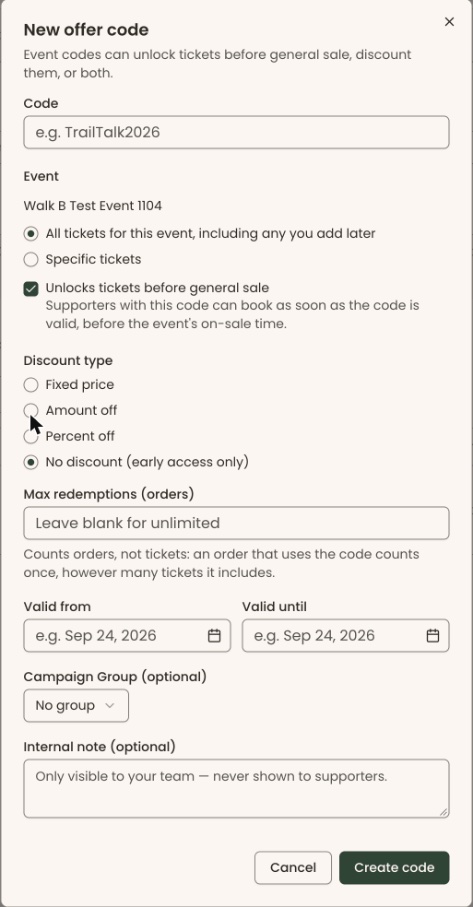
Important: clicking "Create code" makes the code work right away, within any dates you set. Any buyer who types it on the event page gets its price or early access. Check the discount and the tickets it covers first.
- Click "Create code".
- You'll see "Offer code created", and the code appears in the list. That means it worked.
If something is missing, the box shows a red line under the field, such as "Enter a discount value, or choose "No discount"." or "Select at least one ticket type.". Fix it and click "Create code" again.
What each discount type means:
- "Fixed price": the flat price the buyer pays for each eligible ticket.
- "Amount off": the dollar amount taken off each ticket's normal price.
- "Percent off": the percentage taken off each ticket's normal price.
Create a code from the Offer Codes page
This page lists every event's codes in one place.
Page: /dashboard/events/offer-codes
- In the left-hand menu, under "Fundraising", click "Events". Then click "Offer Codes" in the list that opens below it.
- At the top right of the page, click "New code".
- Under "Event", click "Choose an event" and pick the event. The list is long: scroll it to find the event.
- Follow steps 5 to 15 of "Create a code for one event".
Give a sponsor free tickets with a code
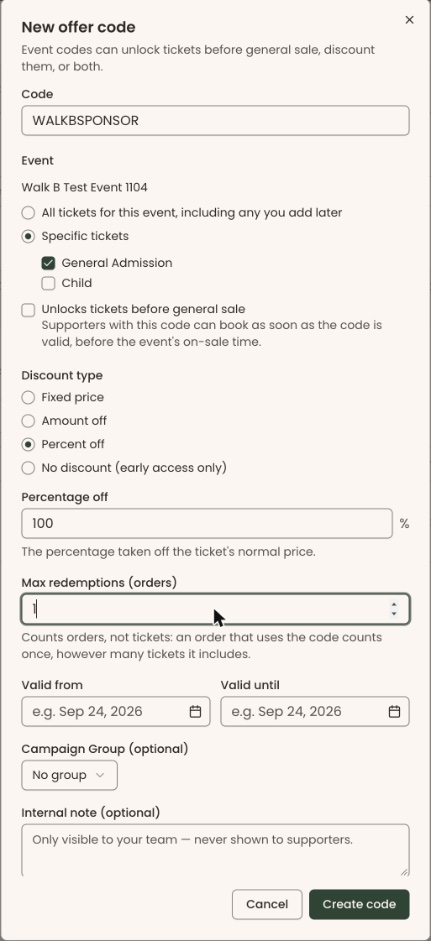
You can make a code that makes tickets free, and limit how many orders may use it. You can't limit the number of tickets.
Important: "Max redemptions (orders)" counts orders, not tickets. One order with the code can include as many tickets of that type as the event allows in one order. To give exactly a set number of free tickets, register the guests yourself instead. See Register someone by hand.
- Follow "Create a code for one event".
- In step 6, choose "Specific tickets" and check only the ticket type the sponsor's guests should get.
- In step 8, choose "Percent off". In step 9, type "100".
- In step 10, type "1" in "Max redemptions (orders)". This lets one order use the code.
- Finish with steps 11 to 15, then send the code to the sponsor.
Change or retire a code
Page: /dashboard/campaigns/<campaignId>?tab=offer-codes
- Open the event's "Offer Codes" tab, or the "Offer Codes" page.
- At the far right of the code's row, under "Actions", click the three dots (⋯).
Important: in the next step, clicking "Save changes" changes the code for buyers right away. Anyone who types it from then on gets the new price or dates.
- Click "Edit" to change it, then "Save changes". You'll see "Offer code updated".
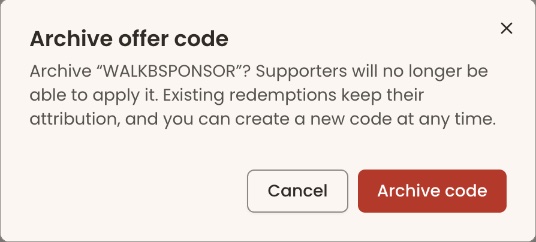
- Or click "Archive" (in red) to stop the code working. A box called "Archive offer code" opens.
Important: after archiving, buyers can no longer use the code. It can't be turned back on. Orders that already used it are kept.
- Click "Archive code" (in red). You'll see "Offer code archived", and the code leaves the list.
A code that has already been used can't be edited. The box says "This code has already been redeemed and can no longer be edited. Archive it instead and create a new one."
What the labels mean
In the list, "Status" shows:
- "Active": the code works now.
- "Scheduled": its "Valid from" date hasn't come yet.
- "Expired": its "Valid until" date has passed.
- "Maxed out": it has been used by as many orders as "Max redemptions (orders)" allows.
- "Archived": it was retired.
"Redemptions" is how many orders have used the code.
Special cases
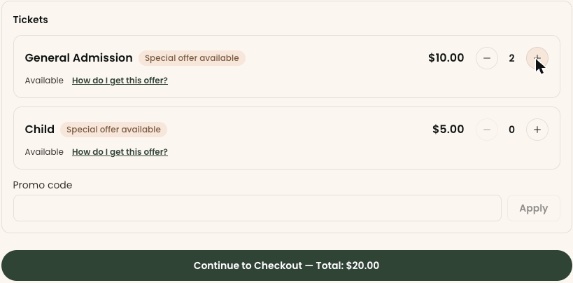
- Buyers see a "Promo code" box under the tickets only while the event has at least one working code. Before tickets go on sale, they see a "Presale code" box instead.
- A "Fixed price" must be less than the cheapest ticket the code covers.
Buttons to avoid
- "Archive" sits right below "Edit" in the row menu, and can't be undone. Check which you are clicking.
If you make a mistake
- Wrong discount or dates, and the code is unused: click "Edit", correct it, and click "Save changes".
- Wrong, and the code has been used: archive it and create a new one. Orders already placed keep the price they paid.
- A buyer used a code they shouldn't have: the order isn't changed automatically. See Cancel or refund an event order.