


Who can do this: Owner, Administrator and Programs. Finance, Fundraiser, Front desk and Viewer can see the list of codes, but don't see "New code", or the three dots (⋯) with "Edit" and "Archive".
Quick steps: Membership › "Offer Codes" › "New code" › "Code", "Discount type", amount, "Applies to" › "Create code".
Before you start
- You need the Owner, Administrator or Programs role.
- Your membership levels must exist. See Set up membership levels: add, edit, duplicate, stop offering and delete.
- Supporters type the code on a sign-up form that offers memberships. See Offer membership levels on a sign-up form.
- An offer code is a word a supporter types on your sign-up form to get a special price. A membership code sets the price of the membership's first payment. In Clerestory, membership levels are also called tiers.
- Decide: the code word, the price or discount, which levels it covers, how many sign-ups may use it, and the dates it works.
- Codes for events and for your online shop are made elsewhere.
Create a membership offer code
Page: /dashboard/membership/offer-codes
- In the left-hand menu, click "Membership". The group opens.
- Click "Offer Codes". The page is headed "Offer codes".
- At the top right, click "New code". A box called "New offer code" opens.
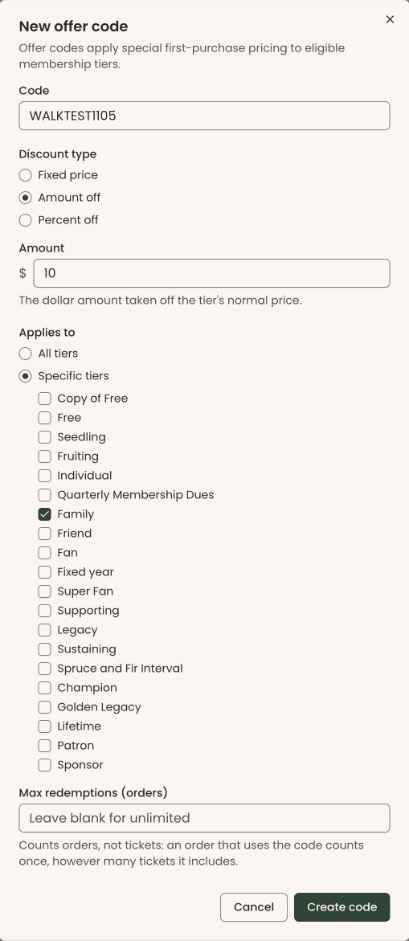
- In "Code", type the word supporters will enter, for example "SPRING2026". It must be 3 to 60 characters.
- Under "Discount type", choose one:
- "Fixed price": the supporter pays this price instead. It starts selected.
- "Amount off": this many dollars come off the level's normal price.
- "Percent off": this percentage comes off the level's normal price.
- In the box below ("Amount" or "Percentage off"), type the number, for example 50. For "Percent off", type a number up to 100.
- Under "Applies to", choose "All tiers", or leave "Specific tiers" selected and check each level the code covers.
- In "Max redemptions (orders)", type how many sign-ups may use the code. Leave it blank for no limit.
- Scroll down inside the box. Pick "Valid from" and "Valid until" if the code should only work between two dates. Leave them blank for no date limits.
- If you use campaign groups, you can choose one in "Campaign Group (optional)". It starts on "No group".
- In "Internal note (optional)", type a note for your team. Supporters never see it.
Important: Clicking "Create code" lets supporters use the code and its price right away, or from the "Valid from" date if you chose one.
- At the bottom right, click "Create code".
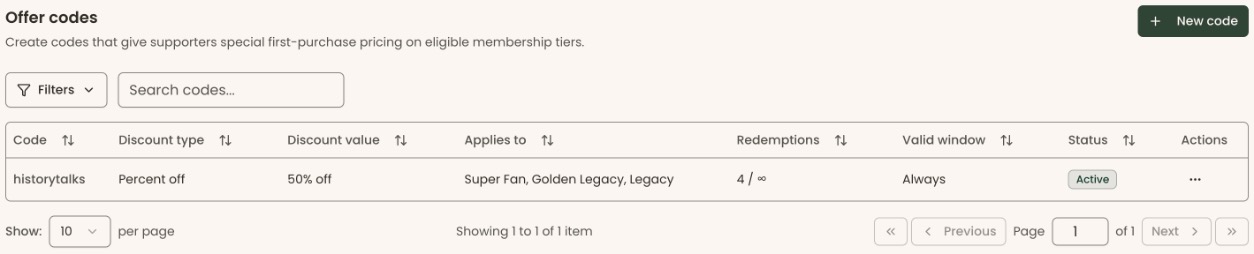
- You'll see "Offer code created", and the code appears in the list with the status "Active" (or "Scheduled" if its start date is still ahead). That means it worked.
If you see a red message under a field, fix it and click "Create code" again:
- "Code must be between 3 and 60 characters."
- "Enter a discount value." or "Discount value must be greater than zero."
- "Percentage must be between 0.01% and 100%."
- "Select at least one tier, or choose “All tiers”."
- "Fixed price must be less than the lowest targeted tier price." Lower the price, or leave the cheapest level out.
If you see "Could not save the offer code" or another message at the top of the screen, the code wasn't saved. Try again.
Change a code
Page: /dashboard/membership/offer-codes
- Open "Offer Codes", as in steps 1–2 above.
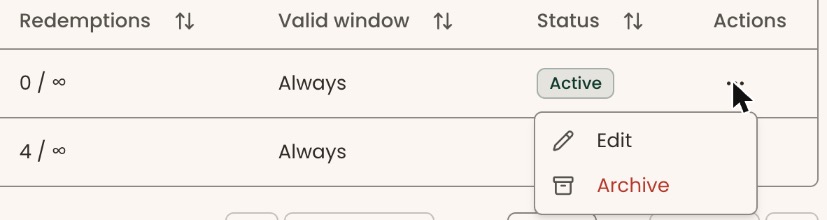
- On the code's row, at the far right under "Actions", click the three dots (⋯).
- Click "Edit". A box called "Edit offer code" opens.
- Change what you need.
Important: Clicking "Save changes" changes the price for every supporter who uses the code from then on.
- Click "Save changes".
- You'll see "Offer code updated". That means it worked.
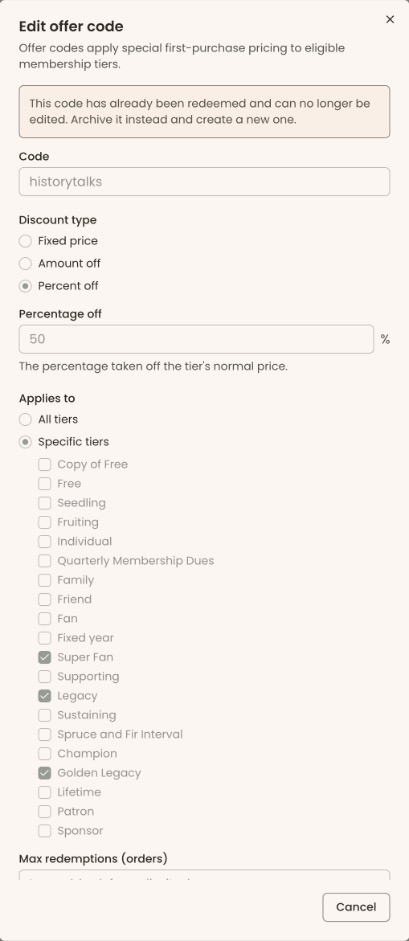
A code that anyone has already used can't be changed. Its box says "This code has already been redeemed and can no longer be edited. Archive it instead and create a new one." It has no "Save changes" button.
Archive a code
Archive a code to stop supporters using it. Sign-ups that already used it keep it on their record.
Page: /dashboard/membership/offer-codes
- On the code's row, click the three dots (⋯) under "Actions".
- Click "Archive", in red. A box called "Archive offer code" opens.
Important: Clicking "Archive code" stops the code working at once. There's no button to bring it back.
- Click "Archive code".
- You'll see "Offer code archived". That means it worked.
To keep the code, click "Cancel" instead.
Changes in the next release: after archiving, the message reads "Offer code archived." with an "Undo" button. Clicking "Undo" brings the code back, and you'll see "Offer code restored."
What the labels mean
- "Discount type" and "Discount value": how the price is worked out, for example "$75.00" (fixed price), "$50.00 off" or "25% off".
- "Applies to": the levels the code covers.
- "Redemptions": how many sign-ups have used the code, out of the limit, for example "12 / 200". "∞" means no limit.
- "Valid window": "Always", or the dates the code works.
- "Status": "Active" (works now), "Scheduled" (starts later), "Expired" (its end date has passed), "Maxed out" (it reached its limit) or "Archived".
What supporters see
- On a sign-up form that offers memberships, above the membership levels, there's a "Have an offer code?" link.
- Clicking it shows an "Offer code" box ("Enter your code") and an "Apply" button.
- Once the code is applied, the levels it covers show the new price for the first payment.
Special cases
- The form already has a lower price. If the sign-up form gives a level a promotional price that is lower than the code's price, the form's price is used.
- Event and shop codes are made under Events › "Offer Codes" and Retail › "Offer Codes". A code made here works only for memberships. For events, see Create presale and discount codes.
If you make a mistake
- Wrong details, not yet used: edit the code and click "Save changes".
- Wrong details, already used: archive it and create a new code.
- Archived by mistake: this can't be undone in the screens. Create a new code.