


Who can do this: Owner, Administrator, Finance and Fundraiser. Other roles don't see "Membership Settings" in the left-hand menu.
Quick steps: Fundraising › Membership › "Membership Settings" › "Levels" tab › "Add level" (fill in, "Save level"), or ⋯ on a level's row › "Edit", "Duplicate" or "Delete". To retire a level: ⋯ › "Edit" › switch off "Offer this level" › "Save level"
Before you start
- You need one of the roles above.
- Have to hand: each level's name, price, how often it renews (for example every year), and what it includes.
- A membership level is one kind of membership you sell, for example "Individual" or "Family". Some screens call it a "tier".
- Dues are a different kind of level: the member stays a member and owes each period's payment, and everyone is billed on the same dates.
- For family memberships that cover a household, see the guide "Member counts, labels and family (household) memberships" after you add the level.
Where the Levels tab is
- In the left-hand menu, find the Fundraising group and click "Membership" to open it. (If "Membership Settings" already shows under it, skip this step; clicking again closes it.)
- Click "Membership Settings".
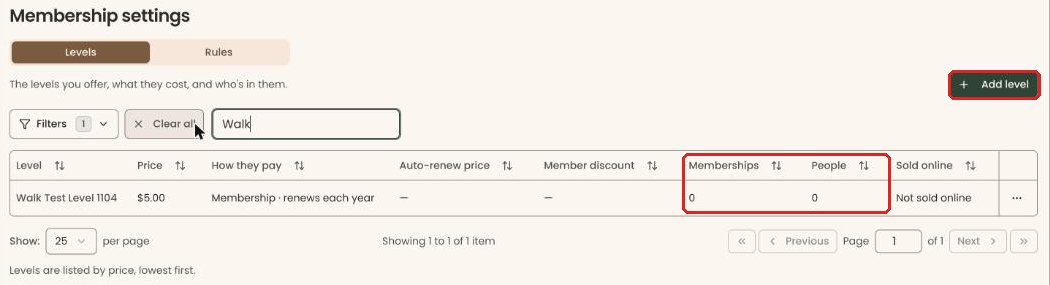
- The page is called "Membership settings". Just under the title are two tabs, "Levels" and "Rules". "Levels" is open when the page loads.
- To find a level quickly, type part of its name in the "Search levels..." box above the list.
What the labels mean
On the "Levels" tab, each level shows:
- "Price" and "How they pay": what it costs, whether it is a "Membership" or "Dues", and how often, for example "Membership · renews each year".
- "Auto-renew price" and "Member discount": any lower price for members who turn on automatic renewal, and any member discount the level gives.
- "Memberships": every active membership at this level. Someone who holds two counts twice.
- "People": the members plus everyone their membership covers.
- "Sold online": "Yes", or "Not sold online".
- "Not offered": the level has been switched off for new joins. Existing members keep it.
- "Covers household": the level covers the member's household. To set this up, see the guide "Member counts, labels and family (household) memberships".
- "Memberships" vs "People": one Family membership covering two people counts as 1 membership and 2 people.
Add a level
Page: /dashboard/membership/manage
- Open the "Levels" tab (see "Where the Levels tab is" above).
- At the top right of the tab, click "Add level". (If you have no levels yet, the button in the middle of the page says "Add your first level".)
- A panel opens called "Add a level".
- Under "How members pay", answer "If a member doesn't pay, are they still a member?":
- "No — their membership ends. Each member pays for their own year." This is a normal membership.
- "Yes — they're still a member and they owe it. Everyone is billed on the same dates, and you can see who's paid." This is a dues level.
- Under "Basics", type the "Tier Name", for example "Family", and, if you like, the "Description / Benefits" and a "Receipt note".
- Scroll down to "Price and billing". Type the "Base Price (USD)", for example 75.
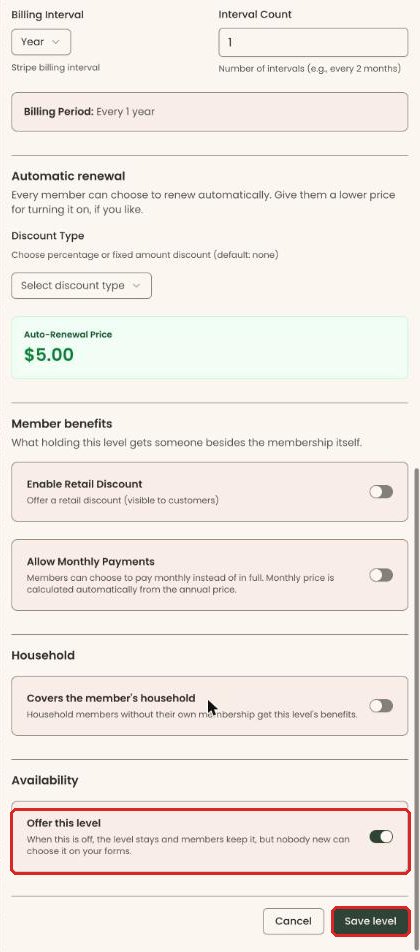
- Check "Billing Interval" (it starts on "Year") and "Interval Count" (it starts on 1, for once a year).
- Under "Automatic renewal", to give a lower price for turning on automatic renewal, choose a "Discount Type". Leave it alone for no discount.
- Scroll to the bottom. Under "Availability", leave "Offer this level" switched on.
- At the bottom of the panel, click "Save level".
- You'll see "Membership tier created successfully" at the top of the screen. That means it worked. The new level appears in the list. It shows "Not sold online" until you add it to a form.
- If you see "Failed to save membership tier" or a message from the server, read it, fix the field it names and save again.
Edit a level
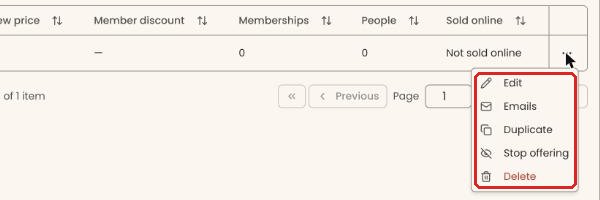
- On the "Levels" tab, at the far right of the level's row, click the three dots (⋯), then "Edit". You can also click the level's name.
- The panel opens called "Edit" and the level's name. It says "Changes apply to new joins and renewals. Nobody's current membership moves."
- Make your changes. Scroll to the bottom of the panel and click "Save level".
- You'll see "Membership tier updated successfully".
Duplicate a level
- On the "Levels" tab, at the far right of the level's row, click the three dots (⋯).
- Click "Duplicate".
- You'll see "Copied" and the level's name. A copy called "Copy of" and the level's name appears in the list, with the level's emails copied too.
- Click the copy's ⋯, then "Edit", to rename it and change its price.
Retire a level (stop offering it)
Use this when you no longer want new people to join a level, but people already hold it.
- On the "Levels" tab, at the far right of the level's row, click the three dots (⋯), then "Edit".
- Scroll to the bottom of the panel. Under "Availability", click the "Offer this level" switch to turn it off.
- Click "Save level".
- You'll see "Membership tier updated successfully". The level now shows "Not offered" under its name.
The level stays, and members keep it, but nobody new can choose it on your forms. To bring it back, follow the same steps and switch "Offer this level" back on.
The ⋯ menu also has "Stop offering" (and "Offer again" on a retired level). At the moment it shows "Couldn't change whether that level is offered" and changes nothing, so use the switch in "Edit" instead.
Move members off a retired level
There is no button that moves every member of a level to another level at once. Members move one at a time, usually when they renew:
- In the left-hand menu, under Fundraising › Membership, click "Member List".
- At the far right of a member's row, click the three dots (⋯), then "Renew or change level".
- Choose the new level in "Level", check the dates and amount, and record it. See Change a member's level (upgrade or downgrade) for every step.
Delete a level
Delete only works if nobody has ever been on the level.
- On the "Levels" tab, at the far right of the level's row, click the three dots (⋯).
- Click "Delete".
- A box asks "Delete this level?" It says "This works only if nobody has ever been on it." Any membership ever recorded against the level blocks the delete, including ones that have ended.
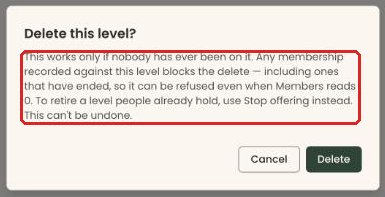
Important: if the delete goes through, it can't be undone. To retire a level people already hold, click "Cancel" and turn off "Offer this level" instead (see "Retire a level" above).
- Click "Delete".
- You'll see "Membership level deleted". That means it worked, and the level is gone from the list.
If anyone has ever held the level, the delete is refused and a message explains why. Retire it instead (see "Retire a level" above).
Special cases
- "Memberships" reads 0 but the delete is refused: the count shows only active memberships. An ended membership on that level still blocks the delete.
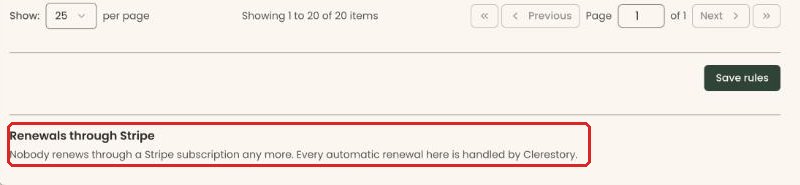
- "Renewals through Stripe" on the "Rules" tab: this is a different "Move". It moves members who still renew through an older Stripe subscription onto Clerestory renewals. It doesn't change their level, price or renewal date. Click "Move" on one member, or "Move all that are ready". You'll see "[Name] now renews through Clerestory." If it says "Nobody renews through a Stripe subscription any more", there is nothing to do.
- Emails for one level: click ⋯ then "Emails" on the level's row to set up that level's own emails. You see this only if your role can see emails.
Buttons to avoid
- "Delete" is for a level created by mistake. To retire a level people hold, turn off "Offer this level" in "Edit".
If you make a mistake
- Retired the wrong level: click ⋯ then "Edit", switch "Offer this level" back on and click "Save level".
- Wrong price or name: click ⋯ then "Edit", correct it and click "Save level". Current members keep what they have; the change applies to new joins and renewals.
- Deleted a level: this can't be undone. Add it again with "Add level".