


Who can do this: Owner and Administrator. Other roles can open a campaign but don't see its "Form" tab. Creating the campaign itself is covered in "Build a donation form (a "campaign"), preview it, and see what a donor sees".
Quick steps: Fundraising › "Campaigns" › open the campaign › "Form" tab › "Form Configuration" › "Memberships" › switch on "Membership Enabled" › check levels › "Save changes"
Before you start
- You need the Owner or Administrator role.
- Your membership levels must exist and be offered. See "Set up membership levels: add, edit, duplicate, stop offering and delete".
- You need a campaign. A campaign is one public form with its own web address. See "Build a donation form (a "campaign"), preview it, and see what a donor sees".
- A level is one kind of membership you sell, for example "Family".
- Decide which levels this form should offer, and any promotional price.
Switch memberships on and choose levels
Page: /dashboard/campaigns/<campaignId>?tab=form
- In the left-hand menu, under Fundraising, click "Campaigns".
- On the campaign's row, at the far right, click the three dots (⋯), then "Edit" under "Actions". The campaign opens on its "Form" tab.
- If you opened the campaign by clicking its row instead, click the "Form" tab near the top of its page.
- Scroll to the box called "Form Configuration".
- Click "Memberships" in the row of section names. On a phone, choose "Memberships" from the drop-down instead.
- Switch on "Membership Enabled", on the right of that line. A green dot appears beside "Memberships".
- Below, every level you offer is listed with its "Billing:" and "Base price:". Type in "Search memberships..." to find one.
- Check the box beside each level this form should offer. Its options open below it.
- Scroll back up. Click "Save changes" at the top right of the page, below the tabs.
- You'll see "Campaign updated successfully". That means it worked.
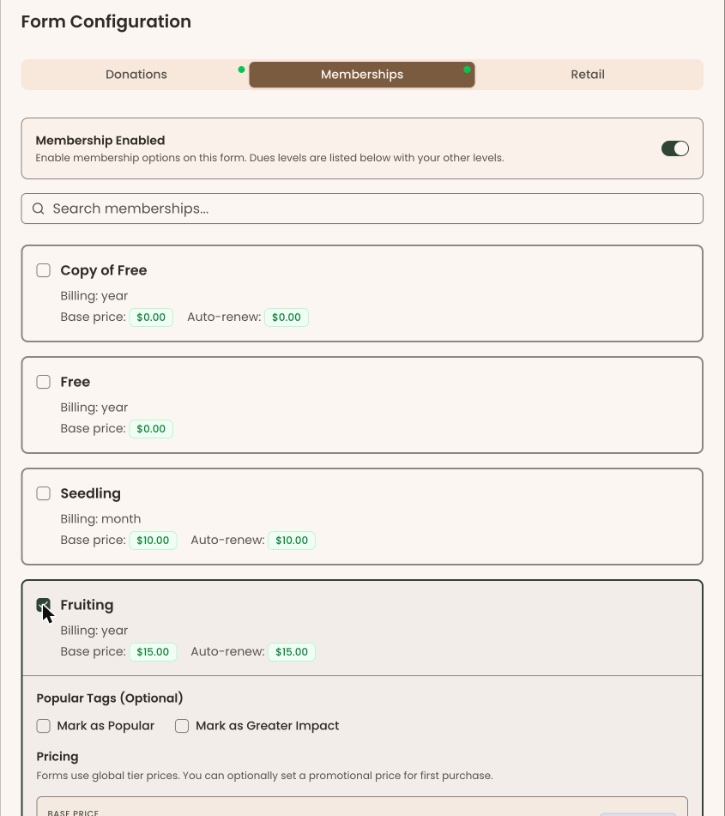

If you checked "Memberships" when you created the campaign, step 6 is already done and the levels you chose are already checked.
Highlight a level or set a promotional price
These options appear under a level once you check it.
- Under "Popular Tags (Optional)", check "Mark as Popular" or "Mark as Greater Impact". A level can have one tag, not both. A "Popular" (or "Greater Impact") tag appears next to the level's name.
- Under "Pricing", the level's "Base Price" is shown with "Global Price". Forms use the level's own price.
- To offer a lower price for the first purchase, type it in "Promotional Price (Optional)", for example 10.00. It must be less than the base price.
- Check the line below the box. It should say, for example, "First purchase will charge $10.00 (promotional price)", and a "Promotional Price" tag appears next to the level's name. If that line doesn't appear, the price isn't accepted and won't be saved.
Important: saving changes the price this form offers for that level.
- Scroll back up and click "Save changes" at the top right of the page.
- You'll see "Campaign updated successfully". That means it worked.
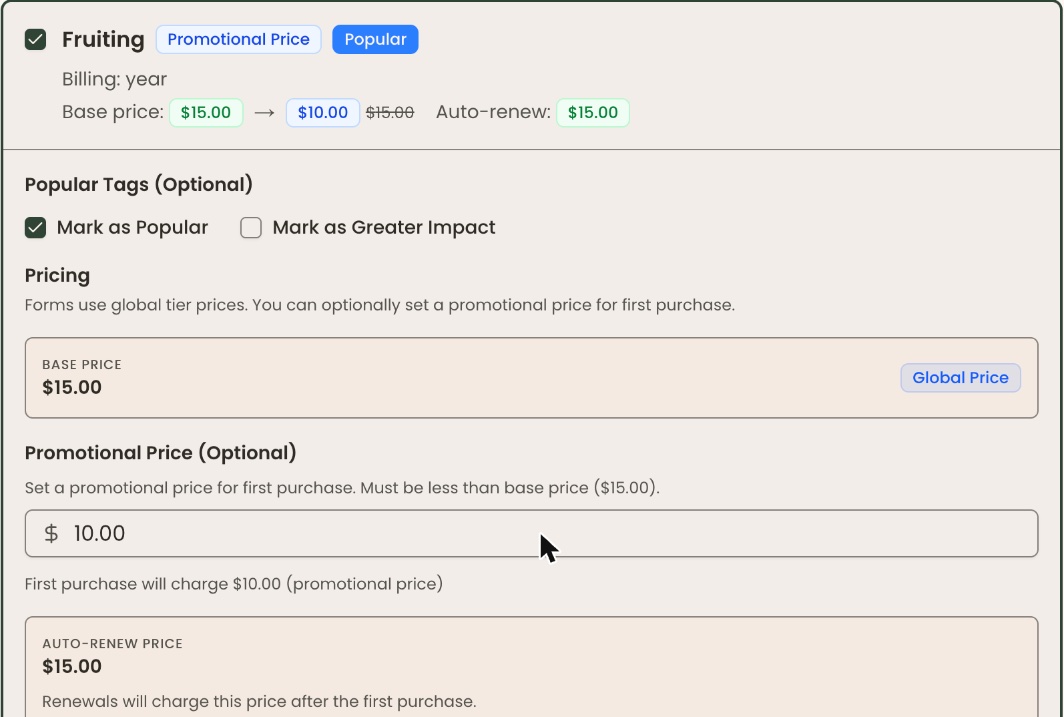
To change a level's normal price, change the level itself on Membership Settings. See "Set up membership levels: add, edit, duplicate, stop offering and delete".
Check the form
- In the left-hand menu, under Fundraising, click "Campaigns".
- On the campaign's row, at the far right, click the three dots (⋯).
Important: the preview is the real, live form. If you go all the way through and pay, it is a real payment.
- Under "Preview", click "Preview Website Form". The form opens in a new tab.
- Check that the levels you chose are listed.
If the campaign is inactive (an "INACTIVE" badge in the "Status" column), the preview shows "Unable to Load Form" and "Donation form not found. Please check the form link." The preview only works for an active campaign.
Special cases
- "Membership Selection Required": memberships are on but no level is checked. Check at least one level, or switch "Membership Enabled" off.
- "No Memberships Available": your organization has no offered levels. Click "Create one →" to add a level, or switch "Membership Enabled" off.
- A level is missing from the list: levels you've stopped offering aren't listed. Turn the level back on in Membership Settings.
- A promotional price the same as or higher than the base price: no "First purchase will charge" line appears. "Save changes" still says "Campaign updated successfully", but the promotional price is not kept. Type a lower price and save again.
- "Auto-renew:" price on a level: the level gives a lower price to members who turn on automatic renewal. That is set on the level, not here.
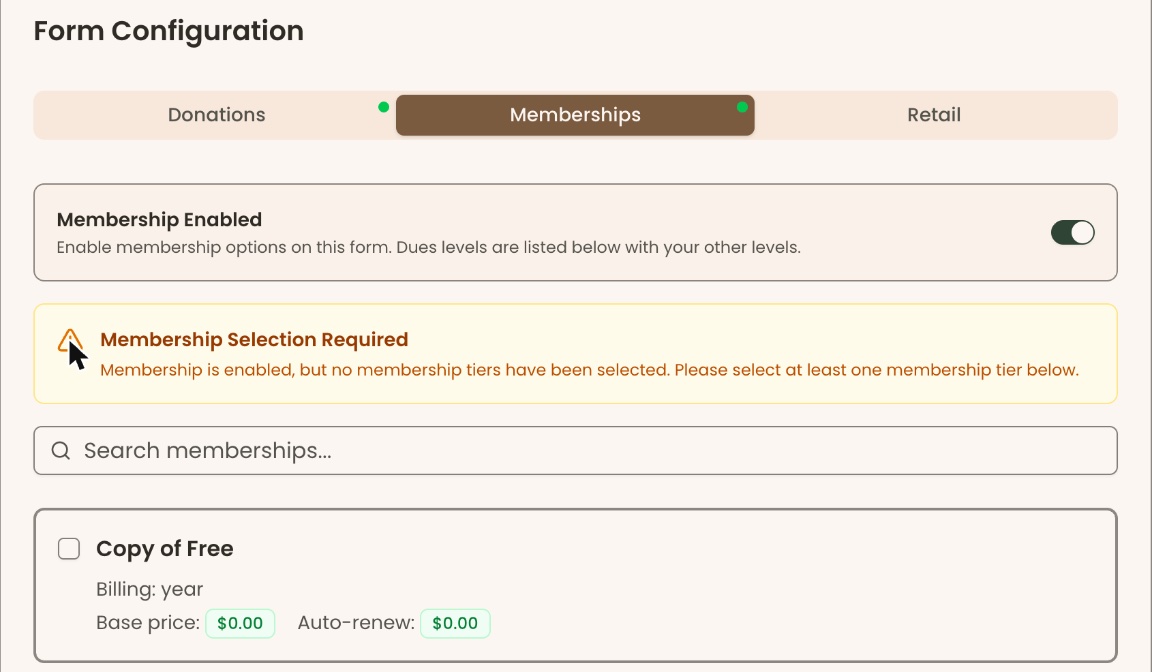
If you make a mistake
- Checked the wrong level: uncheck it and click "Save changes".
- Switched "Membership Enabled" off by mistake: switching it off clears the checked levels and any tags or promotional prices. Switch it back on, check the levels again, set the tags and prices again, and click "Save changes".