


Who can do this: Owner, Administrator, Finance and Fundraiser. Programs, Front desk and Viewer can open the list, but its "Mark received" and "Cancel" buttons are grayed out.
Quick steps: Donations › "Waiting for DAF funds" › the gift's row › "Mark received" › check the date, how it arrived and the amount › "Mark received".
Before you start
- You need the Owner, Administrator, Finance or Fundraiser role.
- A donor-advised fund (DAF) is a giving account a supporter holds at a sponsor such as a bank or community foundation. The supporter recommends a gift, and the fund sends the money later.
- When a supporter recommends a DAF gift on your form, Clerestory gives it a code and keeps it in "Waiting for DAF funds" until you mark it received.
- Have the check or the bank record ready: the date the money arrived, how it came, the amount, and any grant reference number the fund printed.
- The "Waiting for DAF funds" button appears once "Gifts from donor-advised funds" is turned on, or once any DAF gift has been recommended. See Turn features on or off.
Mark a gift received
Page: /dashboard/donations/daf
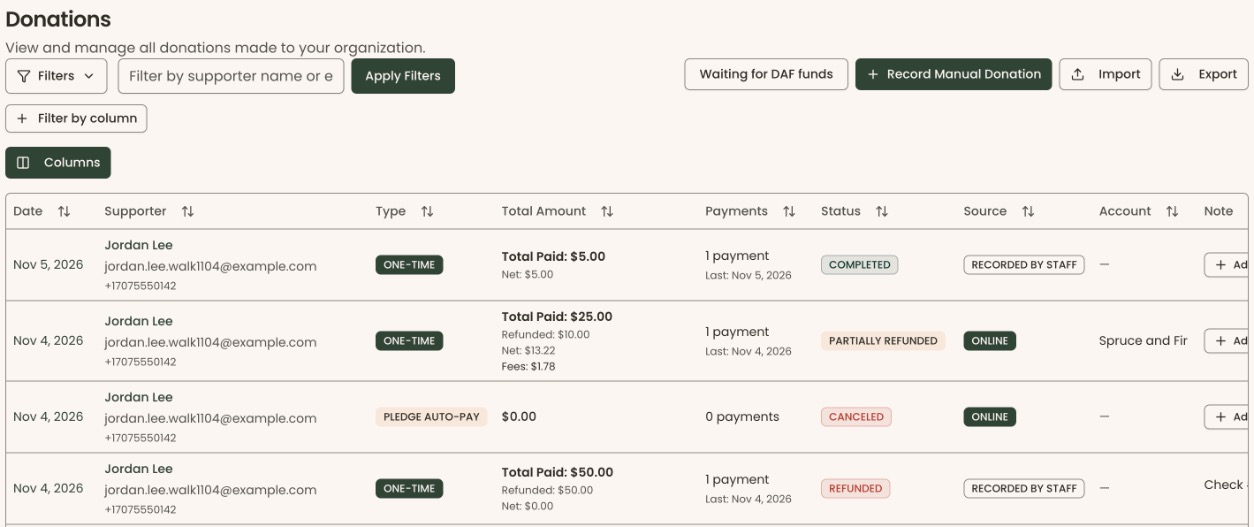
- In the left-hand menu, under "Fundraising", click "Donations". The Donations page opens.
- At the top right of the list, click "Waiting for DAF funds". It's to the left of "Record Manual Donation". The "Waiting for DAF funds" page opens.
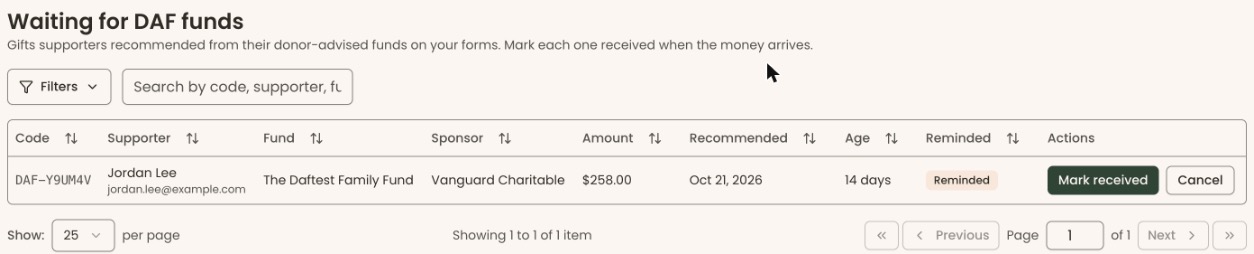
- Find the gift. To search, type in the box that says "Search by code, supporter, fund or sponsor...". The code is often written on the fund's check or letter.
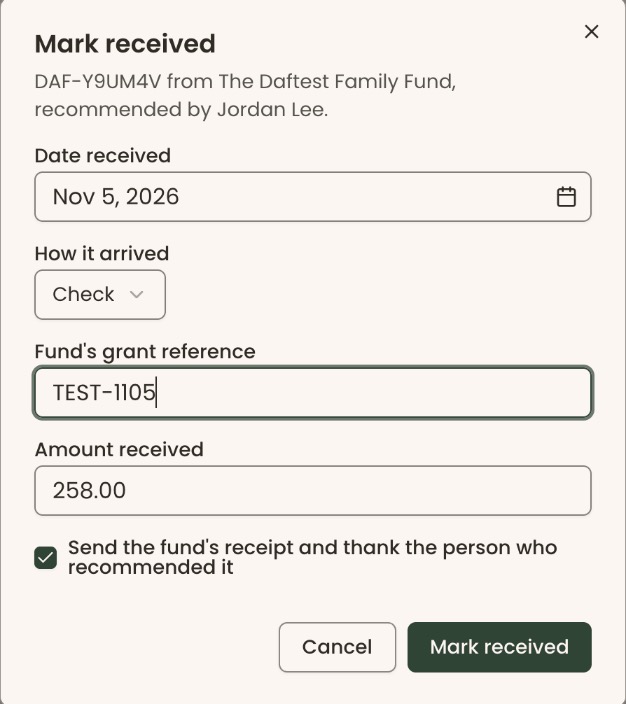
- At the far right of the gift's row, click "Mark received". A box opens called "Mark received". Its first line names the code, the fund and the supporter who recommended it.
- "Date received" starts on today. If the money arrived on another day, click it and choose that date. You can't choose a date in the future.
- "How it arrived" starts on "Check". To change it, click it and choose "Bank transfer", "ACH", "Stripe", "PayPal" or "Other".
- In "Fund's grant reference", type the fund's reference number, if it gave one. You can leave it blank.
- "Amount received" starts on the amount the supporter recommended. If the fund sent a different amount, select it and type the amount that arrived, for example 50.
- "Send the fund's receipt and thank the person who recommended it" starts checked. To send nothing, uncheck it.
Important: With the box checked, clicking "Mark received" emails the fund a receipt (if the fund has an email address) and emails the supporter who recommended the gift a thank-you. Uncheck it first if you don't want those sent. Marking a gift received can't be undone in the screens.
- At the bottom right of the box, click "Mark received".
- You'll see "Marked received." The gift leaves the list and becomes an ordinary received gift. That means it worked.
"Mark received" can't be clicked while "Amount received" is empty or zero.
If you see "Couldn't mark this gift received." or another message, nothing was saved. Read the message, correct the box, and try again. "The date received cannot be in the future." means change "Date received". "This gift is no longer waiting for funds." means someone else has already marked it received or not received; refresh the page.
Mark a gift as never arrived
Use this when the fund tells you it won't send the gift, or you're sure it is never coming.
Page: /dashboard/donations/daf
- Open "Waiting for DAF funds", as in steps 1–3 of "Mark a gift received".
- At the far right of the gift's row, click "Cancel". A box opens called "The gift never arrived?".
Important: Clicking "It never arrived" takes the gift off the list for good. It can't be undone in the screens. No receipt is sent.
- Click "It never arrived".
- You'll see "Marked as not received." The gift leaves the list. It stays on the supporter's timeline as "Not received". That means it worked.
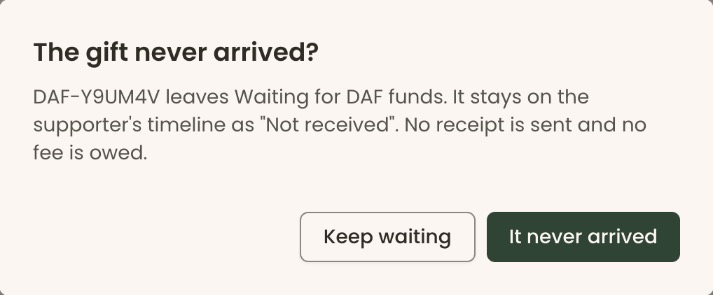
To keep the gift on the list, click "Keep waiting" instead.
What the labels mean
- "Code": the reference Clerestory gave the gift when the supporter recommended it.
- "Supporter": the person who recommended the gift, with their email address.
- "Fund" and "Sponsor": the fund's name and the organization that holds it.
- "Amount": the amount the supporter recommended.
- "Recommended": the date they recommended it on your form.
- "Age": how many days the gift has been waiting.
- "Reminded": the supporter has been sent a reminder email about the gift.
- "Nothing is waiting for DAF funds." means every gift has been marked received or not received.
Special cases
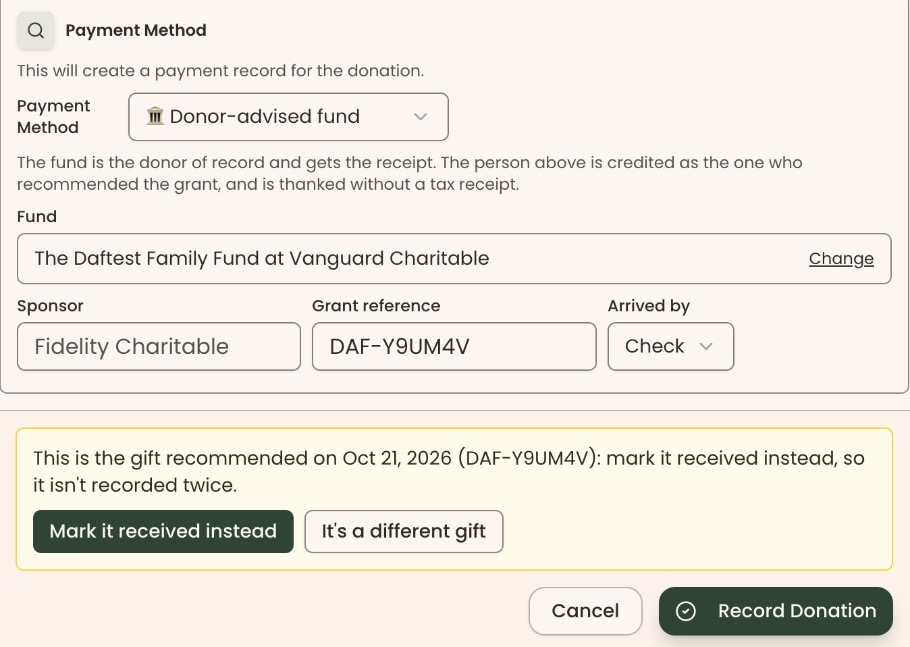
- The money arrived and you're recording it from "Record Manual Donation". If you choose "🏛️ Donor-advised fund" in "Payment Method", pick the fund in "Fund", type the code in "Grant reference" and click "Record Donation", Clerestory checks for a waiting gift with the same code, or the same fund and amount. If it finds one, nothing is recorded yet, and a yellow box says "This is the gift recommended on …: mark it received instead, so it isn't recorded twice." Click "Mark it received instead" and carry on from step 5 of "Mark a gift received". Click "It's a different gift" only if it really is a separate gift.
- The fund sent less or more. Type the amount that arrived in "Amount received". The gift is recorded at that amount.
- Clerestory's fee. For a gift recommended on your form, the platform fee is worked out when you mark it received, on the amount that arrived.
- Closed months. The gift is dated on "Date received". If that month is closed in Clerestory, choose a date in an open month or reopen the month first. See Close or reopen a month.
- Turning the feature off doesn't hide gifts already waiting. You can still mark them received.
If you make a mistake
- Marked a gift received by mistake, or with the wrong amount or date: this can't be undone from "Waiting for DAF funds". The gift is now an ordinary payment.
- Marked a gift as never arrived by mistake: this can't be undone in the screens. If the money does arrive, record it with "Record Manual Donation". See Record a gift paid by check or cash.