


Who can do this: Owner, Administrator and Fundraiser can edit a household, add or remove people, and email it. Programs can email a household from the household's own page, but can't edit it. Finance, Front desk and Viewer can see the "Household" box, but its buttons are grayed out.
Quick steps: Supporters › All Supporters › open the person › "Profile" tab › "Household" box › "Edit" › "Save" · to remove: the X beside the person › "Remove" · to email: "Email this household" › choose a template › "Send email"
Before you start
- You need one of the roles above.
- The household must already exist. To start one or add people to it, see Member counts, labels and family (household) memberships.
- To email a household, you need an email template. Templates are made under Communications. See Templates: start from an example, duplicate, archive; add emails to a donation form.
- A household is a group of people who live together, such as a couple or a family. Each person keeps their own record and their own giving. A supporter is anyone in your records who has given, joined, bought or registered.
Open a household
You can work on a household from any member's "Profile" tab, or from the household's own page.
Page: /dashboard/supporters/<donorId>
- In the left-hand menu, under People, click "Supporters". A short list opens under it.
- Click "All Supporters".
- Click the search box "Search by name or email...". Type one person's name, for example "Jordan Lee", and press Enter.
- At the far right of their row, click the round button with an eye shape. Their record opens.
- Below the giving totals, in the row of tabs that starts with "Overview", click "Profile".
- Scroll down past "Email, Phone & Address". Find the box with a house icon. Its title is the household's name, for example "Lee Household". If it says "Not part of a household", this person isn't in one yet.
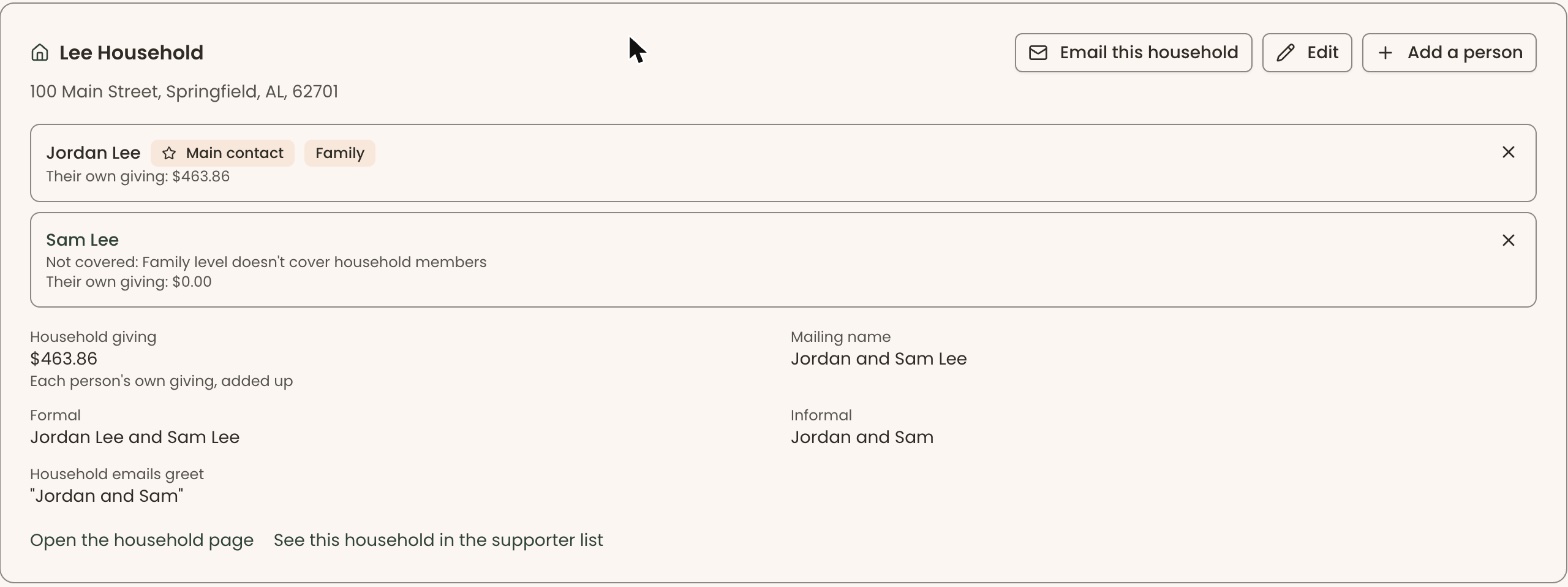
To open the household's own page instead: in the "Household" column of the supporter list, click the household's name. Or, in the "Household" box, click "Open the household page".
Change the household's names, main contact, address or greeting
Page: /dashboard/supporters/<donorId>
- Open the "Household" box on the person's "Profile" tab, as above.
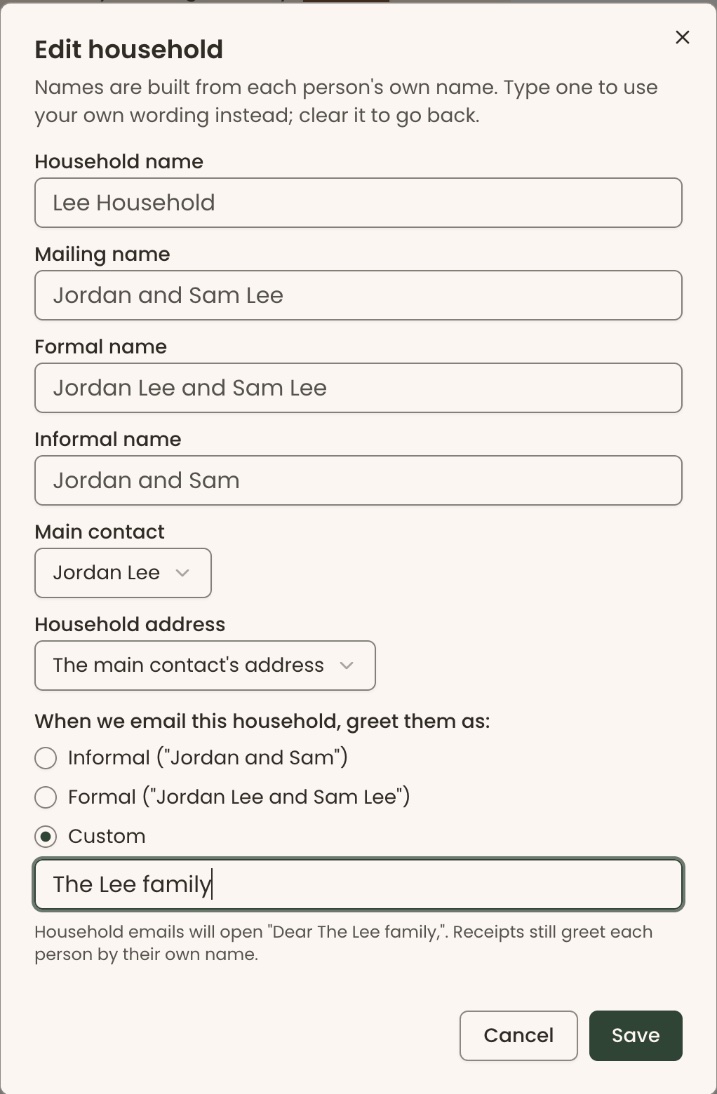
- At the top right of the box, click "Edit". A box opens called "Edit household".
- "Household name", "Mailing name", "Formal name" and "Informal name" are built from each person's own name. The gray text in each one shows what is used now.
- To use your own wording, type it in that field. For example, in "Mailing name" type "Jordan and Sam Lee". To go back to the built name, clear the field.
- In "Main contact", choose the person Clerestory should treat as the household's main contact.
- In "Household address", choose "The main contact's address" or one person's address, for example "Sam Lee's address".
- Under "When we email this household, greet them as:", click "Informal", "Formal" or "Custom". "Informal" is chosen to start with.
- If you chose "Custom", type the greeting in the box below it, for example "The Lee family".
- Under the choices, check the line that reads "Household emails will open "Dear …,"". It shows exactly how emails to this household will begin. Receipts still greet each person by their own name.
- At the bottom right of the box, click "Save".
- You'll see "Household saved". That means it worked.
- If you see "Type the custom greeting to use.", type a greeting in the "Custom" box, or choose "Informal" or "Formal", and click "Save" again.
On the household's own page, the same "Edit" button is on its "Profile" tab, at the top left of the household box.
Remove someone from a household
Removing a person only takes them out of the household. Their own record and giving are kept.
Page: /dashboard/supporters/<donorId>
- Open the "Household" box, as above.
- Find the person's line in the box. At the far right of that line, click the small X.
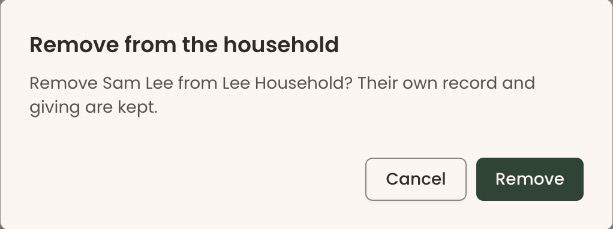
- A box opens called "Remove from the household". It names the person and the household.
Important: If this person is the only one left in the household, removing them deletes the household. Its names and greeting are lost, and you would have to start a new household.
- Click "Remove".
- You'll see, for example, "Sam Lee was removed from the household". That means it worked.
If you removed the last person while on the household's own page, Clerestory takes you back to the Supporters list.
Email everyone in a household
Every person in the household who has an email address gets their own copy. Each copy opens with the household's greeting, for example "Dear Jordan and Sam,".
Page: /dashboard/households/<householdId>
- Open the household's page: in the "Household" column of the supporter list, click the household's name. (Owner, Administrator and Fundraiser can also use the "Email this household" button in the "Household" box on a member's "Profile" tab.)
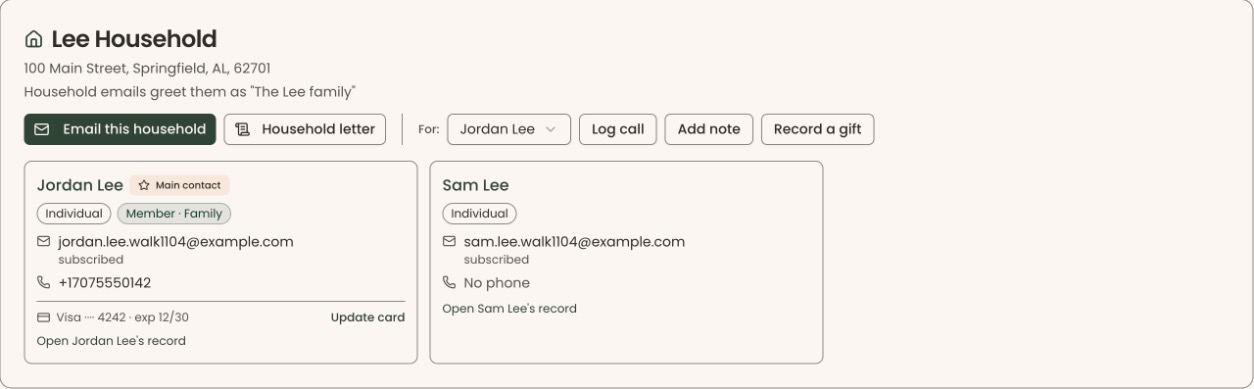
- Near the top of the page, under the household's name, click "Email this household". If the button is grayed out, nobody in the household has an email address.
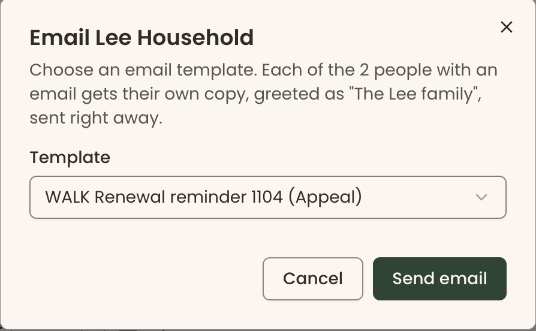
- A box opens called "Email" followed by the household's name. It says how many people will get a copy.
- In "Template", click "Choose a template" and choose one. Each template shows its type in parentheses, for example "(Appeal)".
- If the template is a newsletter, you'll also see "Include contacts". Leave it unchecked unless you want vendors, employers and other contacts in the household to get it too.
Important: Clicking "Send email" sends the email right away to every person in the household who has an email address (the box says how many). It can't be stopped or undone.
- At the bottom right of the box, click "Send email".
- You'll see "2 emails sent." (or "Email sent." for one person). That means it worked.
- If some people were not sent the email, the box stays open and lists them under "Not sent:", each with a reason. This happens, for example, when someone has asked not to get that kind of email. Click "Close" when you've read it.
If you see "There are no email templates yet. Make one under Communications → Templates.", make a template first.
Special cases
- Programs role. The "Household" box is grayed out for you, but "Email this household" on the household's own page works.
- "Household letter". Next to "Email this household" on the household's page, this makes one printed letter for the whole household. See Make letters and print mailing labels for how letters work.
- Household giving. "Household giving" is each person's own giving added up. Nobody's giving is moved or merged.
Buttons to avoid
- "Add a person", next to "Edit", adds someone to the household. It doesn't change the household's names.
- "Cancel" in "Edit household" closes the box without saving.
If you make a mistake
- Wrong name or greeting: click "Edit" again, fix it and click "Save". Clear a field to go back to the built name.
- Removed the wrong person: add them back with "Add a person". See Member counts, labels and family (household) memberships.
- Removed the last person: the household is gone. Start a new one from a person's "Profile" tab with "Start a household", then edit its names again.
- Sent an email by mistake: it can't be recalled.