


Who can do this: Owner, Administrator, Fundraiser and Programs. Finance and Viewer can run reports but don't see these buttons. "Download list for a mail house (CSV)" is for Owner, Administrator and Fundraiser only.
Quick steps: Open a report › "Make letters for these people" › "Template" › "Send to" › "Make letters" › check each letter › "Download PDF". Labels: "Print mailing labels" › "Label sheet" › "Download labels (PDF)".
Before you start
- Your role must be Owner, Administrator, Fundraiser or Programs.
- Open a report that lists people, and filter it to exactly the people you want. See Run a built-in report, then filter, sort and choose columns. The buttons only appear on reports where every row is a person.
- For letters, you need a letter template. A template is a ready-written letter that Clerestory fills in for each person. If you have none, the letters box says where to make one. See Templates: start from an example, duplicate, archive; add emails to a donation form.
- For labels, have the label sheets ready. Clerestory supports Avery 5160, 5161 and 5163.
Make letters
Page: /dashboard/reporting/templates/<templateId>
- Open the report and set its filters.
- In the row of buttons above the table, click "Make letters for these people".
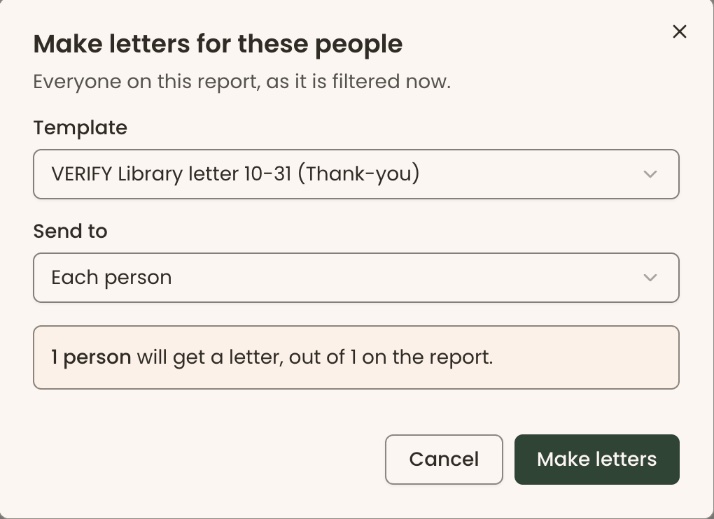
- A box opens headed "Make letters for these people", saying "Everyone on this report, as it is filtered now."
- Click "Template" and choose your letter template. It shows "Choose a template" until you pick one.
- Click "Send to" and choose "Each person", or "One per household or business".
- Wait for the count. It reads, for example, "42 people will get a letter, out of 45 on the report." Anyone left out is listed with the reason.
- Click "Make letters", at the bottom right of the box.
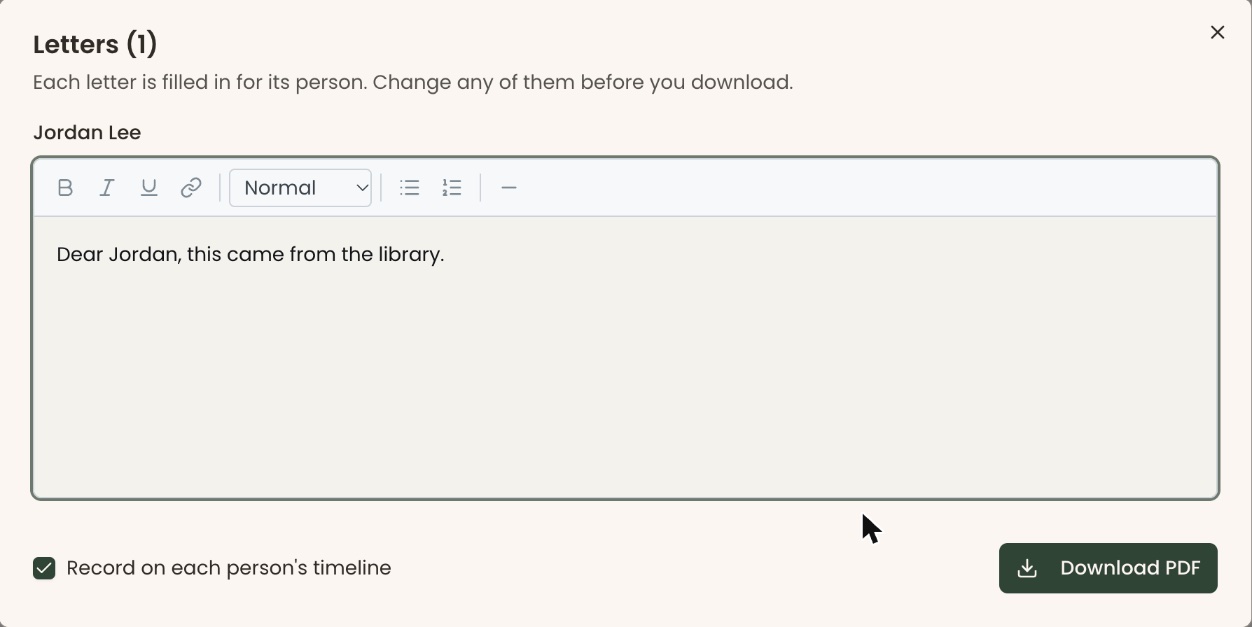
- A box opens headed "Letters (42)". Each letter is already filled in for its person.
- To check or change a letter, click a name in the list on the left. Its letter appears on the right. Type to change it. (With only one letter, there is no list: the person's name sits above their letter.)
- At the bottom left, "Record on each person's timeline" is checked. Uncheck it if you don't want each letter noted on the person's record.
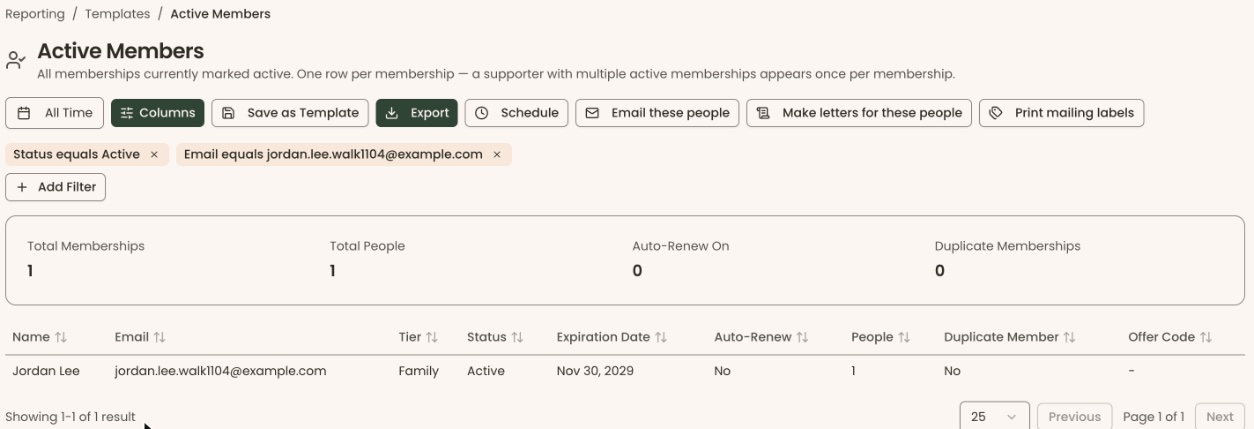
Important: With "Record on each person's timeline" checked, the next step adds a note of the letter to every person's record.
- Click "Download PDF", at the bottom right.
- A file named "letters.pdf" downloads. You'll see "Letters downloaded and recorded on each person's timeline." (or "Letters downloaded." if you unchecked it). That means it worked.
- Open the PDF and print it.
If you see "There are no letter templates yet. Make one under Communications → Templates.", create a letter template first.
If you see "There are no letters to write — everyone was left out.", nobody on the report can get a letter. Check the reasons listed.
If you see "We couldn't prepare the letters." or "We couldn't make the PDF.", try again.
Print mailing labels
- Open the report and set its filters.
- In the row of buttons above the table, click "Print mailing labels".
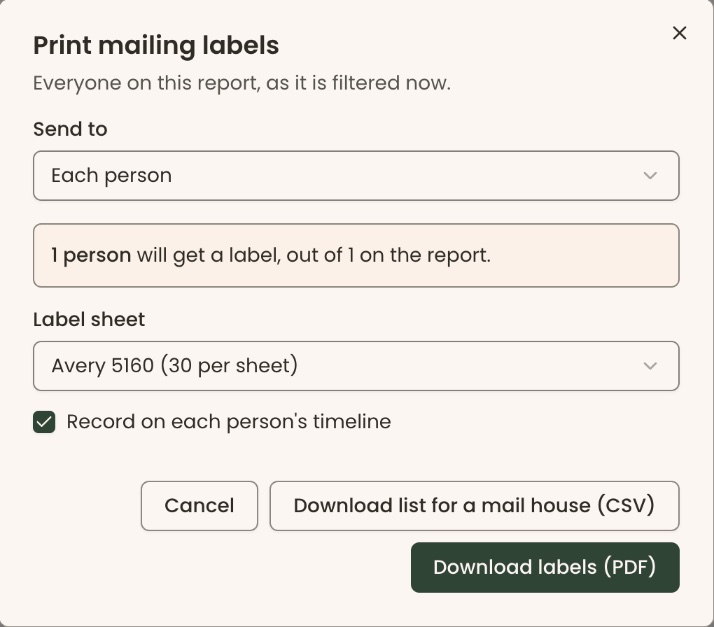
- A box opens headed "Print mailing labels".
- Click "Send to" and choose "Each person", or "One per household or business".
- Wait for the count, for example "42 people will get a label, out of 45 on the report."
- Click "Label sheet" and choose your sheet: "Avery 5160 (30 per sheet)", "Avery 5161 (20 per sheet)" or "Avery 5163 (10 per sheet)".
- "Record on each person's timeline" is checked. Uncheck it if you don't want a note on each person's record.
Important: With "Record on each person's timeline" checked, the next step adds a note to every labeled person's record.
- Click "Download labels (PDF)" for labels to print. Or click "Download list for a mail house (CSV)" for a spreadsheet of names and addresses.
- A file named "mailing-labels.pdf" or "mailing-list.csv" downloads. You'll see "Labels downloaded." That means it worked.
- For labels, load the label sheets in your printer and print the PDF.
The message may add who was left out, for example "2 people were left out because they have no usable street address." People marked do not contact, deceased or no postal mail are also left out.
If you see "We couldn't make the labels.", try again.
What the labels mean
- "One per household or business": a household gets one letter or label, addressed to everyone in it and sent to its main contact. A business gets one, to its primary contact.
- "N people will get a letter, out of N on the report": the first number is who will get one. The second is everyone the report lists.
- "N left out — [reason]": people skipped, with the reason.
- "N rows on the report could not be matched to a person": rows that aren't linked to anyone in your records.
- "Include contacts": appears for some templates. Contacts are vendors, employers and other people you work with. They are left out unless you check this.
Special cases
- If you see "This list has N people; one send is limited to N. Narrow the report and try again.", add a filter so the report lists fewer people.
- The buttons stay grayed out until the count has loaded and at least one person can get a letter or label.
Buttons to avoid
- "Email these people", next to these buttons, sends an email to everyone on the report. It does not make letters.
If you make a mistake
- Wrong people: click "Cancel", change the report's filters, and start again.
- Wrong label sheet: download again with the right sheet. Nothing is sent to anyone.