


Who can do this: Anyone who can see Reporting can read the counts: Owner, Administrator, Finance, Fundraiser, Programs and Viewer. Turning on household coverage for a level needs Owner, Administrator, Finance or Fundraiser. Adding people to a household or splitting a name needs Owner, Administrator or Fundraiser; for everyone else the "Profile" tab is grayed out.
Quick steps: Membership › "Membership Settings" › "Levels" › click the level › turn on "Covers the member's household" › "Save level". Then Supporters › the member › "Profile" › "Household" › "Add a person" › "Add someone new" › "Add to household".
Before you start
- You need one of the roles above for each part.
- Have ready: the name of the family level, and the first and last name of each other person in the family.
- A membership is one paid membership, for example one Family membership.
- A member is a person who holds a membership.
- A household is a group of people who live together, such as a couple or a family. Each person keeps their own record.
- A supporter is anyone in your records who has given, joined or registered.
What the labels mean
- Memberships: the number of memberships. If one person holds two memberships, that counts as 2.
- Members: the number of people who hold a membership. Each person counts once.
- People: the members plus everyone their membership covers, such as a spouse or children. Each person counts once.
So a Family membership held by Jordan Lee and shared with Sam Lee counts as 1 membership, 1 member and 2 people, once Sam is set up as described below.
Where to see the counts
- Reporting dashboard, "Active Members" box. In the left-hand menu, under "Tools", click "Reporting", then "Dashboard". Under the big number in "Active Members", a small line reads "members ·" followed by the People count, for example "members · 2 people".
- Membership Settings, "Levels" tab. Each level shows "Memberships" and "People" side by side, near the right of the table. If you can't see "People", scroll the table sideways. Point at either heading to see what it counts.
- Reporting dashboard, "Membership by Tier". Click "View as table" on that section. The table shows "Members" and "People" for each level. Click "View as chart" to go back.
- The "Active Members" report. In the left-hand menu, under "Tools", click "Reporting", then "Templates". Under "Membership", click "Run Report →" on "Active Members". The summary at the top shows "Total Memberships" and "Total People".


Set up a family membership
The "People" count can only count people who have their own record in Clerestory. If the second person's name is only typed into the membership's listing name, for example "Jordan & Sam Lee", they aren't counted. Do these three parts in order.
Part 1: Turn on household coverage for the family level
You do this once per level. Levels are set up as in Set up membership levels: add, edit, duplicate, stop offering and delete.
Page: /dashboard/membership/manage
- In the left-hand menu, find the Fundraising group and click "Membership" to open it. (If "Membership Settings" already shows under it, skip this step; clicking again closes it.)
- Click "Membership Settings".
- The "Levels" tab is open. Click the name of your family level, for example "Family". A panel opens to edit it.
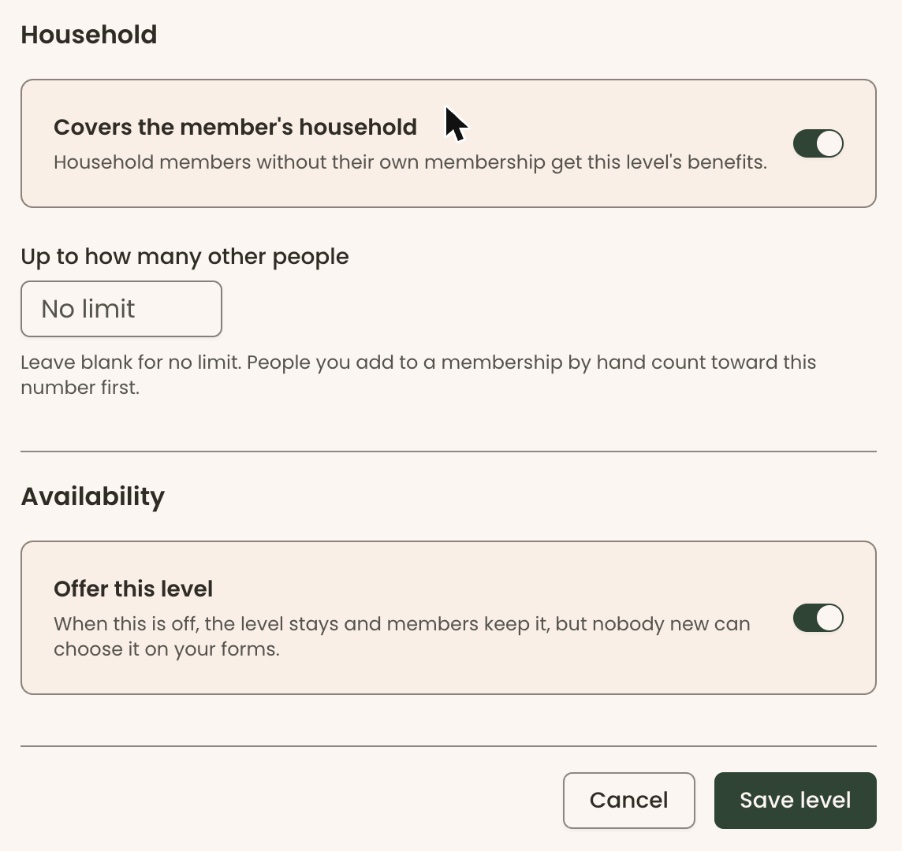
- Scroll down to the section headed "Household".
- Turn on the switch "Covers the member's household". Its note reads "Household members without their own membership get this level's benefits."
- A box appears called "Up to how many other people". Leave it blank for no limit, or type a number.
- At the bottom of the panel, click "Save level".
- You'll see "Membership tier updated successfully". That means it worked. In the list, the level now shows a "Covers household" tag (or "Covers household · up to 3" if you set a limit).
Part 2: Add the other people to each member's household
Do this once per family. For more on households, see Edit a household, remove someone, or email a household.
Page: /dashboard/supporters/<donorId>
- In the left-hand menu, find the group called "People". Click "Supporters", then "All Supporters".
- Click the search box "Search by name or email...". Type the member's name, for example "Jordan Lee", and press Enter.
- At the far right of their row, click the round button with an eye shape. Their supporter page opens.
- Below the giving totals, click the "Profile" tab.
- Find the box called "Household". At its top right, click "Add a person".
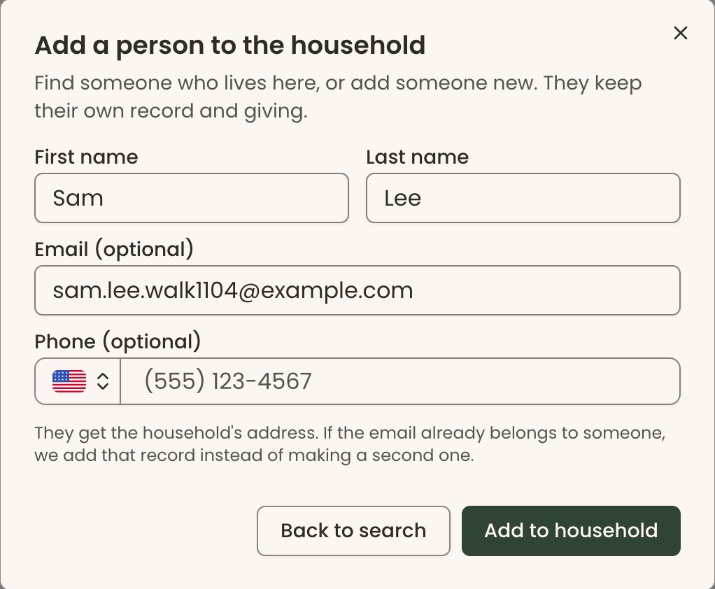
- A box opens called "Add a person to the household".
- If the other person is already in Clerestory, type their name in "Search by name or email" and click them. Skip to step 11.
- If they aren't in Clerestory yet, click "Add someone new".
- Type their "First name" and "Last name", for example "Sam" and "Lee". "Email (optional)" and "Phone (optional)" can stay blank.
- Click "Add to household".
- You'll see "Sam Lee was added to the household" (with their name). That means it worked. If the email you typed already belongs to someone, you'll see "… already had a record, so we added that record to the household." instead.

To check it worked: the box is now named after the household, for example "Lee Household". Next to the new person's name, you'll see "Covered by Jordan Lee (Family)". If you don't, check Part 1 was saved for that level.
Part 3: If two names are typed into one person's name, split them
Some records have both names in the first-name box, for example "Pat and Chris". To fix one:
- Open that person's supporter page (Part 2, steps 1 to 3) and click the "Profile" tab.
- Find the box called "Email, Phone & Address". At its top right, click "Edit".
- Change "First Name" to one person only, for example "Pat".
- Click "Save".
- You'll see "Contact information updated". That means it worked.
- Follow Part 2 to add the other person, for example Chris, to the household.
The membership's listing name, for example "Jordan & Sam Lee", stays as it is. That's fine. It only changes how the membership is displayed.
As each person is added, the "People" count goes up by itself. You don't need to do anything else.
Special cases
- The household is full: if you set "Up to how many other people", people beyond that number aren't covered. People you add to a membership by hand count toward this number first.
- The other person has their own membership: their own membership wins. They show their own level instead of "Covered by …".
- "Profile" boxes are grayed out: your role can't change supporter records. Ask an Owner, Administrator or Fundraiser.
If you make a mistake
- Added the wrong person to a household: in the household box (for example "Lee Household"), at the far right of that person's line, click the small X. A box asks "Remove from the household". Click "Remove". You'll see "Sam Lee was removed from the household" (with their name). Their own record stays.
- Turned coverage on for the wrong level: open the level again (Part 1), turn the switch off and click "Save level".