


Who can do this: Editing a guest and editing answers: Owner, Administrator, Programs and Front desk. Changing a ticket type: Owner, Administrator and Programs. Finance, Fundraiser and Viewer users can see orders but don't see these buttons.
Quick steps: Events › Events › the event › "Orders" tab › find the order › "Show the guest" › pencil (edit) or two-arrows (change ticket type) next to the guest. For the order's answers: "Edit answers" on the order.
Before you start
- You need an Owner, Administrator, Programs or Front desk login. To change a ticket type, an Owner, Administrator or Programs login.
- Have ready: the buyer's name, email or order number.
- A guest is one person on an order. An order is one purchase: one buyer and the tickets they bought.
- A ticket type is one kind of ticket on the event, such as "General Admission" or "Friday 2 PM tour".
Edit a guest's name or email
Page: /dashboard/campaigns/<campaignId>?tab=attendees
- In the left-hand menu, under "Fundraising", click "Events". Then click "Events" in the list that opens below it.
- In the list of events, click the event's name.
- Click the "Orders" tab in the row of tabs near the top.
- In the search box at the top ("Search by name, email or order number"), type the guest's or buyer's name.
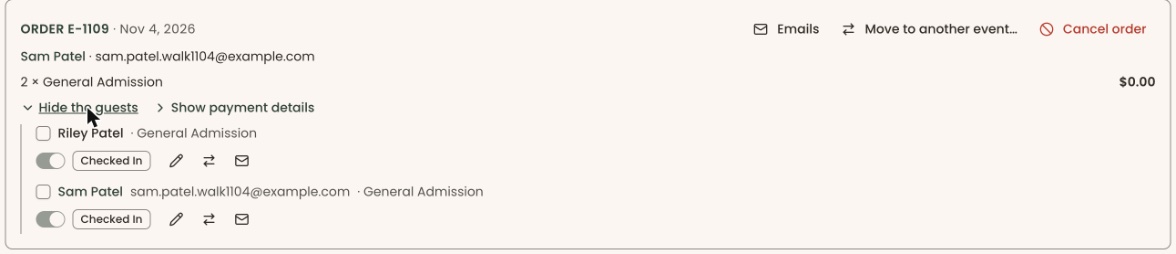
- Under their order, click "Show the guest" (or "Show the … guests").
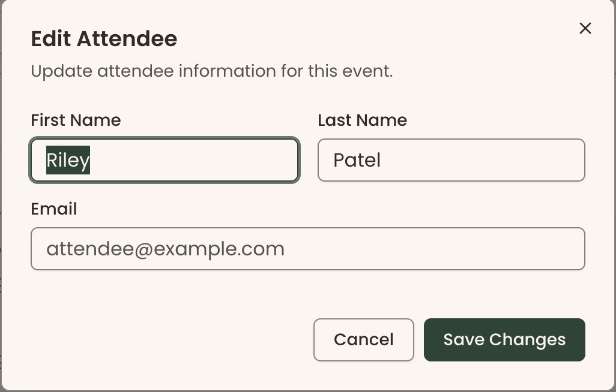
- Find the guest. On the line below their name, after "Checked In" or "Not checked in", click the pencil icon. A box called "Edit Attendee" opens.
- Change "First Name", "Last Name" or "Email".
- If your event asks each guest questions, they appear below. Change the answers you need.
Important: if your organization sends the "Event tickets" email, saving a changed name or email sends this guest a new ticket email.
- Click "Save Changes".
- You'll see "… updated", with the guest's first name, such as "Riley updated". That means it worked.
If it didn't work, you'll see "Failed to update attendee". Check the email address is typed correctly and click "Save Changes" again.
Whether a ticket email goes out depends on the "Event tickets" switch on the event's "Emails" tab. To send tickets again yourself, see Look up an order and resend tickets or a receipt.
Edit the order's answers
Some events ask questions once per order, of the buyer, rather than of each guest. "Edit answers" changes those.
Page: /dashboard/campaigns/<campaignId>?tab=attendees
- Open the event's "Orders" tab and find the order, as in steps 1 to 4 above.
- On the order card, in its row of buttons, click "Edit answers" (with a pencil). A box called "Edit answers" opens.
- Change the answers you need.
- Click "Save answers".
- You'll see "Answers saved". That means it worked.
If a required question is blank, the box says "Answer the required questions: …" and "Save answers" stays grayed out. Fill in the questions it names.
If it didn't work, you'll see "We couldn't save the answers. Try again." or the reason.
"Edit answers" appears only when the event asks questions once per order, and not on a canceled order.
Change a ticket type
Page: /dashboard/campaigns/<campaignId>?tab=attendees
- Open the event's "Orders" tab and find the order, as in steps 1 to 4 of "Edit a guest's name or email".
- Under the order, click "Show the guest" (or "Show the … guests").
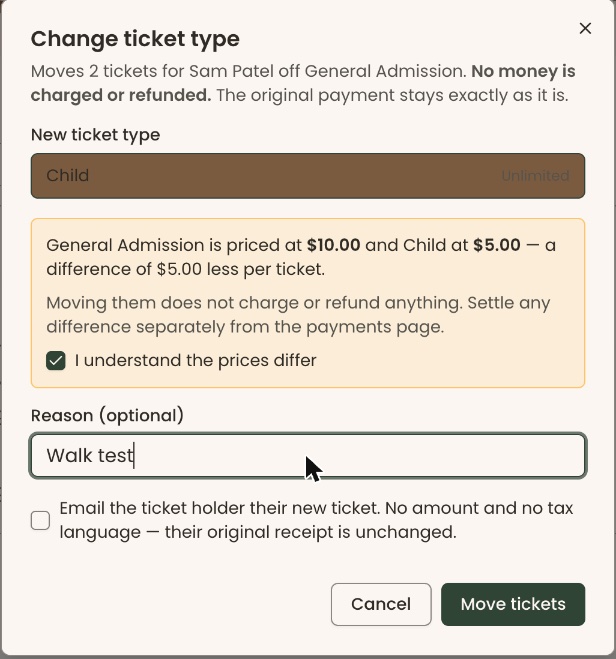
- Find a guest with the ticket type you want to change. On the line below their name, click the icon with two arrows pointing opposite ways, just right of the pencil. A box called "Change ticket type" opens.
- Read the first line. It says how many tickets will move, and off which ticket type. This is every ticket of that type on the order, not only this guest's.
- Under "New ticket type", click the ticket type to move them to. Each one shows how many are left, or "Unlimited".
- A grayed-out choice says why: "Not enough room — … left", or "Admits … per ticket — cannot mix" for a ticket that admits a different number of people.
- If the prices differ, a yellow note shows both prices. Check "I understand the prices differ".
- In "Reason (optional)", type why, if you like. For example, "Customer asked to move to Friday".
- To email the ticket holder their new ticket, check "Email the ticket holder their new ticket. No amount and no tax language — their original receipt is unchanged." It is unchecked to start.
Important: clicking "Move tickets" moves the tickets right away. No money is charged or refunded; settle any price difference separately from the payments page. If you checked "Email the ticket holder their new ticket", they are emailed at once.
- Click "Move tickets".
- You'll see "… tickets moved to …", with the new ticket type's name. That means it worked.
If it didn't work, you'll see "Failed to move registration" or the reason, such as no room left. Close the box and pick another ticket type.
If the box says "This event has no other active ticket types to move to.", add or turn on another ticket type first. See Create an event and add ticket types.
Special cases
- The two-arrows icon isn't shown on a guest who has no ticket type.
- Guests who are already checked in can't be moved. You'll see "… of these attendees have already checked in and cannot be moved".
- If the order already has tickets of the new type at a different price, the move is refused: "These … tickets were paid at a different per-ticket price from the … tickets already on this registration, so the two cannot be combined into one line." Cancel the order and register the guests again instead. See Cancel or refund an event order.
- A guest who is already checked in still shows the pencil and can be edited.
- Table seats aren't changed from "Edit Attendee". They are set in the event's seating screens.
Buttons to avoid
- On the guest's line, the envelope icon is "Tickets email". It opens that guest's tickets email, not the edit box.
- "Cancel order" (in red) on the order card cancels the whole order. To change a ticket, use the two-arrows icon instead.
If you make a mistake
- Wrong name or email: open "Edit Attendee" again and correct it.
- Moved to the wrong ticket type: follow "Change a ticket type" again and move them back.
- If you checked "Email the ticket holder their new ticket", the email has already gone. It can't be recalled.